Note
Access to this page requires authorization. You can try signing in or changing directories.
Access to this page requires authorization. You can try changing directories.
Note
This article contains references to the term slave, a term that Microsoft no longer uses. When the term is removed from the software, we'll remove it from this article.
This article describes how to set up Replicate data into Azure Database for MySQL - Flexible Server in Azure Database for MySQL Flexible Server by configuring the source and replica servers. This article assumes that you have some prior experience with MySQL servers and databases.
To create a replica in the Azure Database for MySQL Flexible Server instance, Replicate data into Azure Database for MySQL - Flexible Server synchronizes data from a source MySQL server on-premises, in virtual machines (VMs), or in cloud database services. You can configure data-in replication by using either binary log (binlog) file position-based replication or GTID-based replication. For more information about binlog replication, see MySQL Replication.
Review the limitations and requirements of Data-in replication before performing the steps in this article.
Create an Azure Database for MySQL Flexible Server instance to use as a replica
Create a new instance of Azure Database for MySQL Flexible Server (for example,
replica.mysql.database.azure.com). Refer to Quickstart: Create an instance of Azure Database for MySQL with the Azure portal for server creation. This server is the "replica" server for Data-in replication.Create the same user accounts and corresponding privileges.
User accounts don't replicate from the source server to the replica server. If you plan on providing users with access to the replica server, you need to manually create all accounts and corresponding privileges on this newly created Azure Database for MySQL Flexible Server instance.
Configure the source MySQL server
The following steps prepare and configure the MySQL server hosted on-premises, in a virtual machine, or database service hosted by other cloud providers for Data-in replication. This server is the "source" for Data-in replication.
Review the source server requirements before proceeding.
Networking requirements
Ensure that the source server allows both inbound and outbound traffic on port 3306, and that it has a public IP address, the DNS is publicly accessible, or that it has a fully qualified domain name (FQDN).
If you use private access (virtual network integration), make sure that you have connectivity between source server and the virtual network in which the replica server is hosted.
Make sure you provide site-to-site connectivity to your on-premises source servers by using either ExpressRoute or VPN. For more information about creating a virtual network, see the Virtual Network Documentation, and especially the quickstart articles with step-by-step details.
If you use private access (virtual network integration) in replica server and your source is Azure VM make sure that virtual network to virtual network connectivity is established. VNet-to-VNet peering is supported. You can also use other connectivity methods to communicate between VNets across different regions like VNet-to-VNet Connection. For more information you can, see VNet-to-VNet VPN gateway
Ensure that your virtual network Network Security Group rules don't block the outbound port 3306 (Also inbound if the MySQL is running on Azure VM). For more detail on virtual network NSG traffic filtering, see the article Filter network traffic with network security groups.
Allow the replica server IP address by configuring your source server's firewall rules.
Choose between bin-log position or GTID based data-in replication
Follow appropriate steps based on if you want to use bin-log position, or GTID based data-in replication.
Check to see if binary logging is enabled on the source by running the following command:
SHOW VARIABLES LIKE 'log_bin';
If the variable log_bin is returned with the value ON, binary logging is enabled on your server.
If log_bin is returned with the value OFF and your source server is running on-premises or on virtual machines where you can access the configuration file (my.cnf), follow the steps:
Locate your MySQL configuration file (my.cnf) in the source server. For example: /etc/my.cnf
Open the configuration file to edit it and locate
mysqldsection in the file.In the
mysqldsection, add following line:log-bin=mysql-bin.logRestart the MySQL service on source server (or Restart) for the changes to take effect.
After the server restarts, verify that binary logging is enabled by running the same query as before:
SHOW VARIABLES LIKE 'log_bin';
Configure the source server settings
Data-in replication requires the parameter lower_case_table_names to be consistent between the source and replica servers. This parameter is 1 by default in Azure Database for MySQL Flexible Server.
SET GLOBAL lower_case_table_names = 1;
Create a new replication role and set up permission
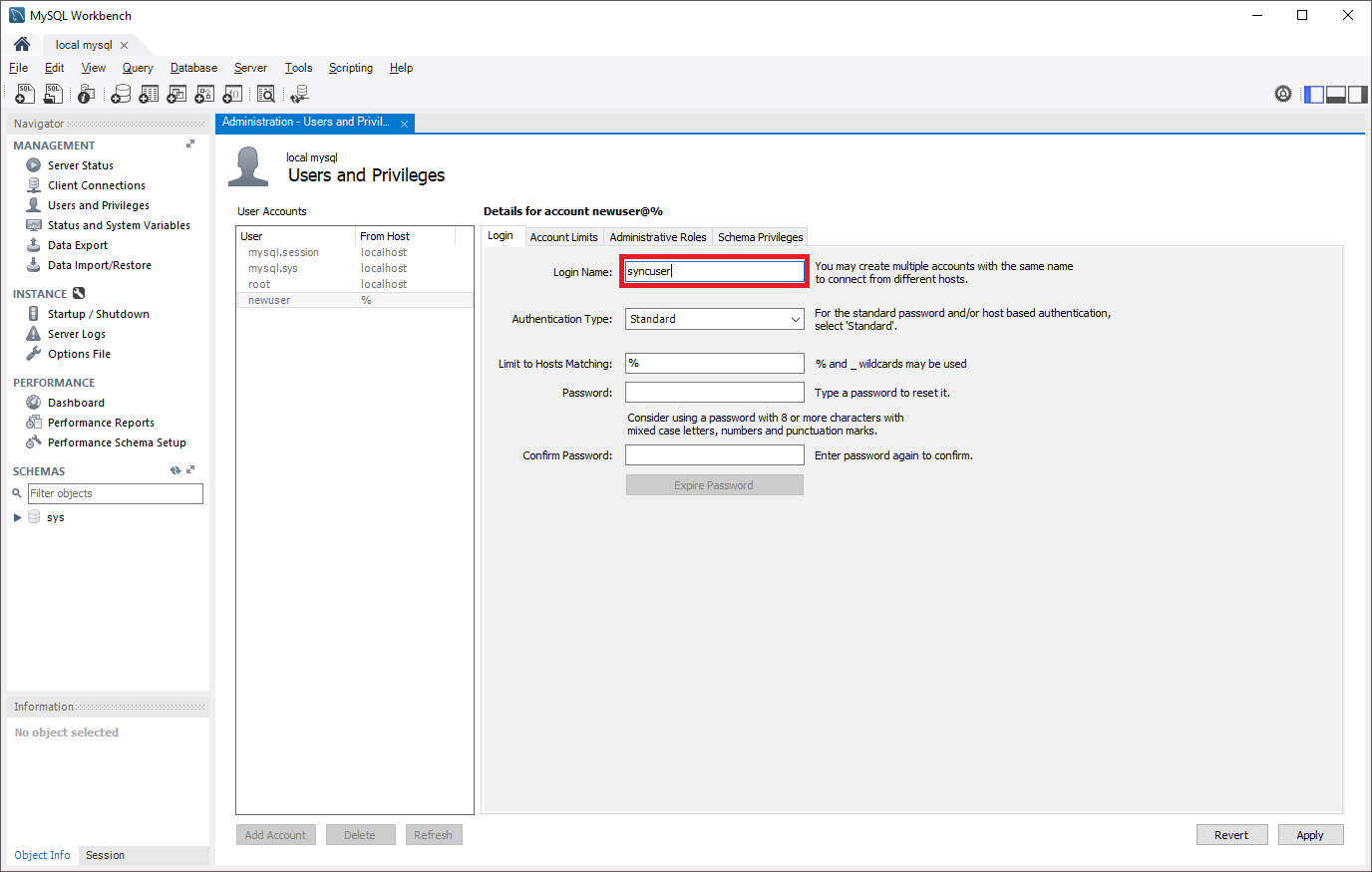
Create a user account on the source server that is configured with replication privileges. Consider whether you plan on replicating with TLS, as this setting needs to be specified during creation of the user. Refer to the MySQL documentation to understand how to add user accounts on your source server.
In the following commands, the new replication role created can access the source from any machine, not just the machine that hosts the source itself. Specify syncuser@'%' in the create user command. See the MySQL documentation to learn more about specifying account names.
To require SSL for all user connections, use the following command to create a user:
CREATE USER 'syncuser'@'%' IDENTIFIED BY 'yourpassword' REQUIRE SSL;
GRANT REPLICATION SLAVE ON *.* TO ' syncuser'@'%';


Set the source server to read-only mode
Before starting to dump the database, set the server to read-only mode. While in read-only mode, the source can't process any write transactions. Evaluate the impact to your business and schedule the read-only window in an off-peak time if necessary.
FLUSH TABLES WITH READ LOCK;
SET GLOBAL read_only = ON;
Get binary log file name and offset
Run the show master status command to determine the current binary log file name and offset.
show master status;
The results should look similar to the following example. Make sure to note the binary file name for use in later steps.

Dump and restore the source server
Determine which databases and tables you want to replicate into Azure Database for MySQL Flexible Server and perform the dump from the source server.
You can use
mysqldumpto dump databases from your primary server. For details, refer to Dump & Restore. It's unnecessary to dump the MySQLlibraryandtestdatabases.Set source server to read/write mode.
After dumping the database, change the source MySQL server back to read/write mode.
SET GLOBAL read_only = OFF;
UNLOCK TABLES;
Note
Before you set the server back to read/write mode, retrieve the GTID information by using the global variable
GTID_EXECUTED. You use this information at a later stage to set GTID on the replica server.Restore dump file to new server.
Restore the dump file to the server created in Azure Database for MySQL Flexible Server. For more information, see Dump & Restore. If the dump file is large, upload it to a virtual machine in Azure within the same region as your replica server. Restore it to the Azure Database for MySQL Flexible Server instance from the virtual machine.
Note
If you want to avoid setting the database to read only when you dump and restore, use mydumper/myloader.
Set GTID in replica server
Skip this step if you're using bin-log position-based replication.
To reset the GTID history of the target (replica) server, you need the GTID information from the dump file taken from the source server.
Use the GTID information from the source server to execute the GTID reset on the replica server by using the following CLI command:
az mysql flexible-server gtid reset --resource-group <resource group> --server-name <replica server name> --gtid-set <gtid set from the source server> --subscription <subscription id>
For more information, see GTID Reset.
Note
You can't perform GTID reset on a Geo-redundancy backup enabled server. To perform GTID reset on the server, disable Geo-redundancy. You can enable Geo-redundancy option again after GTID reset. GTID reset action invalidates all the available backups. Therefore, once Geo-redundancy is enabled again, it might take a day before geo-restore can be performed on the server.
Link source and replica servers to start Data-in replication
Set the source server.
All Data-in replication functions use stored procedures. You can find all procedures at Data-in replication Stored Procedures. Run the stored procedures in the MySQL shell or MySQL Workbench.
To link two servers and start replication, sign in to the target replica server in the Azure Database for MySQL service and set the external instance as the source server. Use the
mysql.az_replication_change_masterormysql.az_replication_change_master_with_gtidstored procedure on the Azure Database for MySQL server.CALL mysql.az_replication_change_master('<master_host>', '<master_user>', '<master_password>', <master_port>, '<master_log_file>', <master_log_pos>, '<master_ssl_ca>');CALL mysql.az_replication_change_master_with_gtid('<master_host>', '<master_user>', '<master_password>', <master_port>,'<master_ssl_ca>');master_host: hostname of the source servermaster_user: username for the source servermaster_password: password for the source servermaster_port: port number on which source server listens for connections. (3306 is the default port on which MySQL listens)master_log_file: binary log file name from runningshow master statusmaster_log_pos: binary log position from runningshow master statusmaster_ssl_ca: CA certificate's context. If you don't use SSL, pass in an empty string.
Pass this parameter in as a variable. For more information, see the following examples.
Note
- If the source server is hosted in an Azure VM, set Allow access to Azure services to ON to allow the source and replica servers to communicate with each other. You can change this setting from the Connection security options. For more information, see Manage firewall rules for Azure Database for MySQL - Flexible Server using the Azure portal.
- If you use mydumper and myloader to dump the database, you can get the
master_log_fileandmaster_log_posvalues from the backup/metadata file.
Examples
Replication with SSL
Create the variable
@certby running the following MySQL commands:SET @cert = '-----BEGIN CERTIFICATE----- PLACE YOUR PUBLIC KEY CERTIFICATE'`S CONTEXT HERE -----END CERTIFICATE-----'Replication with SSL is set up between a source server hosted in the domain "companya.com" and a replica server hosted in Azure Database for MySQL Flexible Server. The replica runs this stored procedure.
CALL mysql.az_replication_change_master('master.companya.com', 'syncuser', 'P@ssword!', 3306, 'mysql-bin.000002', 120, @cert);CALL mysql.az_replication_change_master_with_gtid('master.companya.com', 'syncuser', 'P@ssword!', 3306, @cert);Replication without SSL
Replication without SSL is set up between a source server hosted in the domain "companya.com" and a replica server hosted in Azure Database for MySQL Flexible Server. The replica runs this stored procedure.
CALL mysql.az_replication_change_master('master.companya.com', 'syncuser', 'P@ssword!', 3306, 'mysql-bin.000002', 120, '');CALL mysql.az_replication_change_master_with_gtid('master.companya.com', 'syncuser', 'P@ssword!', 3306, '');Start replication.
Start replication by calling the
mysql.az_replication_startstored procedure.CALL mysql.az_replication_start;Check replication status.
View the replication status by calling the
SHOW REPLICA STATUScommand on the replica server.SHOW REPLICA STATUS;To know the correct status of replication, refer to replication metrics - Replica IO Status and Replica SQL Status under monitoring page.
If the
Seconds_Behind_Masteris0, replication is working well.
Other useful stored procedures for Data-in replication operations
Stop replication
To stop replication between the source and replica server, use the following stored procedure:
CALL mysql.az_replication_stop;
Remove replication relationship
To remove the relationship between source and replica server, use the following stored procedure:
CALL mysql.az_replication_remove_master;
Skip replication error
To skip a replication error and allow replication to continue, use the following stored procedure:
CALL mysql.az_replication_skip_counter;
SHOW BINLOG EVENTS [IN 'log_name'] [FROM pos][LIMIT [offset,] row_count]
