Note
Access to this page requires authorization. You can try signing in or changing directories.
Access to this page requires authorization. You can try changing directories.
In this quickstart, you use Azure Marketplace and the Azure CLI to create a resource in Apache Kafka & Apache Flink on Confluent Cloud, an Azure Native Integrations service.
Prerequisites
- An Azure account. If you don't have an active Azure subscription, create a free account.
- The Owner or Contributor role for your Azure subscription. Only users who are assigned one of these roles can set up integration between Azure and Confluent. Before you get started, verify that you have the required access.
Find the offer
Use the Azure portal to find the Apache Kafka & Apache Flink on Confluent Cloud application:
Go to the Azure portal and sign in.
Search for and then select Marketplace.
On the Marketplace page, search for and then select the Apache Kafka & Apache Flink on Confluent Cloud - An Azure Native ISV Service offer.
Select the Apache Kafka & Apache Flink on Confluent Cloud tile.
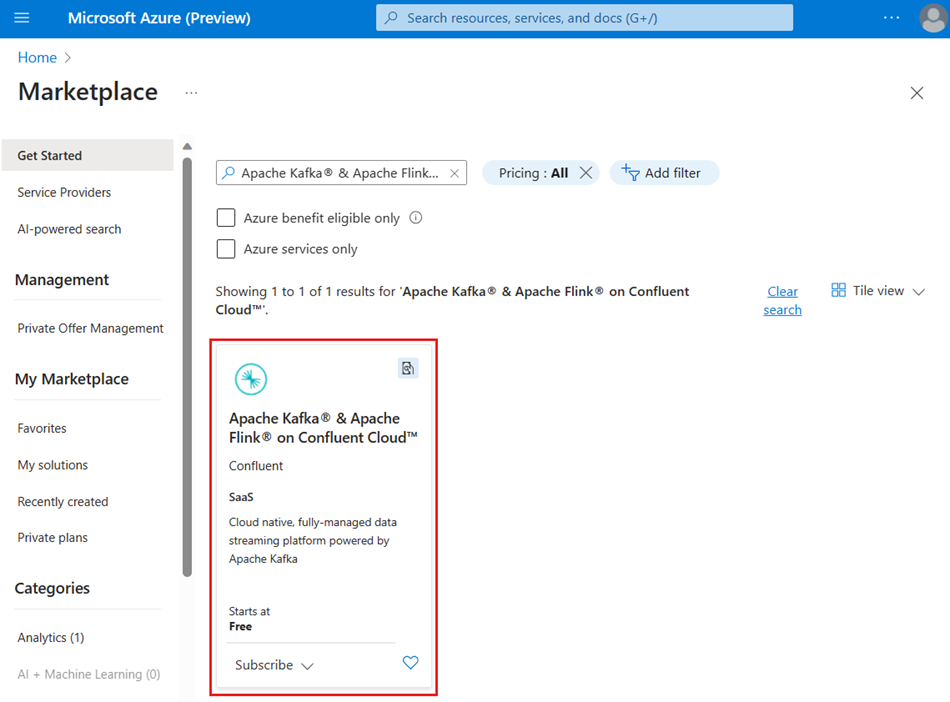
On the Apache Kafka & Apache Flink on Confluent Cloud - An Azure Native ISV Service page, select your subscription.
Under Plan, choose a billing plan. There are several billing options:
- Pay-as-you-go free trial.
- Commitment plans. You sign up for a minimum spend amount. Annual, monthly, multi-year, and one-time commitment plans are available. You can read about the plans on the Plans + Pricing tab.
Select Subscribe. The Create a Confluent organization page opens. Rather than using this form, you'll create the organization in the next section by using the Azure CLI.
Create a resource
Start by preparing your environment for the Azure CLI:
Use the Bash environment in Azure Cloud Shell. For more information, see Get started with Azure Cloud Shell.

If you prefer to run CLI reference commands locally, install the Azure CLI. If you're running on Windows or macOS, consider running Azure CLI in a Docker container. For more information, see How to run the Azure CLI in a Docker container.
If you're using a local installation, sign in to the Azure CLI by using the az login command. To finish the authentication process, follow the steps displayed in your terminal. For other sign-in options, see Authenticate to Azure using Azure CLI.
When you're prompted, install the Azure CLI extension on first use. For more information about extensions, see Use and manage extensions with the Azure CLI.
Run az version to find the version and dependent libraries that are installed. To upgrade to the latest version, run az upgrade.
After you sign in, use the az confluent organization create command to create the new organization resource:
az confluent organization create --name "myOrganization" --resource-group "myResourceGroup" \
 --location "my location" \
 --offer-detail id="string" plan-id="string" plan-name="string" publisher-id="string" term-unit="string" \
 --user-detail email-address="contoso@microsoft.com" first-name="string" last-name="string" \
 --tags Environment="Dev"
Note
If you want the command to return before the create operation finishes, add the optional parameter --no-wait. The operation continues to run until the Confluent organization is created.
To pause CLI execution until an organization's specific event or condition occurs, use the az confluent organization wait command.
For example, to wait until an organization is created, run:
az confluent organization wait --name "myOrganization" --resource-group "myResourceGroup" --created
To see a list of existing organizations, use the az confluent organization list command.
To view all organizations in your subscription, run:
az confluent organization list
To view all organizations in a resource group, run:
az confluent organization list --resource-group "myResourceGroup"
To see the properties of a specific organization, use the az confluent organization show command.
To view the organization by name, run:
az confluent organization show --name "myOrganization" --resource-group "myResourceGroup"
To view the organization by resource ID, run:
az confluent organization show --ids "/subscriptions/{SubID}/resourceGroups/{myResourceGroup}/providers/Microsoft.Confluent/organizations/{myOrganization}"
If an error message appears, see Troubleshoot Apache Kafka & Apache Flink on Confluent Cloud solutions.