Note
Access to this page requires authorization. You can try signing in or changing directories.
Access to this page requires authorization. You can try changing directories.
Data lake exploration in the Microsoft Defender portal provides a unified interface to analyze your data lake. It lets you run KQL (Kusto Query Language) queries, create jobs, and manage them.
The KQL queries page under Data lake exploration lets you edit and run KQL queries on data lake resources. Create jobs to promote data from the data lake to the analytics tier, or create aggregate tables in the data lake tier. Run jobs on demand or schedule them. The Jobs page lets you manage jobs; enable, disable, edit, or delete. For more information, see Create jobs in the Microsoft Sentinel data lake.
Prerequisites
The following prerequisites are needed to run KQL queries in the Microsoft Sentinel data lake.
Onboard to the data lake
You can run KQL queries in the Microsoft Defender portal after completing the onboarding process. For more information on onboarding, see Onboarding to Microsoft Sentinel data lake.
Permissions
Microsoft Entra ID roles let you access all workspaces in the data lake. Alternatively, you can grant access to individual workspaces using Azure RBAC roles. Users with Azure RBAC permissions for Microsoft Sentinel workspaces can run KQL queries against those workspaces in the data lake tier. For more information on roles and permissions, see Microsoft Sentinel data lake roles and permissions.
Write KQL queries
Writing queries for the data lake is similar to writing queries in the advanced hunting experience. You can use the same KQL syntax and functions. KQL supports advanced analytics and machine learning functions. The query editor offers an interface for running KQL queries with features like IntelliSense and autocomplete to help you write efficiently. For a detailed overview of KQL syntax and functions, see Kusto Query Language (KQL) overview.
KQL queries in the Defender portal
Select New query to create a new query tab. The portal saves the last query in each tab. Switch between tabs to work on multiple queries simultaneously.
The Query history tab shows a list of your previously run queries, query processing time, and completion state. You can open a previous query in a new tab by selecting it from the list. The portal saves the query history for 30 days. Select a query to edit or run it again.

Select workspaces
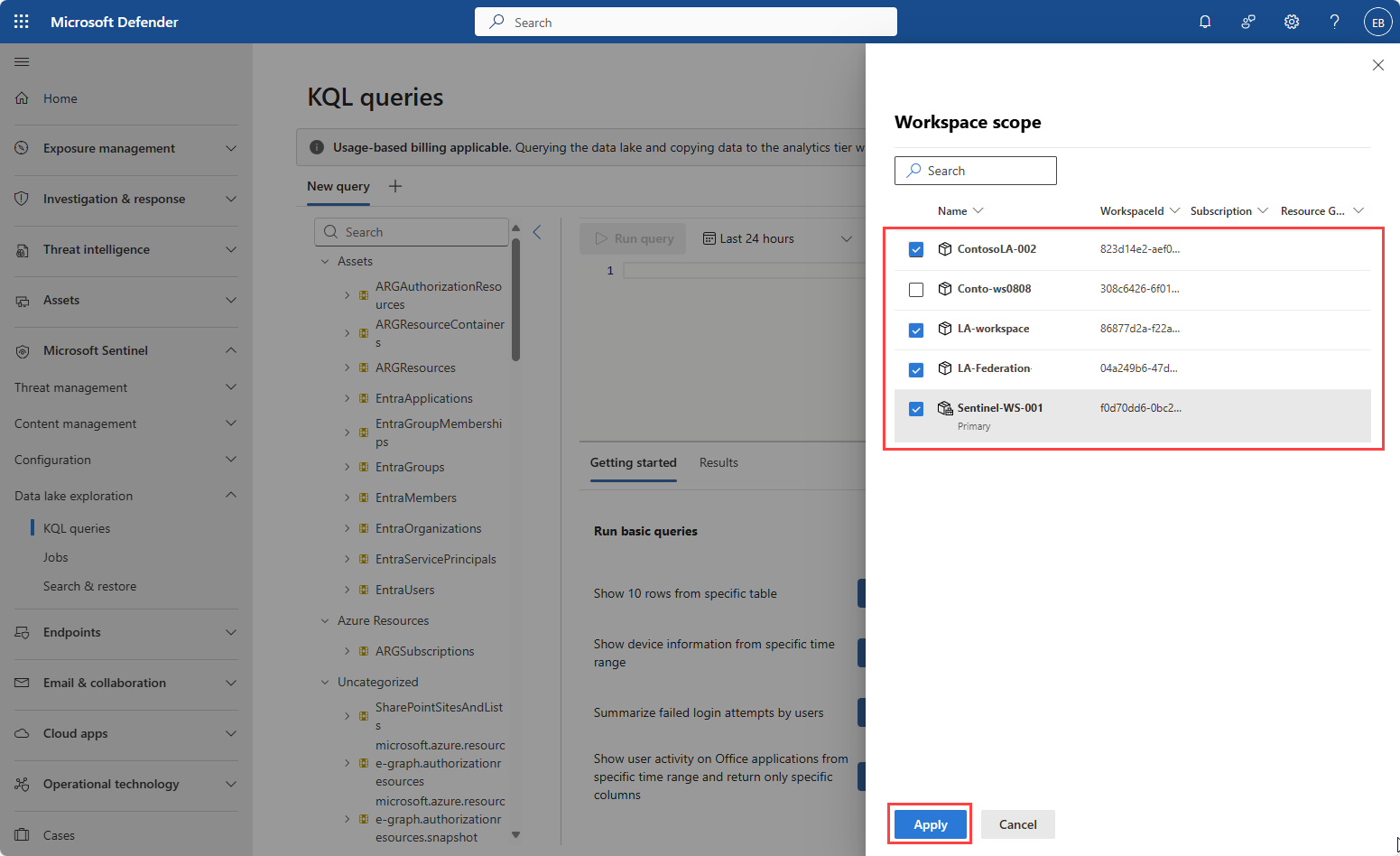
You can run queries against a single workspace or multiple workspaces. Select workspaces in the upper right corner of the query editor by using the Selected workspaces dropdown. The workspaces you select determine the tables available for querying. The selected workspaces apply to all query tabs in the query editor. When you use multiple workspaces, the union() operator is applied by default to tables with the same name and schema from different workspaces. Use the workspace() operator to query a table from a specific workspace, for example workspace("MyWorkspace").AuditLogs.
If you select a single, empty workspace or a workspace in the process of onboarding, the schema browser doesn't display any tables.
Time range selection
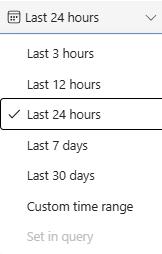
Use the time picker above the query editor to select the time range for your query. By using the Custom time range option, you can set a specific start and end time. Time ranges can be up to 12 years in duration.
You can also specify a time range in the KQL query syntax, for example:
where TimeGenerated between (datetime(2020-01-01) .. datetime(2020-12-31))where TimeGenerated between(ago(180d)..ago(90d))
Note
Queries are limited to 500,000 rows or 64 MB of data and timeout after 8 minutes. When selecting a broad time range, your query might exceed these limits. Consider using asynchronous queries for long-running queries. For more information, see Async queries.
View schema information
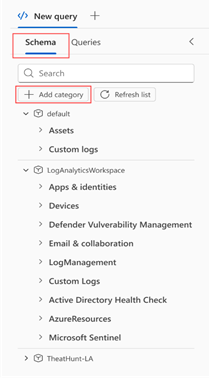
The schema browser provides a list of available tables and their columns for the selected workspaces, grouped by category. System tables appear in the Assets category. Custom tables with _CL, _KQL_CL, _SPARK, and _SPARK_CL are grouped in the Custom logs category. Use the schema browser to explore the data available in your data lake and discover tables and columns. Use the search box to quickly find specific tables.
Result window
The result window displays the results of your query. You can view the results in a table format, and you can export the results to a CSV file using the Export button in the upper left corner of the result window. Toggle the visibility of empty columns using the Show empty columns button. The Customize columns button allows you to select which columns to display in the result window.
You can search the results using the search box in the upper right corner of the result window.

Out-of-the-box queries
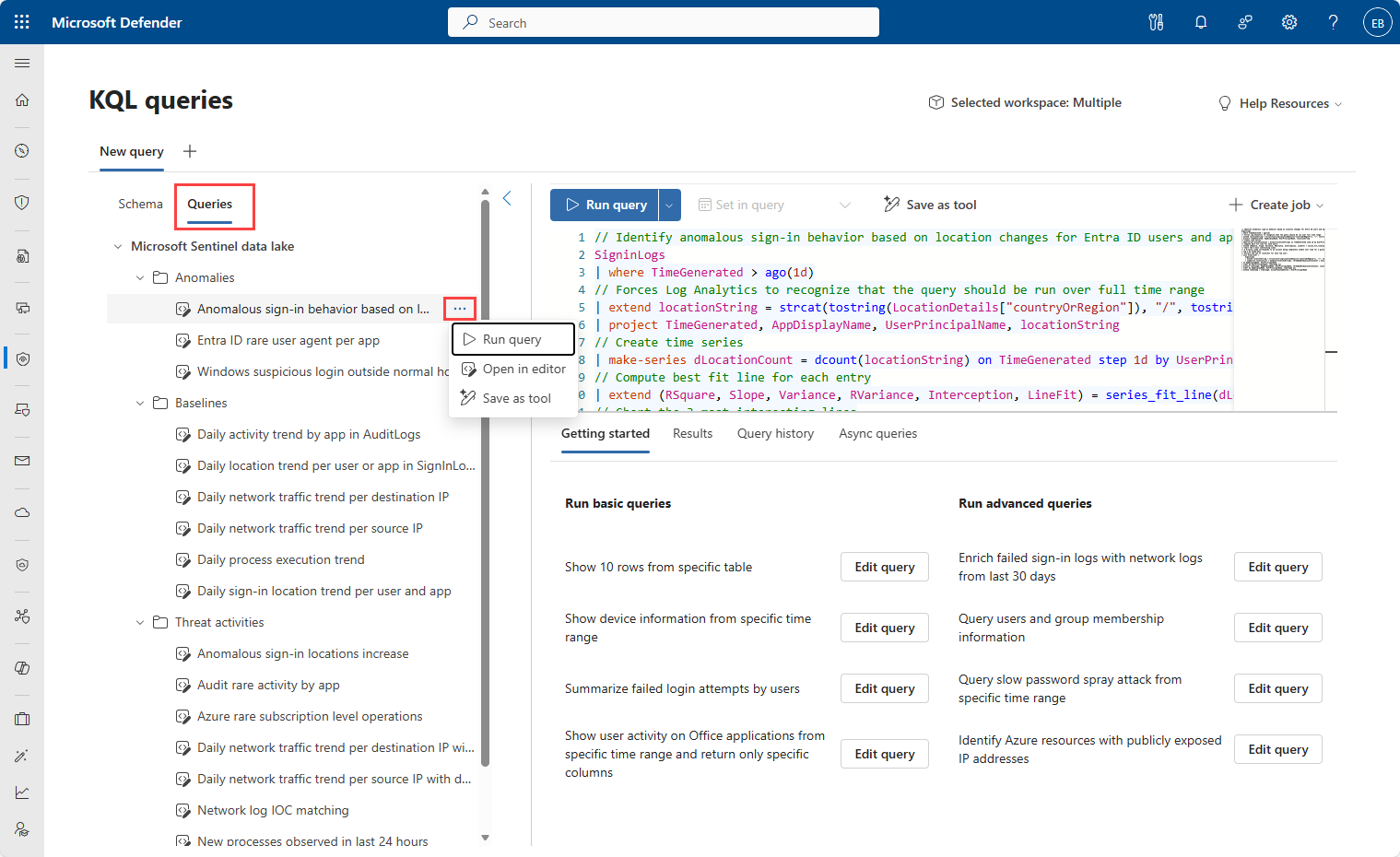
The Queries tab provides a collection of out-of-the-box KQL queries. These queries cover common scenarios and use cases, such as security incident investigation and threat hunting. You can use these queries as-is or modify them to suit your specific needs.
Select a query from the list using the ... icon. You can open it in a new query tab for editing or run it immediately.
For more information on sample queries, see Sample KQL queries for Microsoft Sentinel data lake.
Async queries
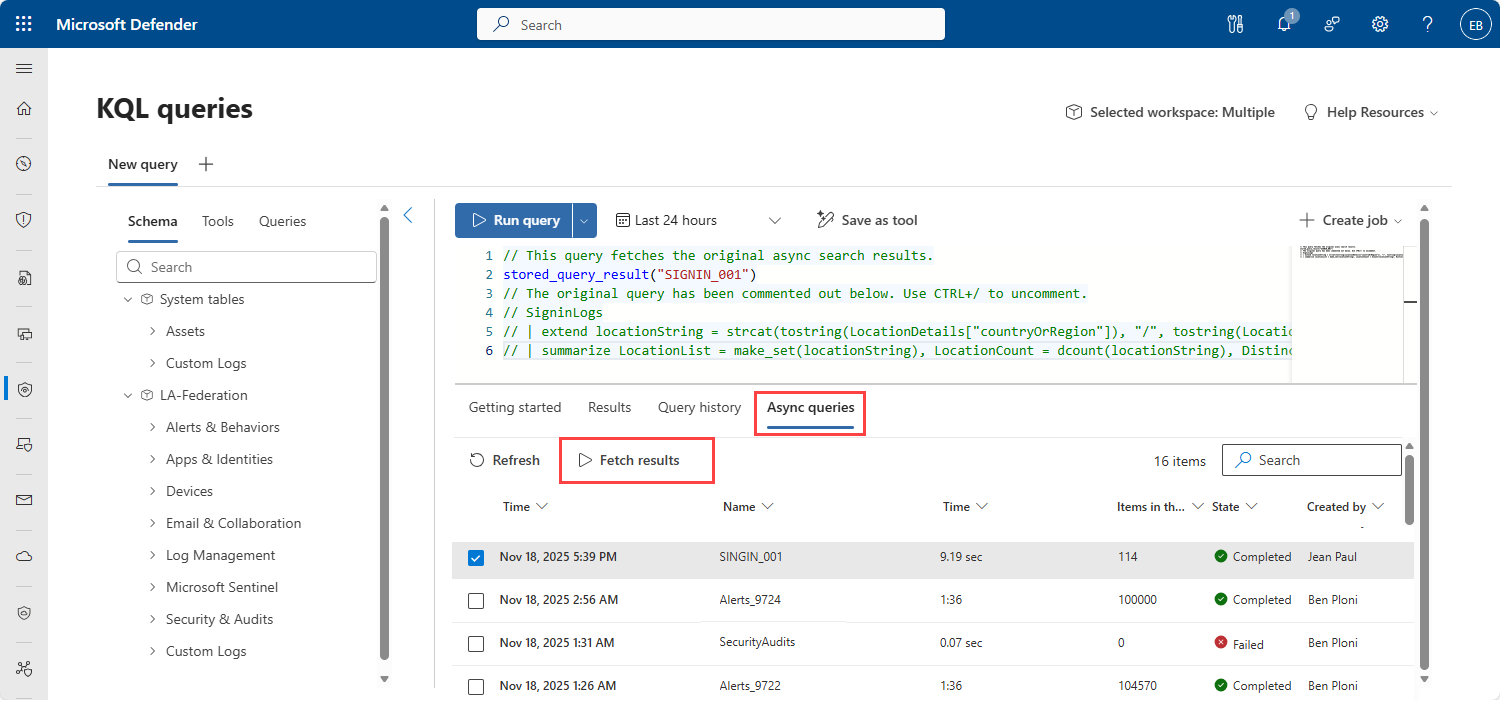
You can run long-running queries asynchronously, so you can keep working while the query runs on the server. To run a query asynchronously, select the down arrow on the Run query button, then select Run async query. Enter a query name to identify your async query. After submitting the query, you can monitor its status in the Async Queries tab. When the query completes, you can view the results by selecting the query name from the list.

If a synchronous query takes longer than 2 minutes to run, a prompt appears asking if you want to run the query asynchronously. Select Run async to change the query to run asynchronously.

Fetch async query results
To view the async query results, select the completed async query from the Async Queries tab and select Fetch results. The query is displayed in comments in the query editor and results are displayed in the Results tab.
Results are stored for 24 hours and can be accessed multiple times. You can export the results to a CSV file by using the Export button in the upper left corner of the result window.
Jobs
Jobs are used to run KQL queries against the data in the data lake tier and promote the results to the analytics tier. You can create one-time or scheduled jobs, and you can enable, disable, edit, or delete jobs from the Jobs page. To create a job based on your current query, select the Create job button. For more information on creating and managing jobs, see Create jobs in the Microsoft Sentinel data lake.
Azure Data Explorer
You can run KQL queries against the Microsoft Sentinel data lake using Azure Data Explorer (ADX). ADX provides a powerful query engine and advanced analytics capabilities. To connect to the data lake using ADX, create a new connection using the following URI: https://api.securityplatform.microsoft.com/lake/kql
When querying tables in the data lake using ADX, you must use the external_table() function to access the data. For example:
external_table("AADRiskyUsers")
| take 100
Query considerations and limitations
Queries are run against the workspaces you selected. Make sure you select the correct workspaces before running a query.
Executing KQL queries on the Microsoft Sentinel data lake incurs charges based on query billing meters. For more information, see Plan costs and understand Microsoft Sentinel pricing and billing.
Review data ingestion and table retention policy. Before setting query time range, be aware of data retention on your data lake tables and whether data is available for selected time range. For more information, see Manage data tiers and retention in Microsoft Defender portal.
KQL queries against the data lake are less performant than queries on analytics tier. Use KQL queries against the data lake only when exploring historical data or when tables are stored in data lake-only mode.
The following KQL control commands are currently supported:
.show version.show databases.show databases entities.show database
When you use the
stored_query_resultscommand, provide the time range in the KQL query. The time selector above the query editor doesn't work with this command.Using out-of-the-box or custom functions isn't supported in KQL queries against the data lake.
Calling external data via KQL query against the data lake isn't supported.
All KQL operators and functions are supported except for the following:
adx()arg()externaldata()ingestion_time()
Service parameters and limits for KQL queries in the lake tier
The following service parameters limitations apply when writing queries in Microsoft Sentinel data lake.
| Category | Parameter/limit |
|---|---|
| Concurrent interactive queries | 45 per minute |
| Query result data | 64 MB |
| Query result rows | 500,000 rows |
| Query Scope | Multiple workspaces |
| Query timeout | 8 minutes |
| Queryable time range | Up to 12 years, depending on data retention. |
For troubleshooting KQL queries, see Troubleshoot KQL queries in the Microsoft Sentinel data lake.