Note
Access to this page requires authorization. You can try signing in or changing directories.
Access to this page requires authorization. You can try changing directories.
This article shows you how to add Microsoft Sentinel's Model Context Protocol (MCP) collection of security tools or your own custom tools to your AI agents in Microsoft Security Copilot.
For information about how to get started with MCP tools, see the following articles:
Add a Microsoft Sentinel tool collection
Important
You need to build your own custom Security Copilot agent before you can add Sentinel's collection of MCP tools. For more information, see Build an agent from scratch using the lite experience.
To add a Microsoft Sentinel tool collection during custom agent building, follow these steps:
- Select Add tool to open the Tools catalog modal.
- In the Add a tool modal, search for and select the tools you want to add from Microsoft Sentinel's collection of MCP tools. For example, search for "data exploration" to find the data exploration tool.
- Select Add selected to add the tools to your agent.
Your agent is now connected with Sentinel's available collection of tools. You can start prompting your agent and use the tools to deliver outcomes.
Add a custom tool collection
Custom MCP tools let you build deterministic workflows by prescribing exactly what data agents can reason over. To add your custom tool collection in Security Copilot, follow these steps:
Step 1: Create a YAML file for your tool collection
Use the following YAML file template to create and save your plugin. Specify which tools from your custom tool collection you want to add.
Descriptor:
  Name: <Name of the collection>
  DisplayName: <Friendly name for the collection>
  Description: <Friendly description for the collection>
  DescriptionForModel: <Detailed description of the collection to help with AI selection>
SkillGroups:
- Format: MCP
  Settings:
    Endpoint: <Enter custom tool URL>
    TokenScope: 4500ebfb-89b6-4b14-a480-7f749797bfcd/.default
    UseStreamableHttp: true
    UsePluginAuth: false
    AllowedTools: <Comma-separated list of tool names to add>
    TimeoutInSeconds: 300
For more information about all the parameters you can add and configure in your YAML file, see Model Context Protocol (MCP) plugins in Microsoft Security Copilot.
Step 2: Add the YAML file as a custom plugin
Go to the Security Copilot portal and select the Sources icon in the prompt bar.

In the Manage sources pop-up window that appears, under Plugins, scroll down to the Custom section and select Add plugin.

From the drop-down options, specify if you want to make the plugin available to just yourself or anyone in the organization.
Select Security Copilot plugin, choose the YAML file you created previously, then select Add.
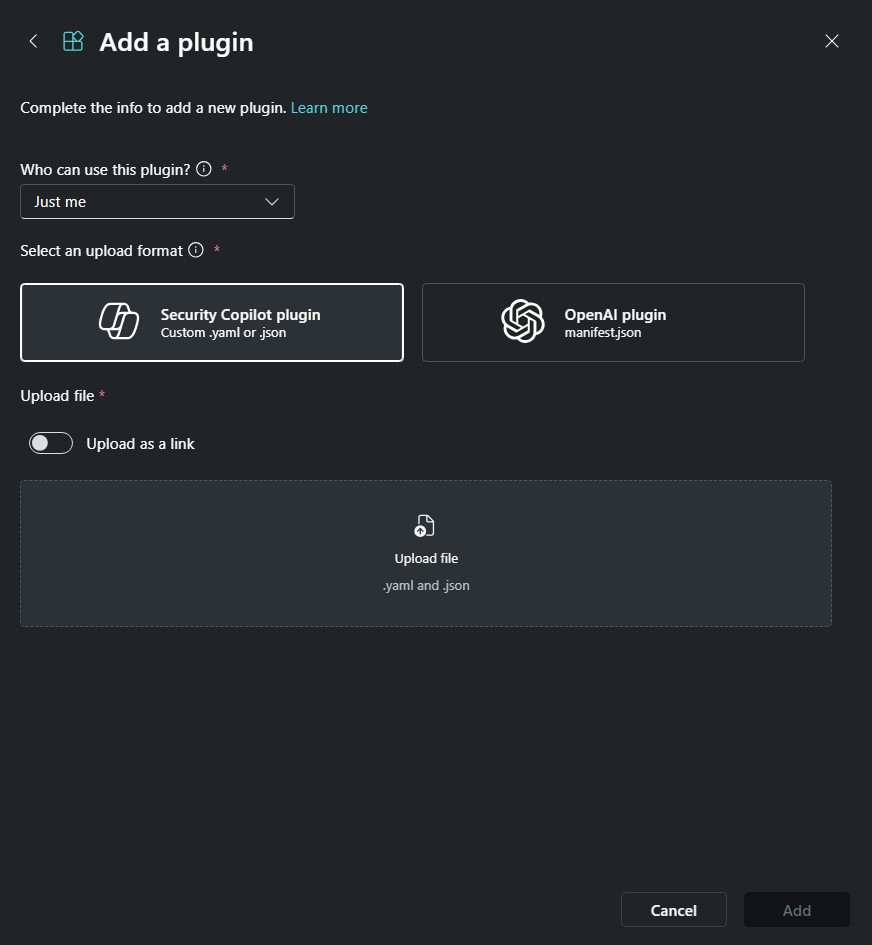
Finish the setup. Once your plugin is visible in the Custom section, you can turn the toggle on or off.


Step 3: Build an agent using the saved plugin
In the Security Copilot portal, go to Build and select Start from Scratch or open an existing custom agent.
In your agent skill, select Add a tool and find the custom plugin you saved previously.


Add the plugin to your agent.

