Note
Access to this page requires authorization. You can try signing in or changing directories.
Access to this page requires authorization. You can try changing directories.
A Resource Health alert is a proactive notification that tells you when the health status of an individual Azure resource changes.
Unlike Service Health alerts that cover platform-wide issues, Resource Health alerts are resource-specific and can detect problems even if there’s no broader Azure outage.
Resource Health alerts notify you when your Azure resources experience a change in health status, such as becoming unavailable or degraded. These alerts help you stay informed and respond quickly to service issues affecting your workloads.
You can create Resource Health alerts to get the following information:
- Immediate Action: Respond to outages before they affect customers.
- Compliance: So you can track Service Level Agreement (SLA) violations and recovery times.
- Operational Insight: To understand whether the issues originate from the platform or from users.
- Automation: To trigger workflows via Action Groups (for example, autoscale, failover).
This article shows you how to create and configure Azure Resource Health alerts from the Service Health portal.
Prerequisites
To create or edit an alert rule, you must have the following permissions:
- Read permission on the target resource of the alert rule.
- Write permission on the resource group in which the alert rule is created.
- Read permission on any action group associated to the alert rule, if applicable.
For more information about Roles and access permissions, read Roles, permissions and security in Azure Monitor.
Create a Resource Health alert rule
- In the Service Health portal, select Resource Health.

- Select Add resource health alert to open the Create an alert rule window.
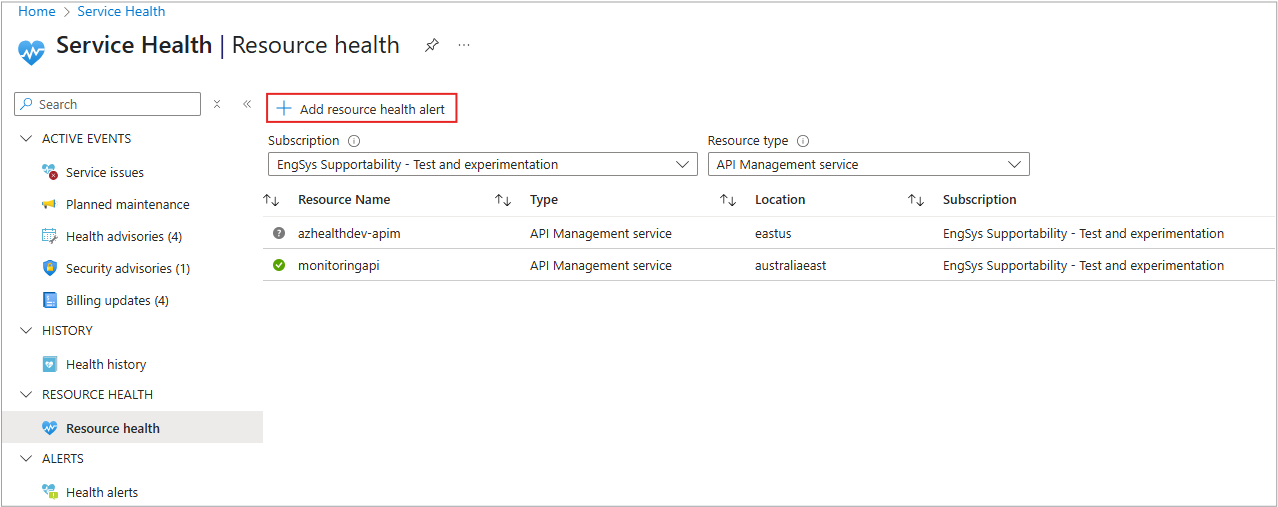
To set up your alert, use the six tabs in this window: Scope, Condition, Actions, Details, Tags, and Review + create.
Tip
- Select the Next: ... button at the bottom of each tab, or select the name at the top of the wizard to open the next tab.
- All fields with an asterisk * next to the name are required fields.
Scope
Scope defines which resources your alert monitors. In this tab, you select the subscription, resource group, or individual resources that matter most to your business. This information is needed because Resource health alerts only trigger for the resources you include in the scope.
By choosing the right scope, you ensure alerts are relevant and actionable, helping you respond quickly to issues that could affect your critical workloads without unnecessary noise.
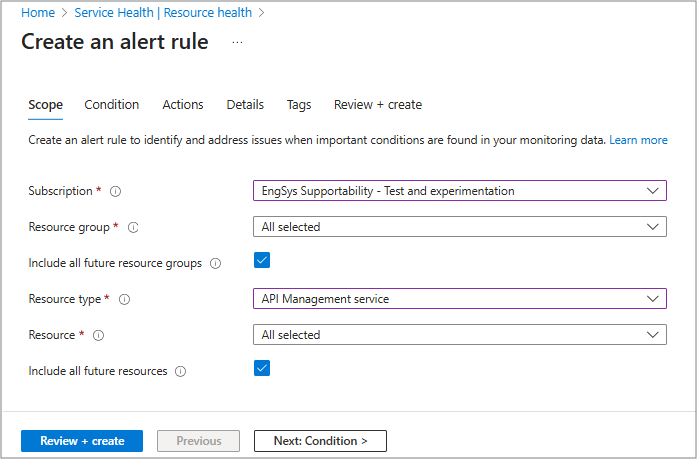
On this panel you can select any or all of the following from the drop-down menus:
- Subscription
- Resource Group
- Resource type
- Resource
You can also select either or both boxes to include all future resource groups and future resources.
Condition
Use this tab to choose what you need to trigger your alert. You can set it to watch for changes in resource health status (like Unavailable or Degraded), event status (Active or Resolved), or even specific reason types (platform vs. user actions).
Pick the conditions that matter most so you only get alerts when action is needed.
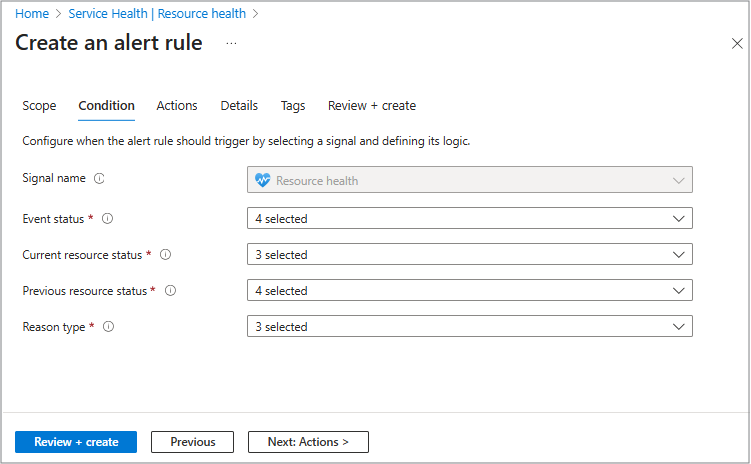
The Signal name field is automatically populated and shows the type of event that triggers your alert. For Resource Health alerts, it's usually Resource Health. It tells Azure what signal to monitor so your alert fires when the resource’s health status changes. This tab is where you select from the health-related conditions you want for alerts such as:
- Event status: is it active or resolved or ongoing?
- Resource status: how is the resource now?
- Previous vs current status: you can create an alert based on the status transition – is it in progress or being resolved?
- The reason type: is the event platform or user initiated?
To set up your alert for the following information, select from each of the following drop-down menu options.
Event status
- Active – The health event is ongoing.
- Resolved – The event ended.
- In Progress – Azure is working on mitigation.
- Updated - The event associated with a resource changes state or receives new information.
Tip
- Use Active to get notified immediately when an issue starts.
- Use Resolved for post-incident reviews
- If status is Updated you should review the latest details to confirm if the issue can still affect your resource or if corrective action is needed.
Current resource status
You can select All or:
- Available - Healthy
- Degraded - Performance issues
- Unavailable - Down
Previous resource status
You can select All or:
- Available - Healthy
- Degraded - Performance issues
- Unavailable - Down
- Unknown - health information is missing
Note
You can set alerts based on status transitions for example:
Previous = Unavailable and Current = Available.
This would show the resource is recovered and it's helpful for tracking recovery or SLA compliance.
Reason type
- Platform Initiated – Azure maintenance or incident.
- User Initiated – Manual stop/deallocate. (This setting helps distinguish between Azure issues and user actions.)
- Unknown
Actions
On this tab, you decide how you're notified. Action Groups let you send alerts by email, Short Message Service (SMS), push notifications, or even trigger automation through webhooks, Logic Apps, or Functions.
Use multiple channels to make sure all the right people respond quickly.

Based on your subscription, there's a list of all available action groups you can choose.
- Select Select action groups.
- You can pick up to five groups.
- Select the Select button at the bottom to finish.
Each action group contains actions that are defined for that group as in emails or roles.
Tip
To set up your own action groups, select Create action groups and follow the prompts.
For more information about Action groups, see Action Groups.
Details
The Details tab is where you name and describe your alert. This information is needed so you can easily identify the alert later and understand its purpose immediately.
A clear name and description help you manage multiple alerts, avoid confusion, and ensure the right alert is triggered for the right scenario.
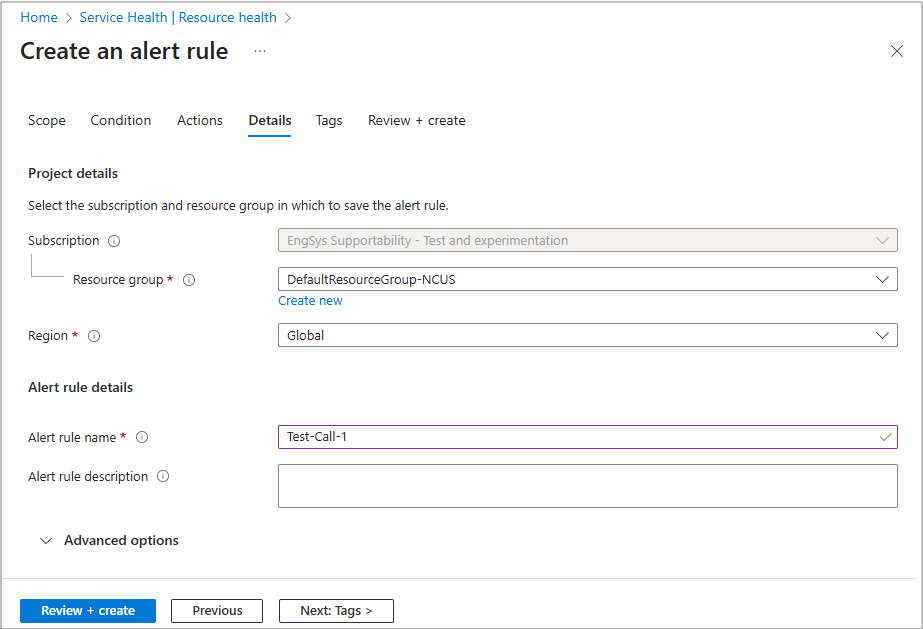
On this tab, you can give your alert a clear name and description so it’s easy to recognize later. Use names that explain the purpose, like Critical VM or Health Alert.
Choose how to set up your details with the following fields.
Project details
- Resource group
- Region
Alert rule details
- Alert rule name
- Alert rule description
Advanced options
Select this tool to add your own custom properties to the alert rule.
Tags
Tags help you organize and filter your alerts easily.
For example, adding tags like Environment: Production or Team: Operations make it simple to find and manage alerts later, especially when you have many rules.

Select from the Name drop-down menu, and then choose the value from the Value drop-down menu.
For more information about using tags, see Use tags to organize your resources.
Review + Create
This tab is your final check before activating the alert.
Review all the settings from Scope, Condition, Actions, Tags, and Details to make sure they’re correct.
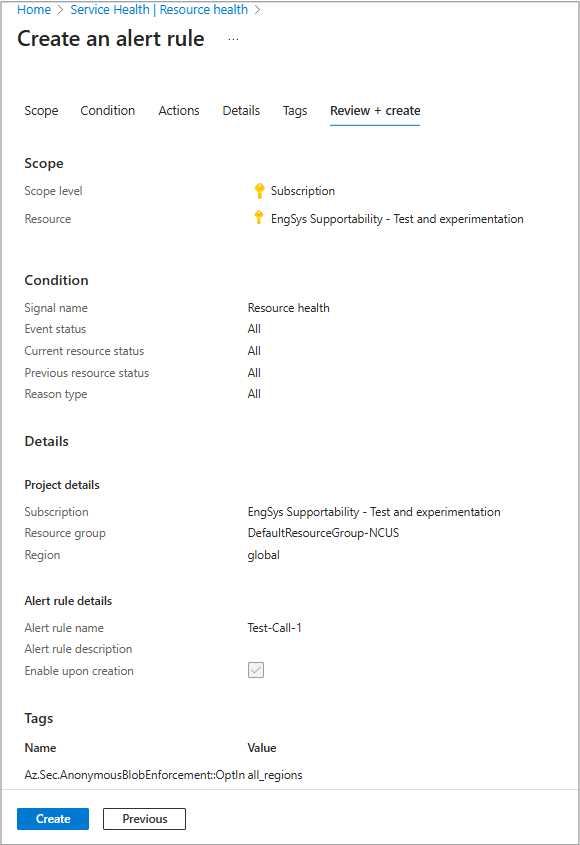
When everything looks good, select Create to start monitoring your resources.
For more information
Learn more about Resource Health:
- Azure Resource Health overview
- Resource types and health checks available through Azure Resource Health
- Resource Health Frequently asked Questions
Create Service Health Alerts: