Note
Access to this page requires authorization. You can try signing in or changing directories.
Access to this page requires authorization. You can try changing directories.
The Planned Maintenance pane in Azure Service Health is a dedicated section in the Azure portal that keeps you informed about upcoming maintenance activities. It highlights events that can affect your Azure resources, helping you prepare in advance.
Here's a breakdown of its purpose and the information it provides:
This pane is designed to provide you with advance notice of scheduled maintenance events that can affect your services. The information enables you to:
- Prepare for possible service disruptions
- Coordinate internal change management processes
- Use self-service update windows when available
Unlike unplanned outages, planned maintenance is scheduled and communicated ahead of time to help minimize the effect.
Get started with Planned maintenance
When you open the Planned maintenance pane, you see a list of maintenance events relevant to your subscriptions.
On the main panel you can sort the displayed list of Planned maintenance events by Scope, Subscription, Region, Service, and Event tags.
There are options to:
- Create a service health alert
- Download the events as a CSV file
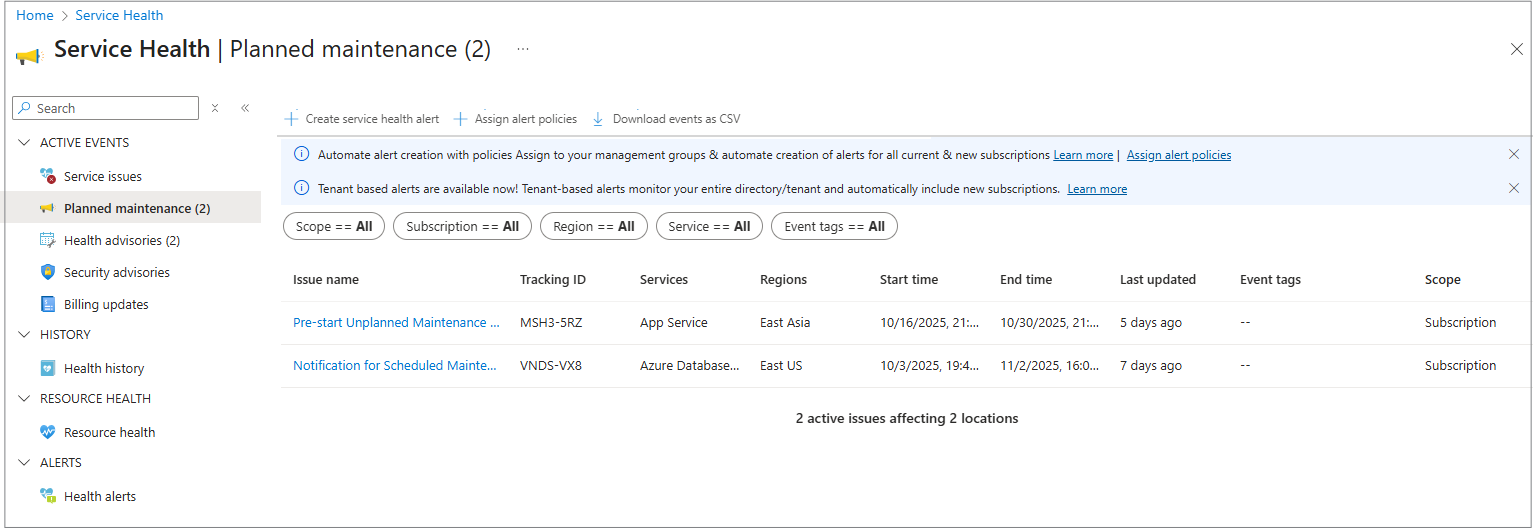
Each event includes the following information:
- Issue Name
- Tracking ID
- Services
- Regions
- Start time
- End time
- Last updated
- Event tags
Select the Issue name link to open the tabs with the information you need.
Note
Planned maintenance events are displayed in the panel for 90 days if they are still active and if the impactMitigationTime/endtime is set in the future. After that they are moved to the health history panel where they are displayed for 90 days.
For more information about Planned maintenance events using ARG queries, see:
- Resource graph sample queries
- Service Health graph sample queries
- Impacted resources graph sample queries
These resources provide guidance on how to utilize the available queries.
Filtering and sorting
At the top of each tab, there's a command bar with several options of how to view the information displayed.
- Download as a PDF: Select to download and open a PDF with the information about this event.
- Track issue on mobile: Select to open and point your mobile phone camera at the QR code.
- Create a support request: See How to create an Azure support request.
- Create a service health alert: See Create Service Health alerts in the Azure portal.

Summary tab
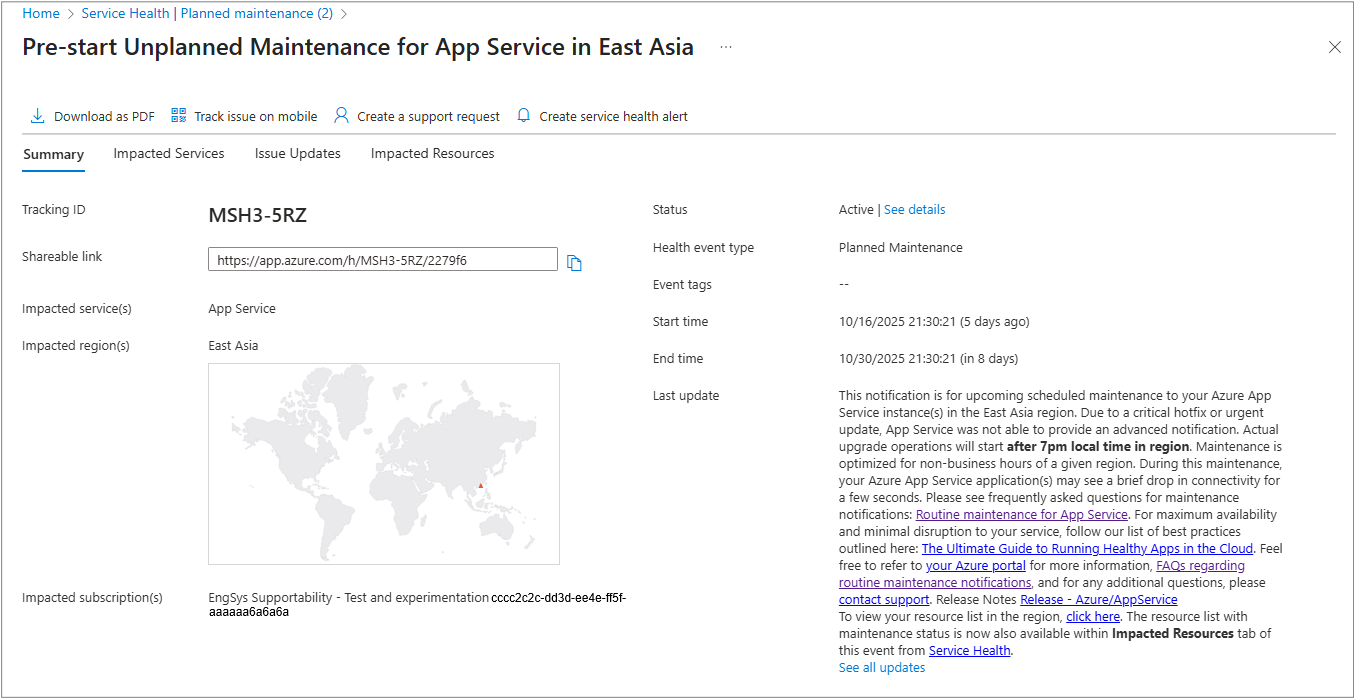
When you open the Planned maintenance event, it opens the Summary tab, which shows you a list of information about this event, which includes:
| Field | Description |
|---|---|
| Tracking ID | The tracking ID of the event. |
| Shareable link | Copy this link to share the information. |
| Impacted services | A list of any services impacted by this event. |
| Impacted regions | A list of all the regions impacted by this event and shown on the calendar. |
| Impacted subscriptions | A list of any subscriptions impacted by this event. |
| Status | The current status of this event. |
| Health event type | The type of health event (Planned maintence/Security advisory). |
| Event tags | The information that explains or names the nature and status of this event. |
| Start time | The time the event started. All times displayed are in Coordinated Universal Time (UTC). |
| End time | The time the event ended. All times displayed are in Coordinated Universal Time (UTC). |
| Last update | The most current notification information about this event. |
Impacted Services tab
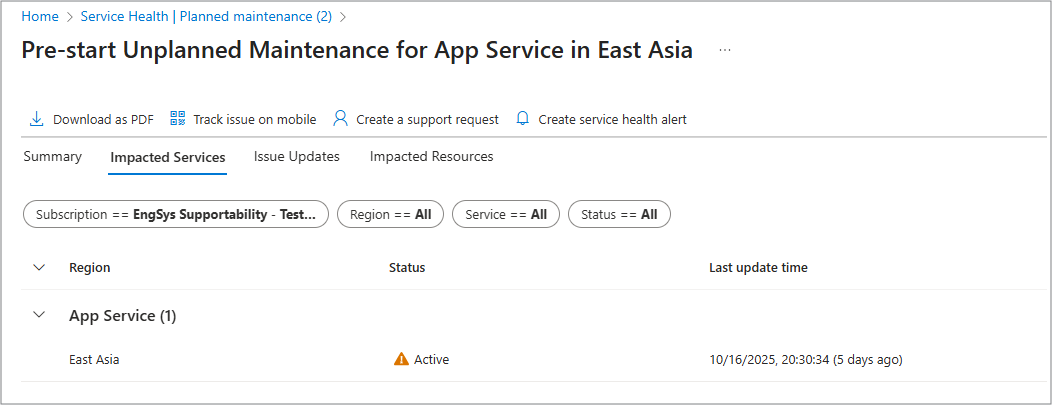
The Impacted Services tab displays information about any of your services that are affected.
- Region
- Status
- Last update time
Issue Updates tab
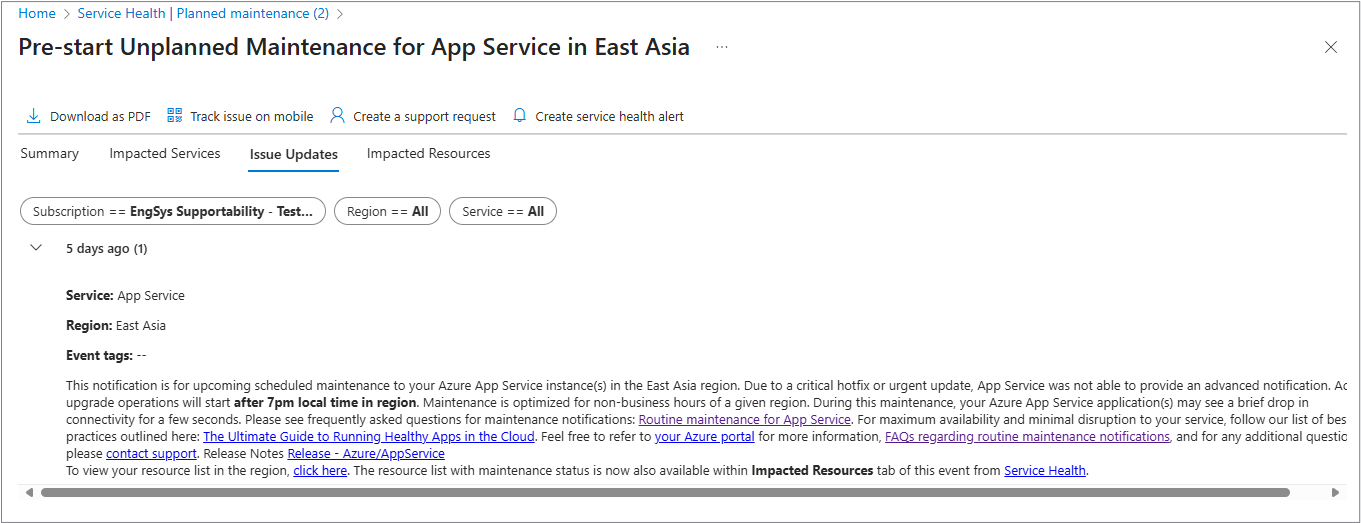
The Issues Updates tab displays all information notifications by the date they were entered.
Tip
Duplicate communications on this tab are removed if they're entered into the tab a short time apart.
Impacted Resources tab
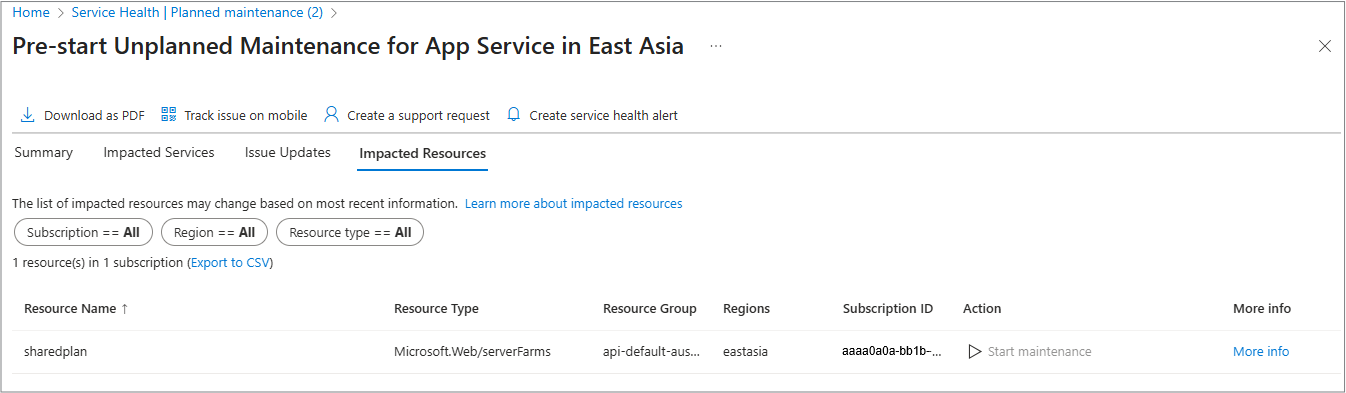
The tab for Impacted Resources displays the following information about any of your resources that are affected.
- Resource Name - The name of the impacted resource.
- Resource Type - Type of Azure service (for example, Virtual Machine, App Service).
- Resource Group - The resource group containing the impacted resource.
- Regions - The Azure region where the resource is located.
- Subscription ID - The subscription that owns the resource.
- Action - A link to apply the update during a self-service window (for reboot-required updates).
For more information about Impacted resources, see Impacted Resources from Planned maintenance events.
Planned Maintenance FAQ
The Planned Maintenance pane in Azure Service Health is a dedicated section within the Azure portal that provides visibility into upcoming maintenance activities that could affect your Azure resources. Here's how it happens and what best practices you should consider:
- What are the types of maintenance windows?
- Self-Service Maintenance window: Updates can be manually initiated within approximately 35 days.
- Scheduled Maintenance window: If not initiated, Azure Service Health automatically applies updates.
- Zero-Downtime Maintenance: Azure limits disruption with live migration and cold starts.
- How can I prepare for maintenance?
- Monitor the Planned Maintenance pane regularly.
- Use the Resources tab to identify the affected services.
- What metadata is available for maintenance events?
These key fields help you assess the scope, timing, and severity of the events.- impactType
- impactMitigationTime
- eventSource
- trackingId
- status
- Can I automate maintenance tracking?
Yes, you can use:- Azure Policy to deploy Service health alerts across all subscriptions.
- Azure Resource Graph (ARG): use the queries to filter and analyze maintenance events.
- How long is the maintenance history available?
- Active view: up to 90 days
- Health history: 90 days from most recent published date
For more information on event retention, see Service Health notification transitions.