Note
Access to this page requires authorization. You can try signing in or changing directories.
Access to this page requires authorization. You can try changing directories.
The following steps show how to start using affiliate applications and Single Sign-On (SSO).
Note
If you receive SSO errors, verify that you used a domain account when you were configuring BizTalk Server, as this affects the function of the Enterprise SSO service. SSO only functions under a domain account.
Create an affiliate application
In Control Panel, open Services, and verify that the Enterprise Single Sign-On service is running.
In a command prompt, change directories to the Enterprise Single Sign-On folder.
For example:
C:\Program Files\Common Files\Enterprise Single Sign-On>
Use the Enterprise Single Sign-On commands. For a list of commands, use the -help switch.
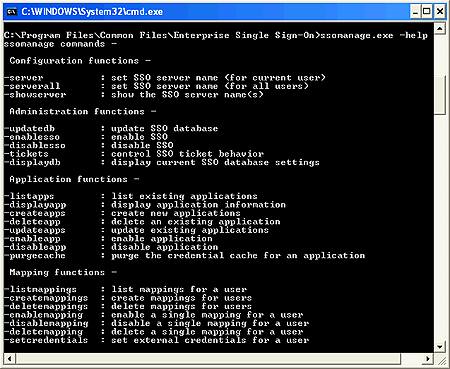
To create the affiliate application by using *.XML as a start, type the following command:
ssomanage.exe -createapps C:\SSOtest\AffiliateApplication.xmlwhere:
C:\SSOtest is the folder that contains your application XML.
AffiliateApplication.xml is the application XML you created that contains the sign-on information.
For example:
<?xml version="1.0"?>
<SSO>
     <application name="PeopleSoftApp">
          <description>PeopleSoft SSO Application</description>
          <contact>someone@microsoft.com</contact>
         <appUserAccount>DomainName\AppUserGroup</appUserAccount>
          <!—-an existing group on the domain controller - >
          <appAdminAccount>DomainName\AppAdminGroup<appAdminAccount>
          <!-- an existing account in the domain group - >
          <field ordinal="0" label="User ID" masked="no" />
          <field ordinal="1" label="Password" masked="yes" />
          <flags groupApp="no" allowTickets="yes" enableApp="yes"/>
     </application>
</SSO>
Create Single Sign-On Tickets
Type the following command to control SSO ticket behavior:
ssomanage.exe -tickets yes yesAnswer the questions:
ssomanage -tickets <allowed yes | no> <validate yes | no>On completion, you receive a confirmation:
Using SSO server on this computer. The operation completed successfully.
Enable the Affiliate Application XML
Type the following command:
ssomanage -enableapp PeopleSoftAppType the following command to list the applications and to verify that the application was created:
ssoclient.exe –listappsThe affiliate applications that are available for use appear in a list.
Applications available for IBI\YourID - PeopleSoftApp
Type the following command to set the affiliate application credentials:
ssoclient.exe -setcredentials PeopleSoftAppEnter the user name and password at the prompts. Enter the logon credentials for the PeopleSoftApp affiliate application.
For example, enter the user identification and the password for that user to enter into the system through the SSO server.
User ID:
userPassword:
******Confirm? Password:
******
The affiliate application appears in the BizTalk Adapter for PeopleSoft Enterprise Transport Properties dialog box.