Note
Access to this page requires authorization. You can try signing in or changing directories.
Access to this page requires authorization. You can try changing directories.
We release an update every month for on-premises data gateways. Each of these updates includes new features along with the latest Mashup Engine.
Note
Currently, Microsoft actively supports only the last six releases of the on-premises data gateway. We release a new update for data gateways every month.
We recommend that you update gateway members one after the other in a timely manner. This process reduces sporadic failures as a query might succeed on one gateway member, but not on the other, based on disparity in capabilities across different versions.
Use the following steps when updating a gateway cluster with two or more members:
- Disable one gateway member.
- Wait for ongoing work to be completed. A waiting period of 30 minutes is sufficient for most workloads. However, clusters frequently running critical long-running jobs might require more time for requests to drain.
- Update the gateway member.
- Enable the updated gateway member.
- Repeat step 1-4 until all gateway members are updated.
Disabling a gateway makes sure the load balancer doesn't try to execute queries on the member you're updating, hence reducing delays and failures.
Note
Gateway admin permission is needed for gateway update.
Update a gateway
To update a gateway:
Download the latest standard mode gateway or personal mode gateway and run the installation program. If the version you're trying to install isn't newer than the version already installed, you receive one of the following error messages. To review recent updates, refer to the Currently supported monthly updates.


If you install a newer version, you're prompted to update. Select Update to begin updating.
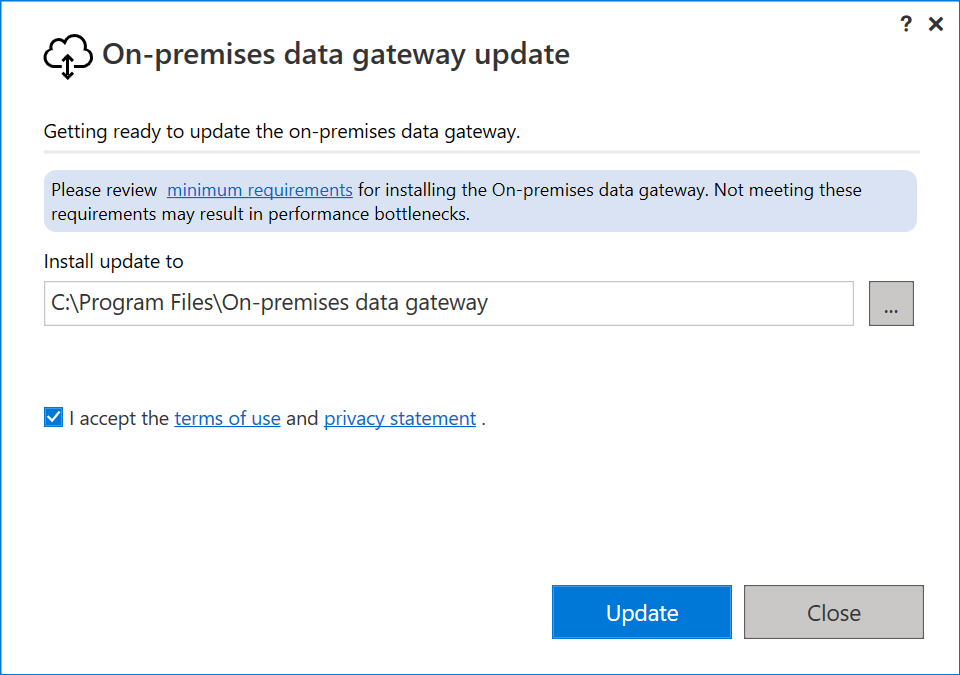
After the installation finishes, select Sign in.

The gateway update is now complete.

Update gateways from the UI (preview)
You can trigger the update in the UI when a newer version is available:
Open the Manage Gateways section in the Fabric or Power BI portal.
Select the On-premises data gateways tab.
Select the gateway you want to update.
If a new version is available, an update indicator appears.
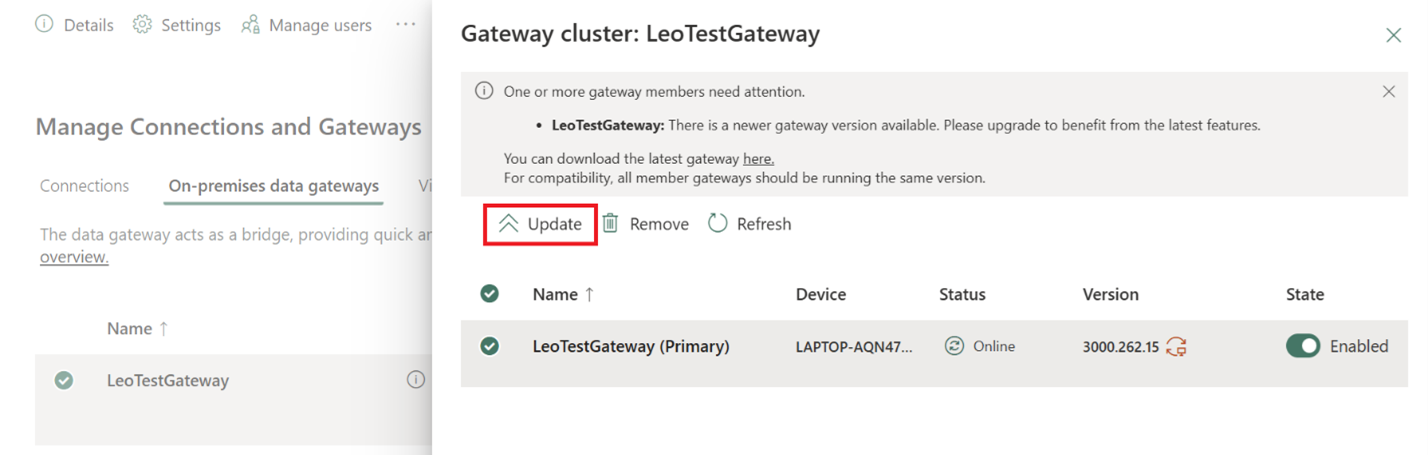
Select Update.
Refresh the gateway status after installation completes.
Note
You need to install or update the gateway to the November 2025 baseline version (or later) first.
Note
A minimum of 10 GB of available hard drive space is required to perform gateway updates.
Programmatic Update (preview)
Along with UI control, programmatic triggers allow automated or at-scale update workflows. You can run the Update-DataGatewayClusterMember PowerShell command to update your gateways to latest version.
Update-DataGatewayClusterMember -GatewayClusterId <Guid> [-MemberGatewayId <Guid>] [-CheckStatus]
 [-ProgressAction <ActionPreference>] [<CommonParameters>]
Note
You need to install or update the gateway to the November 2025 baseline version (or later) first.