Note
Access to this page requires authorization. You can try signing in or changing directories.
Access to this page requires authorization. You can try changing directories.
As part of our ongoing commitment to deliver exceptional user experiences, we're excited to announce a series of upcoming changes to the user interface and overall experience of our Microsoft Defender for Endpoint mobile app.
The new enhancements are designed to improve usability, streamline navigation, and ensure our app meets the evolving needs of our users.
Key changes - November 2025
In this release, we've made it easier for users to share feedback, including logs, to the Microsoft Defender team. The changes include:
- A new bottom pane that makes it easier for users to share feedback and logs
- A new Send logs to Microsoft option that enables users to quickly send logs to Microsoft
Bottom pane experience
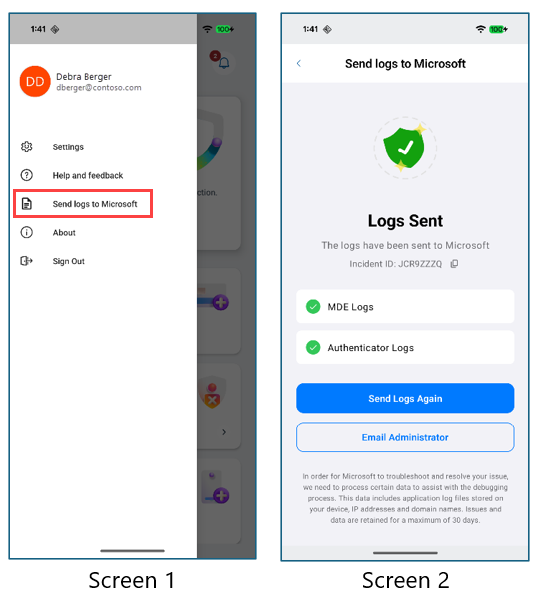
When users select Help and Feedback in the left navigation pane (Screen 1, accessible by tapping the profile picture), a new bottom feedback pane opens (Screen 2). This pane has been updated to improve readability and make it easier for users to share feedback.
The Send feedback option in the updated bottom pane enables users to share positive or negative feedback, along with Microsoft Defender and authenticator logs, which will be accessible to the Microsoft Defender team. When a user selects Send feedback, they are redirected to a new screen (Screen 3) where they can include logs along with their feedback submission.

One-click Send Logs experience
A new Send logs to Microsoft option has been added directly to the left navigation pane. This enables users to quickly send logs to Microsoft. It redirects them to the logs submission page (Screen 2). This option is particularly useful when a support case has been created and a support engineer is assigned, providing a convenient way for users to submit logs. Because this option doesn't allow users to include written feedback, the Defender team will not have access to the logs unless an incident ID is explicitly shared via mail or support request. This option collects logs from both the Defender and Authenticator apps.
Key changes - September 2025
We're pleased to introduce the new Onboarding screens that come up when the user starts onboarding after sign-in.
The primary changes are as follows:
- EULA screen revamp
- Permission consolidation screen changes
- Intermediate screens during permission flow
EULA screen revamp

Permission consolidation screen changes

New bottom sheet for permission information

Optional VPN consent screen

Intermediate screens that come up during the permission flow
These are the following screens that have been shifted from old Enterprise screen to new look and feel screens similar to the consumer screens.
Network Protection consent screen

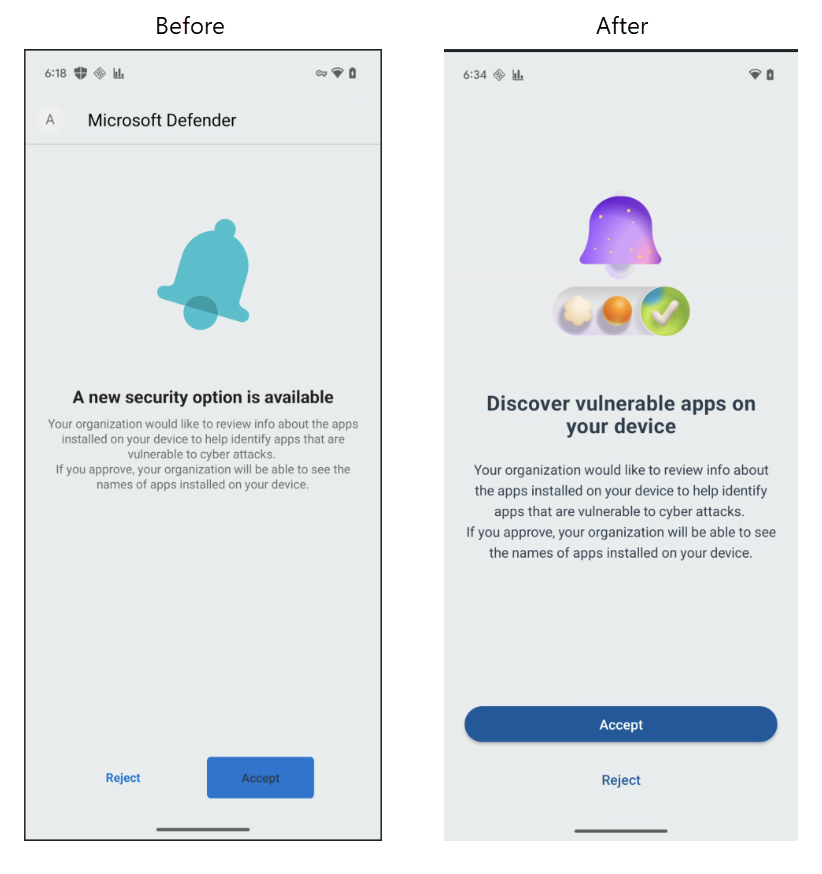
Microsoft Defender Vulnerability Management consent screen
Key changes - March 2025
We're pleased to introduce the Device Protection feature card for our enterprise users which includes App Security, Web Protection, Security History features are designed to be more user-friendly and accessible.
The updated feature cards also include recommendation cards, which prominently display any active alerts, ensuring you stay informed. Features are now displayed as tiles on L2 screens to improve user experience and navigation efficiency.
The primary changes are as follows:
Main dashboard changes
The following image shows the main Dashboard screen that appears to the enterprise's users as per our latest rollout of enhancements to the application. The following image illustrates the previous and new version of the main dashboard.

List the features inside one Feature Card
The App Security and Web Protection features are now consolidated under a single feature card titled Device Protection. Previously, each functionality had its own separate card on the Dashboard screen. The following image displays the new version of the Device Protection feature card.

Detailed feature experience
We updated all the subordinating screens associated with the feature
Web Protection:

App Security and App Scanning:

Threat found:
The following image highlights the 'Threat Found' feature, showcasing its functionality both before and after the recent update.

Uninstall threat:

Security History:


Alerts
We added a new section to show multiple alerts together on dashboard.
