Note
Access to this page requires authorization. You can try signing in or changing directories.
Access to this page requires authorization. You can try changing directories.
In this quickstart, you use the Microsoft.Extensions.AI (MEAI) library to generate images from text prompts using an AI model. The MEAI text-to-image capabilities let you generate images from natural language prompts or existing images using a consistent and extensible API surface.
The IImageGenerator interface provides a unified, extensible API for working with various image generation services, making it easy to integrate text-to-image capabilities into your .NET apps. The interface supports:
- Text-to-image generation.
- Pipeline composition with middleware (logging, telemetry, caching).
- Flexible configuration options.
- Support for multiple AI providers.
Note
The IImageGenerator interface is currently marked as experimental with the MEAI001 diagnostic ID. You might need to suppress this warning in your project file or code.
Prerequisites
- .NET 8.0 SDK or higher - Install the .NET 8 SDK.
- An Azure subscription - Create one for free.
- Azure Developer CLI (optional) - Install or update the Azure Developer CLI.
Configure the AI service
To provision an Azure OpenAI service and model using the Azure portal, complete the steps in the Create and deploy an Azure OpenAI Service resource article. In the "Deploy a model" step, select the gpt-image-1 model.
Note
gpt-image-1 is a newer model that offers several improvements over DALL-E 3. It's available from OpenAI on a limited basis; apply for access with this form.
Create the application
Complete the following steps to create a .NET console application that generates images from text prompts.
Create a new console application:
dotnet new console -o TextToImageAINavigate to the
TextToImageAIdirectory, and add the necessary packages to your app:dotnet add package Azure.AI.OpenAI dotnet add package Microsoft.Extensions.AI.OpenAI --prerelease dotnet add package Microsoft.Extensions.Configuration dotnet add package Microsoft.Extensions.Configuration.UserSecretsRun the following commands to add app secrets for your Azure OpenAI endpoint, model name, and API key:
dotnet user-secrets init
dotnet user-secrets set AZURE_OPENAI_ENDPOINT <your-Azure-OpenAI-endpoint>
dotnet user-secrets set AZURE_OPENAI_GPT_NAME gpt-image-1
dotnet user-secrets set AZURE_OPENAI_API_KEY <your-azure-openai-api-key>
Open the new app in your editor of choice (for example, Visual Studio).
Implement basic image generation
Update the
Program.csfile with the following code to get the configuration data and create the AzureOpenAIClient:using Azure; using Azure.AI.OpenAI; using Microsoft.Extensions.AI; using Microsoft.Extensions.Configuration; IConfigurationRoot config = new ConfigurationBuilder() .AddUserSecrets<Program>() .Build(); string endpoint = config["AZURE_OPENAI_ENDPOINT"]; string apiKey = config["AZURE_OPENAI_API_KEY"]; string model = config["AZURE_OPENAI_GPT_NAME"]; // Create the Azure OpenAI client and convert to IImageGenerator. AzureOpenAIClient azureClient = new( new Uri(endpoint), new AzureKeyCredential(apiKey)); var imageClient = azureClient.GetImageClient(model); #pragma warning disable MEAI001 // Type is for evaluation purposes only. IImageGenerator generator = imageClient.AsIImageGenerator();The preceding code:
- Loads configuration from user secrets.
- Creates an
ImageClientfrom the OpenAI SDK. - Converts the
ImageClientto anIImageGeneratorusing the AsIImageGenerator(ImageClient) extension method.
Add the following code to implement basic text-to-image generation:
// Generate an image from a text prompt
var options = new ImageGenerationOptions
{
    MediaType = "image/png"
};
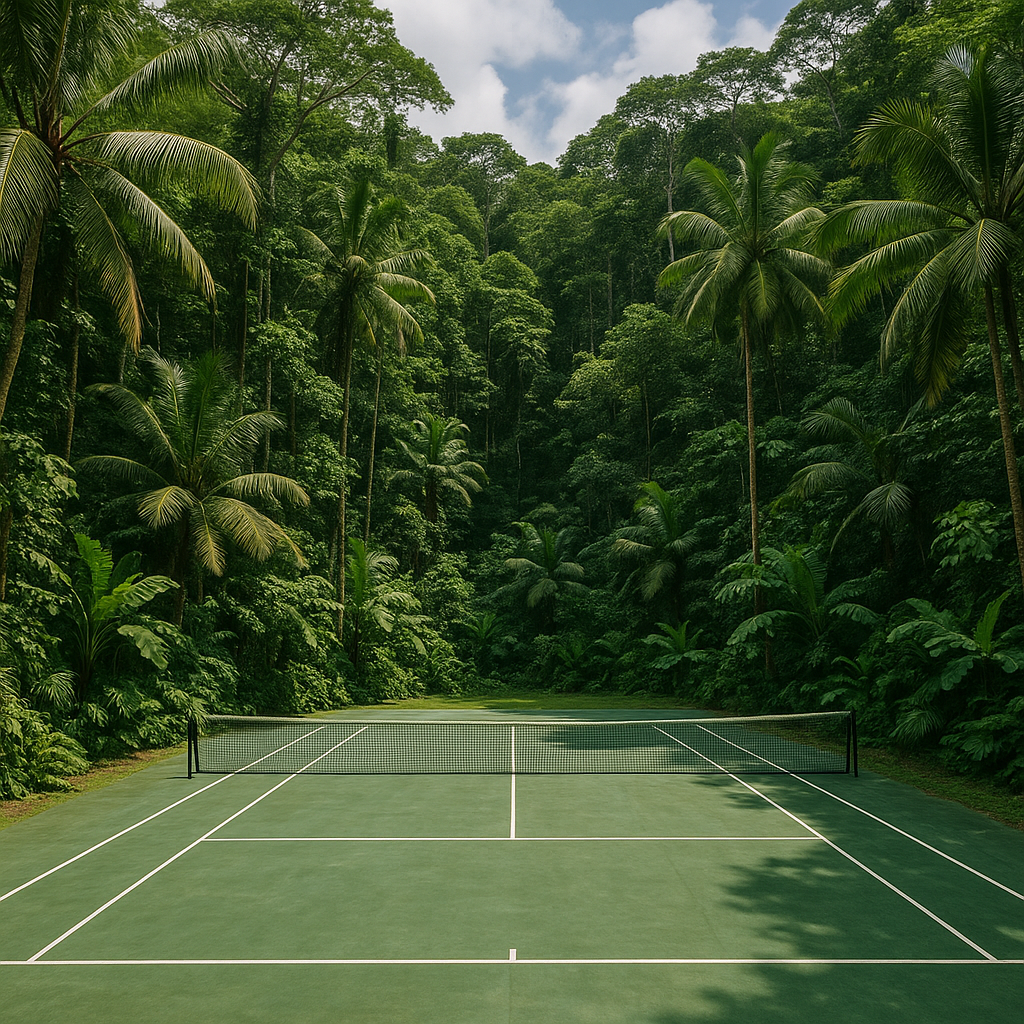
string prompt = "A tennis court in a jungle";
var response = await generator.GenerateImagesAsync(prompt, options);

// Save the image to a file.
var dataContent = response.Contents.OfType<DataContent>().First();
string fileName = SaveImage(dataContent, "jungle-tennis.png");
Console.WriteLine($"Image saved to file: {fileName}");

static string SaveImage(DataContent content, string fileName)
{
    string userDirectory = Environment.GetFolderPath(Environment.SpecialFolder.UserProfile);
    var path = Path.Combine(userDirectory, fileName);
    File.WriteAllBytes(path, content.Data.ToArray());
    return Path.GetFullPath(path);
}
The preceding code:
- Sets the requested image file type by setting ImageGenerationOptions.MediaType.
- Generates an image using the GenerateImagesAsync(IImageGenerator, String, ImageGenerationOptions, CancellationToken) method with a text prompt.
- Saves the generated image to a file in the local user directory.
Run the application, either through the IDE or using
dotnet run.The application generates an image and outputs the file path to the image. Open the file to view the generated image. The following image shows one example of a generated image.
Configure image generation options
You can customize image generation by providing other options such as size, response format, and number of images to generate. The ImageGenerationOptions class allows you to specify:
- AdditionalProperties: Provider-specific options.
- Count: The number of images to generate.
- ImageSize: The dimensions of the generated image as a System.Drawing.Size. For supported sizes, see the OpenAI API reference.
- MediaType: The media type (MIME type) of the generated image.
- ModelId: The model ID.
- RawRepresentationFactory: The callback that creates the raw representation of the image generation options from an underlying implementation.
- ResponseFormat: Options are Uri, Data, and Hosted.
Use hosting integration
When you build web apps or hosted services, you can integrate image generation using dependency injection and hosting patterns. This approach provides better lifecycle management, configuration integration, and testability.
Configure hosting services
The Aspire.Azure.AI.OpenAI package provides extension methods to register Azure OpenAI services with your application's dependency injection container:
Add the necessary packages to your web application:
dotnet add package Aspire.Azure.AI.OpenAI --prerelease
dotnet add package Azure.AI.OpenAI
dotnet add package Microsoft.Extensions.AI.OpenAI --prerelease
Configure the Azure OpenAI client and image generator in your
Program.csfile:using Aspire.Azure.AI.OpenAI; using Microsoft.Extensions.AI; using OpenAI; WebApplicationBuilder builder = WebApplication.CreateBuilder(args); // Add the Azure OpenAI client using hosting integration. AspireAzureOpenAIClientBuilder openai = builder.AddAzureOpenAIClient("openai");The AddAzureOpenAIClient(IHostApplicationBuilder, String, Action<AzureOpenAISettings>, Action<IAzureClientBuilder<AzureOpenAIClient,AzureOpenAIClientOptions>>) method registers the Azure OpenAI client with dependency injection. The connection string (named
"openai") is retrieved from configuration, typically fromappsettings.jsonor environment variables:{ "ConnectionStrings": { "openai": "Endpoint=https://your-resource-name.openai.azure.com/;Key=your-api-key" } }Register the IImageGenerator service with dependency injection:
// Register the image generator with dependency injection.
ImageGeneratorBuilder imageBuilder = builder.Services.AddImageGenerator(services =>
{
    OpenAIClient openAiClient = services.GetRequiredService<OpenAIClient>();
    OpenAI.Images.ImageClient imageClient = openAiClient.GetImageClient("gpt-image-1");
    #pragma warning disable MEAI001 // Type is for evaluation purposes only.
    return imageClient.AsIImageGenerator();
    #pragma warning restore MEAI001
});
The AddImageGenerator method registers the image generator as a singleton service that can be injected into controllers, services, or minimal API endpoints.
Add options and logging::
imageBuilder.ConfigureOptions(options =>
{
    options.MediaType = "image/png";
}).UseLogging();
The preceding code:
- Configures options by calling the ConfigureOptions(ImageGeneratorBuilder, Action<ImageGenerationOptions>) extension method on the ImageGeneratorBuilder. This method configures the ImageGenerationOptions to be passed to the next generator in the pipeline.
- Adds logging to the image generator pipeline by calling the UseLogging(ImageGeneratorBuilder, ILoggerFactory, Action<LoggingImageGenerator>) extension method.
Use the image generator in endpoints
Once registered, you can inject IImageGenerator into your endpoints or services:
// Use the image generator in an endpoint.
app.MapPost("/generate-image", async (IImageGenerator generator, string prompt) =>
{
    ImageGenerationResponse response = await generator.GenerateImagesAsync(prompt);
    DataContent dataContent = response.Contents.OfType<DataContent>().First();

    return Results.File(dataContent.Data.ToArray(), dataContent.MediaType);
});
This hosting approach provides several benefits:
- Configuration management: Connection strings and settings are managed through the .NET configuration system.
- Dependency injection: The image generator is available throughout your application via DI.
- Lifecycle management: Services are properly initialized and disposed of by the hosting infrastructure.
- Testability: Mock implementations can be easily substituted for testing.
- Integration with .NET Aspire: When using .NET Aspire, the
AddAzureOpenAIClientmethod integrates with service discovery and telemetry.
Best practices
When implementing text-to-image generation in your applications, consider these best practices:
- Prompt engineering: Write clear, detailed prompts that describe the desired image. Include specific details about style, composition, colors, and elements.
- Cost management: Image generation can be expensive. Cache results when possible and implement rate limiting to control costs.
- Content safety: Always review generated images for appropriate content, especially in production applications. Consider implementing content filtering and moderation.
- User experience: Image generation can take several seconds. Provide progress indicators and handle timeouts gracefully.
- Legal considerations: Be aware of licensing and usage rights for generated images. Review the terms of service for your AI provider.
Clean up resources
When you no longer need the Azure OpenAI resource, delete it to avoid incurring charges:
- In the Azure Portal, navigate to your Azure OpenAI resource.
- Select the resource and then select Delete.
Next steps
You've successfully generated some different images using the IImageGenerator interface in Microsoft.Extensions.AI. Next, you can explore some of the additional functionality, including:
- Refining the generated image iteratively.
- Editing an existing image.
- Personalizing an image, diagram, or theme.
See also
Collaborate with us on GitHub
The source for this content can be found on GitHub, where you can also create and review issues and pull requests. For more information, see our contributor guide.
