Note
Access to this page requires authorization. You can try signing in or changing directories.
Access to this page requires authorization. You can try changing directories.
Caution
Aspire 13.0 is a major version release with breaking changes. Please review the Breaking changes section before upgrading.
In this article, you learn the steps involved in updating your existing Aspire projects to the latest version: Aspire 13.0. The easiest way to upgrade to Aspire 13.0 is using the Aspire CLI with the aspire update command.
Tip
If you're new to Aspire, there's no reason to upgrade anything. For more information, see Aspire setup and tooling.
Note
If you're upgrading from Aspire 8.x, you should first upgrade to Aspire 9.x using the Upgrade Assistant or manually, then upgrade to 13.0. Be sure to remove the legacy Aspire workload if upgrading from version 8.
Prerequisites
Before you upgrade your projects to Aspire 13.0, ensure that you have the following prerequisites:
- Install the latest tooling.
- Use the Aspire SDK.
- If you have a version of Aspire older than 9.0, remove the legacy workload.
Upgrade using the Aspire CLI
The recommended way to upgrade to Aspire 13.0 is using the Aspire CLI. This method handles all the necessary updates automatically.
Update the Aspire CLI
First, update the Aspire CLI to the latest version:
curl -sSL https://aspire.dev/install.sh | bash
Update your Aspire project
Update your Aspire project using the aspire update command:
aspire update
This command will:
- Update the
Aspire.AppHost.Sdkversion in your AppHost project. - Update all Aspire NuGet packages to version 13.0.
- Handle dependency resolution automatically.
- Support both regular projects and Central Package Management (CPM).
Update your Aspire templates
Install the latest Aspire project templates by running this command:
dotnet new install Aspire.ProjectTemplates
Tip
If you have the legacy Aspire workload installed, you need to pass the --force flag to overwrite the existing templates. For instructions on uninstalling the legacy workload, see Remove the Aspire workload.
AppHost template updates
Aspire 13.0 introduces a simplified AppHost project template structure. The SDK now encapsulates the Aspire.Hosting.AppHost package, resulting in cleaner project files.
Before (9.x)
<Project Sdk="Microsoft.NET.Sdk">

  <Sdk Name="Aspire.AppHost.Sdk" Version="9.5.2" />

  <PropertyGroup>
    <OutputType>Exe</OutputType>
    <TargetFramework>net9.0</TargetFramework>
    <ImplicitUsings>enable</ImplicitUsings>
    <Nullable>enable</Nullable>
    <UserSecretsId>1bf2ca25-7be4-4963-8782-c53a74e10ad9</UserSecretsId>
  </PropertyGroup>

  <ItemGroup>
    <ProjectReference Include="..\MyApp.ApiService\MyApp.ApiService.csproj" />
    <ProjectReference Include="..\MyApp.Web\MyApp.Web.csproj" />
  </ItemGroup>

  <ItemGroup>
    <PackageReference Include="Aspire.Hosting.AppHost" Version="9.5.2" />
    <PackageReference Include="Aspire.Hosting.Redis" Version="9.5.2" />
  </ItemGroup>

</Project>
After (13.0)
<Project Sdk="Aspire.AppHost.Sdk/13.0.0">

  <PropertyGroup>
    <OutputType>Exe</OutputType>
    <TargetFramework>net10.0</TargetFramework>
    <ImplicitUsings>enable</ImplicitUsings>
    <Nullable>enable</Nullable>
    <UserSecretsId>1bf2ca25-7be4-4963-8782-c53a74e10ad9</UserSecretsId>
  </PropertyGroup>

  <ItemGroup>
    <ProjectReference Include="..\MyApp.ApiService\MyApp.ApiService.csproj" />
    <ProjectReference Include="..\MyApp.Web\MyApp.Web.csproj" />
  </ItemGroup>

  <ItemGroup>
    <PackageReference Include="Aspire.Hosting.Redis" Version="13.0.0" />
  </ItemGroup>

</Project>
Key changes
- Simplified SDK declaration: The SDK is now specified directly in the
<Project>tag with its version:Sdk="Aspire.AppHost.Sdk/13.0.0". - No explicit Aspire.Hosting.AppHost reference: The SDK now automatically includes this package, reducing boilerplate.
- Cleaner structure: Removed the separate
<Sdk Name="..." />element and theMicrosoft.NET.Sdkbase SDK. - Target framework: Updated from
net9.0tonet10.0.
The aspire update command automatically handles this migration when upgrading from 9.x to 13.0.
Single-file AppHosts
Tip
For an even simpler setup, Aspire 13.0 also supports single-file AppHosts that don't require a project file at all. Single-file AppHosts are perfect for quick prototypes and learning scenarios.
The same project as a file-based AppHost:
apphost.cs
#:sdk Aspire.AppHost.Sdk@13.0.0
#:package Aspire.Hosting.Redis@13.0.0

var builder = DistributedApplication.CreateBuilder(args);

var cache = builder.AddRedis("cache");
var api = builder.AddProject("apiservice", "../MyApi")
                 .WithReference(cache);

builder.Build().Run();
No project file needed - just a single .cs file with package references declared using #:package directives.
Note
Single-file AppHosts are not currently supported in Visual Studio. Use Visual Studio Code or the command line to work with single-file AppHosts.
Manually upgrade a solution to Aspire 13.0
If you prefer to manually upgrade your projects, you can update your project files directly. The following steps guide you through the process:
- Edit your AppHost project file to use the new Aspire 13.0 SDK (
Aspire.AppHost.Sdk). - Update the NuGet packages in your project files to the latest versions.
- Adjust your code to address any breaking changes.
Edit your AppHost project file
To upgrade your AppHost project to Aspire 13.0, update your project file to use the new SDK declaration and remove the explicit Aspire.Hosting.AppHost package reference:
- <Project Sdk="Microsoft.NET.Sdk">
+ <Project Sdk="Aspire.AppHost.Sdk/13.0.0">

-  <Sdk Name="Aspire.AppHost.Sdk" Version="9.5.2" />

  <PropertyGroup>
    <OutputType>Exe</OutputType>
-   <TargetFramework>net9.0</TargetFramework>
+   <TargetFramework>net10.0</TargetFramework>
    <ImplicitUsings>enable</ImplicitUsings>
    <Nullable>enable</Nullable>
-   <IsAspireHost>true</IsAspireHost>
    <UserSecretsId>0afc20a6-cd99-4bf7-aae1-1359b0d45189</UserSecretsId>
  </PropertyGroup>

  <ItemGroup>
-   <PackageReference Include="Aspire.Hosting.AppHost" Version="9.5.2" />
+   <!-- Aspire.Hosting.AppHost is now included automatically by the SDK -->
  </ItemGroup>

</Project>
Update the NuGet packages
To take advantage of the latest updates in your Aspire solution, update all NuGet packages to version 13.0.0.
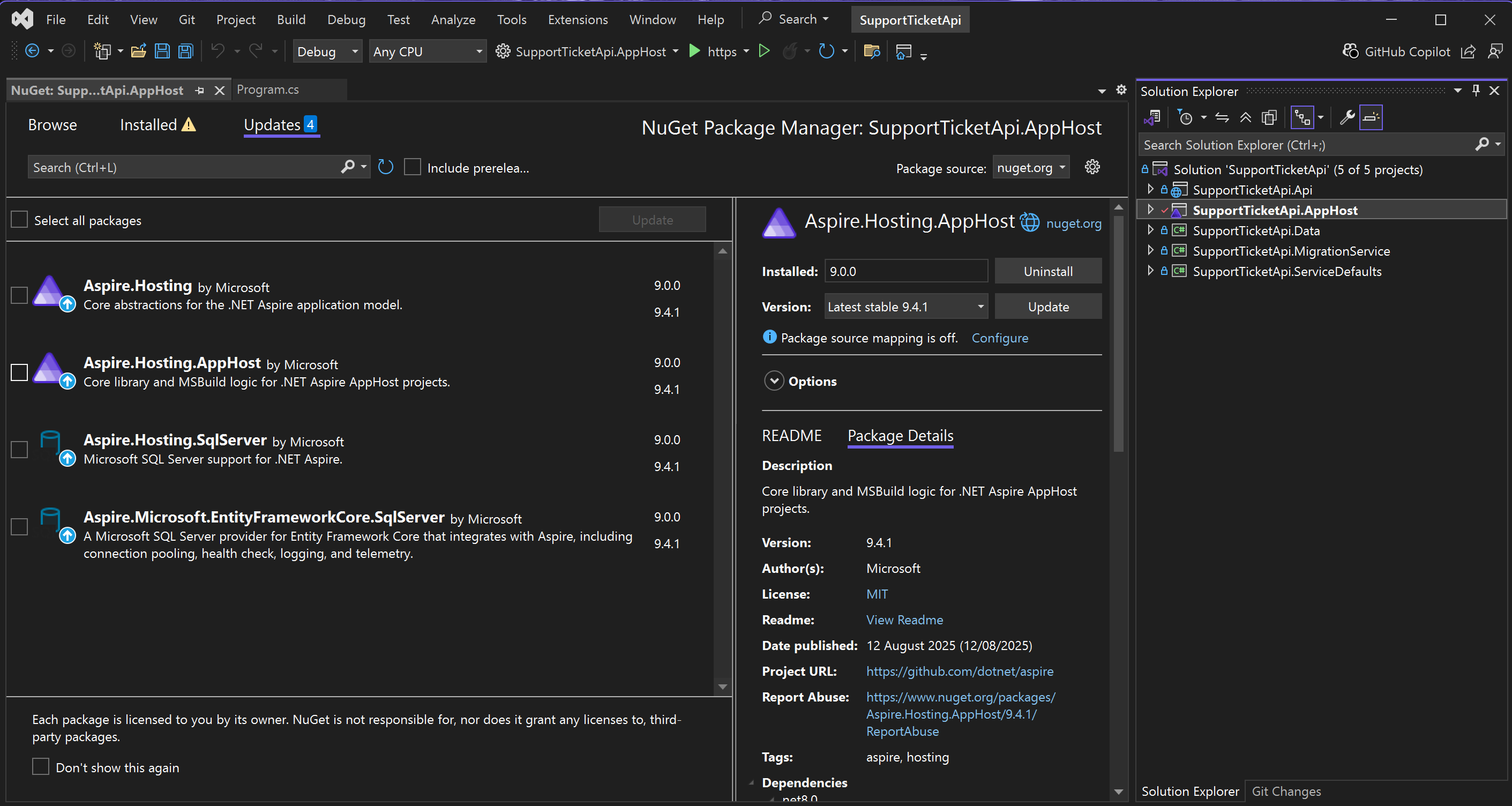
To update your project packages, use the following .NET CLI command to update Aspire packages to version 13.0.0:
dotnet add package Aspire.Hosting.Redis --version 13.0.0
When a package reference already exists, the dotnet add package command updates the reference to the specified version. For more information, see dotnet add package.
Tip
You'll want to also update the NuGet packages in your other projects to the latest versions.
Breaking changes
With the introduction of Aspire 13.0, there are some breaking changes. You need to adjust your code to address these changes.
For the complete list of breaking changes in Aspire 13.0, see Breaking changes in Aspire 13.0.
Important
Be sure to review breaking changes for all versions of Aspire after the one you're upgrading from. For example, if you're upgrading from Aspire 9.0, you must address breaking changes for all versions between 9.0 and 13.0.
Use the Upgrade Assistant
The Upgrade Assistant is a tool that helps upgrade targeted projects to the latest version. If you're new to the Upgrade Assistant, there are two modalities to choose from:
Regardless of how you install the Upgrade Assistant, you can use it to upgrade your Aspire projects to Aspire 13.0.
To upgrade the Aspire AppHost project to Aspire 13.0 with Visual Studio, right-click the project in Solution Explorer and select Upgrade.
Important
If the Upgrade Assistant isn't already installed, you'll be prompted to install it.
The Upgrade Assistant displays a welcome package. Select the Aspire upgrades option:

With the Aspire upgrades option selected, the Upgrade Assistant displays the selectable upgrade target components. Leave all the options checked and select Upgrade selection:
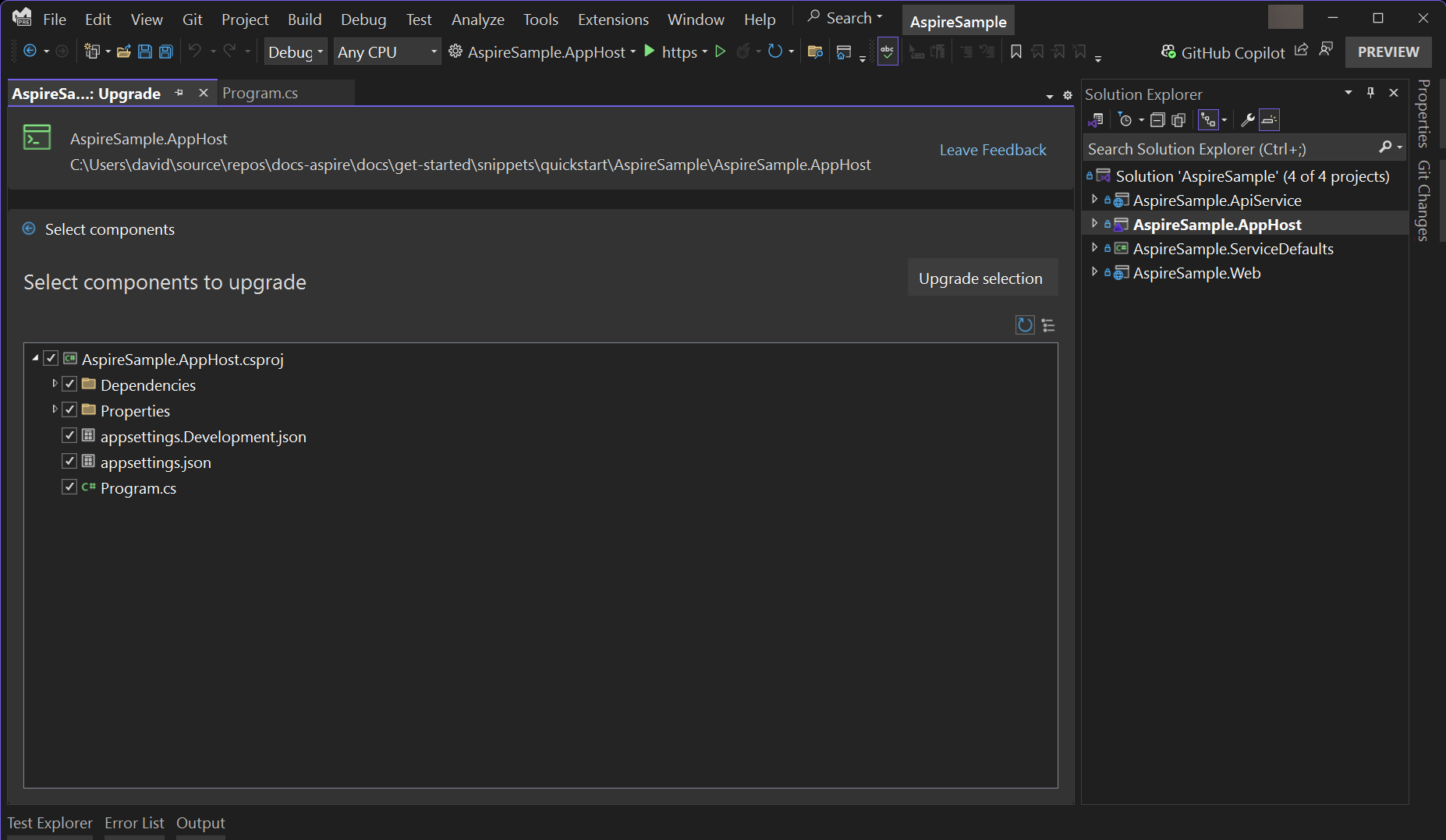
Finally, after selecting the components to upgrade, the Upgrade Assistant displays the results of the upgrade process. If everything was successful, you see green check marks next to each component:

To upgrade the Aspire AppHost project, ensure that you installed the Upgrade Assistant CLI. Open a terminal session at the root directory of the Aspire AppHost project file, and run the following command:
upgrade-assistant upgrade
The output is interactive, expecting you to select the upgrade type. Choose the Aspire upgrades option:
 Selected options
────────────────────────────────────────────────────────────────────────────────────
 Source project     ..\AspireSample\AspireSample.AppHost\AspireSample.AppHost.csproj

 Steps
────────────────────────────────
 Source project / Upgrade type
────────────────────────────────

How do you want to upgrade project AspireSample.AppHost?

> Aspire upgrades
    Upgrade to latest Aspire version (aspire.latest)

  Upgrade project to a newer .NET version
    In-place project upgrade (framework.inplace)

  NuGet upgrades
    NuGet central package management (CPM) (nuget.cpm)

  Navigation
    Back
    Exit
Use your keyboard to navigate up ↑ or down ↓, and select the Aspire upgrades option. The Upgrade Assistant prompts for final confirmation. Enter Y to continue with the upgrade:
 Selected options
────────────────────────────────────────────────────────────────────────────────────
 Source project     ..\AspireSample\AspireSample.AppHost\AspireSample.AppHost.csproj
 Upgrade type       aspire.latest

 Steps
──────────────────────────────────────────
 Source project / Upgrade type / Upgrade
──────────────────────────────────────────

We have gathered all required options and are ready to do the upgrade. Do you want to continue? [y/n] (y):
Finally, after the upgrade process is complete, the Upgrade Assistant displays the results of the upgrade process:
Finalizing operation...
Complete: 3 succeeded, 0 failed, 7 skipped.
Remove the Aspire workload (first-time upgrades from version 8 only)
If you're upgrading from Aspire 8 to Aspire 9 or later for the first time, you need to remove the legacy workload. This step is not needed for upgrades between Aspire 9 versions or from Aspire 9 to 13.
Previously the aspire workload was required to create and run Aspire projects. But, with Aspire 9 and later the workload is no longer required and should be removed from your .NET environment.
Important
You must remove Aspire 8 (the aspire workload) to enable the Aspire 9+ templates.
Find the installation source by opening a terminal and running the
dotnet workload listcommand.The preceding command lists the workloads installed in the .NET environment. The method used to install Aspire is listed under the Installation Source column of the output, and is either VS for Visual Studio or SDK for the .NET SDK. For example, the following snippet indicates that Visual Studio was used to install Aspire:
Installed Workload Id      Manifest Version      Installation Source
--------------------------------------------------------------------
aspire                     8.2.2/8.0.100         VS 17.14.36109.1
Remove Aspire 8.
If the Installation Source starts with VS:
- Open the Visual Studio Installer app.
- Modify the installation instance of Visual Studio.
- Select Individual Components.
- Search for
aspire. - Unselect Aspire SDK.
- Select the Modify button to apply the changes.
If the Installation Source starts with SDK, run
dotnet workload uninstall aspireto remove Aspire.
Verify the upgrade
As with any upgrade, ensure that the app runs as expected and that all tests pass. Build the solution and look for suggestions, warnings, or errors in the output window—address anything that wasn't an issue before. If you encounter any issues, let us know by filing a GitHub issue.
Collaborate with us on GitHub
The source for this content can be found on GitHub, where you can also create and review issues and pull requests. For more information, see our contributor guide.
