Note
Access to this page requires authorization. You can try signing in or changing directories.
Access to this page requires authorization. You can try changing directories.
This article shows you how to use assessment capabilities in GitHub Copilot app modernization to maximize the value of your application modernization process.
Overview
Application assessment is a critical first step in your modernization journey. This article shows you how to configure assessments for different scenarios, work with assessment reports, and manage assessment data throughout your modernization process.
Configure before running assessment
You can open the .appmod/.appcat/assessment-config.json file in your project to edit the configuration for application assessment to specify your target Azure service if it exists. For the first run of the assessment, the configuration file will be generated automatically.

Configuration properties
You can edit this file to configure the application assessment. Any changes saved to this file will be applied the next time you run the assessment.
The configurable arguments:
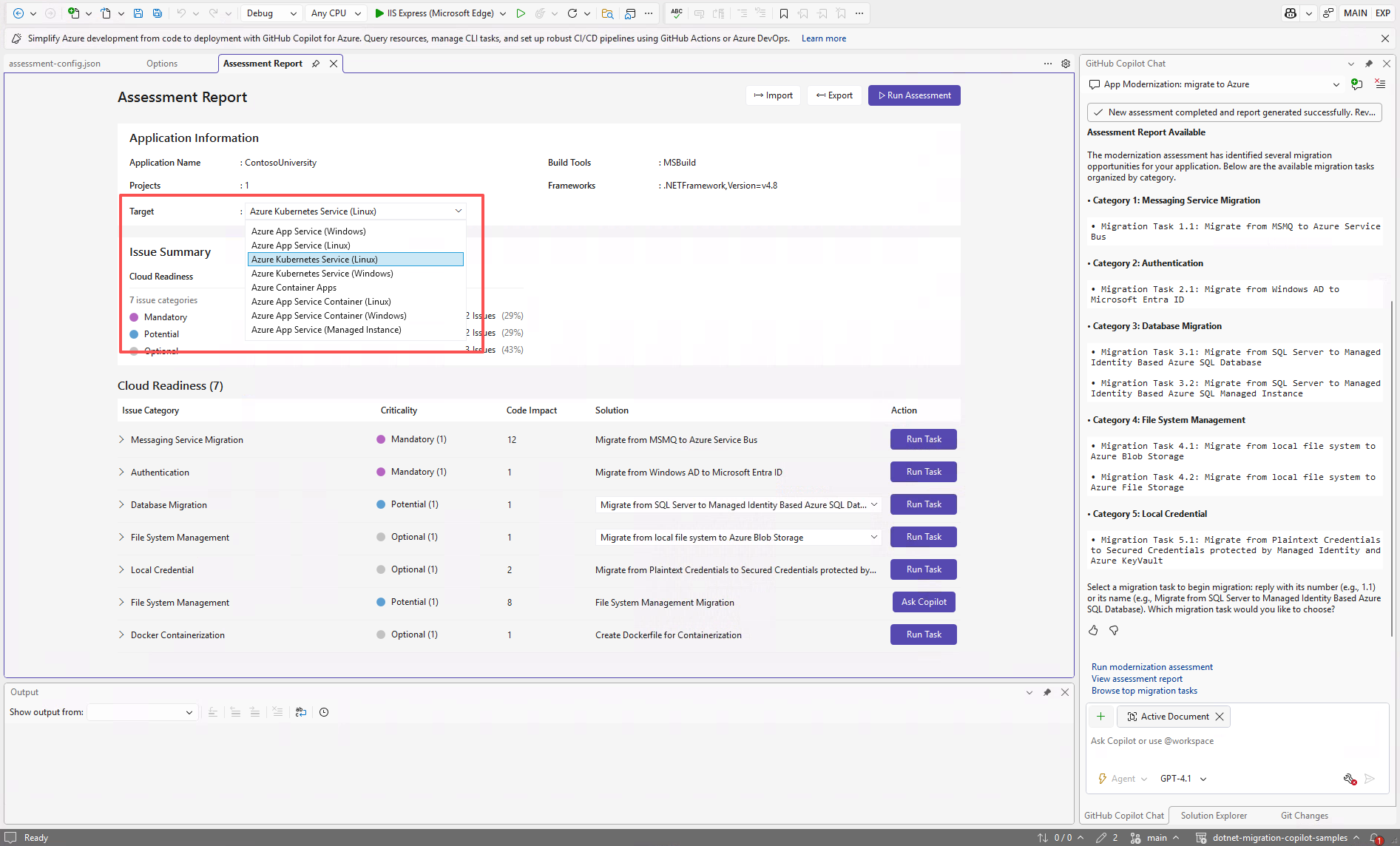
Target: The Azure compute service to run the apps on. Select Any if you haven't decided which one to use and later you can choose and compare on the assessment report. By default, it's set as Any.
| Target | Description |
|---|---|
| Any | Discover issues for all supported targets here. |
| AKS.Windows | Best practices for Azure Kubernetes Service (Windows). |
| AKS.Linux | Best practices for Azure Kubernetes Service (Linux). |
| AppService.Windows | Best practices for Azure App Service (Windows). |
| AppService.Linux | Best practices for Azure App Service (Linux). |
| AppServiceContainer.Windows | Best practices for Azure App Service Container (Windows). |
| AppServiceContainer.Linux | Best practices for Azure App Service Container (Linux). |
| AppServiceManagedInstance.Windows | Best practices for Azure App Service Managed Instance (Windows). |
| ACA | Best practices for Azure Container Apps. |
Examples
The following provide two examples of proper configurations:
- Example one: You'd like to migrate your apps to Azure but haven't decided on the target compute service yet
{
  "appcat": {
    "target": "Any"
  }
}
- Example two: You'd like to migrate your apps to App Service Linux and want to understand what issues need to be fixed.
{
  "appcat": {
    "target": "AppService.Linux"
  }
}
After the assessment runs, the interactive dashboard opens automatically to provide comprehensive analysis results. When you configure the target Azure service as Any, you can switch between them to compare migration approaches and view service-specific recommendations. If you configure a specific target Azure service, you can only see one Azure service in the dropdown list.
Interpreting assessment report
The assessment reports provide comprehensive analysis results to help you understand your application's readiness for Azure migration and modernization. This section guides you through the report structure and helps you interpret the findings to make informed migration decisions.
Report structure overview
The assessment report consists of several key sections:
- Application Information: Basic information about your application including project numbers, frameworks, build tools, and target Azure service.
- Issue Summary: Overview of migration issues categorized by domain with criticality percentages.
- Issues: Provides a concise summary of all issues that require attention.

Issues
The issues section provides a categorized list of various aspects of Cloud Readiness that you need to address to successfully migrate the application to Azure. The following tables describe the Domain and Criticality values:
| Domain | Description |
|---|---|
| Cloud Readiness | Evaluates app dependencies to suggest Azure services and ensure cloud-native readiness. |
| Criticality | Description |
|---|---|
| Mandatory | Issues that must be fixed for migration to Azure. |
| Potential | Issues that might impact migration and need review. |
| Optional | Low-impact issues. Fixing them is recommended but optional. |
For more information, you can expand each reported issue by selecting the title. The report provides the following information:
- A list of files where the incidents occurred, along with the number of code lines impacted. If the file is a .NET source file, then selecting the file line number directs you to the corresponding source report.
- A detailed description of the issue. This description outlines the problem, provides any known solutions, and references supporting documentation regarding either the issue or resolution.

Operate assessment report
Effective report management enables collaboration, maintains assessment history, and integrates with existing workflows.
Import assessment report
Besides running the assessment directly in GitHub Copilot app modernization, you can also import assessment reports. The report can come from a .NET AppCAT CLI result, GitHub Copilot app modernization exported report, or app context file from Dr.Migrate.
You can trigger importing a report by typing "import assessment report" in the chat when you enter the Modernize agent, or select the Import button in the assessment dashboard to import the report from the file explorer.


Export assessment report
In the assessment dashboard, you can view the issues detected by AppCAT and choose the migration solution. You can export the report and share it with others. This way, other people don't need to run the assessment themselves and can import the report to view the assessment and migration decisions directly.
You can select the Export button in the assessment dashboard to export the report to the file explorer.

Next Steps
Collaborate with us on GitHub
The source for this content can be found on GitHub, where you can also create and review issues and pull requests. For more information, see our contributor guide.
