Note
Access to this page requires authorization. You can try signing in or changing directories.
Access to this page requires authorization. You can try changing directories.
Important
This feature is currently in preview. Some features are still being implemented, and integration with Visual Studio 2026 is not completely available yet.
Aspire is an opinionated, cloud-ready stack for building observable, production-ready, distributed applications. The .NET MAUI integration with Aspire simplifies the development experience when building mobile and desktop applications that connect to local web services during development.
What is Aspire?
Aspire provides a consistent, opinionated set of tools and patterns for building and running distributed applications. It's designed to improve the experience of building cloud-native applications by providing:
- Orchestration: Simplified management of multiple services and dependencies
- Components: Pre-built integrations for common services and platforms
- Tooling: Developer dashboard for monitoring and managing services
- Service discovery: Automatic configuration for service-to-service communication
For more information about Aspire, see Aspire documentation.
Benefits of using Aspire with .NET MAUI
Integrating Aspire with your .NET MAUI applications provides several key benefits:
- Simplified configuration: Eliminate complex platform-specific networking configuration. No need to manually handle
10.0.2.2for Android or deal with certificate validation issues. - Automatic service discovery: Your MAUI app automatically discovers and connects to local services without hardcoded URLs.
- Development tunnels integration: Built-in support for Dev Tunnels on iOS and Android, making it easy to connect mobile emulators and simulators to local services.
- Consistent experience: Use the same patterns and tools across your entire application stack.
- Observable services: Monitor your services through the Aspire dashboard during development.
Comparison with traditional approach
Traditionally, connecting a .NET MAUI app to local web services requires significant manual configuration. You need to:
- Use different URLs for different platforms (localhost, 10.0.2.2, etc.)
- Configure network security settings for Android
- Set up Apple Transport Security (ATS) for iOS
- Handle certificate validation for HTTPS
- Manually manage service URLs in your code
For more information about the traditional approach, see Connect to local web services.
With Aspire integration, these complexities are handled automatically, allowing you to focus on building your application instead of configuring network access.
Prerequisites
To use Aspire with .NET MAUI, you need:
- .NET 10 SDK or later
- Aspire 13 or later
- A .NET MAUI app targeting .NET 10 or later
- One or more web services
Getting started
Setting up the Aspire integration with your .NET MAUI application involves adding two key projects to your solution:
- MAUI Service Defaults project: Provides default configuration for your MAUI app
- App Host project: Orchestrates your application services and handles service discovery
Create a MAUI Service Defaults project
The MAUI Service Defaults project contains shared configuration that your MAUI application will use to connect to services. Create this project in your solution directory:
dotnet new maui-aspire-servicedefaults -n YourApp.MauiServiceDefaults
Add the project to the solution:
dotnet sln add YourApp.MauiServiceDefaults/YourApp.MauiServiceDefaults.csproj
This project includes:
- Service discovery configuration
- Default resilience patterns
- Telemetry setup
- Platform-specific networking configuration
Add a reference to this project from your .NET MAUI app project:
dotnet add YourMauiApp.csproj reference YourApp.MauiServiceDefaults/YourApp.MauiServiceDefaults.csproj
Create an App Host project
The App Host project orchestrates all your application services, including your MAUI app and any backend services. Create this project in your solution directory:
dotnet new aspire-apphost -n YourApp.AppHost
Add the project to the solution:
dotnet sln add YourApp.AppHost/YourApp.AppHost.csproj
Add references to your MAUI app and any web service projects:
dotnet add YourApp.AppHost.csproj reference YourMauiApp/YourMauiApp.csproj
dotnet add YourApp.AppHost.csproj reference YourWebService/YourWebService.csproj
Add a reference to the Aspire hosting package for .NET MAUI:
dotnet add package Aspire.Hosting.Maui --version 13.0.0-preview.1.25560.3 --project .\YourApp.AppHost\YourApp.AppHost.csproj
Note
For now you need to use a preview version of the Aspire.Hosting.Maui package.
Configure the App Host
In your App Host project's Program.cs, register your MAUI app and web services:
var builder = DistributedApplication.CreateBuilder(args);

// Register your web service
var weatherApi = builder.AddProject("webapi", @"../YourWebService/YourWebService.csproj");

// Create a public dev tunnel for iOS and Android
var publicDevTunnel = builder.AddDevTunnel("devtunnel-public")
    .WithAnonymousAccess()
    .WithReference(weatherApi.GetEndpoint("https"));

// Register your MAUI app
var mauiapp = builder.AddMauiProject("mauiapp", @"../YourMauiApp/YourMauiApp.csproj");

// Add Windows device (uses localhost directly)
mauiapp.AddWindowsDevice()
    .WithReference(weatherApi);

// Add Mac Catalyst device (uses localhost directly)
mauiapp.AddMacCatalystDevice()
    .WithReference(weatherApi);

// Add iOS simulator with Dev Tunnel
mauiapp.AddiOSSimulator()
    .WithOtlpDevTunnel() // Required for OpenTelemetry data collection
    .WithReference(weatherApi, publicDevTunnel);

// Add Android emulator with Dev Tunnel
mauiapp.AddAndroidEmulator()
    .WithOtlpDevTunnel() // Required for OpenTelemetry data collection
    .WithReference(weatherApi, publicDevTunnel);

builder.Build().Run();
Note
You can add multiple Windows, Mac Catalyst, iOS, or Android emulators or devices for the same MAUI project. Each device configuration can target different platforms, allowing you to deploy and test your app on multiple targets simultaneously from the same App Host. For example, you could add both an iOS simulator and a physical iOS device, or multiple Android emulators with different configurations.

Configure your MAUI app
In your .NET MAUI app's MauiProgram.cs, configure service defaults and add HTTP clients:
using Microsoft.Extensions.Configuration;
using Microsoft.Extensions.Hosting;

public static class MauiProgram
{
    public static MauiApp CreateMauiApp()
    {
        var builder = MauiApp.CreateBuilder();

        builder
            .UseMauiApp<App>()
            .ConfigureFonts(fonts =>
            {
                fonts.AddFont("OpenSans-Regular.ttf", "OpenSansRegular");
                fonts.AddFont("OpenSans-Semibold.ttf", "OpenSansSemibold");
            });

        // Add service defaults
        builder.AddServiceDefaults();

        // Configure HTTP client with service discovery
        builder.Services.AddHttpClient<WeatherApiClient>(client =>
        {
            // Service name matches the name used in App Host
            client.BaseAddress = new Uri("https+http://webapi");
        });

        return builder.Build();
    }
}
The https+http:// scheme is special syntax that enables both HTTPS and HTTP protocols, with preference for HTTPS. The service name (webapi in this example) must match the name you used when registering the service in your App Host's Program.cs.
Create a service client
Create a typed client to consume your web service:
public class WeatherApiClient
{
    private readonly HttpClient _httpClient;

    public WeatherApiClient(HttpClient httpClient)
    {
        _httpClient = httpClient;
    }

    public async Task<WeatherForecast[]?> GetWeatherForecastAsync(CancellationToken cancellationToken = default)
    {
        return await _httpClient.GetFromJsonAsync<WeatherForecast[]>(
            "/weatherforecast",
            cancellationToken);
    }
}

public record WeatherForecast(DateOnly Date, int TemperatureC, string? Summary)
{
    public int TemperatureF => 32 + (int)(TemperatureC * 1.8);
}
Use the client in your app
Inject and use the client in your pages or view models:
public partial class MainPage : ContentPage
{
    private readonly WeatherApiClient _weatherClient;

    public MainPage(WeatherApiClient weatherClient)
    {
        _weatherClient = weatherClient;
        InitializeComponent();
    }

    private async void OnGetWeatherClicked(object sender, EventArgs e)
    {
        try
        {
            var forecasts = await _weatherClient.GetWeatherForecastAsync();

            if (forecasts != null)
            {
                // Display the weather data
                ResultLabel.Text = $"Retrieved {forecasts.Length} forecasts";
            }
        }
        catch (Exception ex)
        {
            ResultLabel.Text = $"Error: {ex.Message}";
        }
    }
}
Platform-specific considerations
iOS and Mac Catalyst
On iOS and Mac Catalyst, the Aspire integration works seamlessly when running the app through the App Host. The service discovery configuration automatically provides the correct URLs for connecting to local services.
When using the iOS Simulator or running on a physical device, Dev Tunnels are automatically configured to enable connectivity to services running on your development machine.
Android
On Android, the Aspire integration handles the platform-specific networking requirements automatically. You no longer need to:
- Configure the special
10.0.2.2address - Set up network security configuration files
- Enable clear-text traffic for local development
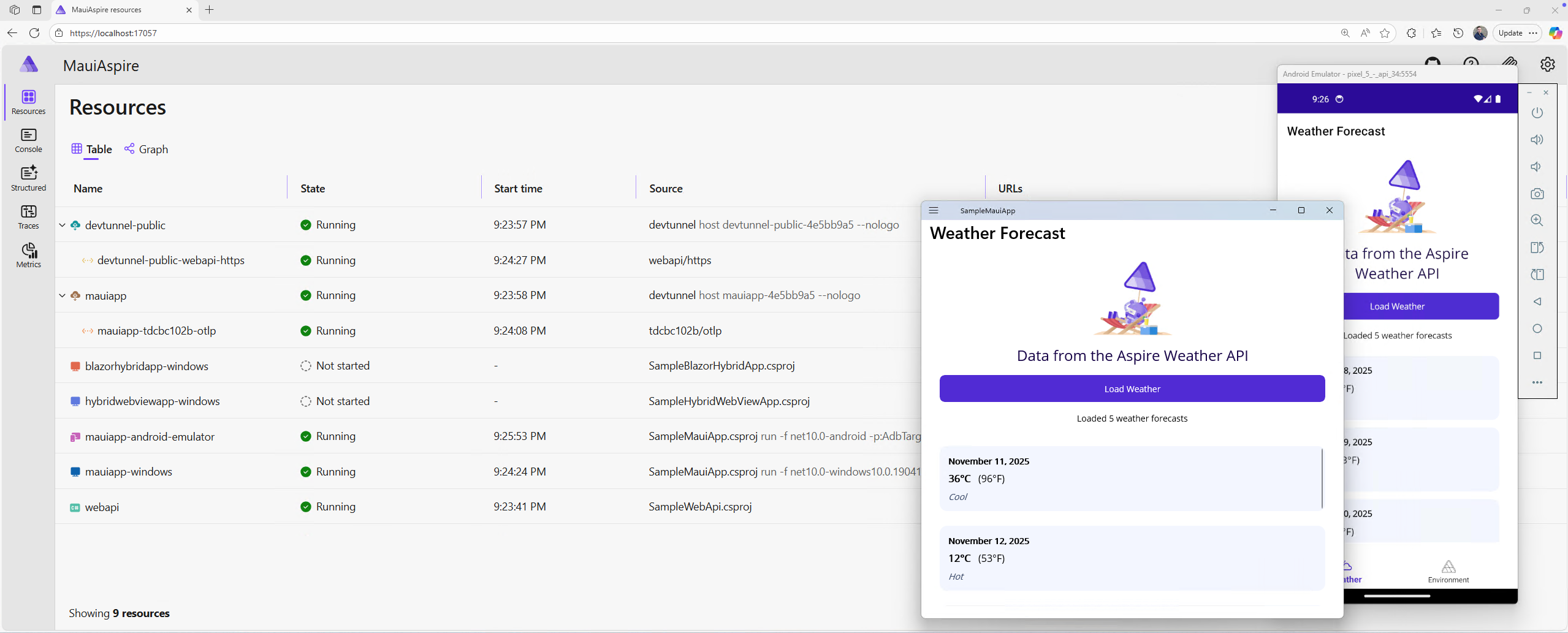
The integration uses Dev Tunnels to provide secure, reliable connectivity between the Android emulator and your local services.
Dev Tunnels integration
Dev Tunnels provide a secure way to expose your local web services to mobile devices and emulators. The Aspire integration automatically:
- Creates and manages Dev Tunnels for your services
- Configures your MAUI app to use the tunnel URLs
- Handles authentication and connection management
This eliminates the need for complex network configuration and makes it easy to test your app on physical devices.
OpenTelemetry data collection
When configuring iOS and Android devices in your App Host, use the WithOtlpDevTunnel() method to enable OpenTelemetry data collection from these platforms:
mauiapp.AddiOSSimulator()
    .WithOtlpDevTunnel() // Required for OpenTelemetry data collection
    .WithReference(weatherApi, publicDevTunnel);

mauiapp.AddAndroidEmulator()
    .WithOtlpDevTunnel() // Required for OpenTelemetry data collection
    .WithReference(weatherApi, publicDevTunnel);
The WithOtlpDevTunnel() method creates a Dev Tunnel specifically for OpenTelemetry protocol (OTLP) traffic, allowing telemetry data from your iOS and Android apps to reach the Aspire dashboard on your development machine. This is essential for monitoring and debugging your mobile apps through the Aspire dashboard.
For more information about Dev Tunnels, see Dev tunnels documentation.
Windows
On Windows, local service connectivity works directly through localhost without requiring additional configuration. The Aspire integration provides a consistent API across all platforms, but the underlying implementation on Windows is straightforward.
Running your application
To run your MAUI app with Aspire integration, you can use one of the following methods:
Visual Studio:
- Set the App Host project as the startup project
- Run the solution (F5 or Debug > Start Debugging)
Command line:
- Navigate to the App Host project directory
- Run
dotnet runordotnet run --project YourApp.AppHost.csproj, alternatively you can use the Aspire CLI and runaspire run.
VS Code:
- Open the App Host project folder
- Run the project using the .NET debugger or terminal
When the App Host starts:
- The Aspire dashboard will open, showing all registered services
- Your MAUI app not will launch automatically. You can start each .NET MAUI target manually through the dashboard.

When you run your application through the App Host:
- All services start automatically
- Service discovery is configured
- The dashboard provides real-time monitoring
- Logs from all services are available in one place
Monitoring and debugging
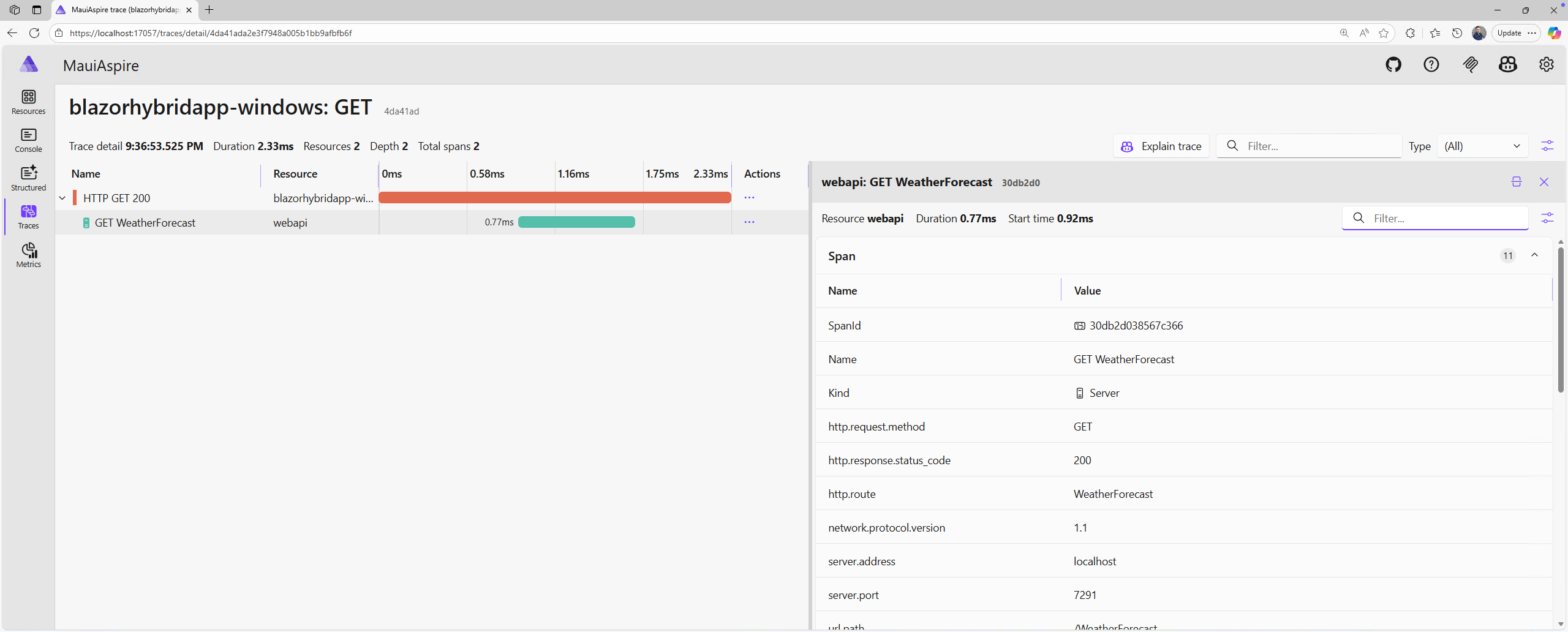
The Aspire dashboard provides powerful tools for monitoring and debugging your application:
- Resource view: See all running services and their status
- Logs: View combined logs from all services in one place
- Traces: Distributed tracing across services
- Metrics: Monitor performance and resource usage
Troubleshooting
This section covers common issues you might encounter when integrating Aspire with .NET MAUI applications.
Missing metrics or traces from iOS/Android apps
If you're not seeing telemetry data (metrics, traces, or logs) from your iOS or Android apps in the Aspire dashboard, verify that you've added the WithOtlpDevTunnel() method to your device configurations in the App Host:
mauiapp.AddiOSSimulator()
    .WithOtlpDevTunnel() // Required for OpenTelemetry data collection
    .WithReference(weatherApi, publicDevTunnel);

mauiapp.AddAndroidEmulator()
    .WithOtlpDevTunnel() // Required for OpenTelemetry data collection
    .WithReference(weatherApi, publicDevTunnel);
The WithOtlpDevTunnel() method creates a Dev Tunnel specifically for OpenTelemetry protocol (OTLP) traffic, which is required for telemetry data from mobile devices to reach your development machine. Without this, iOS and Android apps won't be able to send their telemetry data to the Aspire dashboard.
Service discovery not working
If your MAUI app can't connect to your web services:
- Verify that you've called
AddServiceDefaults()in your MAUI app'sMauiProgram.cs - Ensure the service name in your HTTP client configuration matches the name used in the App Host
- Check that you're using the
https+http://scheme in your service URL - For iOS and Android, confirm that you've configured Dev Tunnels correctly in the App Host
Dev Tunnels connection issues
If Dev Tunnels aren't working for iOS or Android:
- Ensure the Dev Tunnel is configured with anonymous access:
.WithAnonymousAccess() - Verify that the device configuration includes the Dev Tunnel reference:
.WithReference(weatherApi, publicDevTunnel) - Check that your firewall or network security settings aren't blocking tunnel connections
- Try restarting the App Host to recreate the tunnels
App Host won't start
If the App Host fails to start:
- Ensure all project paths in the App Host's
Program.csare correct and use relative paths - Verify that all referenced projects build successfully on their own
- Check that the .NET 10 SDK and Aspire are properly installed
- Review the App Host console output for specific error messages
MAUI app can't find the service defaults
If your MAUI app reports errors about missing service defaults:
- Verify that you've added a reference to the MAUI Service Defaults project in your MAUI app's project file
- Ensure the Service Defaults project builds successfully
- Check that you're calling
AddServiceDefaults()before configuring HTTP clients
Best practices
When building .NET MAUI apps with Aspire integration:
- Use typed clients: Create strongly-typed HTTP clients for each service to improve maintainability
- Handle errors gracefully: Network operations can fail; implement proper error handling and retry logic
- Leverage the dashboard: Use the Aspire dashboard for debugging and monitoring during development
- Test on all platforms: While the integration handles platform differences, always test on your target platforms
- Follow service defaults: The service defaults project provides recommended patterns for resilience and telemetry
Sample application
For a complete working example of .NET MAUI integration with Aspire, see the AspireWithMaui sample in the Aspire repository.
The sample demonstrates:
- Complete project structure
- Service registration and discovery
- Platform-specific considerations
- Error handling and resilience patterns
Additional resources
.NET MAUI integration with Aspire is available in .NET MAUI 10 and later. For information about connecting to local web services in earlier versions, see Connect to local web services.
Collaborate with us on GitHub
The source for this content can be found on GitHub, where you can also create and review issues and pull requests. For more information, see our contributor guide.
