Note
Access to this page requires authorization. You can try signing in or changing directories.
Access to this page requires authorization. You can try changing directories.
This article explains how to build, configure, and publish agents in Copilot Studio that integrate with Business Central using either the Business Central Connector or the Business Central MCP Server.
Overview
Copilot Studio is a graphical, low-code tool for building agents and agent flows. You can use it to create conversational agents that understand and act on your business processes and data model in Business Central. Agents present Business Central data (customers, orders, invoices, and inventory) and business logic to users via natural language. Agents can automate tasks such as creating sales orders, checking credit, or posting payments, and trigger approvals or flows.
Business Central provides two model‑aware tools that agents can use to interact directly with Business Central environments: Business Central MCP (Model Context Protocol) server and Business Central Connector for Power Platform. These tools let agents read and write records, call custom APIs exposed by AL extensions, and apply server‑side business logic such as pricing, discounts, and validation rules.
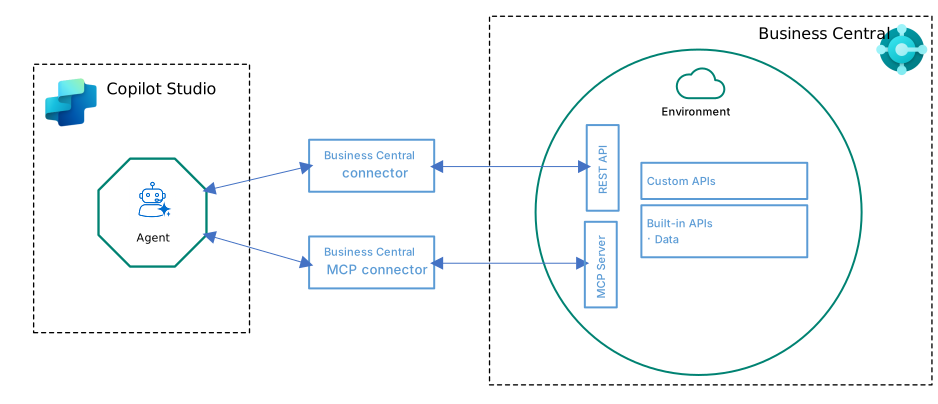
After you create an agent, you can publish agents into multiple platforms or channels, like live websites and Microsoft 365 Copilot, or messaging platforms like Teams and Facebook.
Learn more about Copilot Studio and agents in Copilot Studio.
Connection options
You can build agents that connect to Business Central using the Business Central Connector for Power Platform or the Business Central MCP (Model Context Protocol) server. You can also use both options together:
Business Central Connector: This connector is part of the Power Platform framework. It provides a simplified, low-code interface for accessing Business Central entities such as customers, vendors, items, and invoices. It's ideal for scenarios where:
- The agent needs to perform simple CRUD (create, read, update, delete) operations using predefined actions while acting as the user (respecting their Business Central permissions).
- You want low-code integration through Power Automate.
The connector abstracts away many of the API details, making it easier to use but less flexible for advanced scenarios.
Business Central MCP Server: This implementation uses the Model Context Protocol (MCP) to provide access to Business Central through standard and custom API pages. It's ideal for scenarios where:
- The agent must coordinate multiple AI-driven steps—such as retrieving data, analyzing it, and performing actions—into one seamless, automated workflow (AI orchestration).
- Scenarios where performance, scalability, or security policies require direct API management.
Agents using the MCP server typically invoke HTTP operations (GET, POST, PATCH, DELETE) against Business Central endpoints, allowing for full customization and extensibility.
Choosing the connector and MCP Server: Your choice depends on the agent’s requirements, the level of customization needed, and your familiarity with Business Central APIs. In short:
- Connector: For standard integration and automation
- MCP server: For AI agents only
Using both: In some cases, you might use both the connector and MCP Server in a Copilot Studio agent. For example, using both is helpful when the API you need to connect to has a cryptic description that the AI via MCP can't interpret. Adding that API as a tool manually with the connector allows you to edit descriptions and provide AI-friendly context.
Prerequisites
You have a Copilot Studio user license with available Copilot Credits capacity for use. Learn more in Copilot Studio licensing.
To connect the agent to the Business Central MCP Server, it must be enabled in the Business Central environment.
As long as the Business Central MCP Server is enabled, the agent can read data in Business Central through the default read-only permissions on all exposed API pages. If you want the agent to create, update, or delete entities and data, the MCP server must be configured to allow these operations on API pages. Learn more in Configure Business Central MCP Server.
You use these configurations when you set up the agent to connect to Business Central by specifying the appropriate MCP Server configuration during the agent setup process.
Create agents that use Business Central connector
You can use the Business Central connector actions, like Create Record or List Companies, in your agent by adding them as tools. Tools are the building blocks that enable your agent to interact with external systems, in this case, Business Central. For example, if you want to create an agent that allows you list, create, and update items in Business Central, add the Find Records, Create Record, and Update Recordactions as tools to the agent.
Learn more about the connector and its actions in Dynamics 365 Business Central Connector.
Exercise: Build an agent to find and create customers
Follow the steps in this exercise to create an agent that uses the Dynamics 365 Business Central connector. The agent lets users get information about customers in Business Central and create new ones by providing instructions in plain language. The agent uses one read action Find records (V3) and one write action Create record (V3) of the Business Central connector. You can extend it by adding more connector actions (like Update record (V3), Delete record (V3)) and refining the prompt-handling to cover more business scenarios.
Create new or open existing agent.
- Sign in to Copilot Studio.
- In the left-side navigation pane, select Agents.
- Select the agent you want to modify or select New agent to create a new agent.
Learn more about creating agents in Create an agent in Copilot Studio.
Add the Business Central connector actions as tools.
- On the Tools tab of the agent page, select + Add a tool.
- Under the Search for tool box, choose Connector, then search for "Dynamics 365 Business Central".
- Select the connector action
Find records (V3). The Add tool page opens. - If the Connection box displays the
Not connected, select the box, select Create new connection and sign in to Business Central with a valid account. - Select Add to agent. You return to the agent Overview tab.
- Repeat to add the connector action
Create record (V3). This agent uses this action to create a Customer record.
Learn more in Use connectors in Copilot Studio.
Configure the tools.
On the Tools tab of the agent page, select the
Find records (V3)to open the tool for editing.Go to Inputs and configure the required input values:
Input name Fill using Value Envronment Custom value Set to Business Central environment, for example, PRODUCTIONCompany Custom value Set to Business Central environment, for example, CRONUS USA, Inc.API category Custom value V2.0Table name Custom value customersSelect Save.
Repeat for the
Create record (V3)tool.
Learn more in Make changes to your tools configuration.
Test the agent.
Select Test in the upper-right corner of any page to open the Test your agent pane.
In the field at the bottom, enter text that explains what you want the agent to do, for example:
List customersShow my top customerCreate a customer named jesse homer with email jesse.homer@contoso.com
Wait for the response.
Make necessary changes and save.
Learn more in Test you agent.
Publish and deploy the agent.
Learn more in Publish agents.
Tips and best practices when using connector
- Permissions: The connection uses the signed-in account’s Business Central permissions; ensure the account can read companies and create customers.
- Validation: Use server-side validation rules in Business Central (pricing/validation). The connector surfaces errors; handle these errors in agent responses.
- Inputs: Validate and sanitize user input before calling Create record (that is, ensure required fields are present).
- Logging: Use the agent's execution logs to troubleshoot tool calls and to see request/response payloads.
Create agents that connect to Business Central MCP Server
[This section is prerelease documentation and is subject to change.]
Important
- This is a production-ready preview feature.
- Production-ready previews are subject to supplemental terms of use.
Follow these steps to create an agent that connects to the Business MCP server.
Create new or open existing agent.
- Sign in to Copilot Studio.
- In the left-side navigation pane, select Agents.
- Select the agent you want to modify or select New agent to create a new agent.
Learn more about creating agents in Create an agent in Copilot Studio.
Connect the agent to the Business Central MCP server.
On the Tools tab of the agent page, select + Add a tool.
Search for and select Dynamics 365 Business Central MCP Server (Preview).
If the Connection box displays the
Not connected, select the box, select Create new connection and sign in to Business Central with a valid account.Select Add and configure to return to the Tools tab. If you select Add agent, you configure it later by opening the Tools tab.
In Inputs section of the Tools tab, configure the MCP server to connect Business Central by setting the following fields.
Field Value Environment The Business Central environment that the agent connects to. Select the down arrow and select the environment when it appears. Company The company in Business Central that the agent connects to. Select the down arrow and select the company when it appears. MCP Server Configuration (optional) The MCP configuration defined in Business Central that the agent uses. An MCP configuration specifies the APIs the agent can access and its permissions (create, read, update, or delete). Learn more about MCP Server configurations in Configure Business Central MCP Server.
You can leave this field blank, in which case, the agent has read-only access to all exposed API pages in the Business Central environment.Go to the Tools section to view the individual tools (APIs) available to the agent, based on the MCP Server Configuration field. Select the refresh icon
 in the list header to make sure the view is up-to-date.
- If you didn't specify a configuration: the list shows only the standard server actions
bc_actions_search,bc_actions_describe, andbc_actions_invoke. Read-only tools are available to the agent for all API pages in Business Central but they're discovered dynamically and therefore not listed.| - If you specified a configuration that uses dynamic tool mode: the list shows the standard actions (
bc_actions_search,bc_actions_describe,bc_actions_invoke). Tools for API pages defined in the configuration are available to the agent at runtime but aren't listed. - If you specified a configuration that doesn't use dynamic tool mode: the list includes tools for API pages included in the configuration, so you can review and manage them individually.
Learn more about tools and dynamics tool mode in Create MCP Server configurations and How API object entries in Business Central map to MCP server tools.
- If you didn't specify a configuration: the list shows only the standard server actions
Select Save.
Test the agent.
- Select Test in the upper-right corner of any page to open the Test your agent pane.
- In the field at the bottom, enter text that explains what you want the agent to do.
Learn more in Test you agent.
Publish and deploy the agent.
Learn more in Publish agents.
Tips and best practices when using MCP Server
To improve results, try these options:
Use a version of GTP-5 as the model
Give the instructions to the agent.
Instructions are the directions and parameters an agent follows. Agents depend on instructions to:
Decide what tool or knowledge to call to address a user query or autonomous trigger.
Fill inputs for any tool based on the available context.
Generate a response to the end user.
To add instructions, go to the Overview tab on the agent page, and add instructions in the Instructions section. For example, try adding:
You are a Business Central agent. The user will ask a question, or ask you to perform a task or retrieve data. Start by outlining a plan of what you have and what you must do and then use the available tools to retrieve the relevant information.

Clearly show your reasoning, before trying to invoke any tool.

Additionally:
Prefer using semantic search when searching for available actions.
Learn more in Write instructions.
To get a list of available API pages in a Business Central environment, open the Page Metadata virtual table (ID 2000000138) in the Business Central web client by using the following URL, customized for the environment the agent connects to:
https://businesscentral.dynamics.com/<tenant ID>/<environment name>?table=2000000138Filter the list by Page Type = API and APIVersion = v2.0.
Related information
Transparency note: Semantic Metadata Search in Business Central