Note
Access to this page requires authorization. You can try signing in or changing directories.
Access to this page requires authorization. You can try changing directories.
Sales Order Agent in Business Central automates processing sales orders from customer email requests. This article explains how to set up, activate, configure Sales Order Agent, and manage user access.
Learn more about the agent in Sales Order Agent overview.
Prerequisites
Before configuring and activating Sales Order Agent, ensure the following prerequisites are met:
The Business Central environment is one of these country/region versions: AU (Australia), CA (Canada), DE (Germany), DK (Denmark), ES (Spain), FR (France), GB (United Kingdom), IT (Italy), NZ (New Zealand), US (United States).
Sales Order Agent is currently unavailable in other country/region versions. Learn more about geographic and language availability at Copilot international availability.
Set up the email account for receiving incoming requests for sales quotes and orders.
Sales Order Agent monitors incoming emails to this mailbox. The email account must be a Microsoft 365 type (user mailbox or shared mailbox) in your organization. Learn more at Set up email.
Important
To activate and configure the agent, you need Read and manage (Full Access) and Send as permission on the mailbox, unless it's your personal mailbox. As an Exchange admin, delegate these permissions to all users who need to activate and configure the agent. Learn more in Use the Exchange admin center to edit shared mailbox delegation.
When a user activates the agent, it runs as a background task in the context of that user and needs access to the shared mailbox to process emails. It might take a few hours for Exchange to propagate the permissions to the selected users.
Set up the Business Central environment for billing agent capabilities.
Agents use Copilot Credits when a user runs it, which your company is charged for. Learn more in Manage consumption-based billing.
Turn on the Allow HttpClient Requests toggle in the Sales Order Agent extension settings (sandbox environments only).
Open the Extension management page, select Sales Order Agent, and then turn on the Allow HttpClient Requests toggle.
Turn on Sales Order Agent capability for environment
The agent capability is on if the  Sales Order Agent icon appears in the top navigation menu of the role center.

If the icon isn't present, turn it on from the Copilot & agent capabilities page, like other Copilot features in Business Central. Sales Order Agent is listed under Production ready previews. Learn more in Configure Copilot and AI agent capabilities.
Next, configure and activate the agent so it can process customer sales orders.
Configure and activate Sales Order Agent
Configure and activate Sales Order Agent for your company. Only one Sales Order Agent is allowed per company, but you can give access to many users.
In the navigation bar at the upper right of the role center, select
Sales Order Agent > Activate.On the Configure the Copilot agent page, turn on the Active toggle.
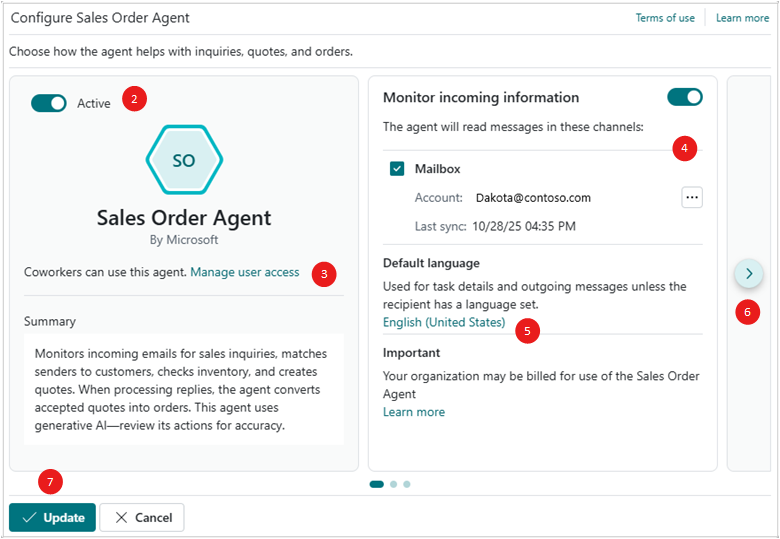
Select Manage user access to specify the users who can manage or interact with the agent. You can add more users now or later. Learn more in Manage user access to the Sales Order Agent.
Turn on the Monitor incoming information toggle, select the Mailbox checkbox, and then set the Mailbox field to the email account you want the agent to monitor.
Set the Default language field to specify the language the agent uses for:
- Outgoing emails to customers or contacts. If a customer or contact card has a language specified, the agent uses that language instead of the default.
- Messages about tasks to users in the Tasks pane.
When you first configure the agent, the field is set to the same language as the display language of your workspace. You can change the language later from the Sales Order Agent card page. Learn more about these settings in Change language, region, and other settings.
On the right side of the page, select the Go to next card arrow to configure more options that determine how the agent behaves.
The options are spread across multiple cards. Use the Go to next card and Go to previous card arrows to go back and forth between the cards and set the various options. Each tab that follows describes a group of related options:
These options specify how the agent engages in conversations related to price and availability of products and services.
Option Description Default Messages from already registered senders Specifies the type of review required for incoming messages from already registered senders. All Messages from unregistered senders Specifies the type of review required for incoming messages from unregistered senders. All Select only available items Specifies whether the agent considers item availability when searching for the customer's requested items.
When on, the agent checks inventory to determine whether the customer's requested item quantity is available based on their requested delivery date and location code. If there aren't enough items, the agent prepares the reply to the user that the requested items aren't available, even in situations when fewer items are available.
When off, the agent includes the customer's requested item quantity regardless of availability. That is, quotes can be created for the items that aren't available and their availability can become negative.
Learn more about item availability in Get an availability overview or open the Item Availability page.On Include capable to promise Specifies whether the agent includes in the search results items that are currently unavailable but can be ordered for a later shipment date.
Learn more in Calculating delivery dates using capable-to-promise.Off Select Update to complete the setup.
The Sales Order Agent icon changes to  , indicating the agent is active and ready to handle incoming quote requests to the mailbox.
When Sales Order Agent is active, a scheduled task added to job queue runs every 20 seconds on the mailbox. This task monitors new unread messages in the mailbox. If a new unread message is found, Sales Order Agent imports the message into Business Central and verifies whether there's already a task for the mail thread. If a task for the thread already exists, Sales Order Agent incorporates the new message into the existing task. Otherwise, it creates a new task for the message.
Note
The  icon indicates the agent is configured with the mailbox, but it's not active. To activate, select the icon, then select
  Configure Sales Order Agent to reopen the configuration page. From there, turn on the Active toggle.
Manage agent permissions and user access
Add agent users
As an administrator, you can specify which users have permission to use or configure Sales Order Agent. There are three ways to add and configure agent users:
Open the Configure Sales Order Agent page by selecting
Sales Order Agent > Configure.Turn off the Active toggle.
Select Manage user access.
On the Select users that can manage or interact with the Agent page, you can do the following steps:
- To add a user, select an empty line, select the User Name field, then select the user from the list.
- To give a user permission to configure Sales Order Agent, select the Can configure checkbox.
The Can configure setting defines whether a user has access to update the agent configuration (for example, updating the designated mailbox, activating and deactivating the agent, and other settings) or only to work with the agent tasks (for example, reviewing and confirming agent steps). - To remove a user's access to the agent, select
 Show more options next to the user name, and then select Delete.
Manage agent permissions to objects, data, and UI elements
Sales Order Agent has a user account in Business Central, similar to other users, which defines the permissions the agent has on objects and data. To access this account, search for and open the Agents page, and then select SALES ORDER AGENT - [COMPANY] to open the agent card page.
The Agent Permission Sets section lists the permission sets currently assigned to the agent. By default, Sales Order Agent has the SOA AGENT – EDIT permission set. This set restricts access to only the objects, data, and UI elements (such as pages, fields, and actions) necessary for handling sales quote requests.
You can't modify the SOA AGENT – EDIT permission set directly, because it's a system permissions set. However, you can create a copy of SOA AGENT – EDIT permission set, modify the copy to suit your needs, and then add it to the Agent Permission Sets section, along with any other permission sets.
Before you can add or delete permission sets applied to the agent, change the State to disabled. When you're done making changes, set it back to Enabled.
Change agent language, region, and other settings
The agent is validated and supported in the following languages: Danish, English, English (Canada), English (New Zealand), English (Australia), English (United Kingdom), English (United States), French, French (Canada), German, Italian, Portuguese (Brazil), Spanish. While it can be used in other languages, it might not function as intended. Language quality might vary based on the user's interaction or system settings, which might impact accuracy and the user experience. Learn more about geographic and language availability at Copilot international availability.
To open the Sales Order Agent card page, search (Alt+Q) for Agents, and then select SALES ORDER AGENT - [COMPANY].
Select Agent User Settings and set the following fields:
Field Description Profile Specifies the role that defines the agent's home page with links to the most common tasks. Region Specifies the regional format used by the agent for dates, times, and numbers in outgoing emails and task details. Language Specifies the language the agent uses for generated text in: - Outgoing email messages to customers or contacts. If a customer or contact card has a language specified, the agent uses that language instead of the default.
- Task details and descriptions in the agent Tasks pane and log.
Time zone Specifies the time zone used by the agent when displaying and processing date and time in tasks details.
Next steps
Process sales quotes and orders with Sales Order Agent
Related information
Sales Order Agent overview
FAQ for Sales Order Agent
Configure Copilot and agent capabilities