Note
Access to this page requires authorization. You can try signing in or changing directories.
Access to this page requires authorization. You can try changing directories.
Customer Intent Agent for voice uses generative AI to autonomously discover intents in your Dynamics 365 Contact Center instance. It analyzes past interactions between customer service representatives (service representatives or representatives) and customers to create an intent library that enhances dynamic conversations. Intent benefits self-service scenarios by enabling agents to quickly understand customer needs, guide conversations with follow-up questions, and provide tailored solutions in real time.
Prerequisites
- Enable Customer Intent Agent.
- Intent discovery is set up and intents are available in the intent library.
- Service principal for the customer organization is created.
- Instructions, connectors, and knowledge are configured for intents marked for self-service.
Note
You must share the connection for the custom connector with the following App ID:
d3e4eed9-fdab-4c55-a667-e4d1ffc8bb85. - New Copilot agents are enabled for voice and connected to your contact center environment.
How it works
An administrator sets up intent, uses historical data to build the intent library, and enables the library for Copilot agents.
The IVR agent routes the call to the intent-enabled voice agent via the Customer Intent Agent queue.
Copilot agent detects customer intent, asks follow-up questions related to the intent, and provides a solution from the configured resources.
If the conversation is escalated, it's transferred to representatives.
The application also uses this conversation to detect any updates and discover new intent attributes that can be used in future interviews.
In the next customer interaction, the Copilot agent can address the issue using the newly generated knowledge and intent, providing a tailored response without escalating to a representative.
Configure voice agents
Perform the following steps in Copilot Service admin center.
To configure intent for voice agent, on the AI Agents page, select a Copilot agent for which the voice status shows as Connected. We recommend that you use a newly provisioned Copilot agent in this step.
Select Manage type. On the Type dialog, select Uses AI-generated intents and Voice only.
Note
Configurations that you set for the AI agent in Copilot Studio aren't applicable after you set the type Uses AI-generated intents. The runtime logic for the voice agent uses the intents in the intent library only. You can add the voice agent to a workstream as the deflection agent. However, we recommend that you integrate the Customer Intent Agent enabled voice agent with your current IVR system, place the voice agent in a voice queue, and route the calls to it.

Save and close. The type of the agent changes to Voice - AI Intents.
Configure voice agents to use line of business
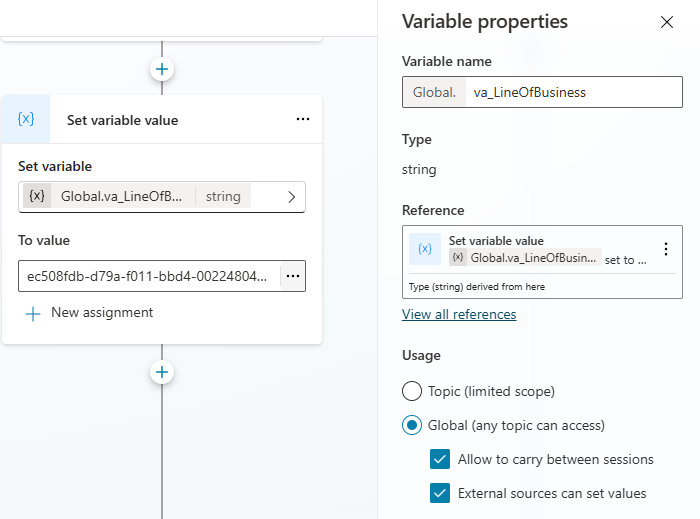
Your intent agent might be set up to use multiple lines of businesses. If you're using lines of business, make sure that you set the line of business in conversation context before the intent agent is added to the conversation. This sets the scope for intents and instructions that your intent agent follows during the rest of the conversation.
To set the line of business during the conversation, make sure you set the context variable “va_LineOfBusiness” to the globally unique identifier of the corresponding line of business you want the intent agent to recognize. Make sure your Customer Intent Agent is on a queue and a Copilot agent is the first to answer the call. When escalating to the Customer Intent Agent, make sure your Copilot agent sets a variable “va_LineOfBusiness” to the value of the target line of business.
Learn about finding the unique ID of the line of business in Discover line of business unique IDs.
Important
If you’ve configured lines of business, but don’t set a value during the conversation, the voice agent using intent falls back to the first line of business in your environment, ordered alphabetically.
Connect voice agents to voice queues or workstreams
To use Customer Intent Agent for voice, you need to connect your Voice - AI Intents type agent to a queue or workstream. If you connect the Customer Intent Agent for voice to a workstream, it handles all the traffic to that workstream. However, it can't set context, and you need to configure the routing logic appropriately. If you need granular control over routing logic, we recommended that you connect the Customer Intent Agent for voice to a queue as shown in the following diagram. In this configuration, a separate Copilot agent acts as the workstream IVR agent, and then escalates calls to the Customer Intent Agent for voice in a particular queue for the required triggers.

Follow these steps to configure the IVR agent to escalate the calls to the Customer Intent Agent for voice in a queue:
Create a voice queue and add the Customer Intent Agent for voice to the queue. Learn more in create a queue.
In the existing topic flow for your workstream Copilot IVR agent, where you want to use Customer Intent Agent for voice, save a variable (for example va_AgentTransfer=True) and call the transfer to agent action. Learn more in Work with variables.
In the route-to-queue rules of the voice workstream, route to the queue with your Customer Intent Agent based on the va_AgentTransfer variable. The Customer Intent Agent is invoked, and if it can't resolve the customer issue, it escalates the call and triggers the queue routing again. When the call is routed the second time, make sure that you configure the rules to route to a queue with a service representative.
Configure instructions to use custom context for voice agents
Configure your voice agent to use context variables from the conversation and deliver a dynamic, personalized experience. You’ll include these variables in your intent agent instructions. The key steps are as follows:
Set any context variables you want to use prior to engaging the intent agent. For example, the global variables that are created in Copilot Studio are passed to Dynamics 365 Contact Center when a conversation is escalated.
Author your instructions with replacement slugs to consume the context variables. Within instructions, use the syntax
{@<variable name>}, for example: “The customer’s name is{@Customer_Name}.”
Example
In your context variables, configure a variable like Customer_Name to capture the customer’s name.
Set up your workstream with an agent from Copilot Studio, and add the intent agent to a queue.
In the Copilot Studio agent conversation session, capture the customer’s name and set it into a global variable
Customer_Name. This is handed off to the contact center when you escalate to the intent agent.In your intent instructions, insert the variable placeholder slug where appropriate. Example: The customer's name is {@Customer_Name}. Make sure to refer to the customer by name throughout the conversation.
Make sure to follow best practices when authoring your instructions.
Note
The intent agent can only read context variables. It can't set context variables.
General behaviors of Customer Intent Agent for voice
- If the customer asks to be escalated to a representative, the agent complies.
- If the voice agent encounters any error, it escalates to a representative.
- If the customer query is resolved, the agent ends the call.
- If the customer remains silent, the agent ends the call.
Create a service principal
To recreate the IVR workflows, the voice agent needs to access the connectors through a service principal that you must create for the environment where the customer data is stored.
As a user with administrator permissions to access the environment, sign in to Graph Explorer.
In the site map, select API Explorer, and under Resources available, expand servicePrincipals, and select POST.
Enter the following JSON in Request Body, and select Run query: { "appId" : "d3e4eed9-fdab-4c55-a667-e4d1ffc8bb85"}
The service principal is created and displayed in Response preview.
Related information
Overview of Customer Intent Agent
Configure intent-based routing
Configure intent-based suggestions for Copilot agents