Note
Access to this page requires authorization. You can try signing in or changing directories.
Access to this page requires authorization. You can try changing directories.
When a customer fills out a form in Customer Insights – Journeys, the values they submit can help you create more personalized and relevant experiences. This guidance applies to marketing forms and event registration forms. Use these submitted values in two common scenarios:
- Branching a journey
- Personalizing email
Note
You can also use the submitted values to personalize double opt-in emails.
These scenarios work for mapped and unmapped fields, so you can branch journeys or personalize emails regardless of whether the form fields are linked to a contact or lead attribute.
Form field properties for journey branching and personalization
Before examining scenarios that use submitted values, review the applicable form field properties.
| Property | Description | Example |
|---|---|---|
| Field value | - Submitted value for text fields and text areas. - Numerical index for option set, multiselect, and two-options fields. - Record ID for lookup fields. Note: For two-option fields, a False or 0 value is represented by an empty value. |
1 (for option set field) |
| Field localized value | - Submitted value for text fields and text areas. - Human-readable value for option set, multiselect, two-options, and lookup fields. |
Blue (for option set) |
| Display name | - Mapped fields: Display name of the lead or contact attribute. - Unmapped fields: Logical name is defined in the form editor. |
First name |
| Field localized name | - Mapped fields: Display name of the lead or contact attribute. - Unmapped fields: Logical name is defined in the form editor. |
First name |
| Logical name | - Mapped fields: Logical name of the lead or contact attribute. - Unmapped fields: Logical name is defined in the form editor. |
firstname |
Branch a journey based on submitted values
You can adjust the path of a journey depending on the answers your customer provides in a form. For example, if a customer selects "Interested in Product A," you can branch them into a journey that sends more details about Product A.
Guided example: choose a favorite color
To make this guide easier to follow, this example assumes your form includes an option set field called "Favorite color" with the following properties:
- Display name: Favorite color
- Field localized name: Favorite color
- Logical name: favoritecolor
The form contains these options:
- Option 1:
- Field value: 1
- Field localized value: Blue
- Option 2:
- Field value: 2
- Field localized value: Red
- Create a new trigger-based journey using the Marketing Form Submitted trigger, which works for marketing and event registration form types. Choose your form and select the Create button.
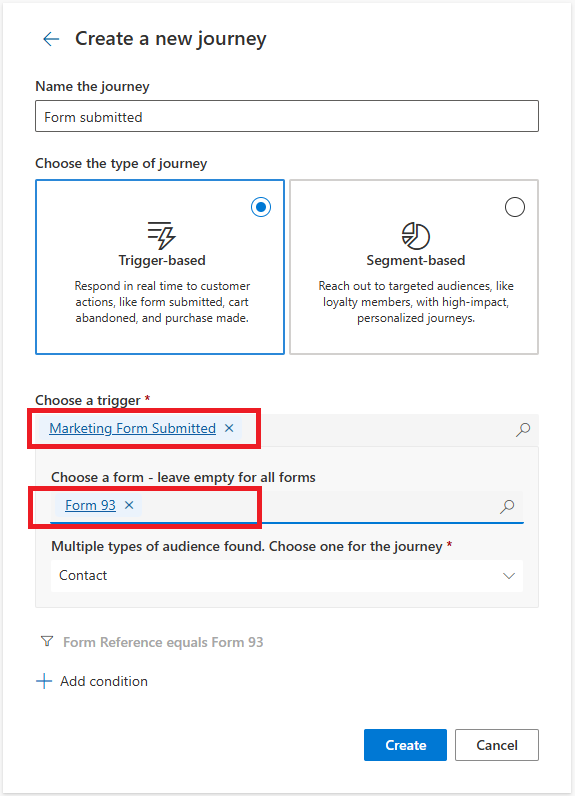
If you don't select a specific form, the journey triggers from any form submission across all your forms. If your form updates multiple audiences (for example, leads and contacts), make sure to select the correct audience for your journey.
On the journey canvas, add an action tile and select Attribute branch to create different paths based on submitted form values.
Set the condition by navigating to Trigger > Marketing Form Submitted > Form Submission Entity Reference > Field Submissions > Field Value.
Enter the expected value. For example, if you want to create a branch for customers who selected "Blue" as their favorite color, enter 1 (the field value assigned to "Blue" in the option set).
Select Field Submission Sort by Created On: Descending to filter the correct form field.

Filter the correct form field. Select Choose an attribute, then navigate to Field Submission > Logical name and enter the expected value. For example, use
favoritecolor, which is the logical name of the "Favorite color" option set field. Select the Done button.
Add a new branch and define another condition (following steps 2 and 3) to cover the remaining options, ensuring that each possible value has its own path.


Personalize email using submitted values
Use submitted values to make your emails more relevant. There are two approaches:
- Insert dynamic text
- Show a personalized list
Building personalized emails with submitted values works well for double opt-in emails, where the reference to a contact or lead record might be missing. In such cases, using the submitted form values ensures that you can still personalize the message without relying on mapped contact or lead attributes.
Insert dynamic text
This approach pulls the values your customer submitted and inserts them into the email.
Create a new or open an existing email.
Add a Text element and select the Personalization icon.
Select + New dynamic text.
Select Choose and attribute.
Select Trigger > Marketing Form Submitted > Form Submission Entity Reference > Field Submissions > Field Localized Value.

Select Field Submission Sort by Created On: Descending to filter the correct form field.
Select Choose and attribute.
Select Field Submission > Logical name and enter the expected value. For example,
firstname.
Select Done, then Save.


Learn more about personalization.
Show a personalized list
Create a personalized list of what the customer submitted and include it in the email.
You can build a personalized list by navigating to Trigger > Marketing Form Submitted > Form Submission Entity Reference > Field Submissions. Choose Field localized Name and Field Localized Value as columns. You can add conditions to exclude specific fields from the list. You can also encapsulate the personalization tokens into an HTML table to enhance the visual experience.
