Note
Access to this page requires authorization. You can try signing in or changing directories.
Access to this page requires authorization. You can try changing directories.
Security roles for Connected Field Service let administrators provide appropriate access to Internet of Things (IoT) tables, including alerts, assets, devices, and commands. Add these security roles to existing Field Service security roles for field service administrators, dispatchers, and resources.
In general, access to IoT tables mimics access to the customer asset table for field service administrators, dispatchers, and resources.
Prerequisites
The following prerequisites are required:
Dynamics 365 system administrator access
General knowledge of Field Service security roles. Learn more in Set up users and security roles.
Note
Make copies of the Field Service security roles and assign the copied security roles to users. This prevents product updates from overwriting your custom security configurations. To copy a security role, go to Copy a security role.
Add IoT security to administrator security role
In the Power Platform admin center, give Field Service administrators full access to all IoT tables. These users need a full view of IoT alerts across all devices and can register new IoT devices. They're typically assigned a copy of the Field Service - Administrator security role.
If your organization uses Connected Field Service, assign these administrators a copy of the IoT - Administrator security role.
With full IoT administrator permissions, Field Service administrators can access all IoT tables. This access lets them:
- Create
- Read
- Write
- Delete
- Append
- Append to
- Assign
- Share
The following screenshot provides reference.

The Field Service administrator security role should also be given full access to the CFS - IoT Alert Process Flow, which is a business process flow for Connected Field Service.
Add IoT security to dispatcher role
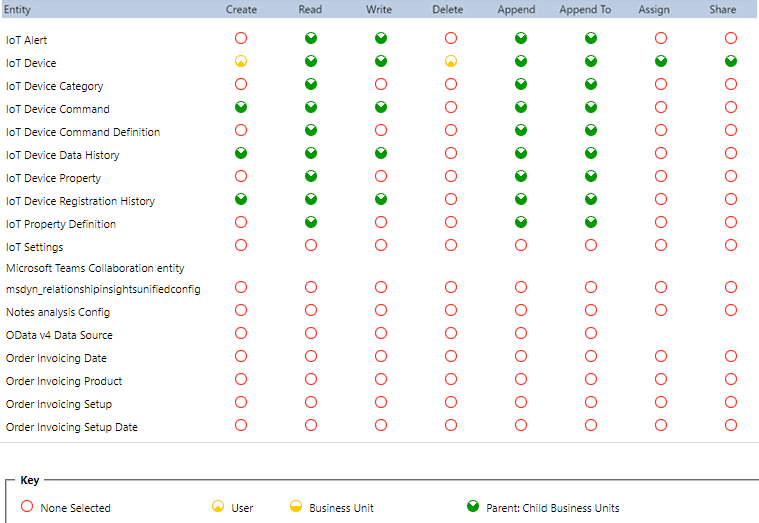
Field Service dispatchers need access to IoT tables and records. For example, when a work order is created from an IoT alert, dispatchers need to know so they can communicate with the customer and schedule the appropriate resources.
In the Power Platform admin center, locate the dispatcher security role your organization assigns to dispatchers (usually a copy of the Field Service - Dispatcher security role). Assign limited access to IoT tables as shown in the following screenshot.
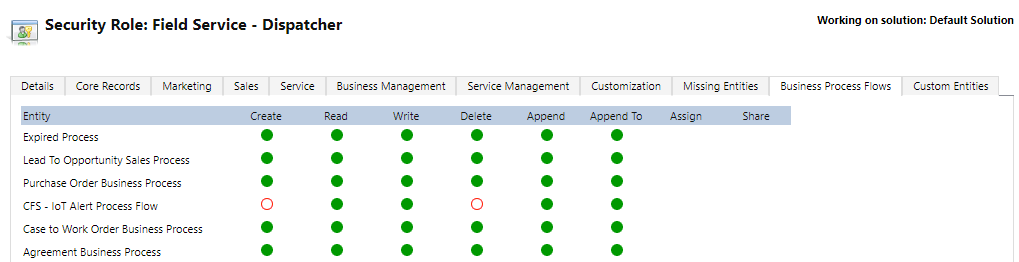
Next, grant access to the CFS - IoT Alert Process Flow as shown in the following screenshot. Dispatchers can use the Connected Field Service business process flow to update and track work order stages from IoT alerts.
Add IoT security to resource security role
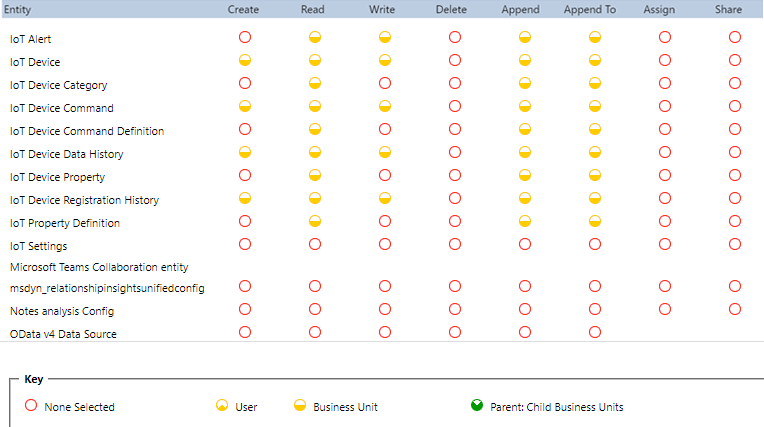
Finally, resources need access to IoT tables and records related to their responsibilities.
Identify the resource security role your organization assigns to resources or technicians (typically a copy of the Field Service - Resource security role), and assign limited access to IoT tables as shown in the following screenshot.
Business process flows aren't displayed on the Field Service mobile app, so resources don't need access to the CFS - IoT Alert Process Flow.
Assign the IoT Administrator and IoT Endpoint User security roles to users who work with device registration and device data pulls (IoT Hub operations).