Note
Access to this page requires authorization. You can try signing in or changing directories.
Access to this page requires authorization. You can try changing directories.
Geocoding is the process of transforming text-based address descriptions into geographical coordinates. Dynamics 365 Field Service uses coordinates to estimate travel times when scheduling a work order to a resource.
The Auto Geo Code Addresses setting enables the system to automatically get coordinates (latitude and longitude) based on the address of a service account or a resource.
Prerequisites
To use geocoding or location services, connect to maps.
Enable automatic geocoding
In Field Service, change to the Settings area and then choose Field Service Settings.
In the Other tab, set Auto Geo Code Addresses to Yes.
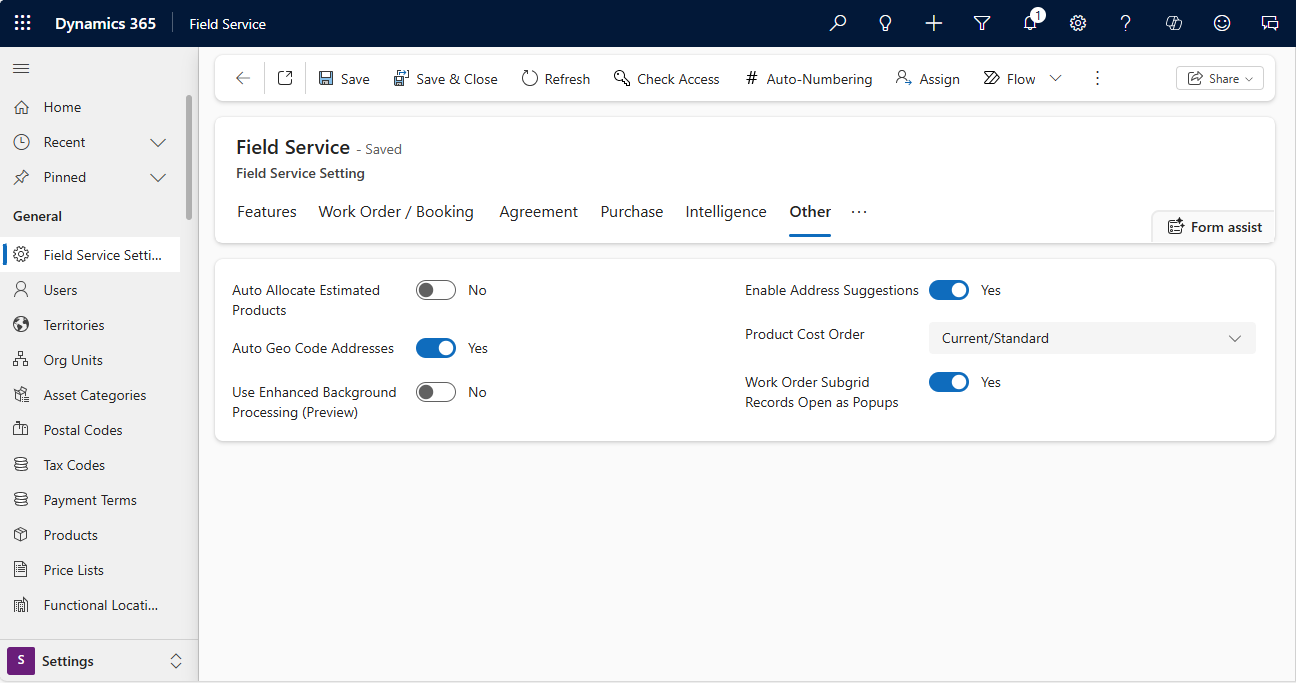
Select Save.
The geocoding process in Field Service uses only one street field (Street1). The process ignores additional information like apartment number in Street2 and Street3. Don't add the extended information to Street1. The string length could be too long to process.
Tip
When the system finds no geocode match, it returns the value (0,0). Any custom logic that uses geocoding should ignore these results to avoid incorrect locations and travel routes.
Get coordinates for an address on a record
Open a service account or a functional location.
Make sure the service address is accurate.
On the command bar, select Geo Code.

On the map dialog box, make sure you have the correct address, then select Change.