Note
Access to this page requires authorization. You can try signing in or changing directories.
Access to this page requires authorization. You can try changing directories.
Note
Community interest groups have now moved from Yammer to Microsoft Viva Engage. To join a Viva Engage community and take part in the latest discussions, fill out the Request access to Finance and Operations Viva Engage Community form and choose the community you want to join.
Analytical workspaces
Analytical workspaces come with the application suite. Through reporting, they give users insights into data based on standard business operations. The reports are generic reports that business professionals define. They include metrics that interest a wide range of users from any industry.
However, in some cases, the standard reports include data that isn't relevant to all customers. More often, customers want to access data points or calculations that the standard reports leave out.
Power users can use web-friendly design tools to customize the analytical reports embedded in the application. By using the free-form canvas designer, users who are familiar with the relevant business insights that are required can help make the organization successful.
Important
The service automatically deploys customizations that you make to the embedded analytical reports and makes them available to other users of the system.
Edit embedded reports in analytical workspaces
The How to edit an embedded report in an analytical workspace video (shown above) is included in the Playlist available on YouTube.
Important points about embedded analytical reports
Although the standard reports deliver insights that are tailored to a given business persona, customizations can often maximize the value of these standard reports.
Here are some important points to note about this service capability:
- You can only customize the report design canvas. You can't change the definitions of report data sets.
- When you customize reports in the analytical workspace, the changes apply to all users in the environment.
- The service automatically preserves report customizations during product upgrades.
- The service doesn't support the export of customizations that you make to analytical workspaces.
Customize an analytical workspace
To customize the embedded application solutions, assign the System report editor security role to a user. Users with this security role can use the buttons on the Options tab on the Action Pane of the application workspaces to make customizations. This example shows how to customize one of the standard analytical workspaces that are bundled with the application suite.
Sign in and open the application workspace that you want to customize. In this example, you replace the standard analytical report that's embedded in the Compensation management workspace.

Select the Analytics tab to access the workspace's embedded analytical report.
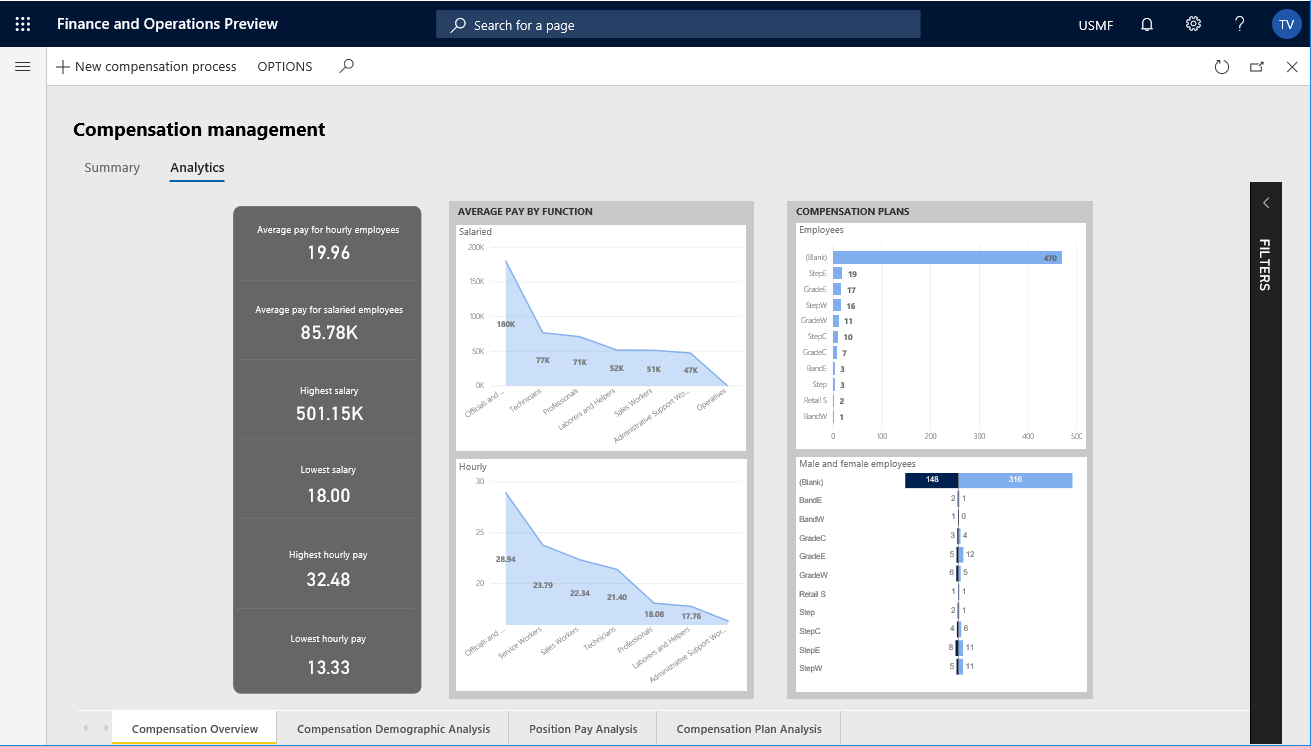
By default, you see the standard analytical workspace solution that's packaged with your application. The provisioning process automatically deploys and configures the reports in this solution for your environment.
Note
The analytical workspaces require a hosted Microsoft Power BI service that's available only for dedicated environments. For more information, see Accessing Analytical Workspaces and Reports on 1Box environment.
On the Action Pane, on the Options tab, in the Power BI group, select Edit Analytics.

The analytical workspace opens in edit mode, and you have direct access to the Power BI web designer tools.
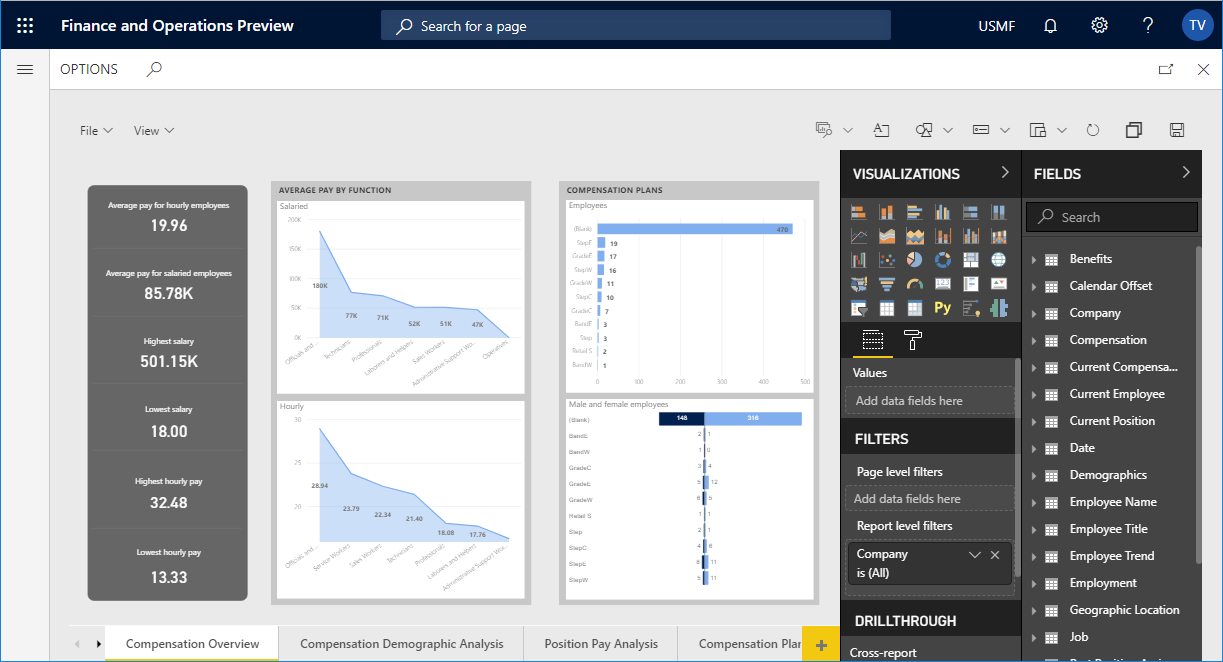
Use the Power BI web designer tools to customize the report canvas. The intuitive web controls let you perform typical actions such as adding and removing visuals, changing visual types, and formatting the content. You can also inspect the source of the report visualizations to make sure that decisions are based on the most relevant data that's available in the system. For more information, see Add visualizations to a Power BI report.
After you complete your report customizations, select the Save button to promote the report edits. Customizations to the report are reflected immediately in the service. Therefore, users in your organization have access to the latest innovations.
Note
Customizations made in the web editor aren't saved back to the underlying PBIX report and aren't retrievable if the PBIX report is later customized on a development environment.
Restore the standard application solution
Follow these steps to restore the analytical workspaces that are bundled with the application solution.
- In the analytical workspace, on the Action Pane, on the Options tab, in the Power BI group, select Restore Analytics.
- To view the updates to the workspace, reload the page. Either move away from the workspace and then return, or refresh your browser.
- In the Compensation management workspace, select the Analytics tab to access the original analytical workspace that was packaged with the application.
Troubleshooting
Follow these steps to address common issues encountered while attempting to use analytical workspaces.
Error message: Please log into Power BI to access its resource
The Power BI service requires explicit permission from the user to allow access to hosted content. Use the following steps to ensure the current user is able to connect to reports hosted on PowerBI.com from the application suite.
- Open any application workspace containing a section titled Link. For example, "Bank management."
- Select Options, and then select Open report catalog on the top left.
- Follow the steps in the dialog box to Authorize to Power BI to access finance and operations apps for the current user.