Note
Access to this page requires authorization. You can try signing in or changing directories.
Access to this page requires authorization. You can try changing directories.
Note
Community interest groups have now moved from Yammer to Microsoft Viva Engage. To join a Viva Engage community and take part in the latest discussions, fill out the Request access to Finance and Operations Viva Engage Community form and choose the community you want to join.
The solution for managing the print job queue allows customers to properly scale Dynamics 365 finance and operations apps to satisfy high-volume printing requirements. Although public service endpoints used to manage print jobs are backward-compatible, we strongly recommend that customers update all existing Document Routing Agent (DRA) clients.
If you don't update existing installations of the DRA to the most current version, you might experience issues such as:
- Observable performance degradation in applications
- Document loss associated with orphaned print jobs
- Inconsistent handling of printed documents that have custom margins
IT administrators must perform the following procedures on each domain resource that is used to host a DRA.
Note
When you complete a DRA update, register any printers that are connected through the host server. For network printers that are identified by their network paths, if the paths didn't changed, updates aren't required.
Get started
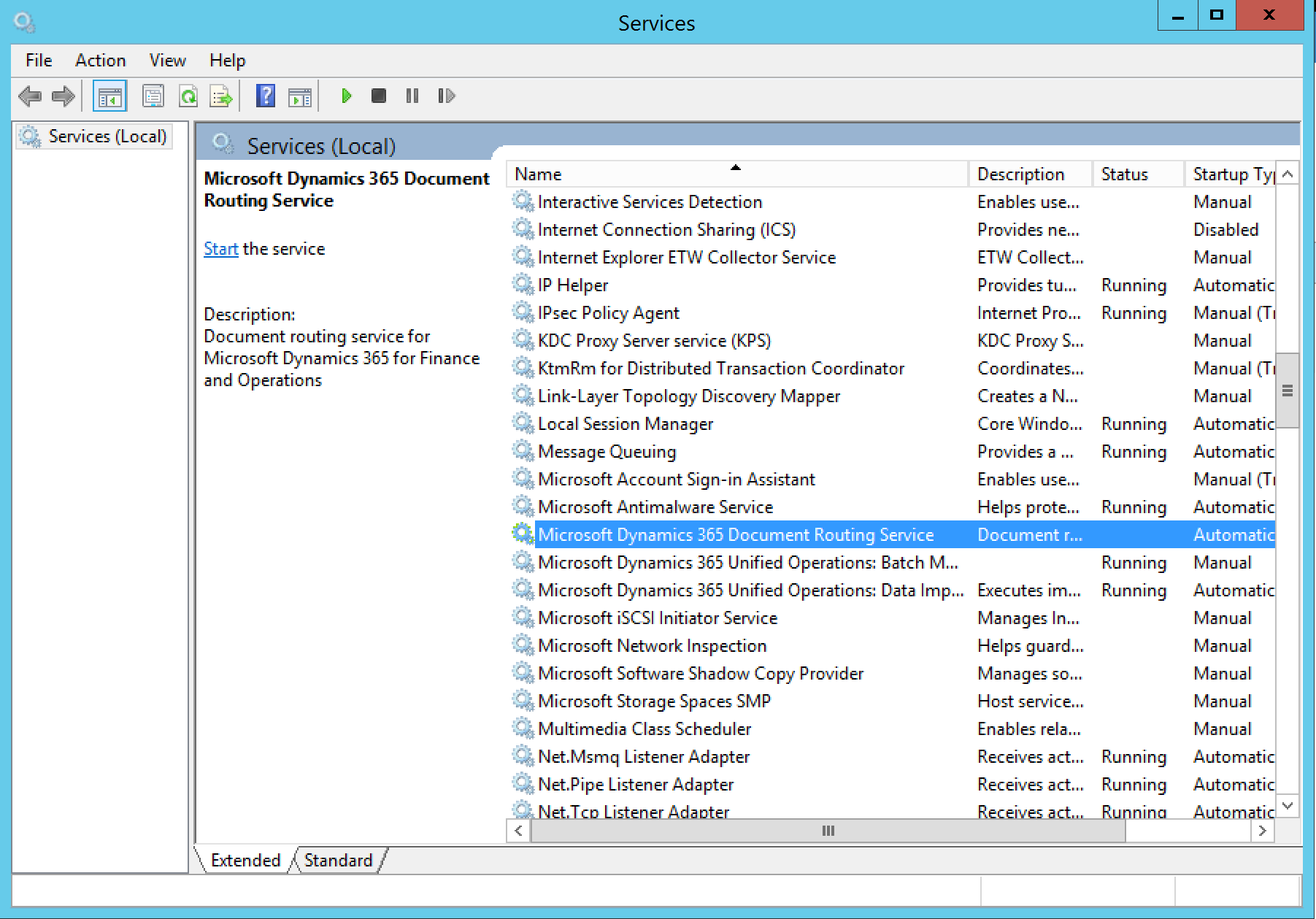
To continue running the DRA as a Microsoft Windows service, you need both the user name and password of the domain account that runs the service. This information must be available after the update completes. To find the information for the active service account, start the Microsoft Management Console (MMC) Services snap-in and select Microsoft Dynamics 365 Document Routing Service in the list.
Uninstall an existing Document Routing Agent
Open Programs and Features, then find and uninstall Microsoft Dynamics 365 Finance: Document Routing.

During the uninstallation process, if you're prompted to close the Microsoft Dynamics 365 Document Routing Service application, select Automatically close applications and attempt to restart them after setup is complete.

Install the latest Document Routing Agent
For information about how to install the latest DRA that's available with your subscription, see Install the Document Routing Agent to enable network printing.
Note
Open the DRA client after upgrading to refresh network user credentials.
Best practices
When you create a support ticket specific to the Document Routing Agent, consider exporting event logs that contain events at the time the issue occurred from the Document Routing Agent machine.
The default event log size is only 1 MB, so if the issue is intermittent, such as a performance issue, consider increasing the event log size. Then wait some time before you export the event logs.
- \Applications and Services Logs\Microsoft\Dynamics\Ax-DocumentRouting\Operational
- \Applications and Services Logs\Microsoft\Dynamics\Ax-DocumentRouting\Admin