Note
Access to this page requires authorization. You can try signing in or changing directories.
Access to this page requires authorization. You can try changing directories.
Note
Community interest groups have now moved from Yammer to Microsoft Viva Engage. To join a Viva Engage community and take part in the latest discussions, fill out the Request access to Finance and Operations Viva Engage Community form and choose the community you want to join.
This article explains how to create, edit, and browse Business process modeler (BPM) libraries. You can browse a BPM library that is a global library or a corporate library. However, before you can edit and work with a BPM library, you must add it to your project in Microsoft Dynamics Lifecycle Services. Microsoft distributes libraries that appear under Global libraries, and your organization publishes libraries that appear under Corporate libraries.
Note
BPM localization isn't supported. If you edit in the new BPM client in any language other than EN-US, your changes only display when you view the BPM in the language in which you made the changes. To view any changes made in EN-US, you must synchronize with Visual Studio Team Server before the changes display.
Create a BPM library
You can create a BPM library in several ways. You can build one from scratch directly in the client or by importing an Excel template. You can also copy an existing library. This section describes each of these methods.
Use the BPM client
- On the Business process libraries page, select New library.

- Enter a name for the new library, then select Create.

Use Excel Import
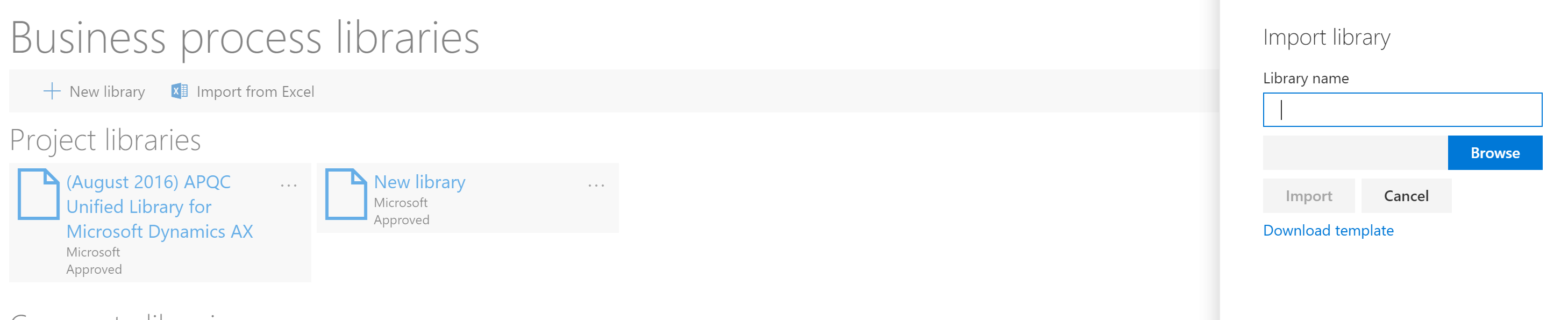
- On the Business process libraries page, select Import from Excel.

- Select Download template from the pane. When the template downloads, open the file.
- The template has several columns, most importantly **Id, and Parent Id. Assign each line a new ID number. If you want to make a line a child item, add the ID of the line you'd like it to fall under in the Parent Id column.
- When you're done, save the template and return to BPM.
- In the import pane, select Browse to upload the updated template. Enter a name for the new library, then select Import.
Copy a library
- Open the Business process libraries page.
- On the tile for the library that you want to copy, select the ellipsis button (…), and then select Copy.

- Enter a name for the library, and then select Create.

Import a section of another library
- Open the Business process libraries page, and then open the library you want to edit.
- Navigate to the line you would like to import to and select Import.

- Select As child or As sibling.

- In the pane, choose the library you would like to import from and select Import.

Add a new process
In the BPM library, select an existing process.
Select Add process. You can select to add the process as a child or a sibling of the selected process node. In this way, you can create a semantic hierarchy of business processes.

Edit the properties of a process
In the BPM library, select the process node to edit.
In the right pane, on the Overview tab, select Edit mode.
Enter a name and description for the process node.
Select the industries and the countries or regions that the process applies to. You can also add keywords and links. Keywords let you define categories, work streams, or other metadata. Links (URLs) let you reference external sites or documentation.
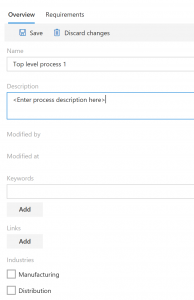
When you finish editing the properties, select Save.
Move a process
You can move a process node or assign it to another parent node in the BPM hierarchy.
Select the process node to move, and then select Move process. You can select to move the process up or down, or you can select Move to see more options.

If you selected Move, you can browse the hierarchy, select a node to move the process to, and then select Move as child or Move as sibling. To cancel the move operation, select Cancel.
Delete a process
To delete a business process, select the process to delete, and then select Delete.
Copy a global or corporate library to your project
You can browse a BPM library that is a global library or a corporate library. However, before you can edit and work with a BPM library, it must be part of your project in Microsoft Dynamics Lifecycle Services. Libraries that are distributed by Microsoft appear under Global libraries, whereas libraries that are published by your organization appear under Corporate libraries.
Browse a BPM library
On the Business process libraries page, double-click the tile for the library that you want to browse.
In the BPM library, select a process to view its substeps.

Use the buttons on the toolbar to add, delete, or import processes as a child or a sibling. You can also select Collapse all to view only parent processes.

Search a BPM library
You can search for words or phrases in your BPM library. The search functionality searches the names and descriptions of business processes.
To search for a word, enter the search word in the search box, and then press Enter.
To search for a phrase, put double quotation marks around the search phrase.
For example, enter technology (word) or "information technology" (phrase) in the search box.
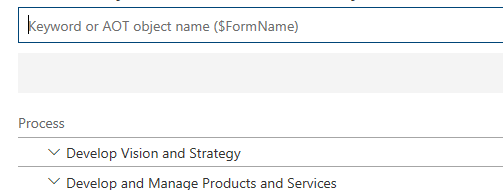
You can also search for Application Object Tree (AOT) elements that are part of the task recordings that are in your library. Typically, these AOT elements are the names of pages or menu items. When you search for an AOT element, prefix it with a dollar sign ($). For example, enter $CustTable in the search box.