Note
Access to this page requires authorization. You can try signing in or changing directories.
Access to this page requires authorization. You can try changing directories.
This topic describes the steps required to create a fulfillment provider in Microsoft Dynamics 365 Intelligent Order Management.
Create new provider definition
To create new provider definition, follow these steps.
- Go to Providers > Catalog.
- Select New Provider Definition.
- For Display Name, enter "IOMLabFulfillmentProvider".
- For Logical Name, enter "msdyn_IOMLabFulfillmentProvider".
- For Description, enter "IOM lab fulfillment provider".
- For Logo, select "IOMLab.png".
- For Service Type, enter "Fulfillment".
- Select Save and close.
Add provider definition to solution
To add a provider definition to the solution, follow these steps.
- Go to the Power App Maker portal and navigate to the newly-created solution IOMLabProviders.
- Select Add existing > IOM Provider Definition.
- Select IOMLabFulfillmentProvider and then select Add to add it to the solution.
Create provider action to send a fulfillment payload to Outlook
To create a provider action to send a fulfillment payload to Outlook, follow these steps.
Go to the Power App Maker portal and navigate to Solutions.
Open the Default Solution.
Select New.
Select Cloud Flow, and then name it "IOM Lab Send To Fulfillment (Outlook)".
Select the trigger type as HTTP trigger
- Define a Power Automate trigger. This is typically an HTTP endpoint that is a webhook trigger (recommended), connector trigger, or a Dataverse insert trigger. The trigger is raised when an external service has data to send to Intelligent Order Management.

The JSON Schema to use in your HTTP trigger is defined below.
{ "type": "object", "properties": { "text": { "title": "ProviderActionExecutionEventId", "type": "string", "x-ms-dynamically-added": true, "description": "Please enter your input", "x-ms-content-hint": "TEXT" }, "text_1": { "title": "EntityRecordId", "type": "string", "x-ms-dynamically-added": true, "description": "Please enter your input", "x-ms-content-hint": "TEXT" } }, "required": [ "text", "text_1" ] }- Define a Power Automate trigger. This is typically an HTTP endpoint that is a webhook trigger (recommended), connector trigger, or a Dataverse insert trigger. The trigger is raised when an external service has data to send to Intelligent Order Management.

Add a Try scope.
Within the Try scope, add a Perform an unbound action action as follows:
- ProviderActionExecutionEventId: Under Dynamic content, select ProviderActionExecutionEventId.
- PowerAutomateRunId: Specify the following as an expression:
workflow()['run']?['name'].

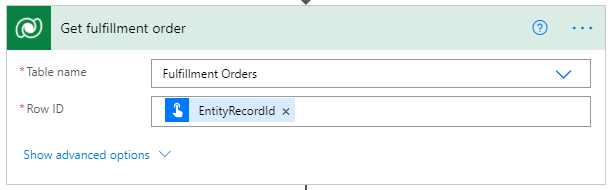
Add a Get a row by ID action and then do the following:
- For Table name, enter "Fulfillment Orders".
- For Row ID, select EntityRecordId under Dynamic content.
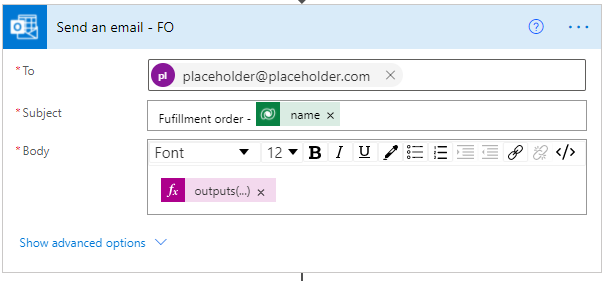
Add a Send an email action from the Outlook.com connector, as follows. There are couple of email connectors, make sure to select Outlook.com since that's the connection set up earlier.
- On the To line, "placeholder@placeholder.com” is used as placeholder text. This will be replaced by a provider parameter in later steps.
- On the Subject line, "name" is obtained from the Get fulfillment order step under Dynamic content.
- For Body, specify the following as an expression:
outputs('Get_fulfillment_order')['body']
Add a List rows action as follows:
- For Table name, enter "Fulfillment Order Products".
- For Fetch Xml query enter the following:
<fetch>
  <entity name="msdyn_fulfillmentorderdetail">
   <all-attributes />
      <filter>
     <condition attribute="msdyn_fulfillmentid" operator="eq" value="@{triggerBody()['text_1']}"/>
     </filter>
  </entity>
</fetch>
Add an Apply to each control with a Send an email action as follows:
- value is obtained from the Get fulfillment order line step under Dynamic content.
- name is obtained from the Get fulfillment order line step under Dynamic content.
- Current item is selected from under Dynamic content.

Within the loop, add an Append to array variable action as follows:
- For Name, enter "ProcessedFulfillmentOrderLines".
- For Value, select Fulfillment line ID from under Dynamic content.

Within the loop, add another Append to array variable action as follows:
- For Name, enter "ProcessedSalesOrderLines".
- For Value, select Sales line ID from under Dynamic content.

Collapse the Try scope by selecting its title bar.
Select New step and add another scope named "Catch".
On the Catch scope, select the ellipsis ("..."), select Configure run after, and configure as follows:
- Select the has failed checkbox.
- Select the has timed out checkbox.

In the Catch scope, select Add an action and add a Set variable action, and rename it "Set the execution result to failed".
Configure the properties as follows:
- For Name, enter "ExecutionResult".
- For Value, enter "false".

Select New step, and add another scope named "Finally".
On the Finally scope, select the ellipsis ("..."), select Configure run after, and configure as follows:
- Select the is successful checkbox.
- Select the has timed out checkbox.
- Select the is skipped checkbox.
- Select the has timed out checkbox.

In the Finally scope, add a "condition" step and compare the ExecutionResult variable to true as follows:
- In the first field, select the ExecutionResult variable.
- In the second field, select is equal to.
- In the third field, select true.

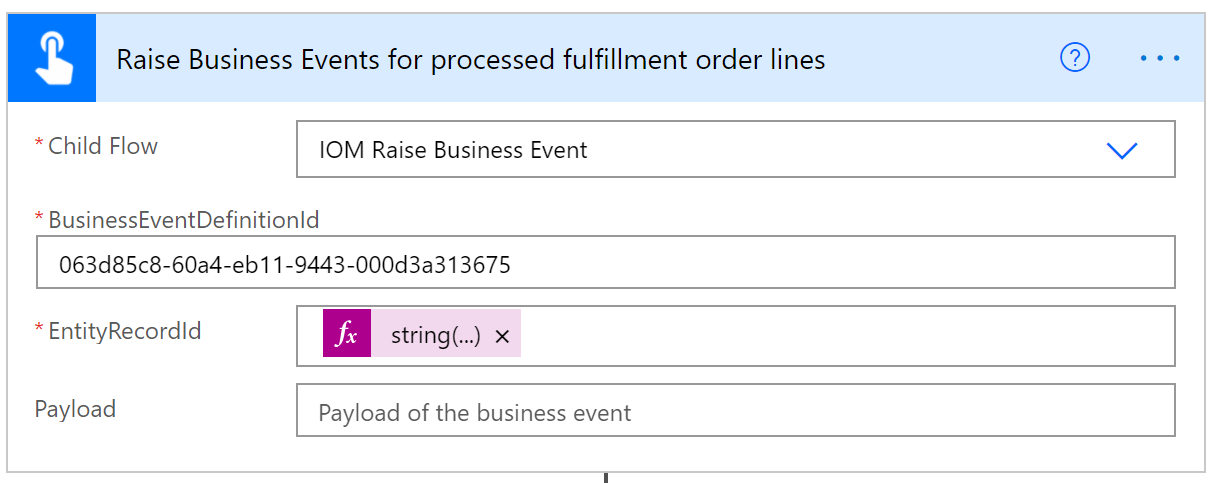
In the If yes branch, add a Run a child flow action and rename it "Raise Business Events for processed fulfillment order lines".
Configure the properties as follows:
- For Child flow, enter "IOM Raise Business Event".
- For BusinessEventDefinitionId, enter "063d85c8-60a4-eb11-9443-000d3a313675".
- For EntityRecordId, specify the following as expressions:
string(variables('ProcessedFulfillmentOrderLines'))
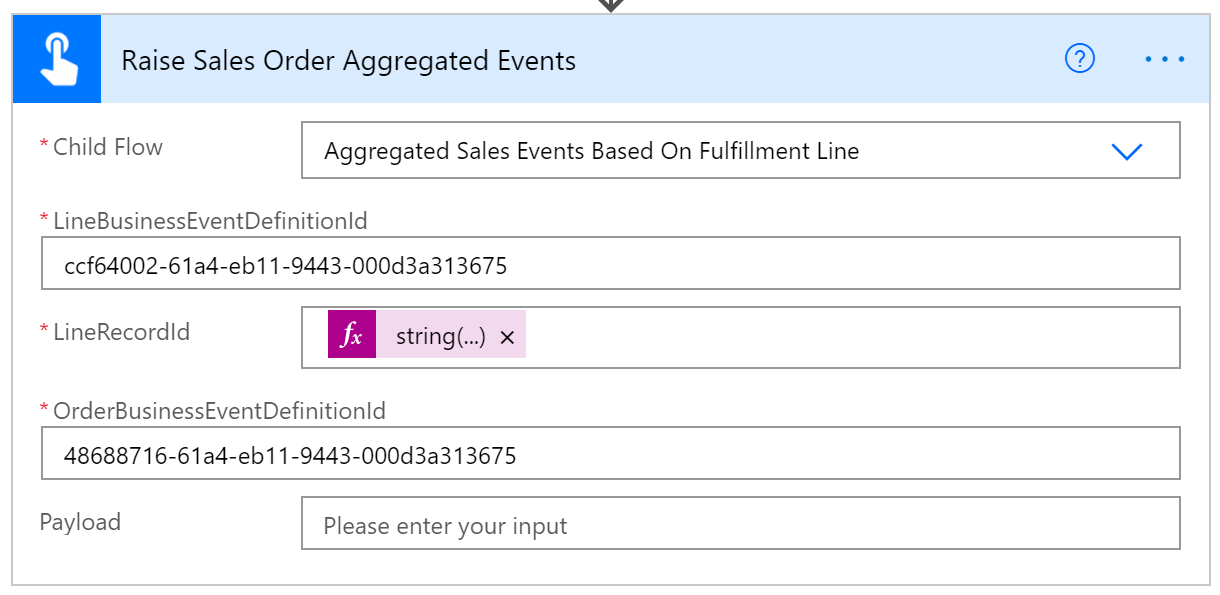
In the If yes branch, add another Run a child flow action and rename it "Raise Sales Order Aggregated Events".
Configure the properties as follows:
- For LineBusinessEventDefinitionId, enter "ccf64002-61a4-eb11-9443-000d3a313675".
- For LineRecordId, specify the following as an expression:
string(variables('ProcessedSalesOrderLines')). - For OrderBusinessEventDefinitionId, enter "48688716-61a4-eb11-9443-000d3a313675".
Collapse the condition step.
Add a Perform an unbound action action as follows:
- For Action name, enter "msdyn_CompleteProviderActionExecution".
- For ExecutionResult, select the ExecutionResult variable from under Dynamic content.
- For ProviderActionExecutionEventId, select ProviderActionExecutionEventId from under Dynamic content.

Select Save.
Add a provider definition logic definition to the Outlook provider definition
To add a provider definition logic definition to the Outlook provider definition, follow these steps.
- Go to Providers > Catalog.
- Select the newly-created IOMLabFulfillmentProvider.
- Select Edit on the menu bar.
- Select the Logic definitions tab.
- Select + New IOM Provider Definition Logic Definition.
- For Display Name, enter "IOM Lab Send to Fulfillment (Outlook)".
- For Logical Name, enter "msdyn_LabSentToFulfillmentOutlook".
- For Provider Definition, enter "IOMLabFulfillmentProvider".
- For Logic Type, enter "Provider Action".
- For Workflow Name, enter "IOM Lab Send to Fulfillment (Outlook)".
- For Timeout Minutes, enter "2".
- For Max Retry Attempts, enter "3".
- For Description, enter "IOM Lab Send to Fulfillment (Outlook)".
- For Action Type, enter "Send to Fulfillment".
- Select Save. This will generate a JSON representation of the message handler cloud flow and populate the Client Data field.
- Replace the placeholder email with provider parameter as follows:
- Copy the text block in the Client Data field and paste it into Notepad.
- In the text block, find "placeholder@placeholder.com" and replace it with "{{IOMLabOutboundFulfillmentEmail}}".
- Copy the modified text block back into the Client Data field.
- Select Save and close.
- Select Connections. You should see both the Microsoft Dataverse and Outlook.com connection reference definitions listed.
Add a provider definition logic definition to the Outlook IOMLabProviders solution
To add a provider definition logic definition to the Outlook IOMLabProviders solution, follow these steps.
- Go to the Power App Maker portal and navigate to the newly-created solution IOMLabProviders.
- Select Add existing > IOM Provider Definition Logic Definition.
- Select IOM Lab Send To Fulfillment (Outlook) and then select Add to add it to the solution.
Add provider definition connection references to IOMLabProviders solution
To add provider definition connection references to the IOMLabProviders solution, follow these steps.
- Go to the Power App Maker portal and navigate to the newly-created solution IOMLabProviders.
- Select Add existing > IOM Provider Definition Connection Reference.
- Select both the Microsoft Dataverse and Outlook.com provider definition connection references, and then select Add to add them to the solution.
Create a provider action to send a fulfillment payload to RequestBin
To create a provider action to send a fulfillment payload to RequestBin, follow these steps.
Go to the Power App Maker portal and navigate to Solutions.
Open the Default Solution.
Select New.
Select Cloud Flow, and then name it "IOM Lab Send To Fulfillment (RequestBin)".
Select the trigger type as Manually trigger a flow and then do the following:
- Select Add an input, select Text, and then enter "ProviderActionExecutionEventId" in the first field.
- Select Add an input, select Text, and then enter "EntityRecordId" in the first field.

Create a variable initialization action:
- For Name, enter "ExecutionResult".
- For Type, select Boolean.
- For Value, enter "true".
Create a second variable initialization action:
- For Name, enter "ProcessedSaleOrderLines".
- For Type, select Array.
Create a third variable initialization action:
- For Name, enter "ProcessedFulfillmentOrderLines".
- For Type, select Array.
Add a Try scope.
Within the Try scope, add a Perform an unbound action action as follows:
- ProviderActionExecutionEventId: Under Dynamic content, select ProviderActionExecutionEventId.
- PowerAutomateRunId: Specify the following as an expression:
workflow()['run']?['name'].
Add a Get a row by ID action and configure it as follows:
- For Table name, enter "Fulfillment Orders".
- For Row ID, select EntityRecordId under Dynamic content.
Add a Create fulfillment order action from the RequestBin connector, as follows.
- For Body, select body from under Dynamic content.

Add a List rows action as follows:
- For Table name, enter "Fulfillment Order Products".
- For Fetch Xml query enter the following:
<fetch>
  <entity name="msdyn_fulfillmentorderdetail">
   <all-attributes />
      <filter>
     <condition attribute="msdyn_fulfillmentid" operator="eq" value="@{triggerBody()['text_1']}"/>
     </filter>
  </entity>
</fetch>
Add an "Apply to each" control with a Create fulfillment order lines action from the RequestBin connection as follows:
- value is obtained from the Get fulfillment order line step under Dynamic content.
- Current item is selected from under Dynamic content.

Within the loop, add an Append to array variable action as follows:
- For Name, enter "ProcessedFulfillmentOrderLines".
- For Value, select Fulfillment line ID from under Dynamic content.
Within the loop, add another Append to array variable action as follows:
- For Name, enter "ProcessedSalesOrderLines".
- For Value, select Sales line ID from under Dynamic content.
Collapse the Try scope by selecting its title bar.
Select New step and add another scope renamed "Catch".
On the Catch scope, select the ellipsis ("..."), select Configure run after, and configure as follows:
- Select the has failed checkbox.
- Select the has timed out checkbox.
In the Catch scope, select Add an action and add a Set variable action, and rename it "Set the execution result to failed".
Configure the properties as follows:
- For Name, enter "ExecutionResult".
- For Value, enter "false".
Select New step, and add another scope renamed "Finally".
In the Finally scope, select the ellipsis ("..."), select Configure run after, and configure as follows:
- Select the is successful checkbox.
- Select the has timed out checkbox.
- Select the is skipped checkbox.
- Select the has timed out checkbox.
In the Finally scope, add a "condition" step and compare the ExecutionResult variable to "true" as follows:
- In the first field, select the ExecutionResult variable.
- In the second field, select is equal to.
- In the third field, select true.
In the If yes branch, add a Run a child flow action and rename it "Raise Business Events for processed fulfillment order lines".
Configure the properties as follows:
- For Child flow, enter "IOM Raise Business Event".
- For BusinessEventDefinitionId, enter "063d85c8-60a4-eb11-9443-000d3a313675".
- For EntityRecordId, specify the following as expressions:
string(variables('ProcessedFulfillmentOrderLines'))
In the If yes branch, add another Run a child flow action and rename it "Raise Sales Order Aggregated Events".
Configure the properties as follows:
- For LineBusinessEventDefinitionId, enter "ccf64002-61a4-eb11-9443-000d3a313675".
- For LineRecordId, specify the following as an expression:
string(variables('ProcessedSalesOrderLines')). - For OrderBusinessEventDefinitionId, enter "48688716-61a4-eb11-9443-000d3a313675".
Collapse the condition step.
Add a Perform an unbound action action as follows:
- For Action name, enter "msdyn_CompleteProviderActionExecution".
- For ExecutionResult, select the ExecutionResult variable from under Dynamic content.
- For ProviderActionExecutionEventId, select ProviderActionExecutionEventId from under Dynamic content.
Select Save.
Add provider definition logic definition to the provider definition (RequestBin)
To add a provider definition logic definition to the RequestBin provider definition, follow these steps.
- Go to Providers > Catalog.
- Select the newly-created IOMLabFulfillmentProvider.
- Select Edit on the menu bar.
- Select the Logic definitions tab.
- Select + New IOM Provider Definition Logic Definition.
- For Display Name, enter "IOM Lab Send to Fulfillment (RequestBin)".
- For Logical Name, enter "msdyn_LabSentToFulfillmentRequestBin".
- For Provider Definition, enter "IOMLabFulfillmentProvider".
- For Logic Type, enter "Provider Action".
- For Workflow Name, enter "IOM Lab Send to Fulfillment (RequestBin)".
- For Timeout Minutes, enter "2".
- For Max Retry Attempts, enter "3".
- For Description, enter "IOM Lab Send to Fulfillment (RequestBin)".
- For Action Type, enter "Send to Fulfillment".
- Select Save. This will generate a JSON representation of the message handler cloud flow and populate the Client Data field.
- Select Save and close.
- Select Connections. You should see the Microsoft Dataverse, Outlook.com, and RequestBin connection reference definitions listed.
Add provider definition parameter to the provider definition
To add a provider definition parameter to the provider definition, follow these steps.
- Select Parameters.
- Select + New IOM Provider Definition Parameter.
- For Display Name, enter "IOMLAbOutboundFulfillmentEmail".
- For Data Type, enter "Text".
- For Provider Definition, enter "IOMLabFulfillmentProvider".
- For Key, enter "IOMLabOutboundFulfillmentEmail".
- For Logical Name, enter "msdyn_IOMLabOutboundFulfillmentEmail".
- For Is Required, enter "Yes".
- Select Save and close.
Add provider definition logic definition to IOMLabProviders solution (RequestBin)
To add a provider definition logic definition to the RequestBin IOMLabProviders solution, follow these steps.
- Go to the Power App Maker portal and navigate to the newly-created solution IOMLabProviders.
- Select Add existing > IOM Provider Definition Logic Definition.
- Select IOM Lab Send To Fulfillment (RequestBin) and then select Add to add it to the solution.
Add provider definition connection reference to IOMLabProviders solution
To add a provider definition connection reference to the IOMLabProviders solution, follow these steps.
- Go to the Power App Maker portal and navigate to the newly-created solution IOMLabProviders.
- Select Add existing > IOM Provider Definition Connection Reference.
- Select RequestBin and then select Add to add it to the solution.
Add provider definition parameter to IOMLabProviders solution
To add a provider definition parameter to the IOMLabProviders solution, follow these steps.
- Go to the Power App Maker portal and navigate to the newly-created solution IOMLabProviders.
- Select Add existing > IOM Provider Definition Parameter.
- Select IOMLabOutboundFulfillmentEmail and then select Add to add it to the solution.
Next quick start lab step: Export solution