Note
Access to this page requires authorization. You can try signing in or changing directories.
Access to this page requires authorization. You can try changing directories.
Workflow scheduling will automatically process the workflow for users meeting the workflows execution conditions. This article walks you through the steps to check the users who fall into the execution scope of a workflow. For more information about execution conditions, see: workflow basics.
Check execution user scope of a workflow using the Microsoft Entra admin center
To check the users who fall under the execution scope of a workflow, you'd follow these steps:
Sign in to the Microsoft Entra admin center as at least a Lifecycle Workflows Administrator.
Browse to ID Governance > Lifecycle workflows > workflows.
From the list of workflows, select the workflow you want to check the execution scope of.
On the workflow overview page, select Execution conditions.
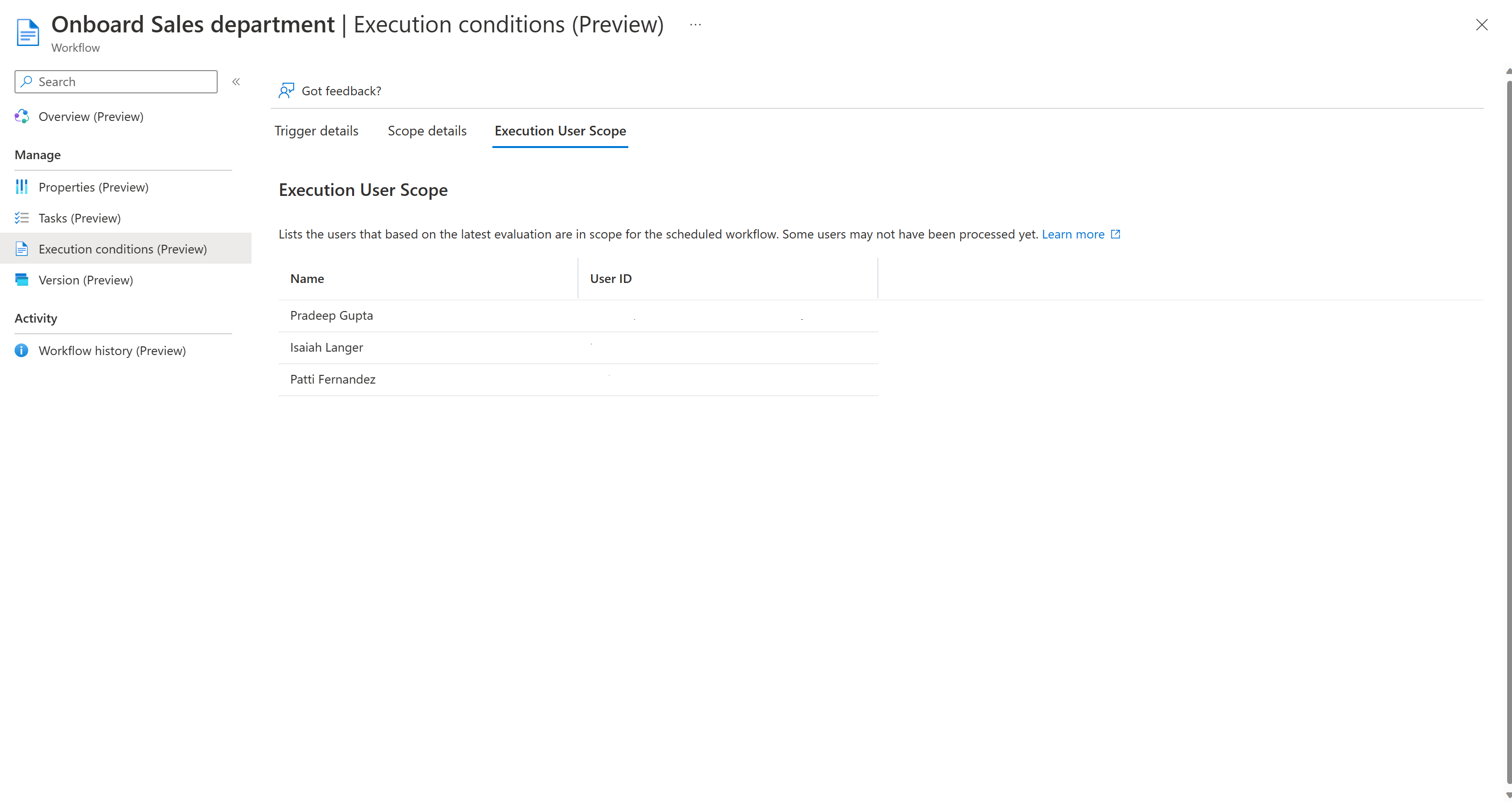
On the Execution conditions page, select the Execution User Scope tab.
On this page you're presented with a list of users who currently meet the scope for execution for the workflow regardless of whether they have already been processed by the workflow.
Note
The workflow engine currently has a retroactive window that allows workflows to run for users who previously met the conditions for the workflow. For more information on this window, see: Lifecycle workflow catch-up window.
Check execution user scope of a workflow using Microsoft Graph
To check execution user scope of a workflow using API via Microsoft Graph, see: List executionScope.