Note
Access to this page requires authorization. You can try signing in or changing directories.
Access to this page requires authorization. You can try changing directories.
Maintaining and classifying data within your environment is an important part in maintaining a secure environment. Sensitivity labels from Microsoft Purview Information Protection let you classify and protect your organization's data, while making sure that user productivity and their ability to collaborate isn't hindered. With sensitivity labels in Lifecycle Workflows, administrators are able to quickly view the sensitivity labels of groups and teams during workflow creation, and editing.
The following tasks support viewing sensitivity labels:
- Add user to groups
- Add user to teams
- Remove user from selected groups
- Remove user from selected teams
License requirements
Using this feature requires Microsoft Entra ID Governance or Microsoft Entra Suite licenses. To find the right license for your requirements, see Microsoft Entra ID Governance licensing fundamentals.
Prerequisites
Along with Microsoft Entra licenses required for Lifecycle workflows, you must also have:
- A created sensitivity label
- A sensitivity label applied to the group or team you want to use with a Lifecycle workflow
View assigned sensitivity labels during workflow creation
To view the sensitivity labels of groups and teams using Lifecycle workflows during workflow creation, do the following steps:
Sign in to the Microsoft Entra admin center as at least a Lifecycle Workflows Administrator.
Browse to ID Governance > Lifecycle workflows > Create a workflow.
On the Choose a workflow page, select the workflow template that you want to use.
Add Basic information, Trigger type, and scope details for the workflow.
On the tasks page, add the task you want to use to view sensitivity labels with. Task availability is based on which template you selected to create your workflow. For more information on workflow templates, see: Lifecycle Workflows templates and categories.
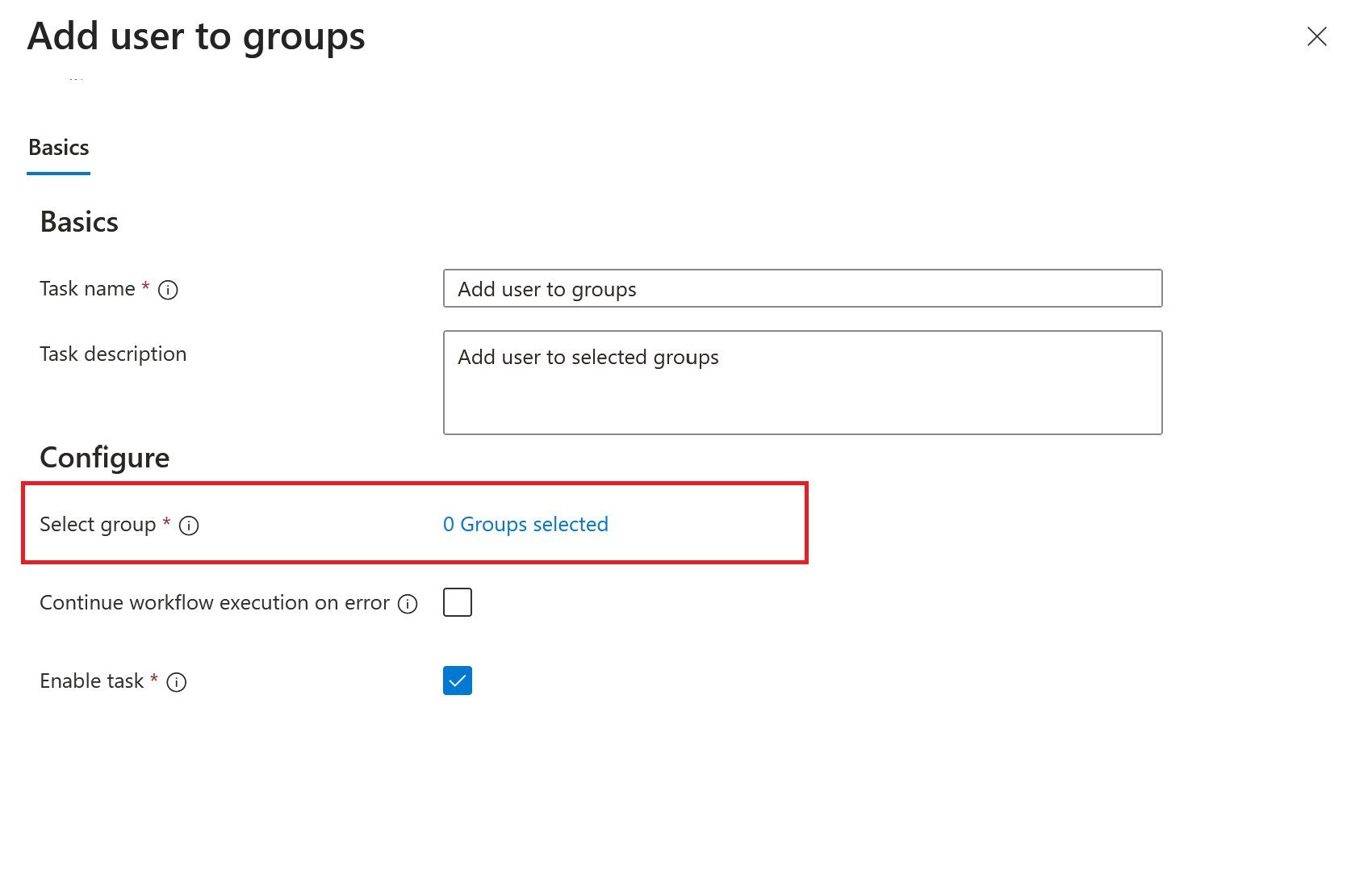
After adding the group-related tasks to the workflow select the task, and then select select groups.
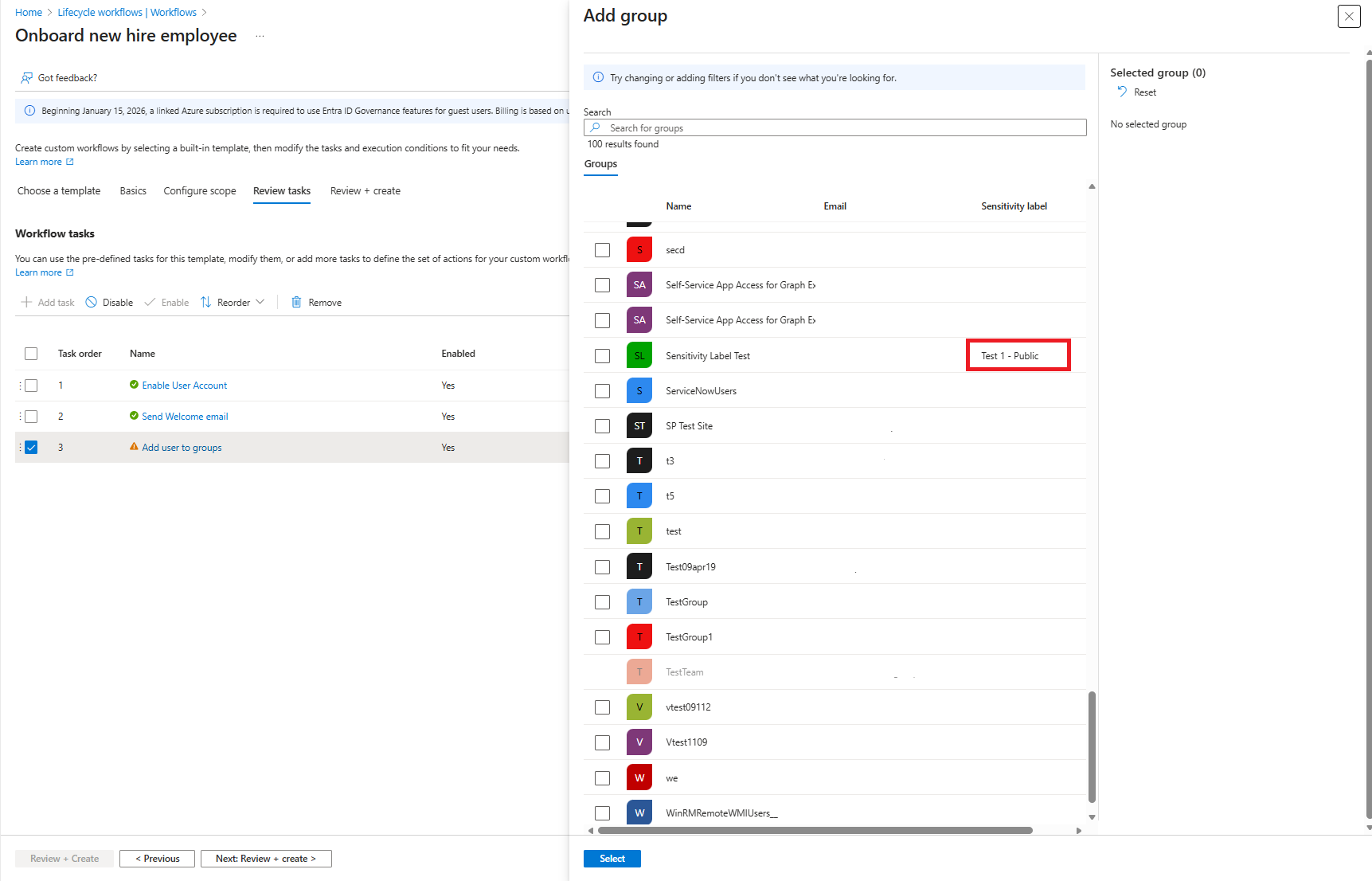
On the list pane, you're able to see a list of groups or teams that can be selected, and their sensitivity labels.
After adding the group or team to the task select Next to move to the review screen, and Create to create the workflow.
View assigned sensitivity labels on existing workflow tasks
Sensitivity labels of groups and teams used within existing tasks of a workflow can be viewed by doing the following steps:
Sign in to the Microsoft Entra admin center as at least a Lifecycle Workflows Administrator.
Browse to ID Governance > Lifecycle workflows > workflows.
Select the workflow that has the task that you want to view.
On the workflow overview screen, select Tasks.
On the tasks screen, select the specific task related to sensitivity you want to view.
On the task overview screen, select the group or teams selection option.
On the list screen, you're able to see the group currently assigned to the task, a list of groups or teams that can be added to the task, and also their sensitivity labels.
