Note
Access to this page requires authorization. You can try signing in or changing directories.
Access to this page requires authorization. You can try changing directories.
As organizations adopt, build, and deploy autonomous AI agents, the need to monitor and protect those agents becomes critical. Microsoft Entra ID Protection helps protect your organization by automatically detecting and responding to identity-based risks on agents that use the Microsoft Entra Agent ID platform.
Prerequisites
Roles
To use our Risky Agent reports, you must have one of the following administrator roles assigned.
To configure policies that use Agent Risk as a condition, you must have the Conditional Access Administrator role assigned.
Licensing
- ID Protection for agents is included with the Microsoft Entra P2 license while in preview.
How it works
Because agents can operate autonomously and on behalf of a user, they can display unique sign-in behavior. Agents can take initiative, interact with sensitive data, and operate at scale. Microsoft Entra ID Protection for agents is designed to identify and mitigate risks associated with these capabilities. The system determines a baseline for an agent's normal activity and then continuously monitors it for anomalies in Microsoft Entra ID. Once an agent exhibits suspicious behavior, ID Protection flags the activity and marks it as risky.
Activities contributing to risk
The following table provides the anomalous activities that can contribute to the agent being flagged for risk. At this time, all risk detections for risky agents are offline.
| Agent risk detection | Detection type | Description | riskEventType |
|---|---|---|---|
| Unfamiliar resource access | Offline | Agent targeted resources that it doesn't usually access. This detection can mean that an attacker is trying to access sensitive resources beyond the agent's intended purpose. | unfamiliarResourceAccess |
| Sign-in spike | Offline | Agent made a higher number of sign-ins compared to its usual sign-in frequency. This spike can be an indicator that an attacker is using automation or a toolkit. | signInSpike |
| Failed access attempt | Offline | Agent attempted and failed to access resources for which it isn't authorized. This detection can indicate an attacker is attempting to replay an agent's token against an unauthorized resource. | failedAccessAttempt |
| Sign-in by risky user | Offline | Agent signed in on behalf of a risky user during a delegated authentication. This detection means that an attacker might be using a compromised user's credentials to exploit an agent. | riskyUserSignIn |
| Confirmed compromised | Offline | Admin confirmed agent compromised | adminConfirmedAgentCompromised |
| Microsoft Entra threat intelligence | Offline | Microsoft identified activity that is consistent with known attack patterns based on its internal and external threat intelligence sources. | threatIntelligenceAccount |
View the risky agent report
The Risky Agents report provides a list of all agents that were flagged for risky behavior. A summary of risky agents appears on the ID Protection Dashboard. This snapshot view provides an overview of the number of agents flagged for risk by risk level. Select View risky agents to open the full report.
You can also navigate directly to the Risky Agents report from the ID Protection navigation menu. Filter and sort to find specific agents, risk states, or risk levels.
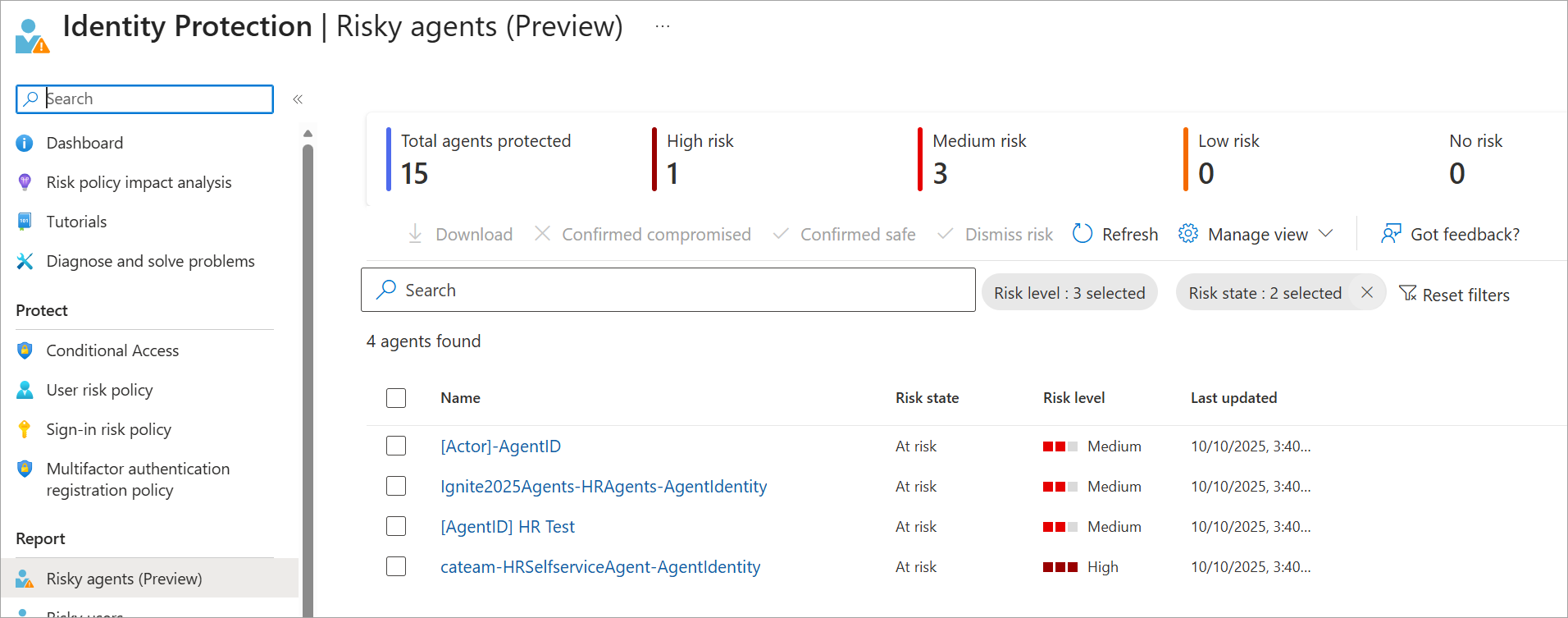
You can take action on agents directly from the report, including:
- Confirm compromise: Select after manual investigation or automated detection confirms the account is compromised. This step is useful as part of incident response to prevent further damage. Confirm compromise automatically sets the risk level to High and creates an event in the agent's Risk detections. This action triggers risk-based Conditional Access policies that are configured to block access on High Agent Risk.
- Confirm safe: Marks the user as safe after investigation and clears any active risk state for that user by setting risk level to None. Use this option when you want to mark a false positive and for the system to avoid flagging similar activity.
- Dismiss risk: Tells the system that the detected risk for an agent is no longer relevant after investigation, or is a benign true positive where you want the system to continue to flag similar activity.
- Disable: Prevents all sign-ins for that agent across Microsoft Entra ID and connected apps.
View the risky agent details
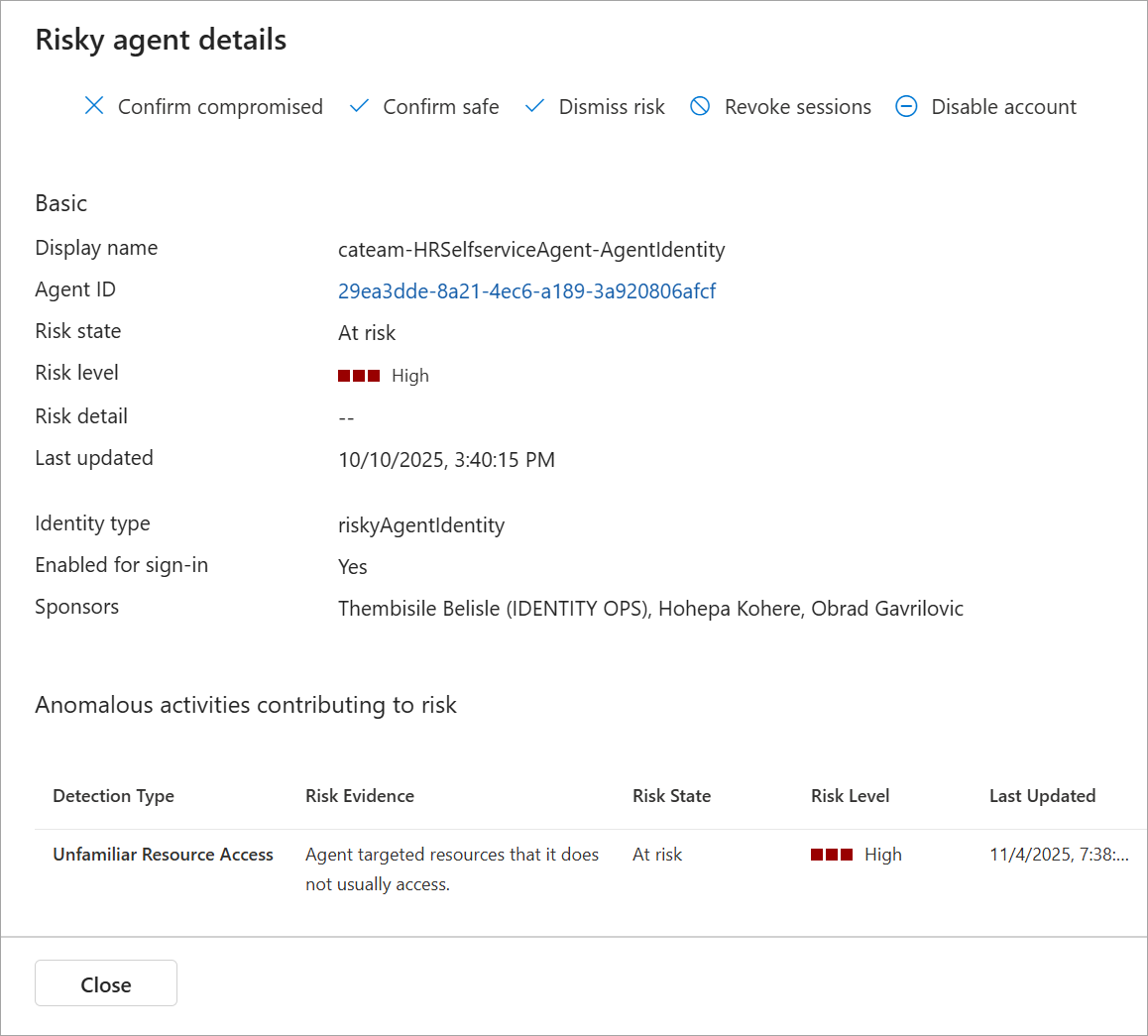
In the risky agent report, select an entry to view the full details including the corresponding risk detections for that agent. Just like with all ID Protection risk reports, you can take action on the agent directly from the report or from the details view.
Risky agent details include:
- Agent display name and ID
- Risk state and risk level
- Agent type and sponsors (if specified)
You can also navigate to the Risk Detections report and select the Agent detections tab to view a full list of the detection risk events from up to the past 90 days.
Risk-based Conditional Access for agents
You can use Conditional Access for agents to set risk policies that block risky agents from accessing resources or other agents. Use this Conditional Access template to help administrators deploy this policy in their organization.
Microsoft Graph
You can also query risky agents using the Microsoft Graph API. There are two new collections in the ID Protection APIs.
riskyAgentsagentRiskDetections