Note
Access to this page requires authorization. You can try signing in or changing directories.
Access to this page requires authorization. You can try changing directories.
Conditional Access adaptive session lifetime policies let organizations restrict authentication sessions in complex deployments. Scenarios include:
- Resource access from an unmanaged or shared device
- Access to sensitive information from an external network
- High impact users
- Critical business applications
Conditional Access provides adaptive session lifetime policy controls, so you can create policies that target specific use cases within your organization without affecting all users.
Before exploring how to configure the policy, examine the default configuration.
User sign-in frequency
Sign-in frequency specifies how long a user can access a resource before being asked to sign in again.
The Microsoft Entra ID default configuration for user sign-in frequency is a rolling window of 90 days. It might seem sensible to ask users for credentials often, but this approach can backfire. Users who habitually enter credentials without thinking might unintentionally provide them to malicious prompts.
Not asking a user to sign back in might seem alarming, but any IT policy violation revokes the session. Examples include a password change, a noncompliant device, or an account being disabled. You can also explicitly revoke users’ sessions using Microsoft Graph PowerShell. The Microsoft Entra ID default configuration is: don’t ask users to provide their credentials if the security posture of their sessions hasn’t changed.
The sign-in frequency setting works with apps that implement OAuth2 or OIDC protocols according to the standards. Most Microsoft native apps, like those for Windows, Mac, and Mobile including the following web applications comply with the setting.
- Word, Excel, PowerPoint Online
- OneNote Online
- Office.com
- Microsoft 365 Admin portal
- Exchange Online
- SharePoint and OneDrive
- Teams web client
- Dynamics CRM Online
- Azure portal
Sign-in frequency (SIF) works with non-Microsoft SAML applications and apps that use OAuth2 or OIDC protocols, as long as they don’t drop their own cookies and regularly redirect back to Microsoft Entra ID for authentication.
User sign-in frequency and multifactor authentication
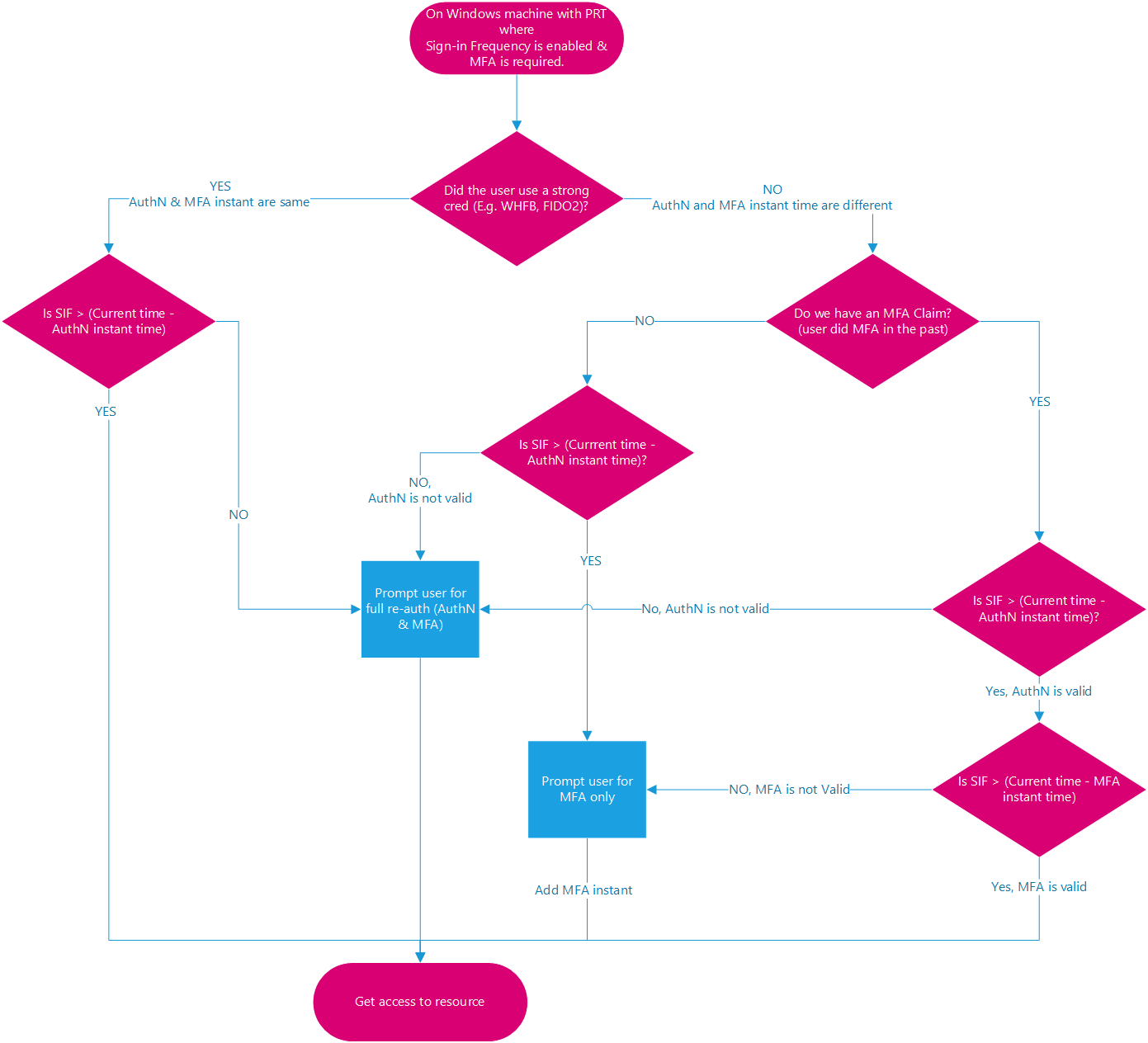
Previously, sign-in frequency applied only to first-factor authentication on Microsoft Entra joined, hybrid joined, and registered devices. You couldn't easily reinforce multifactor authentication on those devices. Based on customer feedback, sign-in frequency now applies to multifactor authentication (MFA) as well.
User sign-in frequency and device identities
On Microsoft Entra joined and hybrid joined devices, unlocking the device or signing in interactively refreshes the Primary Refresh Token (PRT) every four hours. The last refresh timestamp recorded for the PRT compared with the current timestamp must be within the time allotted in SIF policy for the PRT to satisfy SIF and grant access to a PRT that has an existing MFA claim. On Microsoft Entra registered devices, unlocking or signing in doesn't satisfy the SIF policy because the user isn't accessing a Microsoft Entra registered device through a Microsoft Entra account. However, the Microsoft Entra WAM plugin can refresh a PRT during native application authentication by using WAM.
Note
The timestamp captured from user sign-in isn't necessarily the same as the last recorded timestamp of PRT refresh because of the four-hour refresh cycle. The case when it's the same is when the PRT expires and a user sign-in refreshes it for four hours. In the following examples, assume SIF policy is set to one hour and the PRT is refreshed at 00:00.
Example 1: When you continue to work on the same doc in SPO for an hour
- At 00:00, a user signs in to their Windows 11 Microsoft Entra joined device and starts work on a document stored on SharePoint Online.
- The user continues working on the same document on their device for an hour.
- At 01:00, the user is prompted to sign in again. This prompt is based on the sign-in frequency requirement in the Conditional Access policy configured by their administrator.
Example 2: When you pause work with a background task running in the browser, then interact again after the SIF policy time elapsed
- At 00:00, a user signs in to their Windows 11 Microsoft Entra joined device and starts to upload a document to SharePoint Online.
- At 00:10, the user locks their device. The background upload continues to SharePoint Online.
- At 02:45, the user unlocks the device. The background upload shows completion.
- At 02:45, the user is prompted to sign in when they interact again. This prompt is based on the sign-in frequency requirement in the Conditional Access policy configured by their administrator since the last sign-in happened at 00:00.
If the client app (under activity details) is a browser, the system defers sign-in frequency enforcement of events and policies on background services until the next user interaction. On confidential clients, the system defers sign-in frequency enforcement on non-interactive sign-ins until the next interactive sign-in.
Example 3: With four hour refresh cycle of primary refresh token from unlock
Scenario 1 - User returns within cycle
- At 00:00, a user signs into their Windows 11 Microsoft Entra joined device and starts work on a document stored on SharePoint Online.
- At 00:30, the user locks their device.
- At 00:45, the user unlocks the device.
- At 01:00, the user is prompted to sign in again. This prompt is based on the sign-in frequency requirement in the Conditional Access policy configured by their administrator, one hour after the initial sign-in.
Scenario 2 - User returns outside cycle
- At 00:00, a user signs into their Windows 11 Microsoft Entra joined device and starts work on a document stored on SharePoint Online.
- At 00:30, the user locks their device.
- At 04:45, the user unlocks the device.
- At 05:45, the user is prompted to sign in again. This prompt is based on the sign-in frequency requirement in the Conditional Access policy configured by their administrator. It's now one hour after the PRT was refreshed at 04:45, and over four hours since the initial sign-in at 00:00.
Require reauthentication every time
In some scenarios, you might want to require fresh authentication every time a user performs specific actions, such as:
- Accessing sensitive applications.
- Securing resources behind VPN or Network as a Service (NaaS) providers.
- Securing privileged role elevation in PIM.
- Protecting user sign-ins to Azure Virtual Desktop machines.
- Protecting risky users and risky sign-ins identified by Microsoft Entra ID Protection.
- Securing sensitive user actions like Microsoft Intune enrollment.
When you select Every time, the policy requires full reauthentication when the session is evaluated. This requirement means that if the user closes and opens their browser during the session lifetime, they might not be prompted for reauthentication. Setting sign-in frequency to every time works best when the resource has the logic to identify when a client should get a new token. These resources redirect the user back to Microsoft Entra only once the session expires.
Limit the number of applications that enforce a policy requiring users to reauthenticate every time. Triggering reauthentication too frequently can increase security friction to a point that it causes users to experience MFA fatigue and open the door to phishing. Web applications usually provide a less disruptive experience than their desktop counterparts when require reauthentication every time is enabled. The policy factors in five minutes of clock skew when every time is selected, so that it doesn't prompt users more often than once every five minutes.
Warning
Using sign-in frequency to require reauthentication every time, without multifactor authentication might result in sign-in looping for your users.
- For applications in the Microsoft 365 stack, use time-based user sign-in frequency for a better user experience.
- For the Azure portal and the Microsoft Entra admin center, use either time-based user sign-in frequency or require reauthentication on PIM activation by using authentication context for a better user experience.
Persistence of browsing sessions
A persistent browser session lets users stay signed in after closing and reopening their browser window.
Microsoft Entra ID's default for browser session persistence lets users on personal devices decide whether to persist the session by showing a Stay signed in? prompt after successful authentication. If you set up browser persistence in AD FS by following the guidance in AD FS single sign-on settings, the policy is followed, and the Microsoft Entra session is persisted as well. You configure whether users in your tenant see the Stay signed in? prompt by changing the appropriate setting in the company branding pane.
In persistent browsers, cookies remain stored on the user's device even after the browser is closed. These cookies might access Microsoft Entra artifacts, which remain usable until token expiration, regardless of the Conditional Access policies applied to the resource environment. So, token caching can be in direct violation of desired security policies for authentication. Storing tokens beyond the current session might seem convenient, but it can create a security vulnerability by allowing unauthorized access to Microsoft Entra artifacts.
Configuring authentication session controls
Conditional Access is a Microsoft Entra ID P1 or P2 capability that requires a premium license. For more information about Conditional Access, see What is Conditional Access in Microsoft Entra ID?.
Warning
If you use the configurable token lifetime feature currently in public preview, don't create two different policies for the same user or app combination: one with this feature and another with the configurable token lifetime feature. Microsoft retired the configurable token lifetime feature for refresh and session token lifetimes on January 30, 2021, and replaced it with the Conditional Access authentication session management feature.
Before enabling sign-in frequency, ensure other reauthentication settings are disabled in your tenant. If "Remember MFA on trusted devices" is enabled, disable it before using sign-in frequency, as using these two settings together might prompt users unexpectedly. For more information about reauthentication prompts and session lifetime, see Optimize reauthentication prompts and understand session lifetime for Microsoft Entra multifactor authentication.