Note
Access to this page requires authorization. You can try signing in or changing directories.
Access to this page requires authorization. You can try changing directories.
Once you decide that you want to minimize your on-premises footprint by using Source of Authority for users, you must prepare your Active Directory environment based on how users are configured. How you choose to prepare your environment is based on many factors. For other things to consider, see: Prerequisites for Transferring User SOA and Guidance for using User Source of Authority (SOA) (Preview).
The flow for preparing for user SOA is as follows:

This article walks you through what needs to be completed to prepare Microsoft Exchange, HR integration, and Microsoft Identity Manager environments before switching user SOA.
Confirm your AD objects are ready to have their SOA changed
Before transferring the SOA of users, retrieve the objects from your Active Directory domain and check that they’re ready to be transferred by confirming the following information:
- Confirm that the objects are already synchronized to Microsoft Entra. Administrative objects, or objects excluded from synchronization, can’t have their SOA changed.
- Confirm that all attributes you have, or plan to modify, on those users are being synched to Microsoft Entra and are visible as either directory attributes, or as directory schema extensions:
/graph/api/resources/extensionpropertyin Microsoft Graph. - Confirm there are no reference-valued attributes populated on those user objects in Active Directory other than the user's manager's attribute, and Active Directory backlinks such as
memberof. Other reference-valued attributes aren't supported for SOA transfer. - Confirm that the value of the manager and member attributes, if set, must be references to users in the same Active Directory domain and that they're synchronized to Microsoft Entra. They can’t refer to other object types, or to objects that aren’t synchronized from this domain to Microsoft Entra.
- Confirm that there are no attributes on the objects that are updated by another Microsoft on-premises technology, other than Active Directory Domain Services (AD DS) itself. For example, don’t change the SOA of a user whose
userCertificateattribute is maintained by Active Directory Certificate Services.
Update Active Directory
If you’re planning to only change the SOA for some Active Directory users, and all your users are currently in a single OU using Kerberos applications that don’t use LDAP, we recommend that you create a new AD DS OU for these objects. Having them in a separate OU will enable you to avoid inadvertently making updates to them in Active Directory after the SOA change. Users, whose SOA isn’t changing, can continue to be managed using Active Directory Users and Computers, Active Directory Module for PowerShell, or other Active Directory management tools. After creating an OU, move the objects to that OU. For more information, see: Move-ADObject.
Prepare your Microsoft Exchange setup
In case you have Exchange Hybrid setup with Microsoft 365 Exchange Online, prepare your Exchange Server and Exchange Online as per the following guidance before switching the SOA of your user accounts. If you're running an Exchange Hybrid configuration, ensure all your mailboxes are migrated to Exchange Online before you switch the SOA for any users to the cloud. After mailbox migration of all users, these users can be managed in Microsoft 365, and you can safely switch SOA of users to cloud. With SOA switched, you disable Exchange Hybrid by completing following steps:
Point the MX and Autodiscover DNS records to Exchange Online instead of Exchange Server.
Remove the Service Connection Point (SCP) values on Exchange servers. This step ensures that no SCPs are returned, and the Outlook clients use the DNS method for Autodiscover.
(Optional) To secure your environment, remove the inbound and outbound connectors created by the Hybrid Configuration Wizard used for mail flow between Exchange Server and Exchange online.
(Optional) To secure your environment, remove the organization relationship, Fed Trust, and oauth trust set up between Exchange Server and Exchange Online by HCW.
Stop writing to on-premises Exchange for the object and sync the object to cloud to ensure EXO has the latest changes from on-premises.
For more information on disabling Exchange Hybrid, see: see: Manage recipients in Exchange Hybrid environments using Management tools.
Shift the configuration of users in provisioning from the HR system
The next step in setting up SOA is to determine your provisioning strategy for your HR system. In the pre-SOA world, users from your HR system are first provisioned in on-premises Active Directory and then synced to Microsoft Entra ID using Microsoft Entra Connect Sync or Cloud Sync. If you’re using Microsoft Entra provisioning service, you have most likely configured one of the following apps: Workday to AD user provisioning, SAP SuccessFactors to AD user provisioning or API-driven provisioning to AD. The following diagram depicts the data flow in this configuration.

To update this configuration, first identify employees from your HR system who can be provisioned into Microsoft Entra ID directly, and are no longer needed in Active Directory. You can take a phased approach to identify such employees using grouping constructs available in HR, for example: transferring SOA of users by department, cost center, or location. Then update your Microsoft Entra provisioning configuration as described in the following section:
Update your HR provisioning configuration
Once you identify the employees for SOA conversion, follow these steps:
Stop the “HR to on-premises Active Directory” provisioning job.
For users eligible for SOA conversion, switch the SOA of the users from on-premises Active Directory to Entra ID.
Create a new “HR to Microsoft Entra ID” provisioning application to provision users from your HR system to Entra ID. Use scoping filters to restrict this app to only handle SOA converted users. For example: In the first phase, if you’re converting SOA only for users in the “Finance” department, then set the scoping filter as department EQUALS “Finance”. Expand the scoping filter in future phases to include more users.
Start the new “HR to Microsoft Entra ID” provisioning job.
Update the configuration of your “HR to on-premises Active Directory” provisioning app to exclude the SOA converted users from syncing to AD. Ensure that the skip out of scope deletions flag is set on the provisioning job. Continuing with the example above, you can exclude “Finance” department users from syncing to AD by setting the filter department NOT EQUALS “Finance”.
Restart the “HR to on-premises Active Directory” provisioning job.
Update the configuration of your Entra Connect Sync / Cloud Sync app to exclude the SOA converted users from syncing to Entra ID using a similar scoping filter.
The following diagram depicts the new SOA-aware provisioning configuration:

Prepare your MIM setup
For customers using Microsoft Identity Manager(MIM), you can update the sync rules in MIM to determine which objects continue to be provisioned into Active Directory, and which ones are provisioned into Microsoft Entra ID.
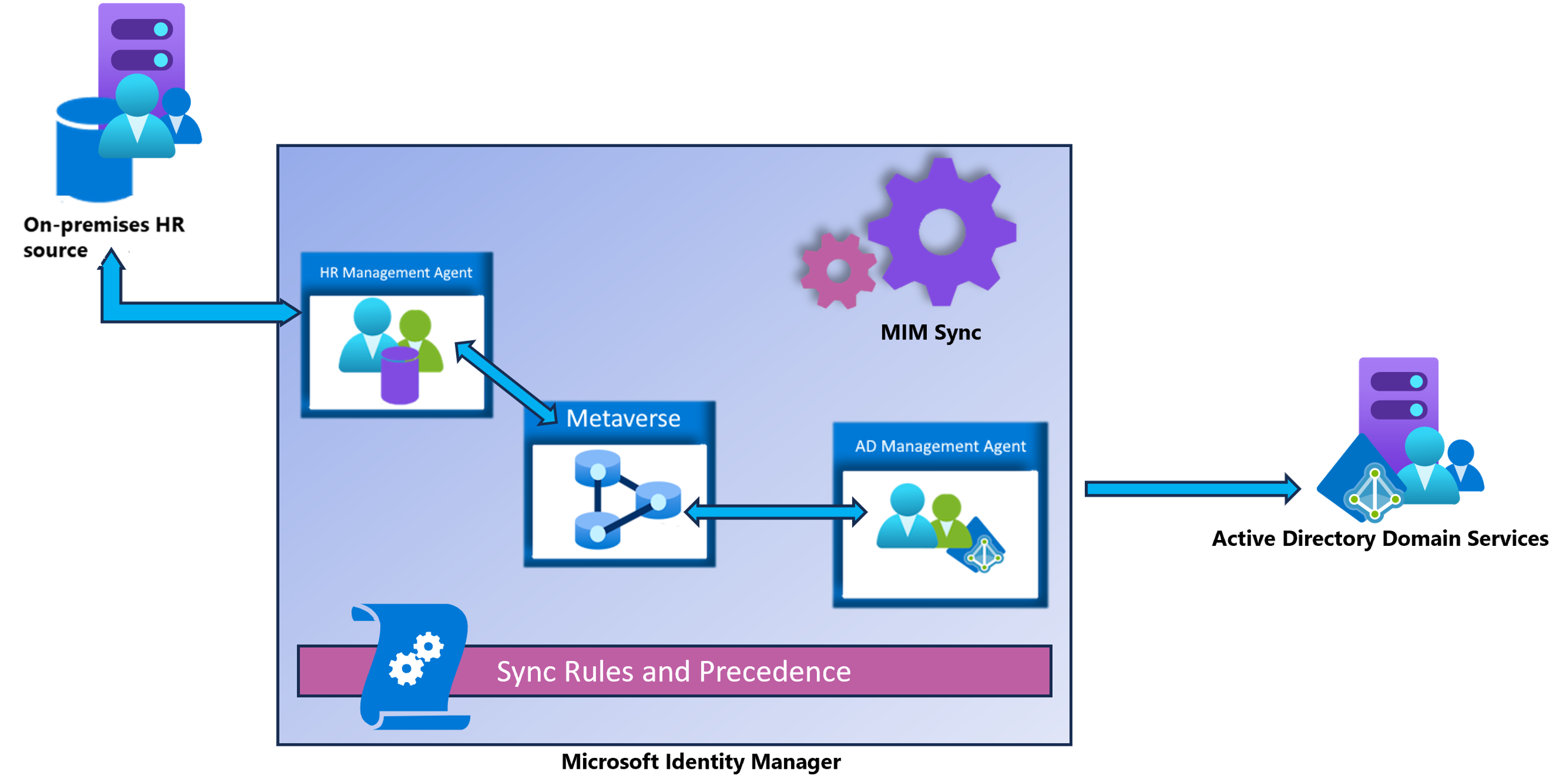
To prepare your MIM setup for user SOA, do the following steps:
Select the attributes that will be the unique identifiers for users that are the same in both Active Directory and Microsoft Entra.
Add the Microsoft Identity Manager connector for Microsoft Graph to MIM sync, configure a join of the existing Active Directory users brought in from this connector.
Check the precedence settings on the user.
Perform a full import from Microsoft Entra using the Microsoft Graph connector.
Confirm that all the users planned for the SOA conversion are joined between the metaverse and the Microsoft Graph connector.
Update the management system for those users (for example, MIM Portal and Service) to add a label to user objects for which the SOA is changing to Microsoft Entra ID.
Update the sync rules so that you’re no longer syncing those labeled user objects from MIM to Active Directory, but instead synching to the Microsoft Graph connector.
Keep the sync rules deactivated until the SOA transfer is complete.
After the SOA transfer, resync users. Confirm there are no exports pending to the AD MA for users whose SOA changed, only to the Microsoft Graph connector.
Add to your run profile schedules a run of exporting changes from MIM to Microsoft Entra ID using the Microsoft Graph connector.
If you’re no longer exporting any changes to other users in Active Directory, then remove the export to AD run profile from your run profile schedules.
Once these steps are completed, your MIM-synced hybrid environment should follow this diagram:

Sequence of steps for using SOA
Once your environment is prepped for transferring user SOA, the sequence for transferring SOA is as follows:
Identify the users and/or groups for whom you’re going to Switch the source of authority (SOA) to Microsoft Entra ID. Ensure these users and groups are currently being synced using Microsoft Entra Connect Sync or Microsoft Entra Cloud Sync.
Note
Switch SOA of groups before switching SOA of users.
Remove these users from the App-> AD provisioning configuration (for example, Workday to AD or MIM to AD etc.) so they no longer sync into AD.
Wait for the sync cycle to complete and make sure the object data is the same between AD and Microsoft Entra ID.
Stop making any changes to these users and/or groups in AD directly.
Switch the SOA of the users and/or groups.
Confirm that the users and/or groups can now be managed from the cloud by following these steps.
- Go to the Microsoft Entra admin center and find the user/group you switched SOA of and see if they’re a cloud object and can be edited (or)
- Run this script to check if the “DirSync” and “isCloudManaged” attribute it set to cloud.
- Check the events listed in the Audit log to see whether the SOA status has changed.
Continue to keep the users and/or groups in scope for Connect/Cloud Sync. This is needed if these objects have references to groups, devices, and contacts managed in AD.
Change the direction of provisioning for users you stopped syncing in order to ensure these user changes are provisioned directly into Microsoft Entra ID from the corresponding HR systems.
- Create a new provisioning configuration to provision the users no longer synced from equivalent cloud app system to Microsoft Entra ID using Provisioning API.
- Start provisioning the same users from the cloud system (HR or other apps) into Microsoft Entra directly.
- At this point, SOA transfer is complete, and the identities have started flowing from the cloud system to Microsoft Entra ID, and Microsoft Entra ID is the source of authority.