Note
Access to this page requires authorization. You can try signing in or changing directories.
Access to this page requires authorization. You can try changing directories.
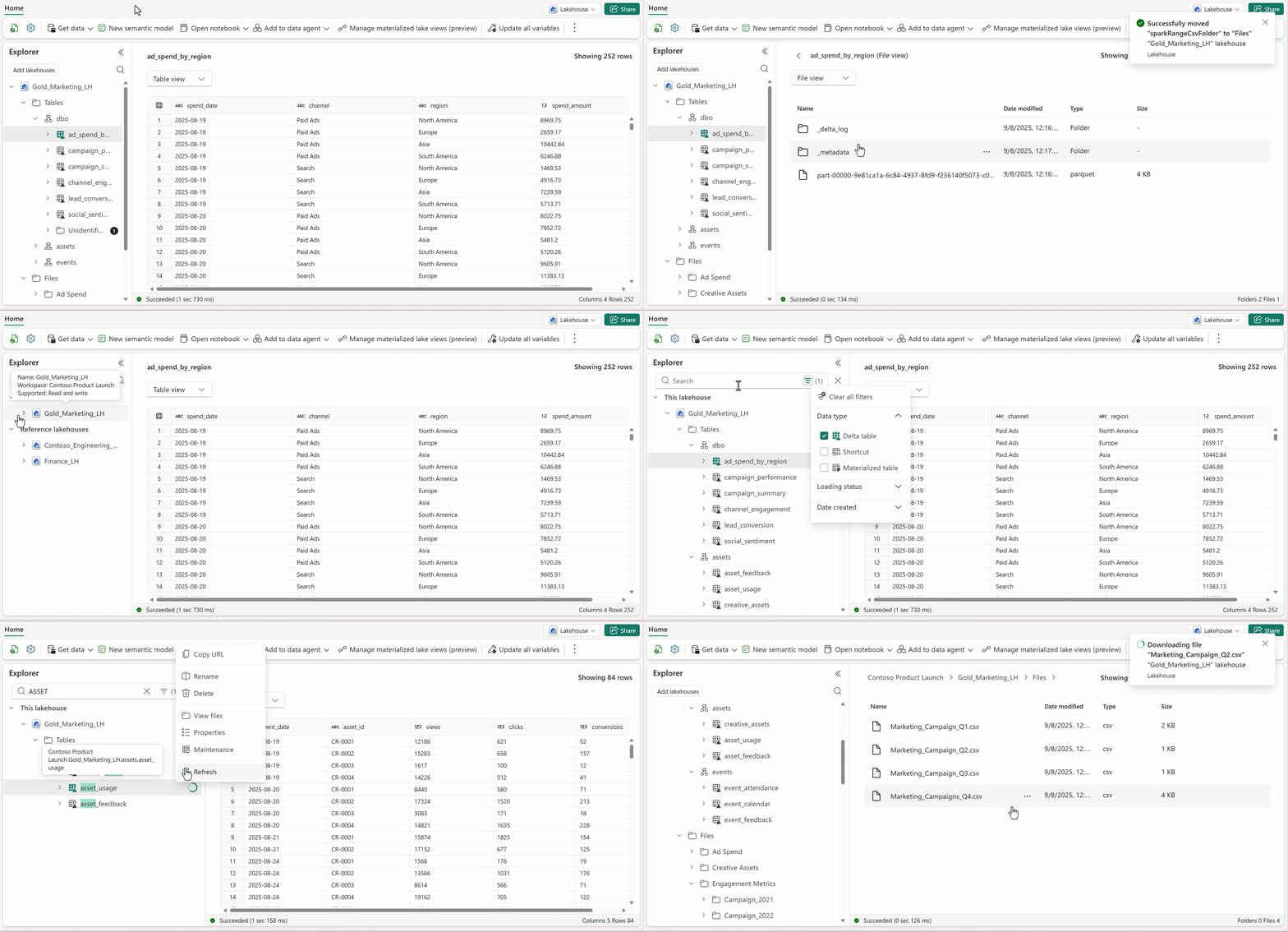
The Lakehouse explorer page serves as the central hub for all your interactions within the Lakehouse environment. The explorer is built into the Fabric portal. To open the lakehouse explorer, go to the workspace that has the lakehouse. Find and select your lakehouse item, which opens the explorer where you can interact with the lakehouse data. The explorer is your gateway to seamlessly load data into your lakehouse, navigate through your data, preview content, and perform various data-related tasks. This page is divided into three main sections: the Lakehouse explorer, the Main View, and the Ribbon.
Lakehouse explorer
The Lakehouse explorer offers a unified, graphical representation of your entire lakehouse, providing users with an intuitive interface for data navigation, access, and management.
The Table Section is a user-friendly representation of the managed area within your lakehouse. This area is typically organized and governed to facilitate efficient data processing and analysis. Here, you find all your tables, whether they were automatically generated or explicitly created and registered in the metastore.
From this section, you can:
- Browse your lakehouse schemas, tables & table details.
- Select a table to preview.
- Access your underlying table files from the table context menu.
- Perform common actions on your table objects such as renaming, deleting, creating a new schema or shortcut and view your table properties.
The Unidentified Area is a unique space within the managed area of your lakehouse. It displays any folders or files present in the managed area that lack associated tables in our metastore.
For example: If a user uploads unsupported files such as images or audio files to the managed area, they won't be automatically detected or mapped to a table in our metastore. Instead, they appear in this unidentified area.
Use this section to:
- Identify files that don’t belong in the managed area.
- Transfer these files to the File section for further processing.
- Delete these files from your lakehouse.
The File Section represents the unmanaged area of your lakehouse and can be considered a "landing zone" for raw data ingested from various sources. Before this data can be used for analysis, it often requires additional processing.
From this section, you can:
- Browse your lakehouse directories.
- the File Section displays folder-level objects exclusively in the OE. To view files, use the main view area.
- Select a folder to preview and browse in your Main View area to learn more about your files.
- Perform common actions on your folder objects such as renaming, deleting, creating a new subfolder or shortcut and upload files and folders.
- Browse your lakehouse directories.
The object explorer allows you to add multiple lakehouses as reference allowing you to view & manage them in a single, unified view—making it easier than ever to organize and access your data.
With this feature, you can:
- Add reference lakehouses you have access to, while keeping your primary lakehouse clearly distinguished.
- Sort, filter, and search across all schemas, tables, and folders in all your added lakehouses.
- Perform key actions such as previewing data, creating subfolders, renaming objects—directly in the explorer and more.
- Copy reference lakehouse URLs to open a reference lakehouse as a primary lakehouse.
Note
Ribbon actions are only available for the primary lakehouse.
Main view area
The main view area of the lakehouse page is the space where most of the data interaction occurs. The view changes depending on what you select. Since the object explorer only displays a folder level hierarchy of the lake, the main view area is what you use to navigate your files, preview files & tables, and various other tasks.
Table preview
Our table preview datagrid is equipped it with a suite of powerful features that elevate your data interactions to make working with your data even more seamless. Here's are some key features:
Sort columns in ascending or descending order with a simple click. This feature provides you with full control over your data's organization while working with large semantic models or when you need to quickly identify trends.
Filter data by substring or by selecting from a list of available values in your table.
Resize columns to tailor your data view to suit your preferences. This feature helps you prioritize essential data or expand your field of view to encompass a broader range of information.
File preview
Previewing data files in a lakehouse offers a range of benefits that enhance data quality, understanding, and overall data management efficiency. It empowers data professionals to make informed decisions, optimize resource allocation, and ensure that their analysis is based on reliable and valuable data.
Preview is available for the following file types:
Image File Type: jpg, jpeg, png, bmp, gif, svg
Text File Type: txt, js, ts, tsx, py, json, xml, css, mjs, md, html, ps1, yaml, yml, log, sql
Filter, sort, and search Lakehouse objects
The sorting, filtering, and searching capabilities make it easier to access and organize data within both the Object Explorer (OE) and the main view area. These tools simplify navigation and management of your Lakehouse data, especially when working with numerous schemas, tables, files, or folders.
Supported capabilities include:
- Sorting schemas, tables, files, and folders by name or creation date, allowing you to view data in your preferred order.
- Available through the object’s context menu.
- Sorting applies only to immediate children of the selected parent node.
- Filtering objects based on type, loading status, or creation date to locate specific type of data quickly.
- In the Object Explorer: Filter schemas and tables.
- In the main view area: Filter files and folders.
- Searching schemas, tables, files, or folders by name to find specific items quickly by entering a substring.
- In the Object Explorer: Search for schemas and tables.
- In the main view area: Search for files and folders.
Download Files in Lakehouse Explorer
Lakehouse allows you to download files directly from the UX, empowering you to work more efficiently, reduce friction in your data workflows, and gain faster insights.
This feature allows you to:
- Download files from both table files and the File section (with required permission).
- Keep your data secure and compliant by including Microsoft Information Protection (MIP) sensitivity labels for supported files.
To enable the corresponding feature:
- Select Admin Portal > Tenant settings.
- Under OneLake settings turn on “Users can access data stored in OneLake with apps external to Fabric.”
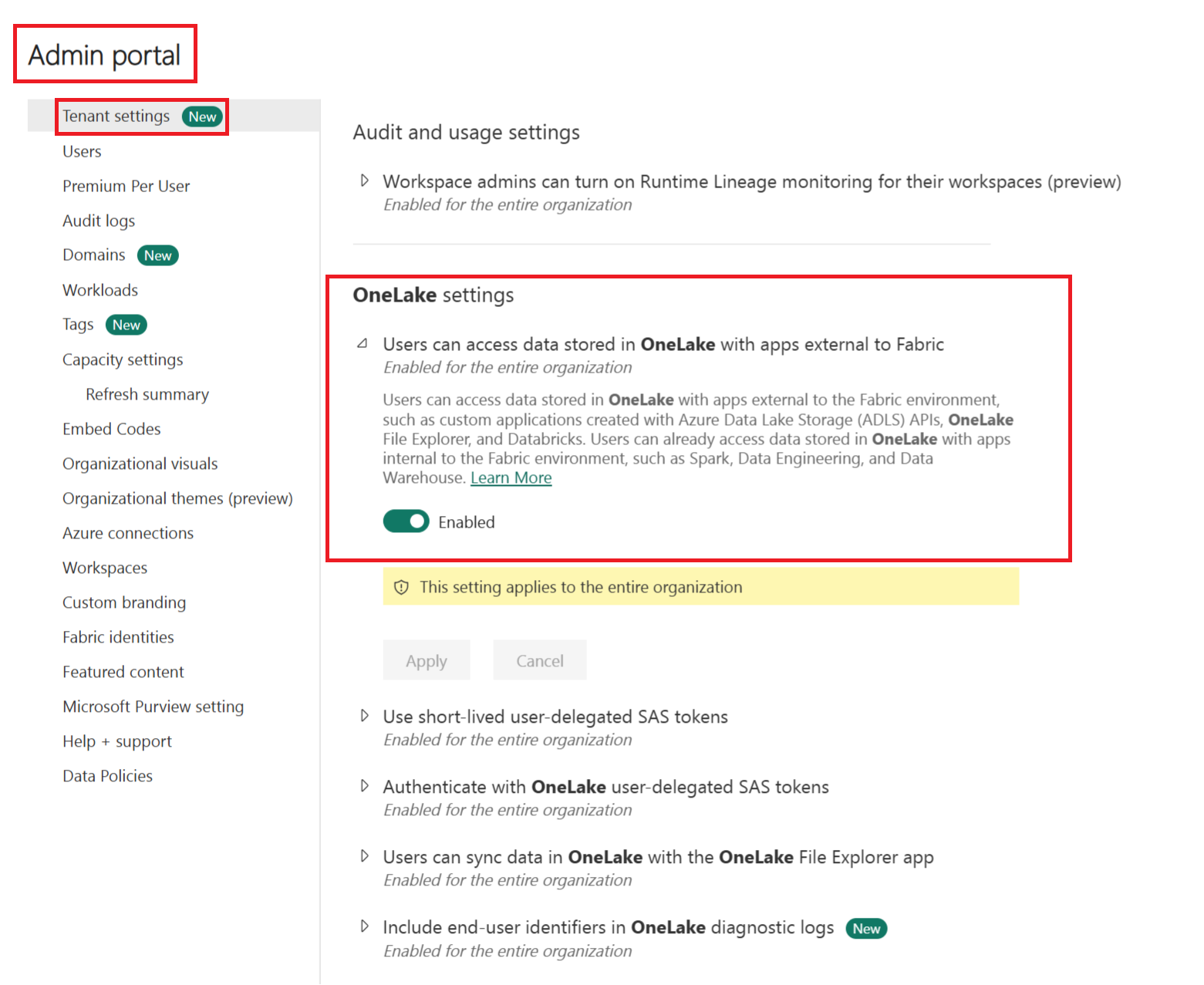
Table Deep Links
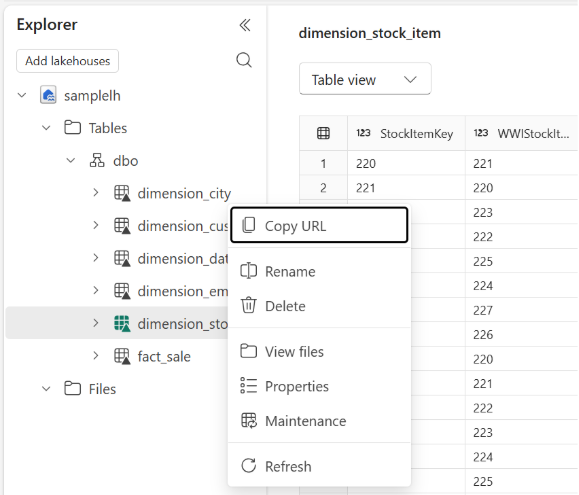
Users can generate a unique URL for any table in the lakehouse, allowing them to preview that specific table directly. By copying and sharing this URL with others who have access, recipients can open Lakehouse Explorer with the chosen table already previewed. Simply click on the “…” beside the table and choose “Copy URL.” You can use this link to open the lakehouse in Lakehouse Explorer, where you’ll see a preview of the chosen table.
Ribbon
The lakehouse ribbon is your quick-access action bar, offering a convenient way to perform essential tasks within your lakehouse. From here, you can refresh your lakehouse, access your item settings, choose options to load data, create or open notebooks, create new custom semantic models, and much more.
Access a lakehouse's SQL analytics endpoint
The SQL analytics endpoint can be accessed directly from a lakehouse by using the dropdown in top-right area of the ribbon. Using this quick access method, you immediately land in the t-sql mode, which allows you to work directly on top of your Delta tables in the lake to help you prepare them for reporting.
Related content
We hope this guide helps you make the most of the Lakehouse explorer and its diverse functionalities. Feel free to explore, experiment, and make your data management tasks more efficient.