Note
Access to this page requires authorization. You can try signing in or changing directories.
Access to this page requires authorization. You can try changing directories.
This article outlines how to set up a connection to Azure SQL Database for pipelines and Dataflow Gen2 in Microsoft Fabric.
Supported authentication types
The Azure SQL Database connector supports the following authentication types for copy and Dataflow Gen2 respectively.
| Authentication type | Copy | Dataflow Gen2 |
|---|---|---|
| Basic | √ | √ |
| Organizational account | √ | √ |
| Service Principal | √ |
Set up your connection for Dataflow Gen2
You can connect Dataflow Gen2 to Azure SQL database from Microsoft Fabric using Power Query connectors. Follow these steps to create your connection:
- Get data from Data Factory in Microsoft Fabric.
- Set up any Azure SQL Database prerequisites before connecting to the Azure SQL Database connector.
- Connect to Azure SQL database.
Learn more about this connector
Set up your connection for a pipeline
The following table contains a summary of the properties needed for a pipeline connection:
| Name | Description | Required | Property | Copy |
|---|---|---|---|---|
| Connection name | A name for your connection. | Yes | ✓ | |
| Connection type | Select a type for your connection. Select SQL Server. | Yes | ✓ | |
| Server | Azure SQL server name. | Yes | ✓ | |
| Database | Azure SQL Database name. | Yes | ✓ | |
| Authentication | Go to Authentication | Yes | Go to Authentication | |
| Privacy Level | The privacy level that you want to apply. Allowed values are Organizational, Privacy, Public | Yes | ✓ |
For specific instructions to set up your connection in a pipeline, follow these steps:
From the page header in the Data Factory service, select Settings
 > Manage connections and gateways.
Select New at the top of the ribbon to add a new data source.

The New connection pane opens on the left side of the page.


Set up your connection
In the New connection pane, choose Cloud, and specify the following fields:
- Connection name: Specify a name for your connection.
- Connection type: Select SQL Server.
- Server: Enter your Azure SQL server name. You can find it in the Overview page of your Azure SQL server.
- Database: Enter your Azure SQL Database name.
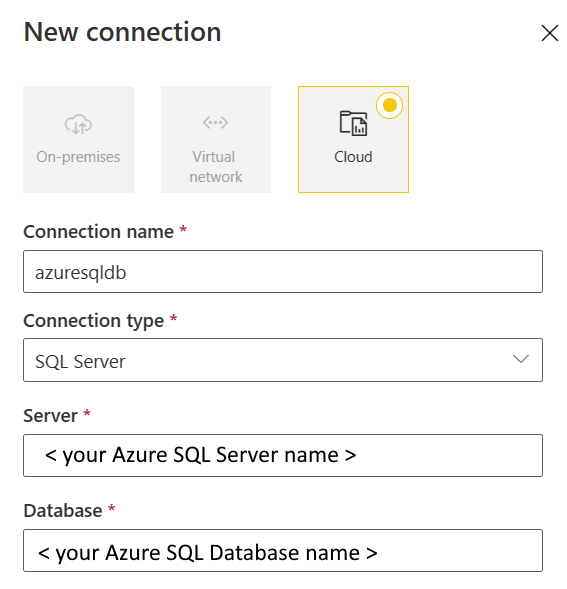
Under Authentication method, select your authentication from the drop-down list and complete the related configuration. The Azure SQL Database connector supports the following authentication types.

Optionally, set the privacy level that you want to apply. Allowed values are Organizational, Privacy, and Public. For more information, see privacy levels in the Power Query documentation.
Select Create to create your connection. Your creation is successfully tested and saved if all the credentials are correct. If not correct, the creation fails with errors.

Authentication
The Azure SQL Database connector supports the following authentication types:
| Name | Description | Required | Property | Copy |
|---|---|---|---|---|
| Basic | ✓ | |||
| - Username | The user name of your Azure SQL Database. | Yes | ||
| - Password | The password of your Azure SQL Database. | Yes | ||
| OAuth2 | ✓ | |||
| Service Principal | ✓ | |||
| - Tenant ID | The tenant information (domain name or tenant ID). | Yes | ||
| - Service Principal ID | The application's client ID. | Yes | ||
| - Service Principal key | The application's key. | Yes |
Basic authentication
Select Basic under Authentication method.

- Username: Specify the user name of your Azure SQL Database.
- Password: Specify the password of your Azure SQL Database.
OAuth2 authentication
Open Edit credentials. You notice the sign in interface. Enter your account and password to sign in your account. After signing in, go back to the New connection page.

Service Principal authentication
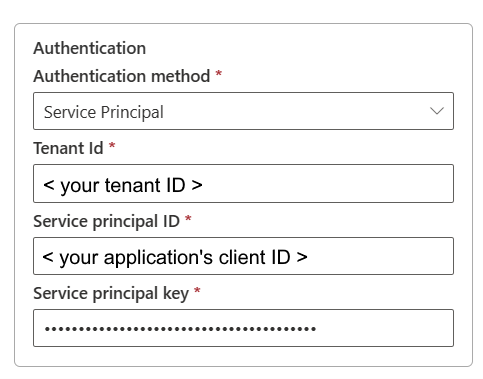
- Tenant Id: Specify the tenant information (domain name or tenant ID) under which your application resides. Retrieve it by hovering over the upper-right corner of the Azure portal.
- Service principal ID: Specify the application's client ID.
- Service principal key: Specify your application's key.
To use service principal authentication, follow these steps:
Create a Microsoft Entra application from the Azure portal. Make note of the application name and the following values that define the connection:
- Tenant ID
- Application ID
- Application key
Provision a Microsoft Entra administrator for your server on the Azure portal if you haven't already done so. The Microsoft Entra administrator must be a Microsoft Entra user or Microsoft Entra group, but it can't be a service principal. This step is done so that, in the next step, you can use a Microsoft Entra identity to create a contained database user for the service principal.
Create contained database users for the service principal. Connect to the database from or to which you want to copy data by using tools like SQL Server Management Studio, with a Microsoft Entra identity that has at least ALTER ANY USER permission. Sign in to your Azure SQL Database through Microsoft Entra ID authentication and run the following T-SQL:
CREATE USER [your application name] FROM EXTERNAL PROVIDER;Grant the service principal needed permissions as you normally do for SQL users or others. Run the following code. For more options, go to ALTER ROLE (Transact-SQL).
ALTER ROLE [role name] ADD MEMBER [your application name];Configure an Azure SQL Database connection.