Note
Access to this page requires authorization. You can try signing in or changing directories.
Access to this page requires authorization. You can try changing directories.
This tutorial introduces how to set up CDC replication in Copy job from SAP via SAP Datasphere Outbound. For a CDC overview in Copy job, refer to Change data capture (CDC) in Copy job.
Using SAP Datasphere Outbound to obtain change data from SAP is a two-step process:
Extract data with SAP Datasphere:
Use SAP Datasphere to extract both the initial snapshot and subsequent changed records from the SAP source system. The extracted data is then landed in an Azure Data Lake Storage Gen2 container, which serves as a staging area.
Move data with Copy job:
Use Copy Job to connect to a staging container in ADLS Gen2 and replicate data—including inserts, updates, and deletions—to any supported destination.
This solution supports all types of SAP sources offered by SAP Datasphere, including SAP S/4HANA, SAP ECC, SAP BW/4HANA, SAP BW, and SAP Datasphere itself.
SAP Datasphere Premium Outbound Integration pricing applies when using Copy job to replicate SAP data via SAP Datasphere.
Prerequisites
You need:
- An existing capacity for Fabric. If you don't have one, start a Fabric trial.
- An SAP Datasphere environment with Premium Outbound Integration.
Set up SAP Datasphere
This section covers the setup steps you need to replicate data from your SAP source into an Azure Data Lake Storage (ADLS) Gen2 container. You'll use this later to configure the Copy job in Fabric.
Set up connections in SAP Datasphere
Before you can replicate data from your SAP source into ADLS Gen2, you need to create connections to both source and target in SAP Datasphere.
Go to SAP Datasphere, and select the Connection tool. You might need to select the Space where you want to create the connection.
Create the connection to your source SAP system. Select + -> Create Connection, choose the SAP source from which you want to replicate the data, and configure the connection details. As an example, you can create connection to SAP S/4HANA on-premises.
Create the connection to your ADLS Gen2 target. Select Create Connection and choose Azure Data Lake Storage Gen2. Enter the storage account name, the container name (under root path), your preferred authentication type, and the credential. Make sure the connection user/principal has enough privileges to create files and folders in ADLS Gen2. Learn more from Microsoft Azure Data Lake Store Gen2 Connections.
Before you continue, validate your connections by selecting your connection and choosing the Validate option in the top menu.


Set up a Datasphere replication flow
Create a replication flow to replicate data from your SAP source into ADLS Gen2. For more information on this configuration, see the SAP help on creating a replication flow.
Launch the Data Builder in SAP Datasphere.
Select New Replication Flow.
When the replication flow canvas opens, select Select Source Connection, and select the connection you created for your SAP source system.
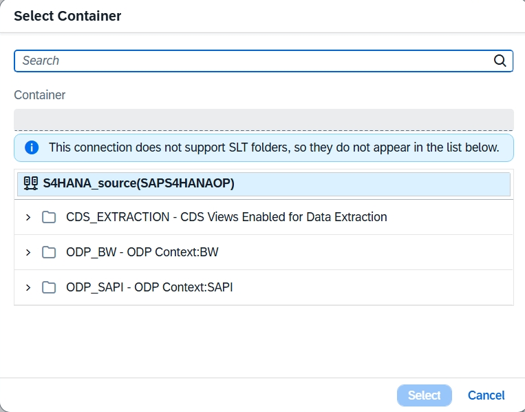
Select the appropriate source container, which is the type of source objects you want to replicate from. The following example uses CDS_EXTRACTION to replicate data from CDS views in an SAP S/4HANA on-premises source system. Then select Select.
Select Add Source Objects to choose the source objects you want to replicate. After you select all your sources, select Next.

Configure the target ADLS Gen2. Select the target connection and container. Check that the target settings are correct: Group Delta is set to None and File Type is set to Parquet.

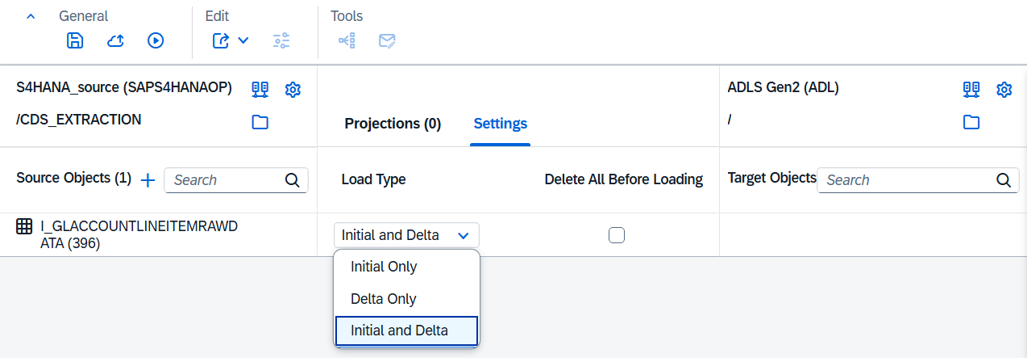
Configure the detail settings for the replication. Select Settings in the middle section of the canvas. Check and adjust the selected Load Type if needed. Currently, mirroring supports Initial and Delta.
In the Run Settings dialog, you can adjust the load frequency of the replication and adjust resources if needed.
Deploy and run the replication to replicate the data.
Go to your ADLS Gen2 container and validate the data is replicated.


Create a Copy job
This section explains how to create a Copy job to replicate data from SAP via SAP Datasphere Outbound.
In your workspace, select New item and find Copy job.
Select the SAP Datasphere Outbound connection and provide the URL to your ADLS Gen2 account.

Specify the folders where your SAP Datasphere outbound data is stored and that you want to move to your destinations.
The remaining steps are the same as CDC replication for any other CDC-enabled source.

Limitations
Copy job for SAP CDC via SAP Datasphere supports all types of SAP sources offered by SAP Datasphere, including SAP S/4HANA, SAP ECC, SAP BW/4HANA, SAP BW, and SAP Datasphere itself. Refer to SAP Datasphere replication flow documentation for details.
SAP Datasphere replication flow setup requirements:
- Ensure you configure the target storage settings propertly: set Group Delta to None and set File Type to Parquet.
- Currently, SAP mirroring supports replication flow load type as Initial and Delta.
Once the Copy job is configured, you can monitor the current state of replication from ADLS Gen2 to supported destinations. If you observe a delay in the appearance of mirrored data, also check the SAP Datasphere replication flow status and if the data is replicated into the storage.