Note
Access to this page requires authorization. You can try signing in or changing directories.
Access to this page requires authorization. You can try changing directories.
Note
Apache Airflow job is powered by Apache Airflow.
Apache Airflow is an open-source platform used to programmatically create, schedule, and monitor complex jobs. It allows you to define a set of tasks, called operators, that can be combined into directed acyclic graphs (DAGs) to represent pipelines.
Apache Airflow Job provides a simple and efficient way to create and manage Apache Airflow environments, enabling you to run your orchestration jobs at scale with ease. In this quickstart, let's create a simple Apache Airflow job to familiarize yourself with the environment and functionalities of Apache Airflow Job.
Create an Apache Airflow Job
You can use an existing workspace or Create a new workspace.
Expand + New item dropdown, then under the Data Factory section, select Apache Airflow Job
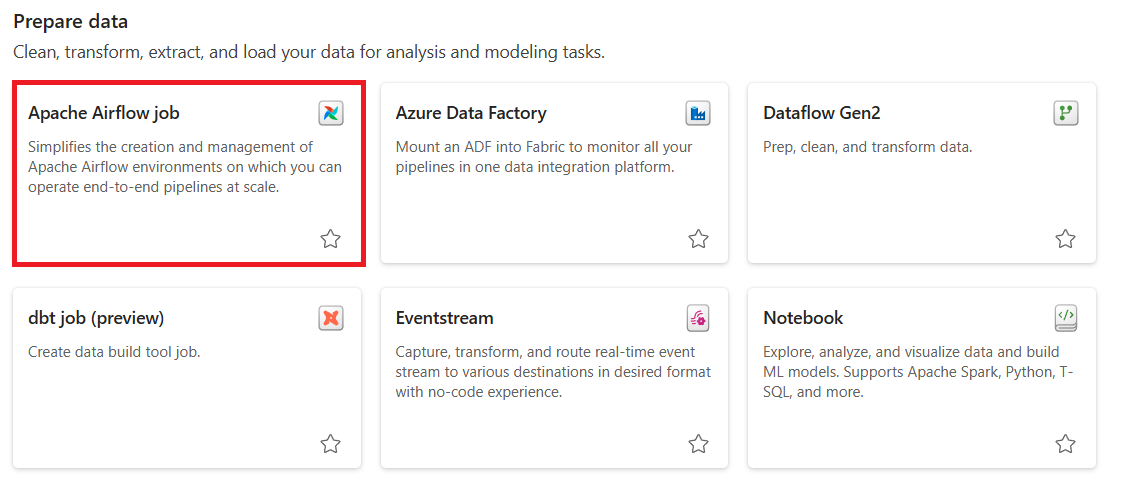
Give a suitable name to your project and select the Create button.
Create a DAG File
Select the New DAG file card, give the name to the file, and select Create.
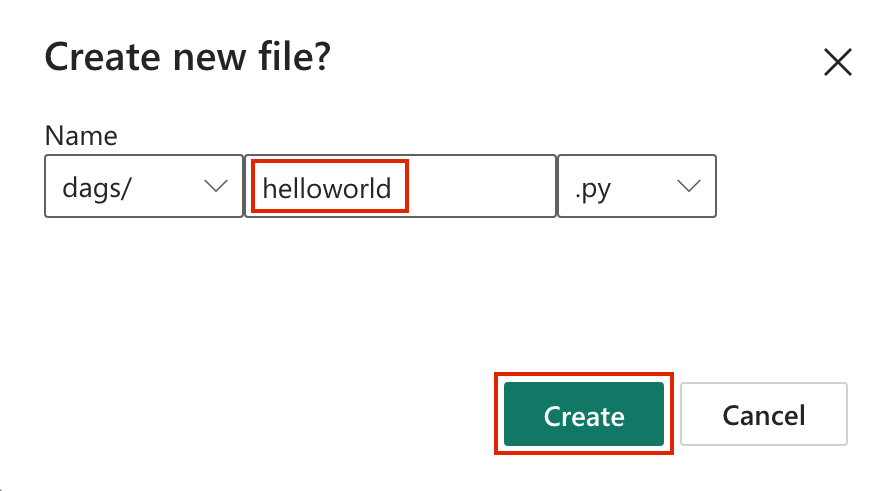
A boilerplate DAG code is presented to you. You can edit the file as per your requirements.

Select Save.


Run a DAG
Begin by selecting the Run DAG button.

Once initiated, a notification appears indicating the DAG is running.
To monitor the progress of the DAG run, select View Details within the notification center. This action will redirect you to the Apache Airflow UI, where you can conveniently track the status and details of the DAG run.
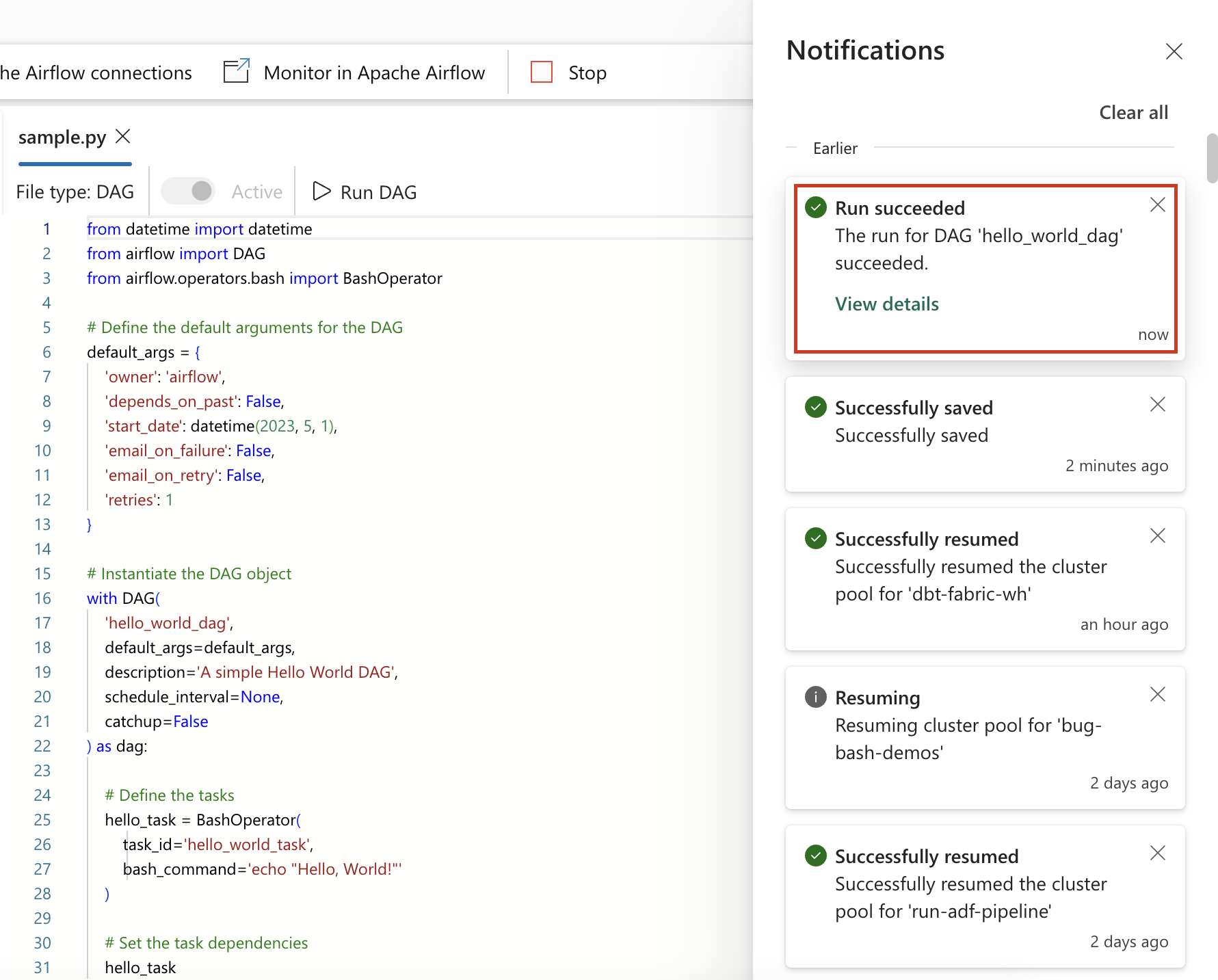

Monitor your Apache Airflow DAG in Apache Airflow UI
The saved dag files are loaded in the Apache Airflow UI. You can monitor them by clicking on the Monitor in Apache Airflow button.

