Note
Access to this page requires authorization. You can try signing in or changing directories.
Access to this page requires authorization. You can try changing directories.
Azure Data Factory Item (Mount) lets you effortlessly bring your existing Azure Data Factory into a Fabric workspace. It’s like opening a live view of your ADF pipelines right inside Fabric—without having to migrate or rebuild anything. It’s a low-risk way to start using Fabric while keeping your ADF setup just the way it is.
Prerequisites
To get started, you must complete the following prerequisites:
- A tenant account with an active subscription. Create an account for free.
- Permissions: You’ll need contributor access to the ADF and member/admin rights in the Fabric workspace.
- Same Tenant: Your ADF and Fabric workspace must be in the same Azure AD tenant.
- Same Region (Recommended): For best performance, keep your Fabric workspace in the same region as your ADF.
What’s new?
You can now manage, view, and edit those pipelines directly from the Fabric portal. It’s the same ADF that is now accessible inside your Fabric workspace.
What stays the same
Your pipelines, dataflows, triggers, integration runtimes, and schedules all keep running in ADF. No long migration times and nothing gets altered.
Authoring pipelines
You can edit pipelines in Fabric’s Data Factory UI—it looks and feels like the ADF portal. Prefer your Git-based workflow? No problem. Fabric will show the published version of your pipelines, but your Git setup stays intact.
Running pipelines
Pipelines still run on ADF’s infrastructure. That means:
- Same integration runtimes (including Self-Hosted IRs).
- Same compute and billing (you’re charged by Azure for ADF, not Fabric capacities).
- No need to set up a Fabric gateway for existing pipelines.
Monitoring & admin
- You can trigger and debug pipelines as well as perform basic monitoring in Fabric. For full monitoring (like viewing past runs or setting alerts), head back to the ADF portal.
- Some features like global parameters aren’t visible in Fabric.
Why use Azure Data Factory Item?
- It’s a great way to explore Fabric without disrupting your current ADF setup.
- You get a unified workspace—view dashboards, run pipelines, and manage data all in one place.
- It supports gradual migration and modernization. You can keep your ADF pipelines running while starting to build new things in Fabric.
How to mount your Azure Data Factory:
There are two entry points, one from ADF and one within Fabric workspace.
1. Mount from Fabric workspace
- Go to your Fabric workspace.
- Create New Item > Azure Data Factory.
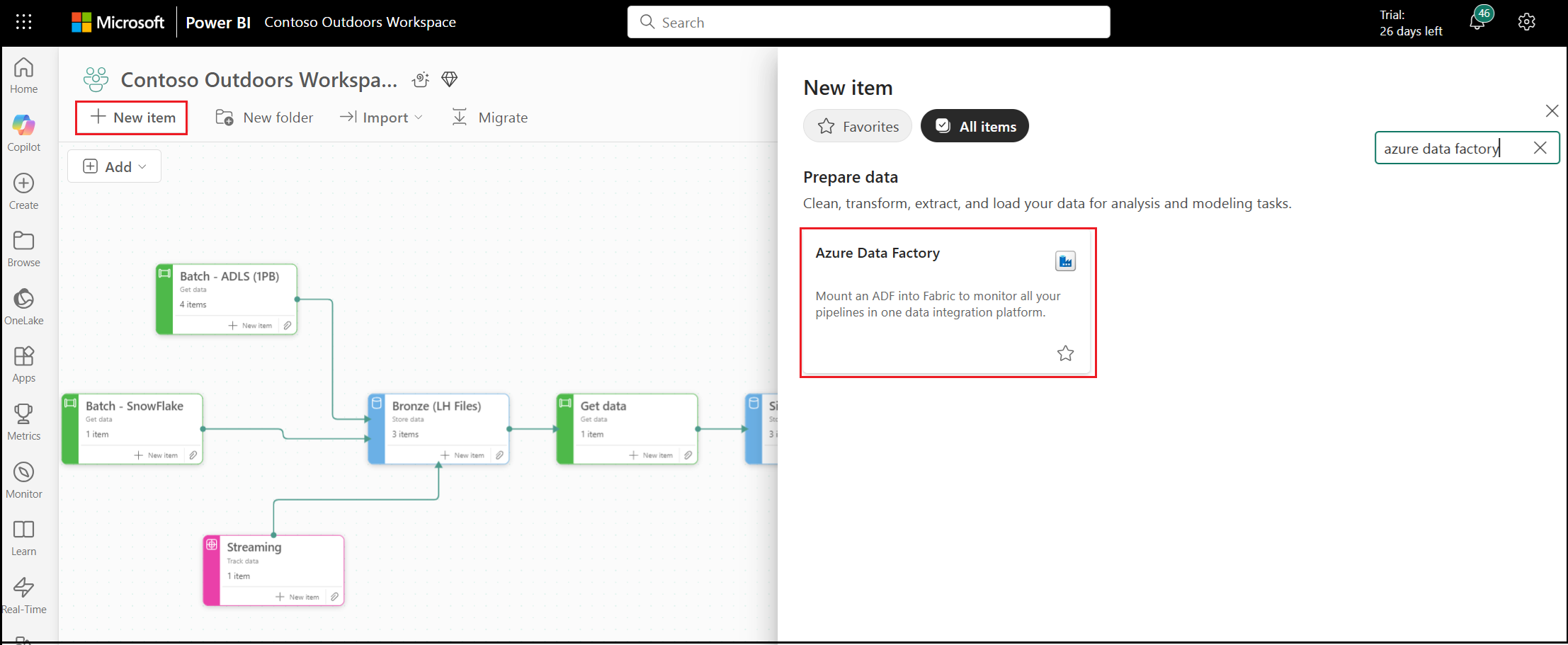
- Pick your ADF instance from the list.

- Select OK.
That’s it! Within no time, you’ll see your ADF pipelines inside Fabric.

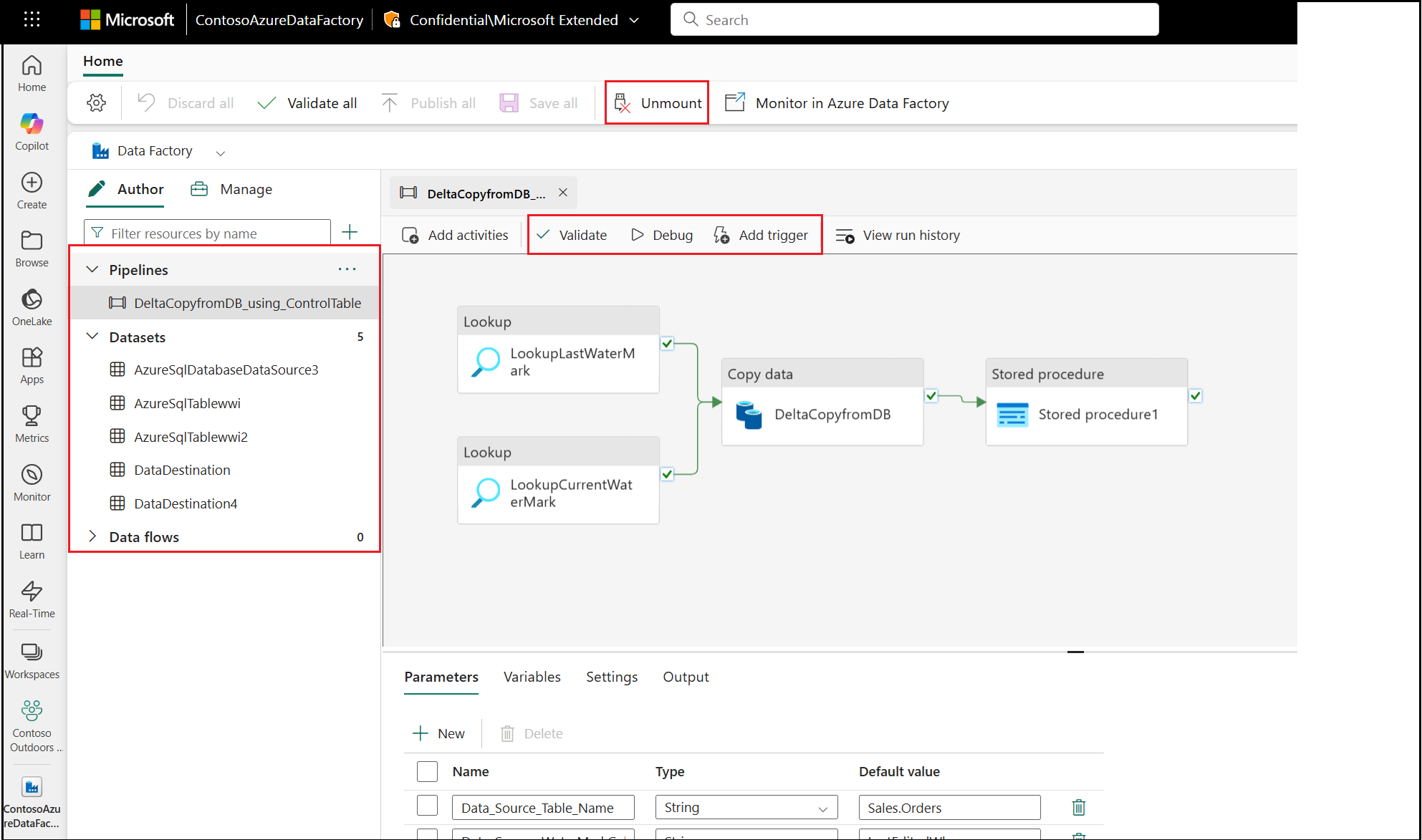
- Select the "View Azure Data Factory" to view, edit, validate and trigger your pipeline from Fabric. Not sure yet? You can safely unmount your factory from Fabric at any time. Just select Unmount.
2. Mount from ADF UX
You can now mount your Azure Data Factory to Fabric from ADF UX.
- Go to your Data factory in Azure portal that you wish to mount.
- From Manage tab select ADF in Microsoft Fabric.
- Select Mount in Fabric.
- Choose a Fabric workspace where you would like to mount the factory to.
- Select Mount.


And just like that you will start to see your ADF in the Fabric workspace you chose!
Need to reverse it?
No problem—just select Unmount to undo the change instantly.
