Note
Access to this page requires authorization. You can try signing in or changing directories.
Access to this page requires authorization. You can try changing directories.
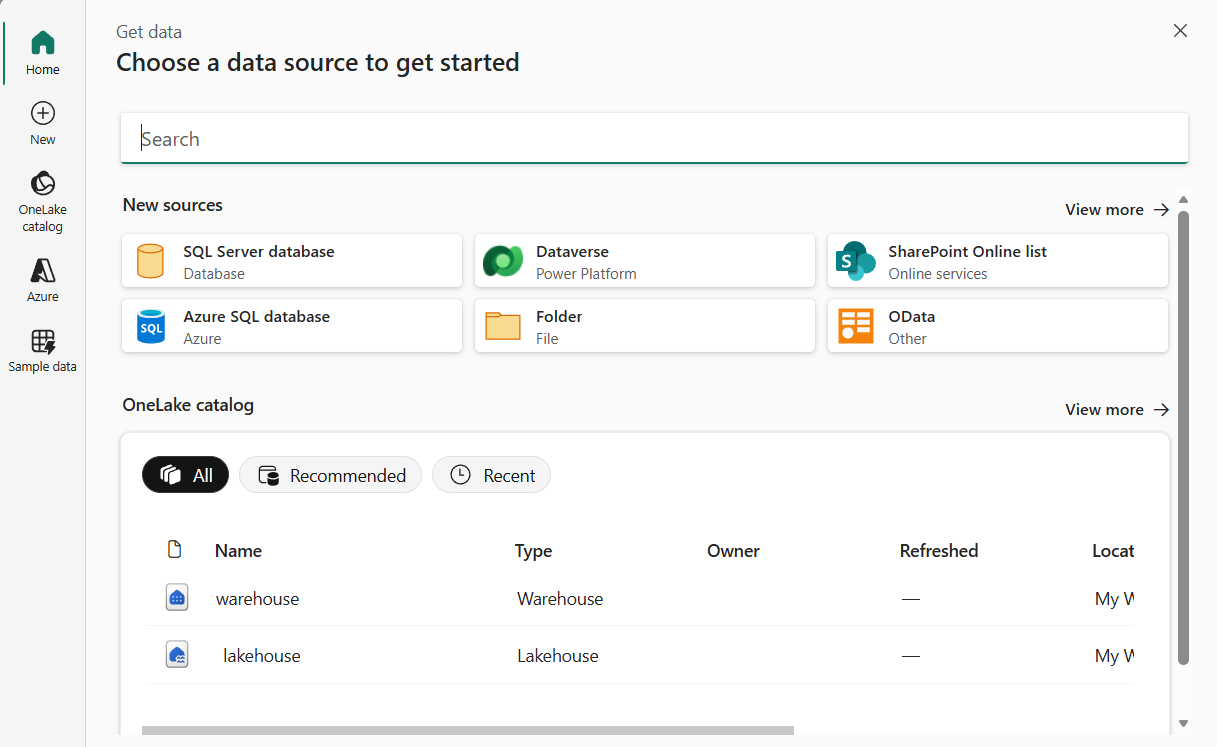
The modern get data experience for pipelines helps you connect to data by browsing Fabric items through the OneLake data hub. You can move data from various sources to your preferred destinations.
Prerequisites
To get started, you need:
- A tenant account with an active subscription. Create an account for free.
- A workspace.
Try the get data experience in a pipeline
Create a new pipeline.
On the pipeline start page, select either the Copy data assistant card or Use copy assistant from the Copy data dropdown on the Activities menu.

On the Choose data source page of the Copy data assistant, you'll see several tabs. The Home tab is selected by default. The interface helps you discover your data and connect to it for any supported data source. Recent and recommended documents from your OneLake data hub appear here.

Type part of your data source type or name in the filter at the top of the tab. This shows all the matching data source types and items in your OneLake data hub.
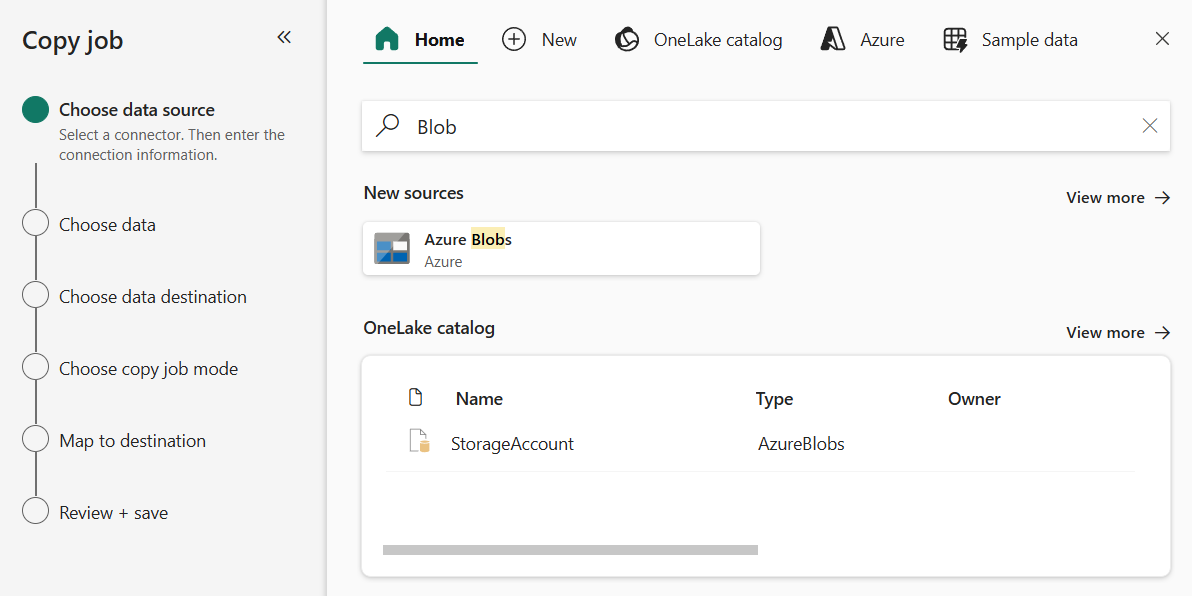
Select the OneLake data hub tab at the top to access and filter existing data connections in your OneLake data hub.
Select the Sample data tab to choose from several sample data connections with data of varying size and type. You can use sample data to test features or scenarios. For this demonstration, choose the Diabetes dataset.
You see a sample of the data on the Connect to data source page. Select Next to continue.
On the Choose data destination tab, create a new Fabric Lakehouse by selecting Lakehouse under the New Fabric item section on the Home tab.

Provide a name for the new Lakehouse and select Create and connect.
On the Connect to data destination tab, leave the default selections and select Next.
Review the Review + save tab, then select Save + Run to save and run the pipeline.


Use the get data experience from the pipeline editor
You can also access the get data experience directly from an existing Copy activity on a pipeline. While the activity is selected, on its Source properties tab, open the Connection dropdown and select the Browse all option.

When you select this option, you can use the full get data experience to find or create your data.