Note
Access to this page requires authorization. You can try signing in or changing directories.
Access to this page requires authorization. You can try changing directories.
Pipelines in Microsoft Fabric Data Factory help you orchestrate and automate your data workflows. A pipeline is a logical grouping of activities that together perform a task. For example, a pipeline could contain a set of activities that ingest and clean log data, and then kick off a data flow to analyze the log data.
The pipeline allows you to manage the activities as a set instead of each one individually. You deploy and schedule the pipeline instead of the activities independently.
When to use pipelines
Pipelines solve common data challenges by automating repetitive tasks and ensuring consistent data processing.
Let's say you're a retail company that needs to process daily sales data from multiple stores. Each day, you need to:
- Collect data from point-of-sale systems, online orders, and inventory databases
- Validate and clean the data to ensure accuracy
- Transform the data by calculating daily totals, applying business rules, and enriching with customer information
- Load the processed data into your data warehouse for reporting
- Notify your business intelligence team when the data is ready
A pipeline automates this entire workflow. It runs on schedule, handles errors gracefully, and provides visibility into each step. You get consistent and timely data processing without manual intervention.
Key pipeline components
Pipelines consist of several key components that work together to create powerful data workflows. The main components include activities that perform the work and add logic to your pipeline, schedules or triggers that determine when pipelines run, and parameters that make your pipelines flexible and reusable.
Activities
Activities are the building blocks of your pipeline. Each activity performs a specific task, and there are three main types of activities:
- Data movement activities: Copy data between different sources and destinations
- Data transformation activities: Clean, aggregate, and reshape your data
- Control flow activities: Add logic like conditions, loops, and error handling
You can chain activities together to create complex workflows. When one activity completes, it can trigger the next activity based on success, failure, or completion status.
For a full list of available activities and more information, see the activity overview.
Pipeline runs and scheduling
A pipeline run happens when a pipeline executes. During a run, all the activities in your pipeline are processed and completed. Each pipeline run gets its own unique run ID that you can use for tracking and monitoring.
You can start pipeline runs in three ways:
On-demand runs: Select Run in the pipeline editor to trigger an immediate run. You'll need to save any changes before the pipeline starts.

Scheduled runs: Set up automatic runs based on time and frequency. When you create a schedule, you specify start and end dates, frequency, and time zone.

Event-based runs: Use event triggers to start your pipeline when specific events occur, such as new files arriving in a data lake or changes in a database.
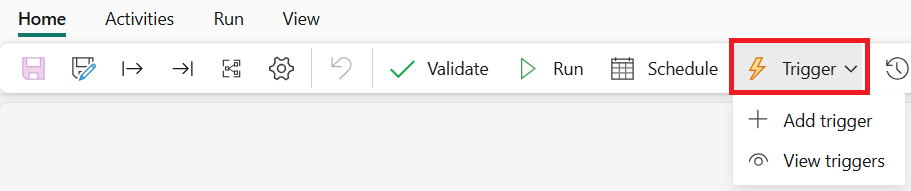
For more information, see Run, schedule, or trigger a pipeline.
Parameters and variables
Parameters make your pipelines flexible. You can pass different values when you run the pipeline, allowing the same pipeline to process different datasets or use different configurations.
Variables store temporary values during pipeline execution. You can use them to pass data between activities or make decisions based on runtime conditions.
For more information, see How to use parameters, expressions, and functions in pipelines.
Pipeline monitoring and management
Fabric provides comprehensive monitoring for your pipelines:
- Real-time monitoring: Watch your pipeline progress as it runs, with visual indicators for each activity's status
- Run history: Review past executions to identify patterns and troubleshoot issues
- Performance metrics: Analyze execution times and resource usage to optimize your pipelines
- Audit trail: Track who ran which pipelines when, with detailed logs of start times, end times, activity duration, error messages, and data lineage
For more information, see Monitor pipeline runs.
Best practices
When designing pipelines, consider these recommendations:
- Start simple: Begin with basic data movement and gradually add complexity
- Use parameters: Make your pipelines reusable by parameterizing connections and file paths
- Handle errors: Plan for failures with retry logic and alternative processing paths
- Monitor performance: Regularly review execution times and optimize slow-running activities
- Test thoroughly: Validate your pipelines with sample data before processing production workloads