Note
Access to this page requires authorization. You can try signing in or changing directories.
Access to this page requires authorization. You can try changing directories.
This module takes about 10 minutes to complete. You'll ingest raw data from the source store into a table in the bronze data layer of a data Lakehouse using the Copy activity in a pipeline.
The high-level steps in module 1 are:
- Create a pipeline.
- Create Copy Activity in the pipeline to load sample data into a data Lakehouse.
- Run and view the results of the the copy activity
Prerequisites
- A Microsoft Fabric tenant account with an active subscription. If you don't have one, you can try Microsoft Fabric for free.
- A Microsoft Fabric enabled Workspace. Learn how to create a workspace.
- Access to Power BI.
Create a pipeline
Sign into Power BI.
Select the default Power BI icon at the bottom left of the screen, and select Fabric.
Select a workspace from the Workspaces tab or select My workspace, then select + New item, then search for and choose Pipeline.

Provide a pipeline name. Then select Create.

Create a Copy activity in the pipeline to load sample data to a data Lakehouse
Select Copy data assistant to open the copy assistant tool.

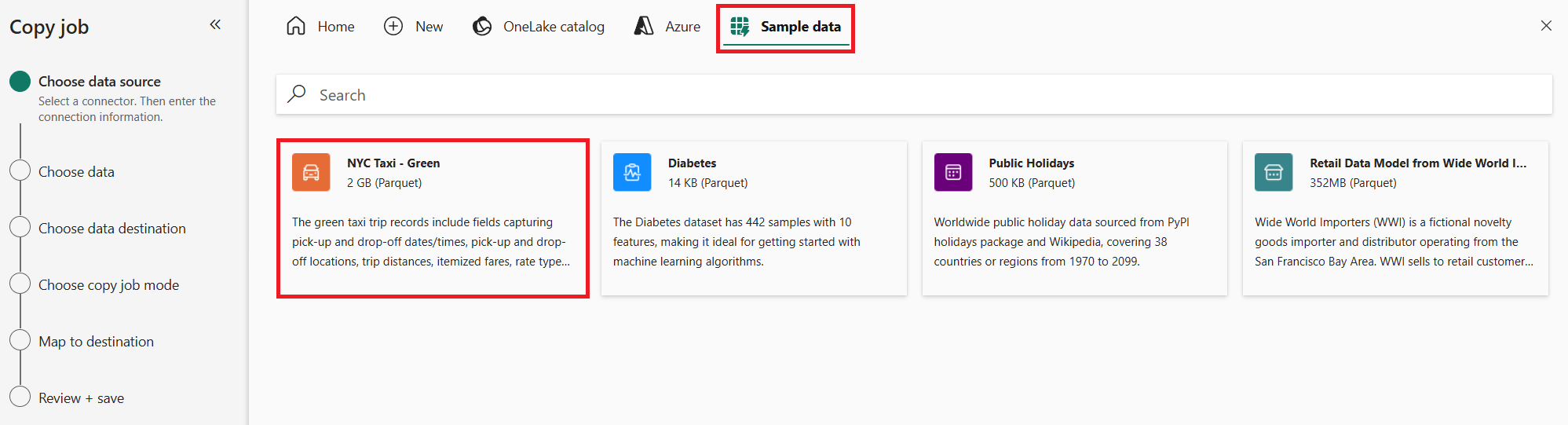
On the Choose data source page, select Sample data from the options at the top of the dialog, and then select NYC Taxi - Green.
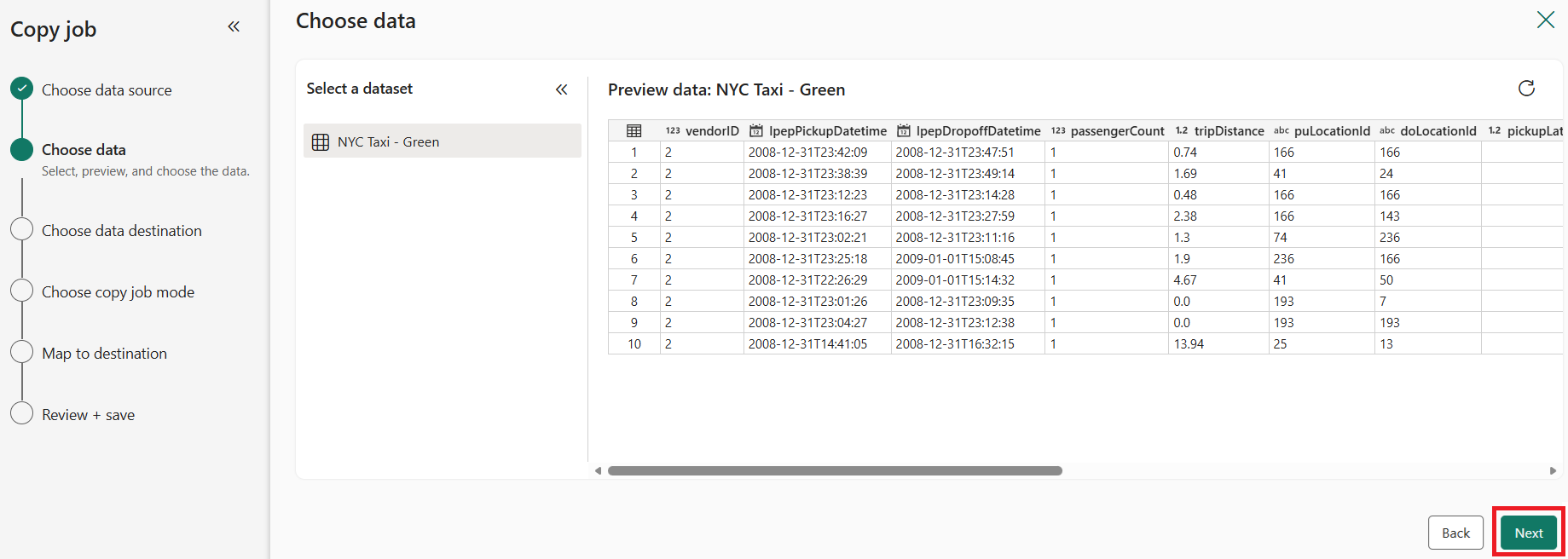
The data source preview appears next on the Connect to data source page. Review, and then select Next.
For the Choose data destination step of the copy assistant, select Lakehouse.
Enter a Lakehouse name, then select Create and connect.
Select Connect.
Select Full copy for the copy job mode.
When mapping to destination, select Tables, select Append as the update method, and edit the table mapping so the destination table is named
Bronze. Then select Next.
On the Review + save page of the copy data assistant, review the configuration and then select Save.
Select the copy job activity on the pipeline canvas, then select the Settings tab below the canvas.

Select the Connection drop-down and select Browse all.

Select Copy job under New sources.
On the Connect data source page, select Sign in to authenticate the connection.

Follow the prompts to sign in to your organizational account.
Select Connect to complete the connection setup.
At the top of the pipeline editor, select Save to save the pipeline.


Run and view the results of your Copy activity
At the top of the pipeline editor, select Run to run the pipeline and copy the data.
Note
This copy can take over 30 minutes to complete.

You can monitor the run and check the results on the Output tab below the pipeline canvas. Select name of the pipeline to view the run details.

Expand the Duration breakdown section to see the duration of each stage of the Copy activity. After reviewing the copy details, select Close.


Next step
Once the copy has completed, it can take around half an hour, continue to the next section to create your dataflow.