Note
Access to this page requires authorization. You can try signing in or changing directories.
Access to this page requires authorization. You can try changing directories.
You can use Spark and the Azure Cosmos DB Spark connector to read, write, and query data from an Azure Cosmos DB for NoSQL account. Additionally, you can use the connector to create and manage Cosmos DB containers.
Using Spark and the connector is different from using Spark to read data from the Cosmos DB in Fabric mirrored data stored in OneLake, as it connects directly to the Cosmos DB endpoint to perform operations.
The Cosmos DB Spark connector can be used to support reverse ETL scenarios where you need to serve data from the Cosmos DB endpoint with low latency or high concurrency.
Note
Reverse ETL (Extract, Transform, Load) refers to the process of taking transformed analytical data from an analytics system and loading it back into operational systems (such as CRM, ERP, POS, or marketing tools) so that business teams can act on insights directly in the applications they use every day.
Tip
Download the complete sample from Work with Cosmos DB in Microsoft Fabric using the Cosmos DB Spark Connector on GitHub.
Prerequisites
An existing Fabric capacity
- If you don't have Fabric capacity, start a Fabric trial.
An existing Cosmos DB database in Fabric
- If you don't have one already, create a new Cosmos DB database in Fabric.
An existing container with data
- If you don't have one already, we suggest that you load the sample data container.
Note
This article uses the built-in Cosmos DB sample created with a database name of CosmosSampleDatabase and a container name of SampleData.
Retrieve Cosmos DB endpoint
First, get the endpoint for the Cosmos DB database in Fabric. This endpoint is required to connect using the Cosmos DB Spark Connector.
Open the Fabric portal (https://app.fabric.microsoft.com).
Navigate to your existing Cosmos DB database.
Select the Settings option in the menu bar for the database.

In the settings dialog, navigate to the Connection section. Then, copy the value of the Endpoint for Cosmos DB NoSQL database field. You use this value in a later step.


Configure Spark in a Fabric notebook
To connect to Cosmos DB using the Spark connector, you need to configure a custom Spark environment. This section walks you through creating a custom Spark environment and uploading the Cosmos DB Spark Connector libraries.
Download the latest Cosmos DB Spark Connector library files from the Maven repository (group ID: com.azure.cosmos.spark) for Spark 3.5.
Create a new notebook.
Select Spark (Scala) as the language you want to use.
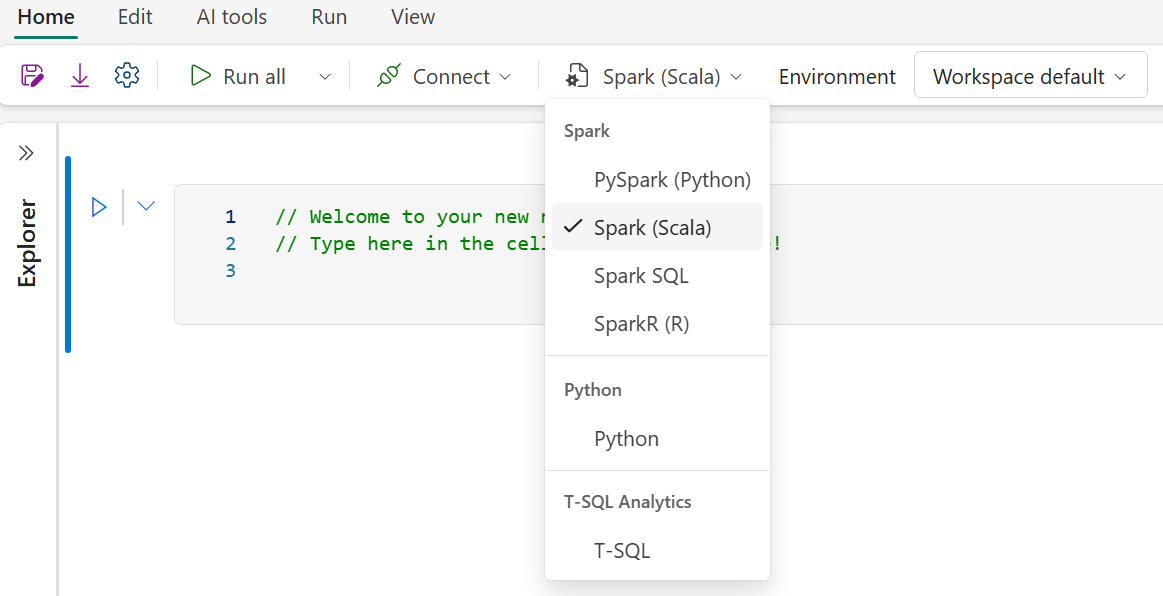
Select the Environment dropdown.
Check your workspace settings to ensure that you're using Runtime 1.3 (Spark 3.5).
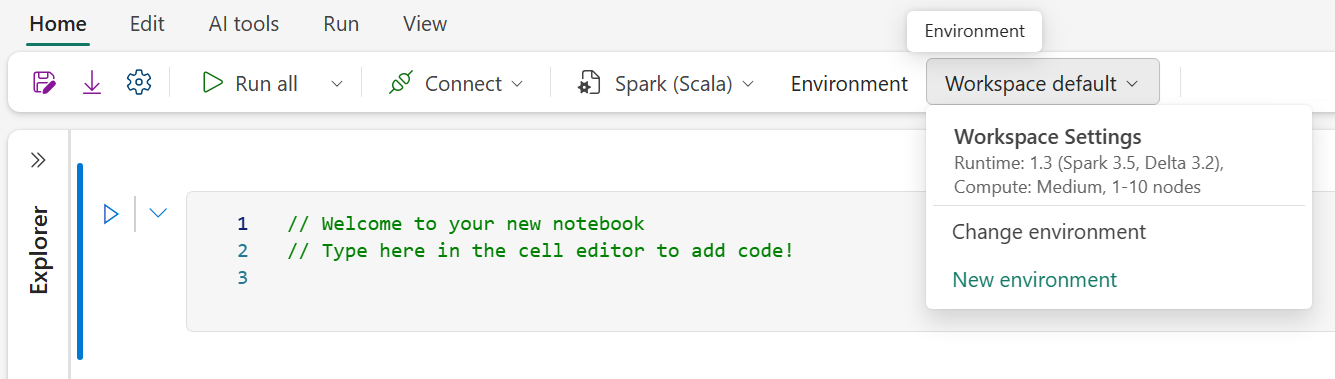
Select New environment.
Enter a name for the new environment.
Ensure that the runtime is configured for Runtime 1.3 (Spark 3.5).
Choose Custom Library from the Libraries folder in the left panel.
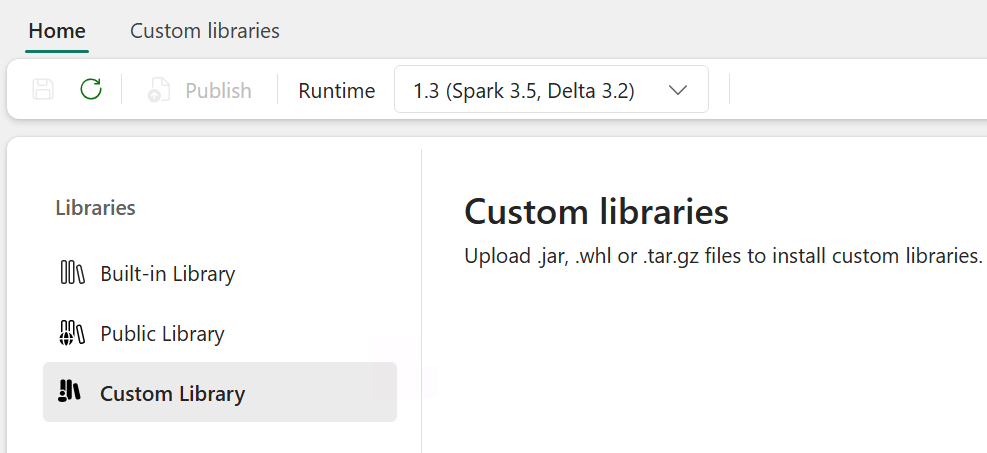
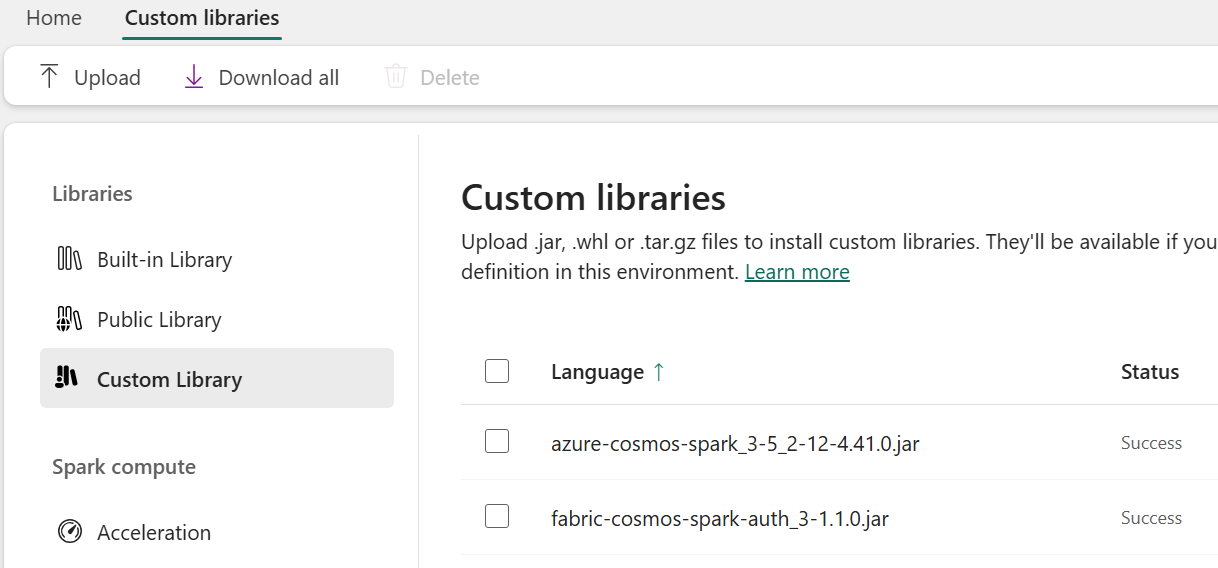
Upload the two library
.jarfiles you previously downloaded.Select Save.
Select Publish, then Publish all, and finally Publish.
Once published, the custom libraries should have a status of success.
Return to the notebook and select the newly configured environment by clicking the environment dropdown, selecting Change environment, and choosing the name of the newly created environment.
Connect using Spark
To connect to your Cosmos DB in Fabric database and container, specify a connection configuration to use when reading from and writing to the container.
Within the notebook, paste the Cosmos DB endpoint, database, and container names you preserved earlier, then set online transaction processing (OLTP) configuration settings for the NoSQL account endpoint, database name, and container name.
// User values for Cosmos DB
val ENDPOINT = "https://{YourAccountEndpoint....cosmos.fabric.microsoft.com:443/}"
val DATABASE = "{your-cosmos-artifact-name}"
val CONTAINER = "{your-container-name}"

// Set configuration settings
val config = Map(
      "spark.cosmos.accountendpoint" -> ENDPOINT,
      "spark.cosmos.database" -> DATABASE,
      "spark.cosmos.container" -> CONTAINER,
      // auth config options
      "spark.cosmos.accountDataResolverServiceName" -> "com.azure.cosmos.spark.fabric.FabricAccountDataResolver",
      "spark.cosmos.auth.type" -> "AccessToken",
      "spark.cosmos.useGatewayMode" -> "true",
      "spark.cosmos.auth.aad.audience" -> "https://cosmos.azure.com/"
)
Query data from a container
Load OLTP data into a DataFrame to perform some basic Spark operations.
Use
spark.readto load the OLTP data into a DataFrame object. Use the configuration created in the previous step. Also, setspark.cosmos.read.inferSchema.enabledtotrueto allow the Spark connector to infer the schema by sampling existing items.// Read Cosmos DB container into a dataframe val df = spark.read.format("cosmos.oltp") .options(config) .option("spark.cosmos.read.inferSchema.enabled", "true") .load()Display the first five rows of data in the DataFrame.
// Show the first 5 rows of the dataframe
df.show(5)
Note
The SampleData container you created earlier contains two different entities with two separate schemas, product and review. The inferSchema option detects the two different schemas within this Cosmos DB container and combines them.
Show the schema of the data loaded into the DataFrame by using
printSchemaand ensure the schema matches the sample document structure.// Render schema df.printSchema()The result should look similar to the following example:
    root
     |-- inventory: integer (nullable = true)
     |-- name: string (nullable = true)
     |-- priceHistory: array (nullable = true)
     |    |-- element: struct (containsNull = true)
     |    |    |-- date: string (nullable = true)
     |    |    |-- price: double (nullable = true)
     |-- stars: integer (nullable = true)
     |-- description: string (nullable = true)
     |-- currentPrice: double (nullable = true)
     |-- reviewDate: string (nullable = true)
     |-- countryOfOrigin: string (nullable = true)
     |-- id: string (nullable = false)
     |-- categoryName: string (nullable = true)
     |-- productId: string (nullable = true)
     |-- firstAvailable: string (nullable = true)
     |-- userName: string (nullable = true)
     |-- docType: string (nullable = true)
The two schemas and their data can be filtered using the docType property in the container. Filter the DataFrame for just products using the
wherefunction.// Render filtered rows by specific document type val productsDF = df.where("docType = 'product'") productsDF.show(5)Show the schema of the filtered product entities.
// Render schema
productsDF.printSchema()
Filter the DataFrame using the
filterfunction to show only products within a specific category.// Render filtered rows by specific document type and categoryName val filteredDF = df .where("docType = 'product'") .filter($"categoryName" === "Computers, Laptops") filteredDF.show(10)
Query Cosmos DB in Microsoft Fabric using Spark SQL
Configure the Catalog API to allow you to reference and manage Cosmos DB in Fabric resources by using Spark queries, using the endpoint value defined previously.
spark.conf.set("spark.sql.catalog.cosmosCatalog", "com.azure.cosmos.spark.CosmosCatalog")
spark.conf.set("spark.sql.catalog.cosmosCatalog.spark.cosmos.accountEndpoint", ENDPOINT)
spark.conf.set("spark.sql.catalog.cosmosCatalog.spark.cosmos.auth.type", "AccessToken")
spark.conf.set("spark.sql.catalog.cosmosCatalog.spark.cosmos.useGatewayMode", "true")
spark.conf.set("spark.sql.catalog.cosmosCatalog.spark.cosmos.accountDataResolverServiceName", "com.azure.cosmos.spark.fabric.FabricAccountDataResolver")
Query your data by using the catalog information and a SQL query string with the Spark SQL function.
 // Show results of query
  val queryDF = spark.sql(
  " SELECT " +
  "  categoryName, " +
  "  productId, " +
  "  docType, " +
  "  name, " +
  "  currentPrice, " +
  "  stars " +
  " FROM cosmosCatalog." + DATABASE + "." + CONTAINER
  )
  queryDF.show(10)
The result shows that properties missing from individual documents are returned as NULL values and should look similar to the following example:
+------------------+--------------------+-------+--------------------+------------+-----+
|      categoryName|           productId|docType|                name|currentPrice|stars|
+------------------+--------------------+-------+--------------------+------------+-----+
|Computers, Laptops|77be013f-4036-431...|product|TechCorp SwiftEdg...|     2655.33| NULL|
|Computers, Laptops|77be013f-4036-431...| review|                NULL|        NULL|    4|
|Computers, Laptops|77be013f-4036-431...| review|                NULL|        NULL|    1|
|Computers, Laptops|d4df3f4e-5a90-41e...|product|AeroTech VortexBo...|     2497.71| NULL|
|Computers, Laptops|d4df3f4e-5a90-41e...| review|                NULL|        NULL|    1|
|Computers, Laptops|d4df3f4e-5a90-41e...| review|                NULL|        NULL|    2|
|Computers, Laptops|d4df3f4e-5a90-41e...| review|                NULL|        NULL|    1|
|Computers, Laptops|d4df3f4e-5a90-41e...| review|                NULL|        NULL|    2|
|Computers, Laptops|d4df3f4e-5a90-41e...| review|                NULL|        NULL|    5|
|Computers, Laptops|e8b100f0-166d-43d...|product|NovaTech EdgeBook...|     1387.45| NULL|
+------------------+--------------------+-------+--------------------+------------+-----+
This example shows how to work with an embedded array in a JSON document stored in Cosmos DB. First, query the container, then use the
explodeoperator to expand thepriceHistoryarray elements into rows, then calculate the lowest price for each product stored in the product history.// Retrieve the product data from the SampleData container val productPriceMinDF = spark.sql( "SELECT " + " productId, " + " categoryName, " + " name, " + " currentPrice, " + " priceHistory " + "FROM cosmosCatalog." + DATABASE + "." + CONTAINER + " " + "WHERE " + CONTAINER + ".docType = 'product'" ) // Prepare an exploded result set containing one row for every member of the priceHistory array val explodedDF = productPriceMinDF .withColumn("priceHistory", explode(col("priceHistory"))) .withColumn("priceDate", col("priceHistory").getField("date")) .withColumn("newPrice", col("priceHistory").getField("price")) // Aggregate just the lowest price ever recorded in the priceHistory val lowestPriceDF = explodedDF .filter(col("docType") === "product") .groupBy("productId", "categoryName", "name") .agg(min("newPrice").as("lowestPrice")) // Show 10 rows of the result data lowestPriceDF.show(10)The results should look like this.
   +--------------------+--------------------+--------------------+-----------+
   |           productId|        categoryName|                name|lowestPrice|
   +--------------------+--------------------+--------------------+-----------+
   |5d81221f-79ad-4ae...|Accessories, High...|PulseCharge Pro X120|      79.99|
   |9173595c-2b5c-488...|Accessories, Desi...| Elevate ProStand X2|     117.16|
   |a5d1be8f-ef18-484...|Computers, Gaming...|VoltStream Enigma...|     1799.0|
   |c9e3a6ce-432f-496...|Peripherals, Keyb...|HyperKey Pro X77 ...|     117.12|
   |f786eb9e-de01-45f...|    Devices, Tablets|TechVerse TabPro X12|     469.93|
   |59f21059-e9d4-492...|Peripherals, Moni...|GenericGenericPix...|     309.77|
   |074d2d7a-933e-464...|Devices, Smartwat...|  PulseSync Orion X7|     170.43|
   |dba39ca4-f94a-4b6...|Accessories, Desi...|Elevate ProStand ...|      129.0|
   |4775c430-1470-401...|Peripherals, Micr...|EchoStream Pro X7...|     119.65|
   |459a191a-21d1-42f...|Computers, Workst...|VertexPro Ultima ...|     3750.4|
   +--------------------+--------------------+--------------------+-----------+
Use Cosmos DB to implement reverse ETL using Spark
Cosmos DB is an exceptional serving layer for analytical workloads due to its architecture. The following example shows how to perform a reverse ETL on analytical data and serve it using Cosmos DB.
Create a Cosmos DB in Fabric container with Spark
Create a
MinPricePerProductcontainer by using the Spark Catalog API andCREATE TABLE IF NOT EXISTS. Set the partition key path to/id, and configure the autoscale throughput to the minimum value of1000RU/s, since the container is expected to remain small.// Create a MinPricePerProduct container by using the Catalog API val NEW_CONTAINER = "MinPricePerProduct" spark.sql( "CREATE TABLE IF NOT EXISTS cosmosCatalog." + DATABASE + "." + NEW_CONTAINER + " " + "USING cosmos.oltp " + "TBLPROPERTIES(partitionKeyPath = '/id', autoScaleMaxThroughput = '1000')" )
Write data to a Cosmos DB in Fabric container with Spark
To write data directly to a Cosmos DB in Fabric container, you need:
- a correctly formatted DataFrame containing the container partition key and
idcolumns. - a correctly specified configuration for the container you wish to write to.
All documents in Cosmos DB require an id property, which is also the partition key chosen for the
Productscontainer. Create anidcolumn on theProductsDFDataFrame with the value ofproductId.// Create an id column and copy productId value into it val ProductsDF = lowestPriceDF.withColumn("id", col("productId")) ProductsDF.show(10)Create a new configuration for the
MinPricePerProductcontainer you want to write to. Thespark.cosmos.write.strategyis set toItemOverwrite, which means that any existing documents with the same ID and partition key values are overwritten.// Configure the Cosmos DB connection information for the database and the new container. val configWrite = Map( "spark.cosmos.accountendpoint" -> ENDPOINT, "spark.cosmos.database" -> DATABASE, "spark.cosmos.container" -> NEW_CONTAINER, "spark.cosmos.write.strategy" -> "ItemOverwrite", // auth config options "spark.cosmos.accountDataResolverServiceName" -> "com.azure.cosmos.spark.fabric.FabricAccountDataResolver", "spark.cosmos.auth.type" -> "AccessToken", "spark.cosmos.useGatewayMode" -> "true", "spark.cosmos.auth.aad.audience" -> "https://cosmos.azure.com/" )Write the DataFrame to the container.
ProductsDF.write
  .format("cosmos.oltp")
  .options(configWrite)
  .mode("APPEND")
  .save()
Query the container to validate that it now contains the correct data.
// Test that the write operation worked
val queryString = s"SELECT * FROM cosmosCatalog.$DATABASE.$NEW_CONTAINER"
val queryDF = spark.sql(queryString)
queryDF.show(10)
The result should look similar to the following example:
   +--------------------+--------------------+-----------+--------------------+--------------------+
   |                name|        categoryName|lowestPrice|                  id|           productId|
   +--------------------+--------------------+-----------+--------------------+--------------------+
   |PulseCharge Pro X120|Accessories, High...|      79.99|5d81221f-79ad-4ae...|5d81221f-79ad-4ae...|
   | Elevate ProStand X2|Accessories, Desi...|     117.16|9173595c-2b5c-488...|9173595c-2b5c-488...|
   |VoltStream Enigma...|Computers, Gaming...|     1799.0|a5d1be8f-ef18-484...|a5d1be8f-ef18-484...|
   |HyperKey Pro X77 ...|Peripherals, Keyb...|     117.12|c9e3a6ce-432f-496...|c9e3a6ce-432f-496...|
   |TechVerse TabPro X12|    Devices, Tablets|     469.93|f786eb9e-de01-45f...|f786eb9e-de01-45f...|
   |GenericGenericPix...|Peripherals, Moni...|     309.77|59f21059-e9d4-492...|59f21059-e9d4-492...|
   |  PulseSync Orion X7|Devices, Smartwat...|     170.43|074d2d7a-933e-464...|074d2d7a-933e-464...|
   |Elevate ProStand ...|Accessories, Desi...|      129.0|dba39ca4-f94a-4b6...|dba39ca4-f94a-4b6...|
   |EchoStream Pro X7...|Peripherals, Micr...|     119.65|4775c430-1470-401...|4775c430-1470-401...|
   |VertexPro Ultima ...|Computers, Workst...|     3750.4|459a191a-21d1-42f...|459a191a-21d1-42f...|
   +--------------------+--------------------+-----------+--------------------+--------------------+