Note
Access to this page requires authorization. You can try signing in or changing directories.
Access to this page requires authorization. You can try changing directories.
In this tutorial, you query a Fabric mirrored database from an existing Cosmos DB in Fabric database. You learn how to enable mirroring on your database, verify the mirroring status, and then use both the source and mirrored data for analytics.
Prerequisites
An existing Fabric capacity
- If you don't have Fabric capacity, start a Fabric trial.
An existing Cosmos DB database in Fabric
- If you don't have one already, create a new Cosmos DB database in Fabric.
Configure your Cosmos DB in Fabric database
First, ensure that your Cosmos DB in Fabric database is properly configured and contains data for mirroring.
Open the Fabric portal (https://app.fabric.microsoft.com).
Navigate to your existing Cosmos DB database.
Important
For this tutorial, the existing Cosmos DB database should have the sample data set already loaded. The remaining steps in this tutorial assume that you're using the same data set for this database.
Verify that your database contains at least one container with data. Do this verification by expanding the container in the navigation pane and observing that items exist.
In the menu bar, select Settings to access the database configuration.
In the Settings dialog, navigate to the Mirroring section to verify that mirroring is enabled for this database.
Note
Mirroring is automatically enabled for all Cosmos DB databases in Fabric. This feature doesn't require any extra configuration and ensures that your data is always analytics-ready in OneLake.
Connect to the source database
Next, confirm that you can connect to and query the source Cosmos DB database directly.
Navigate back to your existing Cosmos DB database in the Fabric portal.
Select and expand your existing container to view its contents.
Select Items to browse the data directly in the database.
Verify that you can see the items in your container. For example, if using the sample data set, you should see items with properties like
name,category, andcountryOfOrigin.Select New query from the menu to open the NoSQL query editor.
Run a test query to verify connectivity and data availability:
SELECT COUNT(1) AS itemCount FROM containerThis query should return the total number of items in your container.
Connect to the mirrored database
Now, access the mirrored version of your database through the SQL analytics endpoint to query the same data using T-SQL.
In the menu bar, select the Cosmos DB list and then select SQL analytics endpoint to switch to the mirrored database view.
Verify that your container appears as a table in the SQL analytics endpoint. The table should have the same name as your container.
Select New SQL query from the menu to open the T-SQL query editor.
Run a test query to verify that mirroring is working correctly:
SELECT COUNT(*) AS itemCount FROM [dbo].[SampleData]Note
Replace
[SampleData]with the name of your container if you're not using the sample data set.The query should return the same count as your NoSQL query, confirming that mirroring is successfully replicating your data.
Query the source database from Fabric
Use the Fabric portal to explore the data that already exists in your Azure Cosmos DB account, querying your source Cosmos DB database.
Navigate to the mirrored database in the Fabric portal.
Select View, then Source database. This action opens the Azure Cosmos DB data explorer with a read-only view of the source database.
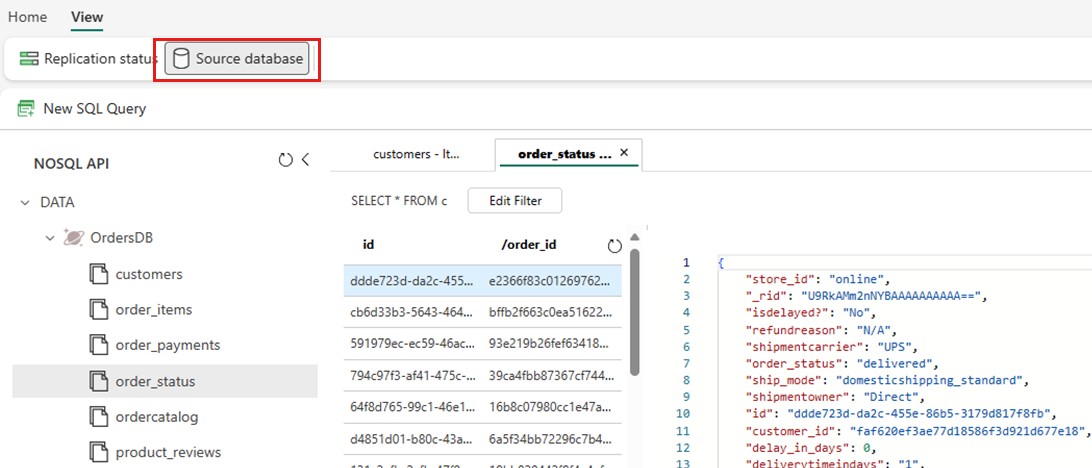
Select a container, then open the context menu and select New SQL query.
Run any query. For example, use
SELECT COUNT(1) FROM containerto count the number of items in the container.Note
All the reads on the source database are routed to Azure and consume Request Units (RUs) allocated on the account.
Analyze the target mirrored database
Now, use T-SQL to query your NoSQL data that is now stored in Fabric OneLake.
Navigate to the mirrored database in the Fabric portal.
Switch from Mirrored Azure Cosmos DB to SQL analytics endpoint.

Each container in the source database should be represented in the SQL analytics endpoint as a warehouse table.
Select any table, open the context menu, then select New SQL Query, and finally select Select Top 100.
The query executes and returns 100 records in the selected table.
Open the context menu for the same table and select New SQL Query. Write an example query that uses aggregates like
SUM,COUNT,MIN, orMAX. Join multiple tables in the warehouse to execute the query across multiple containers.Note
For example, this query would execute across multiple containers:
SELECT
    d.[product_category_name],
    t.[order_status],
    c.[customer_country],
    s.[seller_state],
    p.[payment_type],
    sum(o.[price]) as price,
    sum(o.[freight_value]) freight_value
FROM
    [dbo].[products] p
INNER JOIN
    [dbo].[OrdersDB_order_payments] p
        on o.[order_id] = p.[order_id]
INNER JOIN
    [dbo].[OrdersDB_order_status] t
        ON o.[order_id] = t.[order_id]
INNER JOIN
    [dbo].[OrdersDB_customers] c
        on t.[customer_id] = c.[customer_id]
INNER JOIN
    [dbo].[OrdersDB_productdirectory] d
        ON o.product_id = d.product_id
INNER JOIN
    [dbo].[OrdersDB_sellers] s
        on o.seller_id = s.seller_id
GROUP BY
    d.[product_category_name],
    t.[order_status],
    c.[customer_country],
    s.[seller_state],
    p.[payment_type]
This example assumes the name of your table and columns. Use your own table and columns when writing your SQL query.
Select the query and then select Save as view. Give the view a unique name. You can access this view at any time from the Fabric portal.
Return back to the mirrored database in the Fabric portal.
Select New visual query. Use the query editor to build complex queries.
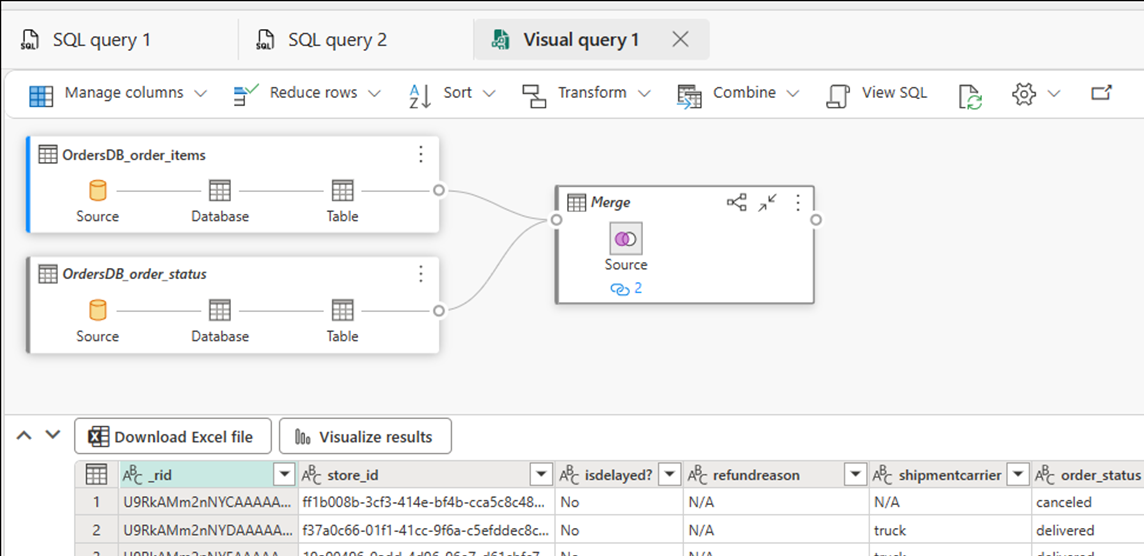

Build BI reports on the SQL queries or views
- Select the query or view and then select Explore this data (preview). This action explores the query in Power BI directly using Direct Lake on OneLake mirrored data.
- Edit the charts as needed and save the report.
Tip
You can also optionally use Copilot or other enhancements to build dashboards and reports without any further data movement.