Note
Access to this page requires authorization. You can try signing in or changing directories.
Access to this page requires authorization. You can try changing directories.
Applies to: ✅ SQL database in Microsoft Fabric
Copilot in Fabric in the SQL database workload includes a chat pane to interact with Copilot in natural language. In this interface, you can ask Copilot questions specific to your database or generally about SQL database. Depending on the question, Copilot responds with a generated SQL query or a natural language response.
Since Copilot is schema aware and contextualized, you can generate queries tailored to your database.
With this integration, Copilot can generate SQL queries for prompts like:
What are the top 10 best-selling products by revenue?
Show the sales revenue growth trend for the past 5 years.
Create a table called [SalesTransactions] with columns [CustomerID], [ProductID], [OrderDate], [Quantity].
Which queries are consuming the most CPU in my database right now?
Why is my database running slowly today?
List tables without a primary key or clustered index.
Find missing index recommendations for my database.
Add a VECTOR column to the Products table.
Explain what this T-SQL script does, step by step.
Refactor this SQL query to follow best practices.
Search my database for any column containing the word 'error'.
Generate a resource usage report for the last hour.
How do I create an Extended Events session to capture long-running queries?
Key scenarios
Whether you're a database administrator, developer, or analyst, the Copilot chat pane helps you streamline your workflow and boost productivity. Copilots support the following types of tasks:
| Scenarios | What you can do |
|---|---|
| Natural Language to SQL (NL2SQL) | Generate T-SQL code and get suggestions of questions to ask to accelerate your workflow. |
| Documentation-based Q&A | Ask questions about Fabric SQL Database capabilities and get answers grounded in official MS Learn documentation. |
| Diagnose performance and resource issues | Analyze CPU or memory usage, detect blocked sessions, identify slow queries, and summarize system trends. |
| Inspect and optimize database design | Find missing or unused indexes, heaps, and tables without primary keys or clustered indexes. |
| Explore and modify schema objects | Create or alter tables, add computed or VECTOR columns, and review triggers and constraints. |
| Author, debug, and document SQL code | Explain, fix, refactor, and document T-SQL scripts with best practices applied automatically. |
| Search and learn interactively | Search database objects or text, inspect settings, and get step-by-step guidance on administrative and troubleshooting tasks. |
Prerequisites
- Your administrator needs to enable the tenant switch before you start using Copilot. For more information, see Copilot tenant settings.
- Your F2 or P1 capacity needs to be in one of the regions listed in Fabric region availability.
- If your tenant or capacity is outside the US or France, Copilot is disabled by default unless your Fabric tenant admin enables the Data sent to Azure OpenAI can be processed outside your capacity's geographic region, compliance boundary, or national cloud instance tenant setting in the Fabric Admin portal.
- Copilot in Microsoft Fabric isn't supported on trial SKUs. Only paid SKUs (F2 or higher, or P1 or higher) are supported at this time.
- For more information, see Overview of Copilot in Fabric and Power BI.
Get started
The Copilot chat pane gives you a quick, conversational way to generate, inspect, and execute SQL for your database. Use natural-language prompts to produce contextualized queries and explanations, then review, copy, or insert the suggested code into your editor—execution behavior depends on the selected mode.
Follow the steps below to open the chat pane and begin interacting with Copilot.
In the Database workload, open a database, then open a new SQL query.
Then open the Copilot chat pane by selecting the Copilot ribbon button.

Then you see a chat pane that offers helpful starter prompts to get started and familiar with Copilot. Select any option to ask Copilot a question.
Now type a request of your choice in the chat box. You see that Copilot responds accordingly.
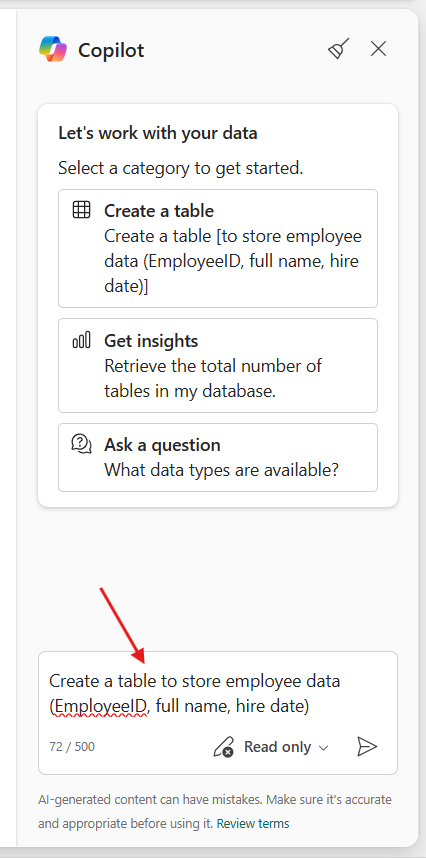

You can also ask follow-up questions or requests if applicable. Copilot provides a contextualized response from the previous chat history.
You can copy or insert code from the chat panel. At the top of each code block, two buttons allow input of query directly into the text editor.
Regular usage of the chat pane
- The more specifically you describe your goals in your chat panel entries, the more accurate the Copilot responses.
- To clear your conversation, select the broom icon
 to remove your conversation from the pane. It clears the pane of any input or output, but the context remains in the session until it ends.
Read our Privacy, security, and responsible use of Copilot for SQL databases for details on data and algorithm use.
Execution mode selector
The Copilot chat pane in Microsoft Fabric SQL database now features an execution mode selector at the bottom, offering two options:
Read-only
Read and write with approval
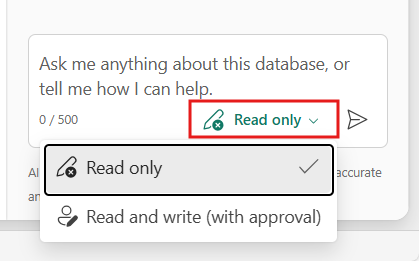
Read-only mode
In Read-only mode, Copilot doesn't run Data Definition Language (DDL) or Data Manipulation Language (DML) statements that change data or schema. Instead, Copilot suggests SQL code for you to review and run manually.
Example: Select query
Use this prompt to generate and run a SELECT query automatically, regardless of the selected mode.
show the top selling product in each category
Copilot generates the SQL code and runs it automatically.
Example: Create table (not executed in Read-only mode)
Use this prompt to create a table for sales.
create a table for sales transactions
Copilot drafts the SQL statement but doesn't run it in read-only mode.
Note
If you try to run the code, Copilot refuses and reminds you that you're still in read-only mode.
Read and write with approval mode
In Read and write with approval mode, Copilot can execute DDL and DML statements after you approve them.
This mode is useful for users who want Copilot to handle execution but still want to review the code before it runs.
In Read and write with approval mode, Copilot can execute SQL code after you approve it. Select queries (DQL) are safe and can run automatically.
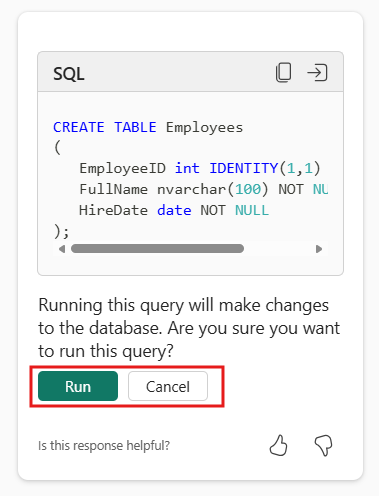
Example: Create table with approval
Use this prompt to create a table for sales.
create a table for sales transactions
When you request to create a table, Copilot drafts the code and prompts you to approve execution.
You can review the code and, upon approval, Copilot executes it and confirms that the table was created successfully. This mode gives you more control, letting Copilot handle execution safely.