Note
Access to this page requires authorization. You can try signing in or changing directories.
Access to this page requires authorization. You can try changing directories.
This article describes how to host your Fabric Extensibility Toolkit workload in Azure using a frontend-only architecture. The Extensibility Toolkit uses a cloud-native deployment approach with Azure services optimized for static web applications.
Architecture overview
The Fabric Extensibility Toolkit uses an architecture focused on frontend deployment with Azure services:
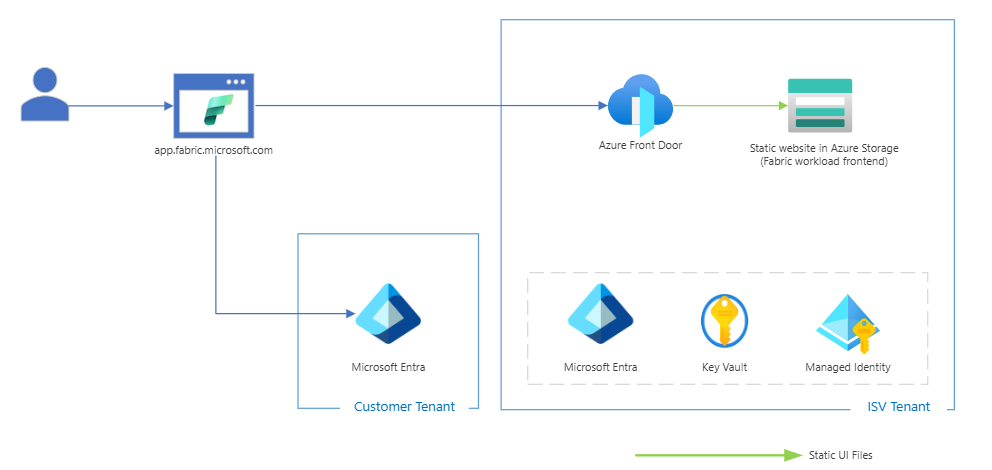
Extensibility Toolkit architecture
The Extensibility Toolkit architecture includes the following characteristics:
- Frontend-only deployment: Your workload runs entirely in the browser without a separate backend
- Static website hosting: Uses Azure Storage static websites for hosting
- Azure Front Door: Provides global CDN, SSL termination, and routing
- Managed services: Leverages Entra ID, Key Vault, and Managed Identity for security
- Single deployment process: Uses provided PowerShell scripts for deployment
Azure services used
Azure Front Door
Azure Front Door serves as the global entry point for your workload. It provides:
- Global load balancing: Routes users to the closest edge location
- SSL termination: Handles HTTPS certificates automatically
- Web Application Firewall (WAF): Protects against common web vulnerabilities
- Caching: Improves performance by caching static assets at edge locations
For the Extensibility Toolkit, Front Door routes traffic to your static website hosted on Azure Storage, ensuring high availability and low latency worldwide.
Azure Storage Account (Static Website)
An Azure Storage Account with static website hosting hosts your built workload application. This provides:
- Cost-effective hosting: Pay only for storage and bandwidth used
- Automatic scaling: Handles traffic spikes without configuration
- Global availability: Content is served from Azure's global storage infrastructure
- File-based deployment: Upload files to deploy versions
The Extensibility Toolkit builds your React application into static HTML, JavaScript, CSS, and assets that are deployed directly to the storage account.
Azure Key Vault
Azure Key Vault manages sensitive configuration and secrets:
- Client secrets: Stores Entra ID application secrets securely
- API keys: Manages external service API keys
- Configuration: Stores environment-specific settings
- Certificates: Manages SSL certificates if needed
Your workload accesses Key Vault through Managed Identity for secure, credential-free authentication.
Azure Entra ID (Azure Active Directory)
Azure Entra ID provides authentication and authorization:
- App registration: Registers your workload as an Entra application
- OAuth 2.0 flows: Handles user authentication with Fabric
- API permissions: Manages access to Fabric and Microsoft Graph APIs
- Token management: Provides secure access tokens for API calls
Managed Identity
Managed Identity provides secure service-to-service authentication:
- No credential management: Eliminates need to store secrets in code
- Token handling: Azure handles token acquisition and renewal
- Secure access: Connects to Key Vault and other Azure services securely
- Identity lifecycle: Tied to your Azure resources for cleanup
Deployment process
Prerequisites
Before deploying to Azure, ensure you have:
- Azure subscription with appropriate permissions
- Azure CLI installed and authenticated
- Fabric Extensibility Toolkit repository cloned locally
- Your workload built using
.\scripts\Build\BuildRelease.ps1
Using the deployment script
The Extensibility Toolkit includes a PowerShell deployment script at scripts\Deploy\DeployToAzureWebApp.ps1 that automates the deployment process.
Basic deployment
# Deploy to an existing Azure Web App
.\scripts\Deploy\DeployToAzureWebApp.ps1 -WebAppName "my-fabric-workload" -ResourceGroupName "fabric-workload-rg"
Additional deployment options
# Deploy to staging slot with custom settings
.\scripts\Deploy\DeployToAzureWebApp.ps1 `
    -WebAppName "my-fabric-workload" `
    -ResourceGroupName "fabric-workload-rg" `
    -SlotName "staging" `
    -Force $true `
    -CreateBackup $true `
    -RestartAfterDeploy $true
Deployment script parameters
| Parameter | Description | Required | Default |
|---|---|---|---|
WebAppName |
Name of the Azure Web App to deploy to | Yes | - |
ResourceGroupName |
Resource group containing the Web App | Yes | - |
ReleasePath |
Path to built application files | No | ..\..\release\app |
DeploymentMethod |
Deployment method (ZipDeploy, FTP, LocalGit) | No | ZipDeploy |
SlotName |
Deployment slot for staging | No | - |
Force |
Skip confirmation prompts | No | $false |
CreateBackup |
Create backup before deployment | No | $true |
RestartAfterDeploy |
Restart app after deployment | No | $true |
Deployment script features
The deployment script provides comprehensive deployment capabilities:
Validation and safety
- Prerequisites check: Validates Azure CLI installation and authentication
- Resource validation: Confirms target Web App exists and is accessible
- Build validation: Ensures release directory contains required files
- Backup creation: Creates deployment backup for rollback capabilities
Deployment workflow
- ZIP package creation: Compresses built application into deployment package
- Size reporting: Shows deployment package size for verification
- Progress monitoring: Provides real-time deployment status updates
- Error handling: Detailed error messages with troubleshooting guidance
Post-deployment
- Health check: Validates deployed application responds correctly
- URL reporting: Provides direct link to deployed application
- Manifest guidance: Shows next steps for manifest upload to Fabric
- Timing metrics: Reports total deployment duration
Manual deployment
You can also deploy your frontend application manually using Azure PowerShell commands:
Build your application
First, build your frontend application for the test environment:
npm run build:test
Create deployment package
- Navigate to the
build\Frontendfolder in your project - Select all files and the
assetsfolder under the build directory - Create a
.zipfile containing all selected files
Deploy using Azure PowerShell
# Connect to Azure
Connect-AzAccount

# Set your subscription context
Set-AzContext -Subscription "<subscription_id>"

# Deploy the zip file to your web app
Publish-AzWebApp -ResourceGroupName <resource_group_name> -Name <web_app_name> -ArchivePath <zip_file_path>
Manual deployment parameters
| Parameter | Description | Example |
|---|---|---|
<subscription_id> |
Your Azure subscription ID | 12345678-1234-1234-1234-123456789012 |
<resource_group_name> |
Resource group containing your web app | fabric-workload-rg |
<web_app_name> |
Name of your Azure web app | my-fabric-workload |
<zip_file_path> |
Full path to your deployment zip file | C:\path\to\deployment.zip |
Note
Manual deployment requires you to have the appropriate Azure permissions and the Azure PowerShell module installed on your machine.
Security considerations
Authentication flow
Your workload authenticates with Fabric using the standard OAuth 2.0 flow:
- User accesses your workload through Fabric
- Fabric redirects to your Azure-hosted application
- Your app redirects to Entra ID for authentication
- Entra ID returns authentication token
- Your app uses token to access Fabric APIs
Secure configuration
- Environment variables: Store configuration in Azure App Settings, not in code
- Key Vault integration: Access secrets through Managed Identity
- HTTPS only: Enforce HTTPS for all communication
- CORS configuration: Configure appropriate CORS policies for Fabric domains
Best practices
- Least privilege: Grant minimal required permissions to Managed Identity
- Secret rotation: Regularly rotate secrets stored in Key Vault
- Network security: Use Private Endpoints where possible
- Monitoring: Enable Application Insights for security monitoring
Configuration after deployment
Azure App Service configuration
After deployment, configure your Azure App Service:
# Set environment variables for your workload
az webapp config appsettings set --name "my-fabric-workload" --resource-group "fabric-workload-rg" --settings \
    "FABRIC_CLIENT_ID=your-client-id" \
    "FABRIC_TENANT_ID=your-tenant-id" \
    "KEY_VAULT_URL=https://your-keyvault.vault.azure.net/"
Key Vault setup
Store sensitive configuration in Key Vault:
# Store client secret
az keyvault secret set --vault-name "your-keyvault" --name "FabricClientSecret" --value "your-client-secret"

# Store API keys
az keyvault secret set --vault-name "your-keyvault" --name "ExternalApiKey" --value "your-api-key"
Managed Identity configuration
Configure Managed Identity for Key Vault access:
# Enable system-assigned managed identity
az webapp identity assign --name "my-fabric-workload" --resource-group "fabric-workload-rg"

# Grant access to Key Vault
az keyvault set-policy --name "your-keyvault" \
    --object-id "managed-identity-principal-id" \
    --secret-permissions get list
Manifest deployment
After deploying your application to Azure, you must upload the manifest package to Fabric:
Build manifest package
First, build the manifest package:
.\scripts\Build\BuildManifestPackage.ps1
This creates release\ManifestPackage.1.0.0.nupkg containing your workload manifest.
Upload to Fabric Admin Portal
- Open the Microsoft Fabric Admin Portal
- Navigate to Workload Management > Upload workload
- Upload your
ManifestPackage.1.0.0.nupkgfile - Configure workload settings and permissions
- Activate the workload for your tenant
Update manifest for Azure deployment
Ensure your Product.json manifest references your Azure-deployed application:
{
    "name": "Product",
    "displayName": "Your_Workload_Name",
    "frontend": {
        "path": "https://your-workload.azurewebsites.net"
    }
}
Monitoring and troubleshooting
Application Insights
Enable Application Insights for monitoring:
- Performance monitoring: Track page load times and user interactions
- Error tracking: Monitor JavaScript errors and failed requests
- Usage analytics: Understand how users interact with your workload
- Custom telemetry: Add custom metrics for business logic
Common issues and solutions
Deployment failures
- Authentication errors: Verify Azure CLI login with
az account show - Resource not found: Confirm Web App name and resource group are correct
- Permission denied: Ensure your account has Contributor role on the resource group
Runtime issues
- White screen: Check browser console for JavaScript errors
- Authentication failures: Verify Entra ID app registration and redirect URIs
- API call failures: Check CORS configuration and API permissions
Performance optimization
- Slow loading: Enable compression and optimize bundle size
- Caching issues: Configure proper cache headers in Front Door
- Geographic latency: Ensure Front Door is properly configured for global routing
Related guides
- How to publish and manage a workload - Uploading manifest to Fabric
- Setup Guide - Initial development environment setup
- Tutorial: Getting Started - Getting started with the Extensibility Toolkit