Note
Access to this page requires authorization. You can try signing in or changing directories.
Access to this page requires authorization. You can try changing directories.
Tags in Microsoft Fabric allow organizations to apply additional metadata to items in Fabric, making it easier to categorize, organize, and discover data. Tags are configurable text labels, such as Sales – FR 2025, HR – Summer Event, or FY 2025, that can be applied at both the tenant and domain levels, offering flexibility in how assets are governed across your organization. Data and content owners can then apply these tags to their Fabric items, helping users in the organization to find the data and content they need.
Tags are an important component of Fabric's data mesh architecture. They provide increased flexibility and granularity in data categorization by allowing additional details to be added at the item level, across workspaces and domains.
How tags work
Tenant and domain admins create tags.
Tenant-level tags are defined by Fabric administrators and are available for use across all items and workspaces throughout the entire tenant. These tags are suitable for broad classifications, compliance, or security labels that apply universally across your organization.
Domain-level tags can be defined by Fabric or domain administrators and are specific to particular organizational domains within your Fabric environment. These tags are exclusively available for items residing within workspaces that are assigned to that specific domain. Domain-level tags enable domain owners to implement more granular and localized governance policies, reflecting the unique needs and structures of their respective areas. A tag created at the domain level can't be duplicated at the tenant level. However, it can be duplicated on other domains.
Data owners apply tags to items. Data owners, who best know how to categorize their own data, apply tags to items. An item can have up to 10 tags applied to it. When data owners apply tags, they can choose from the list of available tenant-level tags and, if the item resides in a workspace assigned to a domain, the domain-level tags associated with that domain.
Users use tags for discoverability. Once tags are applied to items, users in the organization can use them to filter or search for the most relevant content.
Admins use tags for governance. Admins can use the metadata scanning (scanner) APIs to programmatically fetch tag associations at scale and use them in downstream governance and discovery solutions.
How tags enhance data discoverability
Once tags are applied, they enhance item visibility across multiple surfaces:
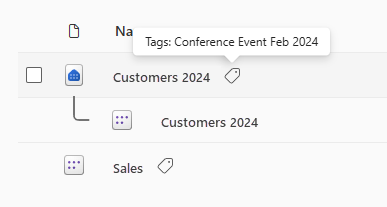
Item list views: A tag icon appears next to the item name. Hover to view applied tags.
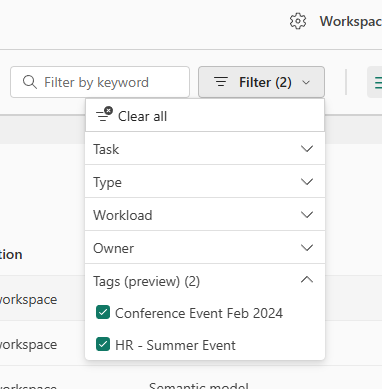
Workspaces: Filter items list by assigned tag.
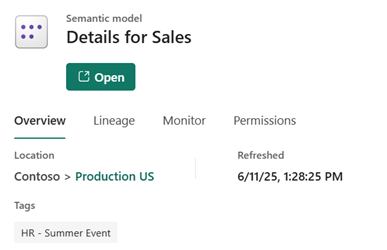
Item details: Tags are shown in the OneLake Catalog item details pane of each item.
Flyout card: When editing an item, click the item name or sensitivity label to view tags.

Lineage view: Tags appear in workspace lineage and item-level lineage views.

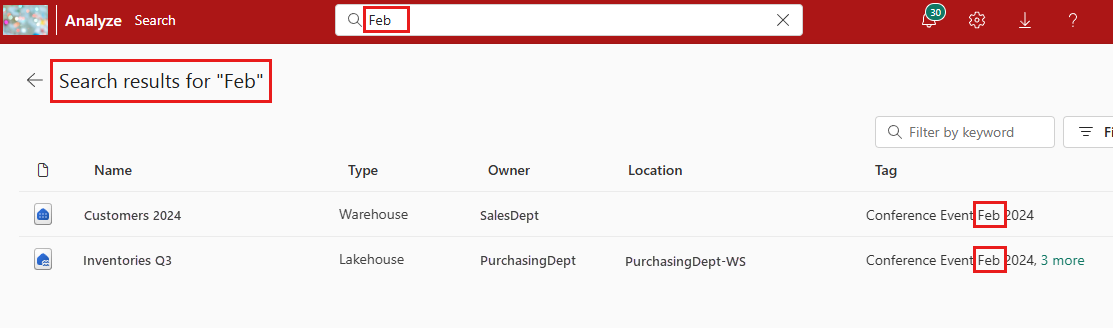
Global Search: Use the global search to search by tags and see all the relevant results, accompanied by other metadata, such as item owner and location.
Scanner API: Tags are included in metadata scanning (scanner) APIs so that governance and discovery solutions can harvest tag assignments at scale.
For every applicable item returned in a scan, the payload includes a
tagsfield containing a list of applied tag UUIDs. To resolve tag IDs to tag names, use the List Tags Admin REST API.
Considerations and limitations
A maximum of 10,000 unique tags can be created in a tenant.
An item can have a maximum of 10 tags applied to it at any one time.
There is no limit on the number of tagged items.
After a tag is applied to an item, it might be several hours before the icon shows up next to the tag name, and before it's possible to find the item in the global search using the tag name as the search term.