Note
Access to this page requires authorization. You can try signing in or changing directories.
Access to this page requires authorization. You can try changing directories.
In this step of the tutorial, you generate a new ontology that represents the Lakeshore Retail scenario.
Important
This feature is in preview.
This tutorial contains two options for setting up the ontology (preview) item: automatically generate it from a semantic model, or manually build it from OneLake data.
Choose your preferred scenario by using the selector at the beginning of the article.
About generating an ontology from a semantic model
A semantic model in Fabric is a logical description of an analytical domain (like a business). They can be created from lakehouse tables, and hold information about your data and the relationships among that data.
When your data is represented by a semantic model, you can generate an ontology directly from that semantic model.
Ontology generation automatically performs the following actions:
- Creates a new ontology (preview) item in your Fabric workspace, with a name of your choosing
- Creates an entity type in the ontology for each table in your semantic model
- Creates static properties on each entity type based on the columns in your tables, and binds data to them based on data rows
- Creates relationship types between entity types that follow relationships defined in the semantic model
After generating an ontology, complete these actions manually:
- Bind time series data to entity types (properties for time series data aren't created automatically)
- Review entity type keys and add them if missing (especially for multi-key scenarios)
- Bind relationship types to data
- Review the entire ontology to make sure entity types, their properties and data bindings, and relationships are complete
In this tutorial step, you generate an ontology from the sample semantic model that you set up in the previous step.
Support for semantic model modes
This section describes support in ontology (preview) for different semantic model modes. For more information about semantic models and their modes, see Power BI semantic models in Microsoft Fabric.
| Ontology (preview) | Import mode | Direct Lake mode | DirectQuery mode |
|---|---|---|---|
| Generating entity type definitions | Supported | Supported | Supported |
| Generating property definitions | Supported | Supported | Supported |
| Generating relationship definitions | Supported | Supported | Supported |
| Generating entity type bindings to data sources | Not supported | Supported | Not Supported |
| Generating relationship type bindings to data sources | Not supported | Supported only if primary key is identified (the primary key is used as the entity type key for the ontology) | Not Supported |
| Querying data using bindings to data sources | Not supported | Supported (without measures and calculated columns) | Not Supported |
Other semantic model limitations
- Ontology does not support creating data bindings when the semantic model table is in Direct Lake mode and the backing lakehouse is in a workspace with inbound public access disabled. The ontology item is created successfully but that entity type has no data bindings.
- Fabric Graph does not currently support the
Decimaltype. As a result, if you generate an ontology from a semantic model with tables that includeDecimaltype columns, you see null values returned for those properties on all queries.Decimalis different from the floating-pointDoubletype, which is supported.Decimalis a fixed-precision numeric type that is most commonly used for representing monetary values.
Generate ontology
Go to the RetailSalesModel semantic model in Fabric. From the top ribbon, select Generate Ontology.

Select your Workspace and enter RetailSalesOntology for the Name. Select Create.

Tip
Ontology names can include numbers, letters, and underscores (no spaces or dashes).

The ontology (preview) item opens when it's ready.

Note
If you see an error that Fabric is unable to create the ontology (preview) item, make sure that all the required settings are enabled for your tenant, as described in the Tutorial prerequisites.
Next, review the entity types, data bindings, and relationships that were generated from your semantic model. In the following sections, you make a few edits to complete the ontology configuration, and verify that generated items are correct.
Verify entity types
Entity types represent types of objects in a business. The Entity Types pane lists all three entity types in the ontology, named after the data tables:
- factsales
- dimstore
- dimproducts
Tip
If you don't see any entities in the ontology, make sure your semantic model is published, the tables in the semantic model are visible (not hidden), and relationships are defined. To revisit the setup steps for the semantic model, see Prepare the Power BI Semantic Model .
Rename entity types
Follow these steps to rename each entity type to a friendlier name.
Select the entity type.
In the Entity type configuration pane, select the edit icon next to the Entity type name.
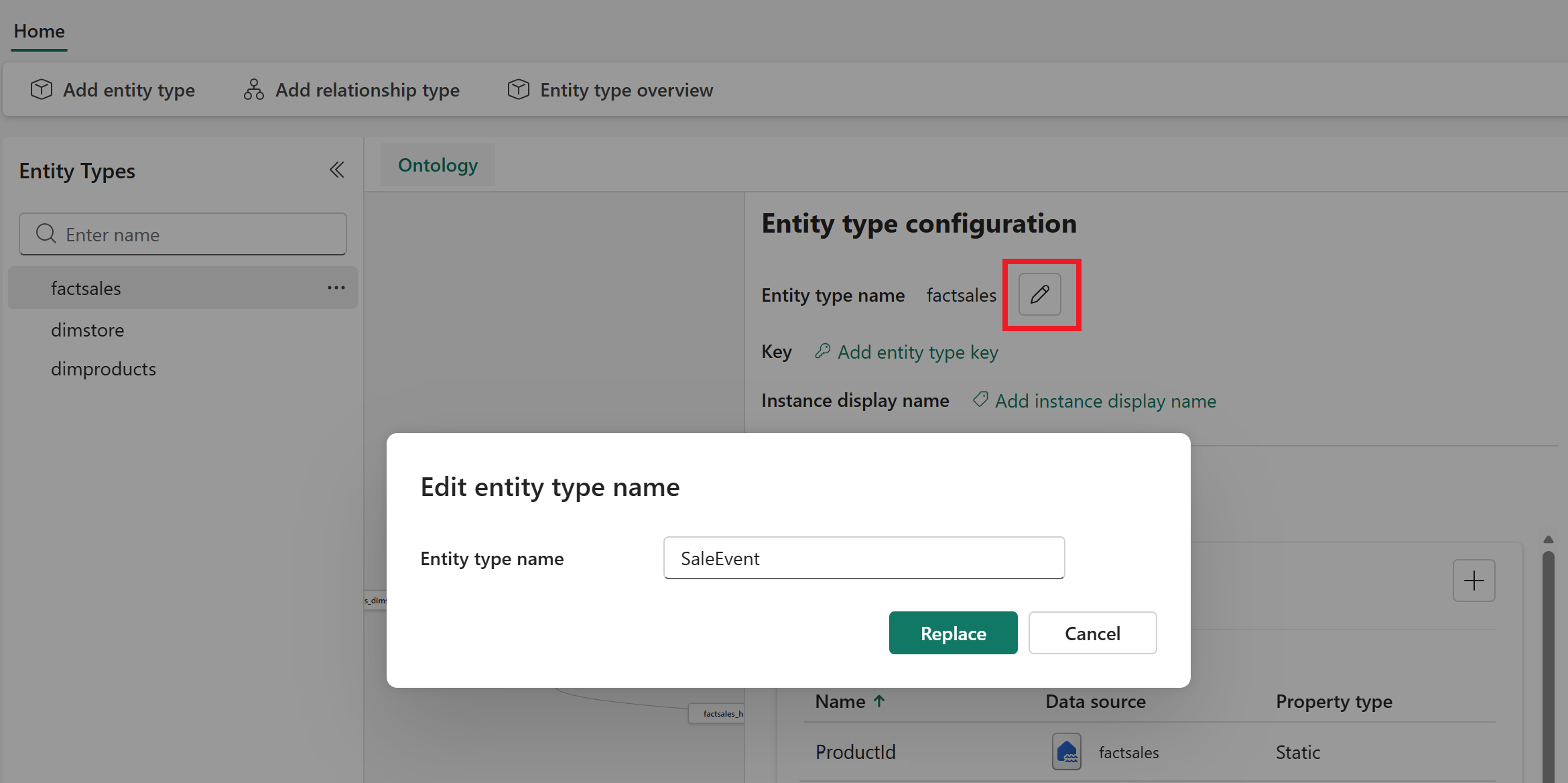
Enter the new name from the following table.
Old name New name factsales SaleEvent dimstore Store dimproducts Products
When you're done renaming all the entity types, they look like this (they might be listed in a different order).

Verify properties
To view the properties of an entity type, select it from the Entity types pane. This action opens the Entity type configuration pane, where the entity type's properties are listed on the Properties tab.
Verify that each entity type has the properties described in the following table.
| Entity type | Key | Properties |
|---|---|---|
| SaleEvent | ProductId, RevenueUSD, SaleDate, SaleId, StoreId, Units |
|
| Store | StoreId |
City, Region, Latitude, Longitude, StoreId, StoreName |
| Products | ProductId |
Brand, Category, ProductId, ProductName, Subcategory |
Here's an example of what entity type properties look like.

Add SaleEvent key
The SaleEvent entity type doesn't have a key that was imported from the source data, so you need to add it manually.
Open the SaleEvent entity type.
In the Entity type configuration pane, select Add entity type key.

Select
SaleId.Note
Due to a known issue, only strings or integers should be currently used as entity type keys.
When the key is saved, it looks like this:

Verify bindings
To view data bindings for an entity type, look in the Entity type configuration pane and switch to the Bindings tab. Data bindings connect an entity type to a data source so that instances of it can be created and populated with data.
Verify that each entity type is successfully bound to the data sources described in the following table.
| Entity type | Source table |
|---|---|
| SaleEvent | factsales |
| Store | dimstore |
| Products | dimproducts |
Here's an example of what the bindings look like.

Verify and configure relationship types
Finally, verify the relationship types between entity types. Relationship types represent how entity types are related to each other in a business context. The relationship types that were imported from the semantic model are defined, but not fully configured and bound to data.
Select the SaleEvent entity type to display it and its relationship types on the canvas.

Select each of the relationship types and update its details to match the following table. First, rename the relationship type to the provided friendlier name. Next, set the correct order of source and target entity types. Finally, bind the relationship type to the source data table and select the source columns.
Note
To prevent unexpected behavior from a known issue, make sure the correct source and target entity types are set before choosing the source data table to bind.
The final relationship details match the following table.
| Old name | New name | Source entity type | Target entity type | Source data table |
|---|---|---|---|---|
| factsales_has_dimproducts | soldIn | Products | SaleEvent | Tutorial workspace > OntologyDataLH > factsales Set source columns to match entity type key properties |
| factsales_has_dimstore | has | Store | SaleEvent | Tutorial workspace > OntologyDataLH > factsales Set source columns to match entity type key properties |
Here's an example of what an updated relationship type looks like.

About building an ontology from OneLake
When your data is stored in OneLake, you can build an ontology from the OneLake data tables.
That manual process involves these steps:
- Create an ontology item
- Create entity types
- Create data bindings for the entity types
- Select entity type keys
- Create relationship types between entity types, and bind them to source data
In this tutorial step, you build an ontology from the sample OneLake data that you set up in the previous step.
Create ontology (preview) item
In your Fabric workspace, select + New item. Search for and select the Ontology (preview) item.

Enter RetailSalesOntology for the Name of your ontology and select Create.
Tip
Ontology names can include numbers, letters, and underscores (no spaces or dashes).

The ontology opens when it's ready.

Note
If you see an error that Fabric is unable to create the ontology (preview) item, make sure that all the required settings are enabled for your tenant, as described in the Tutorial prerequisites.
Next, create entity types, data bindings, and relationships based on data from your lakehouse tables.
Create entity types and data bindings
First create entity types, which represent types of objects in a business. This step has three entity types: Store, Products, and SaleEvent. After you create the entity types, you create their properties by binding source data columns in the OntologyDataLH lakehouse tables.
Add first entity type (Store)
From the top ribbon or the center of the canvas, select Add entity type.

Enter Store for the name of your entity type and select Add Entity Type.
The Store entity type is added to the canvas, and the Entity type configuration pane is visible.

To create entities from existing source data, switch to the Bindings tab. Select Add data to entity type.

Next, choose your data source.
- Select the OntologyDataLH lakehouse and select Connect.
- Select the dimstore table and select Next.

Configure a static data binding for the following properties.
- For Binding type, leave the default selection of Static.
- Under Bind your properties, the columns from the dimstore table populate automatically. The Source column side lists their names in the source data, and the Property name side lists their corresponding property names on the Store entity type within ontology. Leave the default property names, which match the source column names.
- Select Save.

Back in the Entity type configuration pane, the data binding is visible. Next, select Add entity type key.

Select StoreId as the key property and select Save.

Note
Due to a known issue, only strings or integers should be currently used as entity type keys.

Now the Store entity type is ready. Continue to the next section to create the remaining entity types.
Add other entity types (Products, SaleEvent)
Follow the same steps that you used for the Store entity type to create the entity types described in the following table. Each entity has a static data binding with the default columns from its source table.
| Entity type name | Source table in OntologyDataLH | Entity type key |
|---|---|---|
| Products | dimproducts | ProductId |
| SaleEvent | factsales | SaleId |
When you're done, you see these entity types listed in the Entity Types pane.

Create relationship types
Next, create relationship types between the entity types to represent contextual connections in your data.
Store has SaleEvent
Select Add relationship type from the menu ribbon.

Enter the following relationship type details and select Add relationship type.
- Relationship type name: has
- Source entity type: Store
- Target entity type: SaleEvent

The Relationship configuration pane opens, where you can configure additional information. Enter the following details (some fields become visible based on other selections) and select Create.
- Source data: Select your tutorial workspace, the OntologyDataLH lakehouse, and the factsales table.
- Source entity type > Source column: Select
StoreIdto match the entity type key property. - Target entity type > Source column: Select
SaleIdto match the entity type key property.


Now the first relationship is created, and bound to data in your source table. Continue to the next section to create another relationship type.
Products soldIn SaleEvent
Follow the same steps that you used for the first relationship type to create the relationship type described in the following table.
| Relationship type name | Source entity type | Target entity type | Table |
|---|---|---|---|
| soldIn | Products | SaleEvent | factsales Set source columns to match entity type key properties |
When you're done, you have two relationships targeting the SaleEvent entity type. To see the relationships, select the SaleEvent entity type from the Entity Types pane. You see its relationships on the canvas.

Next steps
In this step, you created an ontology (preview) item and populated it with entity types, their properties, and relationship types between them. Next, enrich the entities further by adding a Freezer entity that's bound to both static and time series data.
Next, continue to Enrich the ontology with additional data.