Note
Access to this page requires authorization. You can try signing in or changing directories.
Access to this page requires authorization. You can try changing directories.
This article shows you how to add an Azure Data Explorer database (DB) source to a Microsoft Fabric eventstream.
Azure Data Explorer is a fully managed, high-performance platform that delivers real-time insights from massive streaming data. You can use Microsoft Fabric eventstreams to connect to an Azure Data Explorer database, stream the data from its tables, and route them to various destinations within Fabric.
Prerequisites
- Access to the Fabric premium workspace with Contributor or higher permissions.
- An active Azure subscription.
- An Azure Data Explorer cluster with at least one database deployed. Ensure that the cluster is publicly accessible and not restricted by a firewall or a virtual network.
- The required permissions to access the Azure Data Explorer cluster.
Add an Azure Data Explorer DB as a source
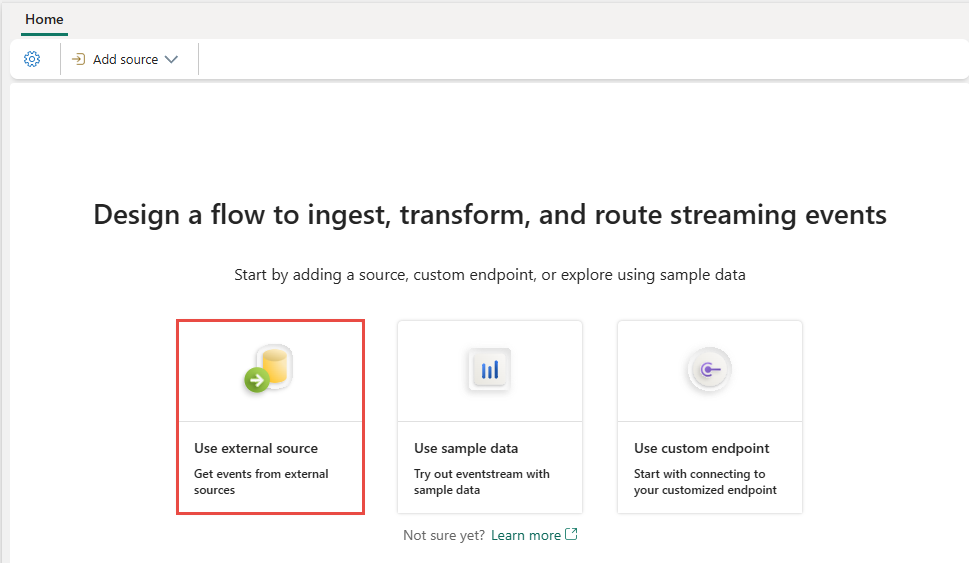
If you haven't added any source to your eventstream yet, select the Use external source tile.
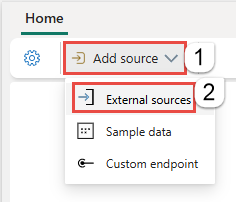
If you're adding the source to an already published eventstream, switch to Edit mode. On the ribbon, select Add source > External sources.
On the Select a data source page, search for Azure Data Explorer DB. On the Azure Data Explorer DB tile, select Connect.

Configure and connect to an Azure Data Explorer DB
On the Configure connection settings page, select New connection.

In the Connection settings section of the popup window, follow these steps:
- For Cluster, enter the URI of your Azure Data Explorer cluster.
- The Database and Table name boxes in the cloud connection are optional. Values entered in these boxes are ignored in this step. You can specify them in the next step of the wizard.
- For Connection name, enter a name for the connection to the Azure Data Explorer cluster.
- For Authentication kind, only Organizational account is currently supported.
- Select Connect.

On the Configure connection settings page, follow these steps if you didn't specify the database and tables in the connection settings earlier:
In the Database box, enter the name of your database.
In the Enter table name(s) box, enter either a single table name or multiple table names separated by commas.

If you're using a real-time hub, follow these steps. Otherwise, move to the next step.
In the Source details section, select the Fabric workspace where you want to save the eventstream.
For Eventstream name, enter a name for the eventstream. The wizard creates an eventstream with the selected Azure Database Explorer table as a source.
The Stream name value is automatically generated for you by appending -stream to the name of the eventstream. You can see this stream on the real-time hub's All data streams page when the wizard finishes.

If you're using the eventstream editor to add an Azure Data Explorer database table as a source to an eventstream, select the pencil button under Source name, and then enter a source name.

Select Next at the bottom of the page.
On the Review + connect page, review the settings, and then select Connect (Fabric real-time hub) or Add (Fabric eventstream).

View an updated eventstream
Confirm that the Azure Data Explorer DB source is added to your eventstream on the canvas in the Edit mode. To implement this newly added Azure Data Explorer DB source, select Publish.

Your Azure Data Explorer DB source is available for visualization in the Live view.

Note
When the Azure Data Explorer DB streaming connector starts, it captures only new table changes. Historical table data isn't streamed into the eventstream.
Limitations
The Azure Data Explorer streaming connector captures table changes by using a database cursor to query the differences between two ingestion times. However, each query result is limited to a maximum of 64 MB or 500,000 records. For details, see the Azure Data Explorer query limits. If your Azure Data Explorer database has a high ingestion rate that exceeds this limit, the connector might fail.
Related content
- To learn how to add other sources to an eventstream, see Add and manage an event source in an eventstream.