Note
Access to this page requires authorization. You can try signing in or changing directories.
Access to this page requires authorization. You can try changing directories.
This article shows you how to add Fabric capacity overview event source to an eventstream.
Note
Consuming Fabric and Azure events via Eventstream or Fabric Activator isn't supported if the capacity region of the Eventstream or Activator is in the following regions: West India, Qatar Central, Singapore, UAE Central, Brazil Southeast, South Central US.
Fabric Capacity Overview Events provide summary level information related to your capacity. These events can be used to create alerts related to your capacity health via Data Activator or can be stored in an Eventhouse for granular or historical analysis.
With Fabric event streams, you can capture these Fabric capacity overview events, transform them, and route them to various destinations in Fabric for further analysis. This seamless integration of Fabric capacity overview events within Fabric event streams gives you greater flexibility for monitoring and analyzing activities in your Fabric workspace.
Fabric event streams support the following Fabric capacity overview events:
| Event type name | Description |
|---|---|
| Microsoft.Fabric.Capacity.Summary | Emitted every 30 seconds to summarize the capacity usage across all operations during that interval. |
| Microsoft.Fabric.Capacity.State | Emitted when a capacity’s state changes. For example, when a capacity is paused or resumed. |
Prerequisites
- Access to a workspace in the Fabric capacity license mode (or) the Trial license mode with Contributor or higher permissions.
- If you don't have an eventstream, create an eventstream.
Add Fabric capacity overview events as source
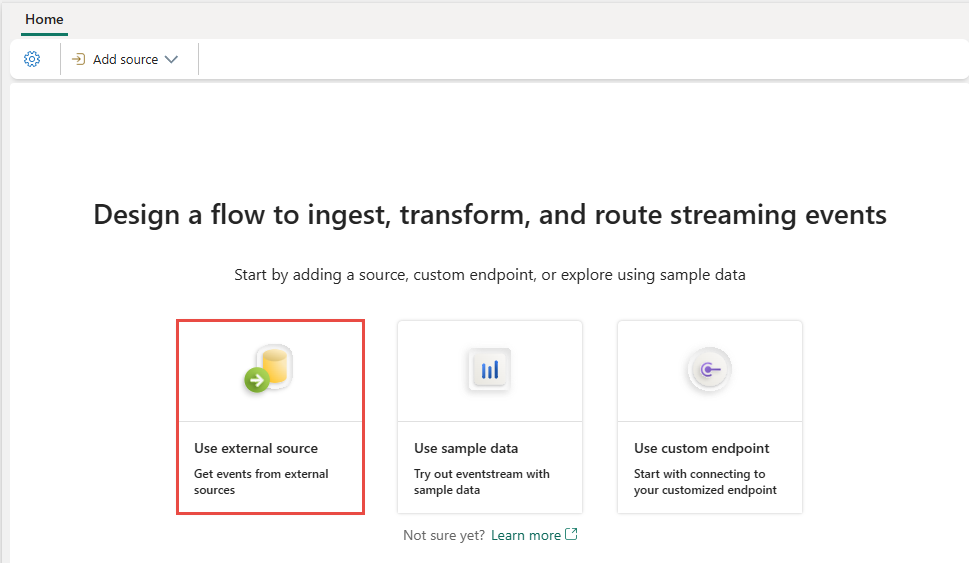
If you haven't added any source to your eventstream yet, select the Use external source tile.
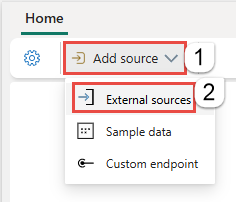
If you're adding the source to an already published eventstream, switch to Edit mode. On the ribbon, select Add source > External sources.
On the Select a data source page, search for and select Connect on the Fabric capacity overview events tile.

Configure and connect to Fabric capacity overview events
On the Connect screen, first select Event type(s) of interest that you want to capture in the eventstream. By default, all supported events are captured.
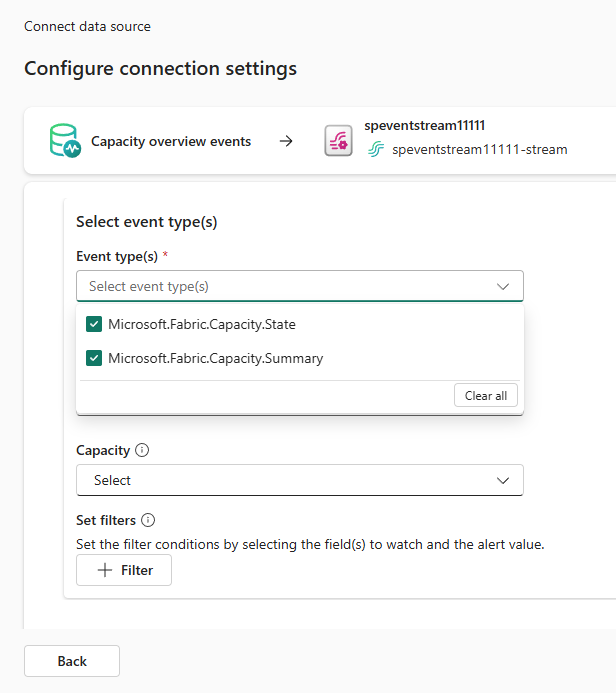
For Event scope, select the Fabric capacity for which you want to stream capacity overview events. You must have Contributor or higher permissions on the selected capacity to be able to stream its capacity overview events.

In the Stream details pane to the right, select the Pencil button to change the Source name. It's an optional step.
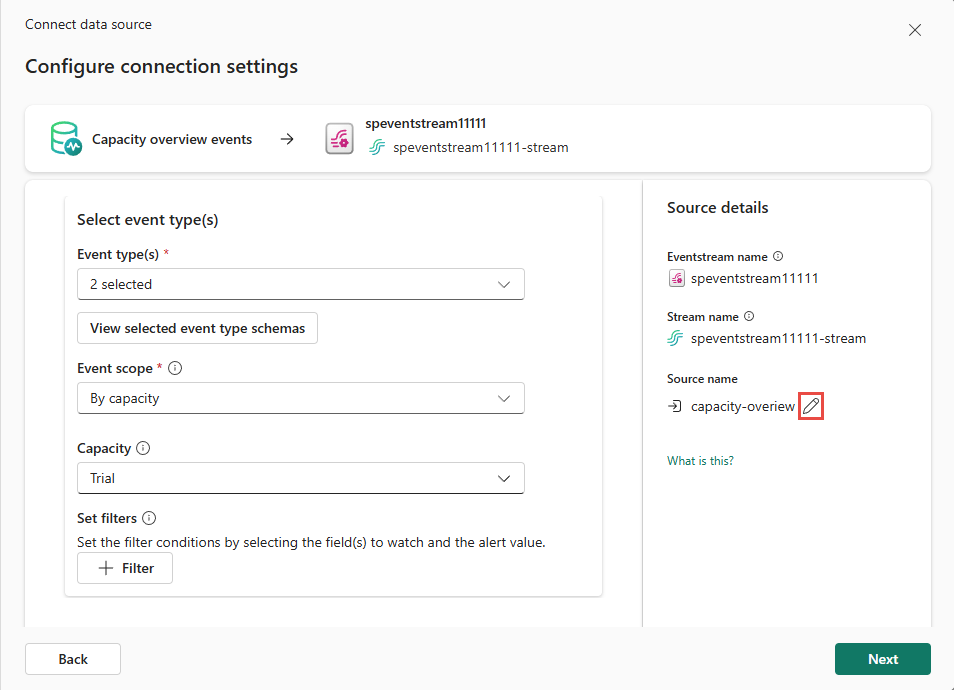
Select Next at the bottom of the page.
On the Review + create screen, review settings, and select Add to complete the configuration for Fabric capacity overview events.


View updated eventstream
Once the connection is created, you can see the Fabric capacity overview events source added to your eventstream in Edit mode. Select Publish to publish the eventstream and capture capacity overview events.

If you want to transform the Fabric capacity overview events, open your eventstream and select Edit to enter Edit mode. Then you can add operations to transform the Fabric capacity overview events or route them to a destination such as Lakehouse.


Limitation
- The Fabric capacity overview events source currently doesn't support CI/CD features, including Git Integration and Deployment Pipeline. Attempting to export or import an Eventstream item with this source to a Git repository may result in errors.