Note
Access to this page requires authorization. You can try signing in or changing directories.
Access to this page requires authorization. You can try changing directories.
Operations agents in Fabric Real-Time Intelligence automate the observe → analyze → decide → act cycle, helping organizations turn real-time data into immediate, actionable decisions. Instead of relying on manual monitoring and intervention, these agents continuously track key metrics, surface insights, and recommend targeted actions. They enable teams to respond quickly and optimize operations at scale. Each operations agent is a dedicated Fabric item, designed for a specific business process.
By configuring agents with clear goals, instructions, and data sources, you can deploy multiple agents as virtual experts across your organization. This modular approach ensures that every critical process is monitored and dynamically improved, with recommended actions always aligned to your strategic objectives.
In this article, you learn how to create and use an AI operations agent in Real-Time Intelligence. The operations agent is designed to monitor real-time data and suggest actionable decisions. These agents continuously track key metrics, surface insights, and recommend actions to optimize operations.
Important
This feature is in preview.
Prerequisites
A workspace with a Microsoft Fabric-enabled capacity. Trial capacities aren't supported.
An eventhouse in your workspace.
A KQL database in your eventhouse.
A Teams account.
Tenant admin permissions enabled for operations agent preview, and Copilot and Azure OpenAI Service.
If your Fabric capacity is not provisioned in US or EU regions, you'll also need to enable the cross-geo processing and storage for AI as per data agent tenant settings

Create an operations agent
In the Fabric home page, select the ellipses (...) icon, then select Create.

In the Create pane, go to the Real-Time Intelligence section and select operations agent.

In the Create operations agent pane, enter a name for your agent and select the workspace where you want to create it.

Select Create to create the operations agent.

Configure the operations agent
In the Agent setup page, you can configure the operations agent and fine-tune it to your data by providing the following information:
Business goals: Define the business goals that the agent should focus on. This information helps the agent understand the context and objectives of your operations.

Agent instructions: Provide specific instructions to guide the agent's behavior and decision-making process.
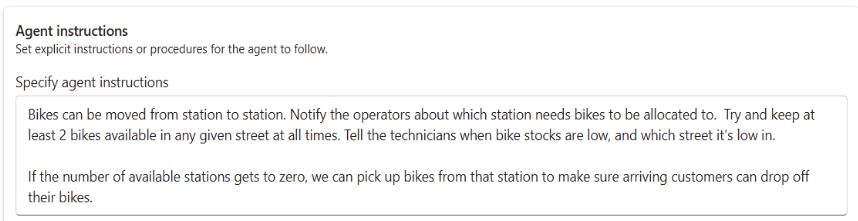
Knowledge source: Choose a relevant data source that the agent can analyze and learn from. This choice ensures the agent has access to accurate and up-to-date information for generating insights.

Actions: Define the actions that the agent can take based on the insights it generates. Name the action and provide a description to clarify its purpose. Optionally, list the parameters that the action requires, such as a specific value.

- After you create an action, configure it:
Select the action you want to configure.

In the Configure custom action pane, select the workspace and the activator item, then create a connection.

Copy the Connection string and select Open flow builder to create a flow that gets triggered by the action.

In the Flow builder, paste the connection string in the Connection string field and select Save.

To use the values passed through the parameters to the flow, access them through dynamic content as described in the Trigger custom actions (Power Automate flows).
- After you create an action, configure it:


When you finish the configuration, save the agent to generate its playbook. The playbook outlines the goals, instructions, data, and actions you defined, providing the agent with a clear understanding of its tasks.
Properties are shown along with the field that they're mapped to from the underlying data. When you review the rules, you might see it refer to the name of the property rather than the underlying column. Take care to confirm the model and rules match your requirements.

The playbook displays the concepts the agent monitors and the rules or conditions it evaluates. To adjust the agent’s behavior, update the goals or instructions and save the agent again. When you're satisfied with the configuration, select Start in the toolbar to start the agent. Select Stop to stop it.
Receive messages from the operations agent
To enable the agent to proactively contact you when it identifies data that matches the defined rules, install the Fabric Operations Agent Teams app. If the app isn't installed automatically, you can find it by searching for Fabric Operations Agent in the Teams app store.

After installing the app, the agent can send messages in Teams when it identifies data that matches the specified conditions. These messages include a summary of the insights and recommended actions. You can update the recipients of these messages in the agent's configuration settings. Recipients must belong to your organization and have write permissions for the agent item in Fabric. You can find this in the operations agent item settings under Agent behavior.

Important
The agent operates by using the delegated identity and permissions of its creator. When a recipient approves a recommendation, the agent executes the action on behalf of the creator, utilizing the creator's permissions.
When the agent makes a recommendation, you receive a message containing context about the data that triggered the condition it was monitoring, along with the best action the agent suggests.

Choose Yes to approve or No to reject the recommendation. The message displays the values for any parameters identified by the agent. You can adjust these parameters if needed before providing final approval for the agent to take action.