Note
Access to this page requires authorization. You can try signing in or changing directories.
Access to this page requires authorization. You can try changing directories.
You can use a managed private endpoint to establish cross-workspace communication between an open workspace and a workspace that restricts inbound public access. For example, if you want to access a lakehouse in an inbound restricted workspace from a notebook in an open workspace, you can set up a managed private endpoint to establish a secure connection between the two workspaces.
In the following diagram, the open workspace (Workspace 1) has a managed private endpoint that connects to the restricted workspace (Workspace 2). This setup allows the notebook in Workspace 1 to securely access the lakehouse and read Delta Lake tables in Workspace 2 without exposing them to public access.

This article explains how to create a managed private endpoint via the workspace settings in the Microsoft Fabric portal or API.
Step 1: Create the workspaces
Create workspaces in Fabric. This setup involves both an open workspace and a restricted workspace. This article refers to the workspaces as follows:
- The source workspace is the open workspace without public access restriction.
- The target workspace is the workspace that restricts inbound public access.
This article also refers to the workspace's fully qualified domain name (FQDN). The format is:
https://{workspaceID}.z{xy}.w.api.fabric.microsoft.com
In the FQDN format, {workspaceID} is the workspace ID without dashes, and {xy} is the first two letters of the workspace object ID. For more information, see Connecting to workspaces.
You can find a workspace ID by opening the workspace page in the Fabric portal and noting the ID after groups/ in the URL. You can also find a workspace FQDN by using the List Workspace or Get Workspace API.
Step 2: Create a managed private endpoint
Create a managed private endpoint in the source (open) workspace. Use the Workspace setting in the portal or the following API:
POST https://{workspaceFQDN}/v1/workspaces/{workspaceID}/managedPrivateEndpoints
In that code, {workspaceFQDN} is {workspaceID}.z{xy}.w.api.fabric.microsoft.com.
For example: POST https://aaaaaaaa000011112222bbbbbbbbbbbb.zaa.w.api.fabric.microsoft.com/v1/workspaces/aaaaaaaa-0000-1111-2222-bbbbbbbbbbbb/managedPrivateEndpoints.
The targetPrivateLinkResourceId parameter is the resource ID of the Azure Private Link service in the restricted workspace. To create a managed private endpoint to the target workspace, you need this resource ID.
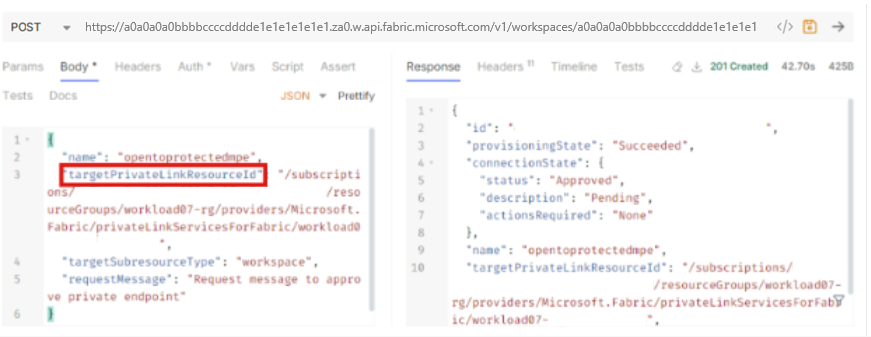
You can find this resource ID in Azure by viewing the resource JSON for the workspace. Ensure that the workspace ID in the JSON matches the intended target workspace.

The Private Link service owner for Workspace 2 needs to approve the request for a managed private endpoint in Azure private link center > Pending connections.
Step 3: Create a lakehouse in the restricted workspace
Create a lakehouse in the target (restricted) workspace by using the following Create Lakehouse API:
POST https://{workspaceFQDN}/v1/workspaces/{workspaceID}/lakehouses
In that code, {workspaceFQDN} is {workspaceID}.z{xy}.w.api.fabric.microsoft.com.
For example: POST https://aaaaaaaa000011112222bbbbbbbbbbbb.zaa.w.api.fabric.microsoft.com/v1/workspaces/aaaaaaaa-0000-1111-2222-bbbbbbbbbbbb/lakehouses.

Step 4: Upload a Delta Lake table to the lakehouse
Use Azure Storage Explorer to upload the folder for your Delta Lake table into the restricted lakehouse's managed storage:
Go to Storage Explorer, select the connection icon on the left menu, and then select ADLS Gen2 container or directory.
Sign in by using OAuth.
Enter a display name for the storage, and enter the blob container URL in the following format:
https://{workspaceFQDN}/{workspaceID}/{lakehouseID}In that code,
{workspaceFQDN}is{workspaceID}.z{xy}.onelake.fabric.microsoft.com.For example:
POST https://aaaaaaaa000011112222bbbbbbbbbbbb.zaa.w.api.fabric.microsoft.com/v1/workspaces/aaaaaaaa-0000-1111-2222-bbbbbbbbbbbb/bbbbbbbb-1111-2222-3333-cccccccccccc.
Select Connect. The storage should now appear in the explorer view.
Under the Tables folder, upload the Delta Lake table that you want to use. This example uses the customers table.


Step 5: Create a notebook in the source workspace
Create a notebook and connect it to the restricted lakehouse as follows:
In the source workspace, go to Notebooks.
Select + New Notebook.
Select Spark runtime.
Connect to the target workspace on the Explorer pane.
Paste the following code:
from pyspark.sql import SparkSession
# Read Delta Lake table from the restricted lakehouse by using the workspace DNS-based ABFSS URI
df = spark.read.format("delta").load(
   "abfss://{WorkspaceID}@{WorkspaceFQDN}/{LakehouseID}/Tables/customers"
)
Make sure that:
- The path for the Azure Blob File System (ABFSS) driver matches your lakehouse's DNS and table location.
- Network access between the open and restricted workspaces is correctly established via the private endpoint.
Run the notebook. If you set up the private endpoint and permissions correctly, the notebook connects and displays the contents of the Delta Lake table from the restricted lakehouse.