Note
Access to this page requires authorization. You can try signing in or changing directories.
Access to this page requires authorization. You can try changing directories.
Now that you configured your Microsoft Entra Conditional Access policy, app protection policies, app configuration policies, settings catalog, and security baseline, you can launch Microsoft Edge for Business using a managed or unmanaged device.
The end user experience in Microsoft Edge for Business is designed to be productive, secure, and user-friendly. This secure enterprise browser experience includes the following features:
Visually distinct work browsing experience: Microsoft Edge for Business provides a visually distinct work browsing experience with refreshed visual treatment. This experience helps users easily distinguish between their work and personal browsing sessions.
Enterprise personal browsing experience: Microsoft Edge for Business offers a lightly managed personal browsing experience that lets users access their favorite nonwork sites and services without compromising safety for the enterprise.
Context separation: Work and personal browsing data are kept separate to reduce the risk of sharing sensitive information with unintended audiences.
Security: It has built-in defenses against phishing and malware and natively supports hardware isolation on Windows.
Microsoft Edge for Business provides dedicated work and personal browsing experiences with separate favorites, cache, and storage locations.
Onboarding experience
To evaluate the onboarding experience, launch Microsoft Edge from the desktop and perform the sign-in process in your browser. The device can't be managed by any MDM solution, otherwise it can't enroll into the MAM service.
Locate Microsoft Edge on the desktop.
Select the Microsoft Edge icon and wait for it to load. Once loaded, you see a user icon at the top-left of the browser window.
Select the user icon to display your managed account details.
Select Sign in to sync data.

Enter your email address for the tenant.

Enter your password for the account.
Note
The sign-in experience varies by organization. Completing the sign-in process is required to add your work profile to Microsoft Edge.
Note
A user experience update and admin property for controlling automatic MDM enrollment is rolling out in late 2025. This setting determines whether users on Entra ID–registered devices are prompted to MDM-enroll during the Add Your Work or School Account to a Windows Device flow. To control this behavior, configure the Disable MDM enrollment when adding a work or school account setting. For more information, see Enable MDM automatic enrollment for Windows.
Select Yes to sign in and register the device. Don't select No, sign in to the app only, as it prevents enrollment and MAM from being applied to the browser.


- If your organization doesn't opt to use the new property in public preview to manage the MDM option display, select No. Selecting Yes enrolls your device into Intune and won't enable MAM.

- Confirm that you're signed in by selecting the user icon again.
Note
After enrollment is complete, the browser begins protecting your corporate data.
App protection notifications
Intune displays notifications when a policy requirement isn’t met. The following messages can appear:
App access blocked message: Appears when the app protection policy fails the device threat level check.

Your organization prevents you from copying content from this website: Appears when your DLP policy blocks a data movement action.

Your organization prevents you from printing this website: Appears when the applied Level 3 policy blocks printing.

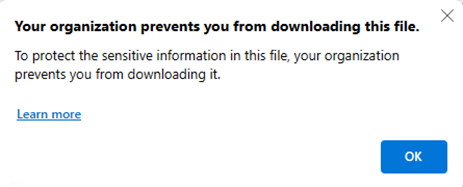
Your organization prevents you from downloading this file: Appears when the applied Level 3 policy blocks downloads.
Offline Grace Period Expired: Appears when Intune determines the user is offline longer than the allowed period.


Next step

Continue with Step 8 to troubleshoot Microsoft Edge for Business.