Note
Access to this page requires authorization. You can try signing in or changing directories.
Access to this page requires authorization. You can try changing directories.
Using natural language and your own words, you can query and explore your Intune data. An intelligent search matches your request to available query views that are built into Intune.
These queries can have parameter inputs that you enter, like the platform or device-specific info. A Copilot summary summarizes the query results and provides recommendations you can consider based on the query results.
This feature can help with situations like finding devices based on your query, identifying users with compliance issues, finding devices that need updates, or finding specific apps or policies. You can use this data to help troubleshoot.
You can also use the query output to add users or devices to groups, and create custom reports. For example, you can find devices that are noncompliant and out of the grace period, and then add those devices to a group. You can then target apps and policies to this group.
Before you begin
To explore your data using this capability:
- Security Copilot must be enabled in your tenant.
- Sign into the Intune admin center with an account that has access to Security Copilot with a Copilot owner or Copilot contributor role.
To learn more about the prerequisites for using Microsoft Copilot in Intune, see Microsoft Copilot in Intune overview.
As you explore, the data you see is scoped to your Intune permissions. Some of the data is retrieved from Microsoft Graph using your permissions. If you don't have permissions to view a resource, then it isn't included in the results. Data from Intune and Microsoft Entra are most commonly used.
Explore your data
The best way to explore is to ask your specific questions in natural language. The intelligent search helps you find a query that matches your request. A Copilot summary with a query explanation and suggestions helps you understand and navigate the results.
There are also built-in examples that help you understand the kinds of questions you can ask. Your search is matched to available query views, with more queries continually being added.
1 - Start exploring
In the Intune admin center, select Explorer. When it opens, you see a prompt input.

2 - Type a request in natural language
In the prompt box, type your request in natural language. When you start typing, a drop-down list of prompts similar to your text is shown. These prompts are built into Intune and list the kinds of questions you can ask.
Select the prompt that best matches your request, or continue typing for more suggestions. For example, start typing what are the top 5 apps. As you type, a list of suggestions is shown. Continue typing to make your request more specific. Or, try different natural language text if you don't find what you're looking for.

What data can I explore?
You can explore several Intune resources and the relationships between them. The areas you can ask about, the queries, and the query capabilities continue to evolve as we add more data coverage and exploration features. The areas you can explore include:
- Advanced Analytics
- App configuration and app protection
- Apps
- Audit logs
- Compliance
- Device Configuration
- Device updates
- Devices (device properties)
- Endpoint Privilege Management
- Role based access control (RBAC)
- Users and groups
- Windows Autopilot deployments
3 - Use the built-in examples
There are also built-in examples that you can use. You can filter the examples by category to find an example that best matches your request. The examples help you understand the types of requests you can make.
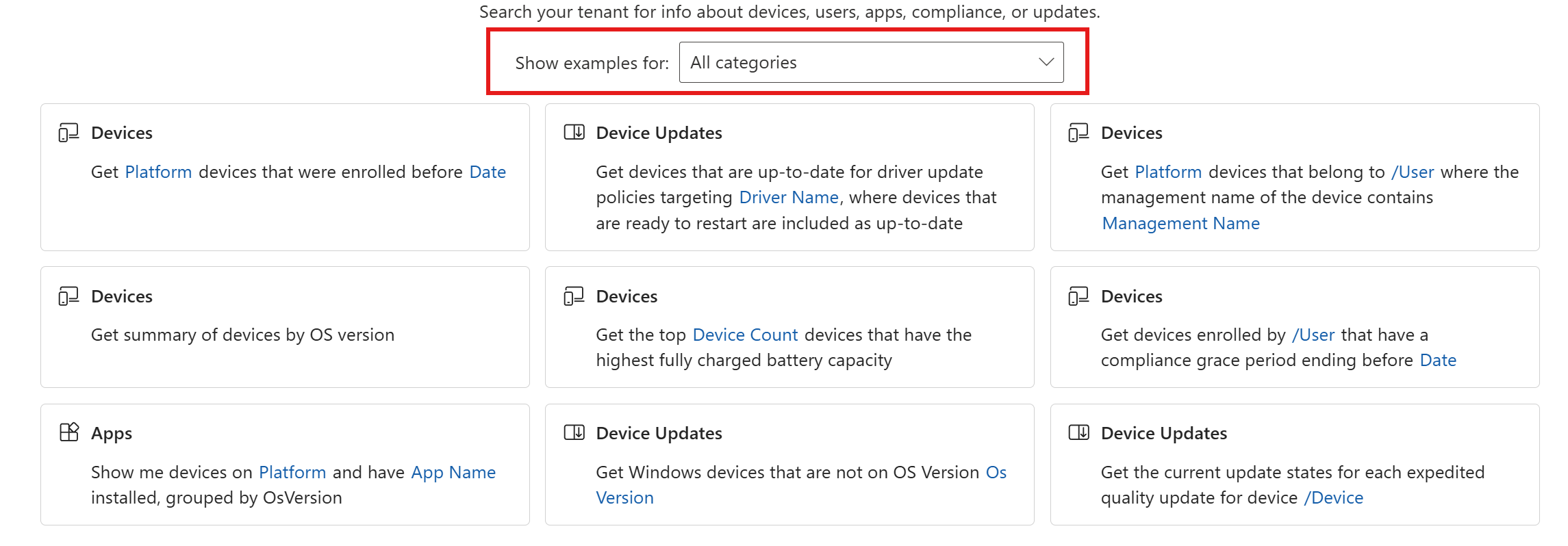
The examples include parameter inputs that you enter. For example, if you select the Compliance category, there's a list of queries related to compliance. You can select one of the examples, like Get Platform devices that are noncompliant... In the prompt, select a platform. The prompt is updated to show the platform.

4 - Get results
The Get results button runs your query. Copilot summarizes and helps you understand the results, suggests other queries that could help, and recommends actions you can take based on the query results.

5 - Take action
In the query results, you can export the results and select an item that goes to its individual resource page with more information. If your query results are a list of users or devices, you can add them to a group, and target apps and policies to this group.

When you add to a group, you can select an existing group or create a new group. When finished, a progress report is automatically created. If you want to keep the report, export it now, as the report isn't available again.
In the following example, a query found noncompliant devices that are past the grace period. These devices are added to a group. Some devices failed to be added to the group, and the Status detail shows the reason why. You can use the Add filters option to filter the results, like the devices that were successfully added to the group.

Feedback and future updates
This data exploration capability is constantly improving. We continue to add more areas of Intune data that you can explore, more data coverage in each area, more querying capabilities and interaction with Copilot, more Intune data sources, and more actions. We want your feedback as we make improvements, including any capabilities you want to see and missing queries that you need.
