Note
Access to this page requires authorization. You can try signing in or changing directories.
Access to this page requires authorization. You can try changing directories.
In this article, you create a user and then assign the user an Intune license. When you use Intune, each person you want to have access to company data must have their own user account. To manage access control, Intune admins can configure users at any time.
This article is part of an Evaluate and Try series that helps you evaluate Microsoft Intune's capabilities.
Prerequisites
 Licensing requirements
- A Microsoft Intune subscription. Sign up for a free trial account.
 Roles requirements
Sign into the Microsoft Intune admin center and the Microsoft 365 admin center with the following role:
- Built-in User Administrator Microsoft Entra role
Create a user
A user needs a user account to enroll in Intune device management. You use this user account in other steps in this series.
To create a new user:
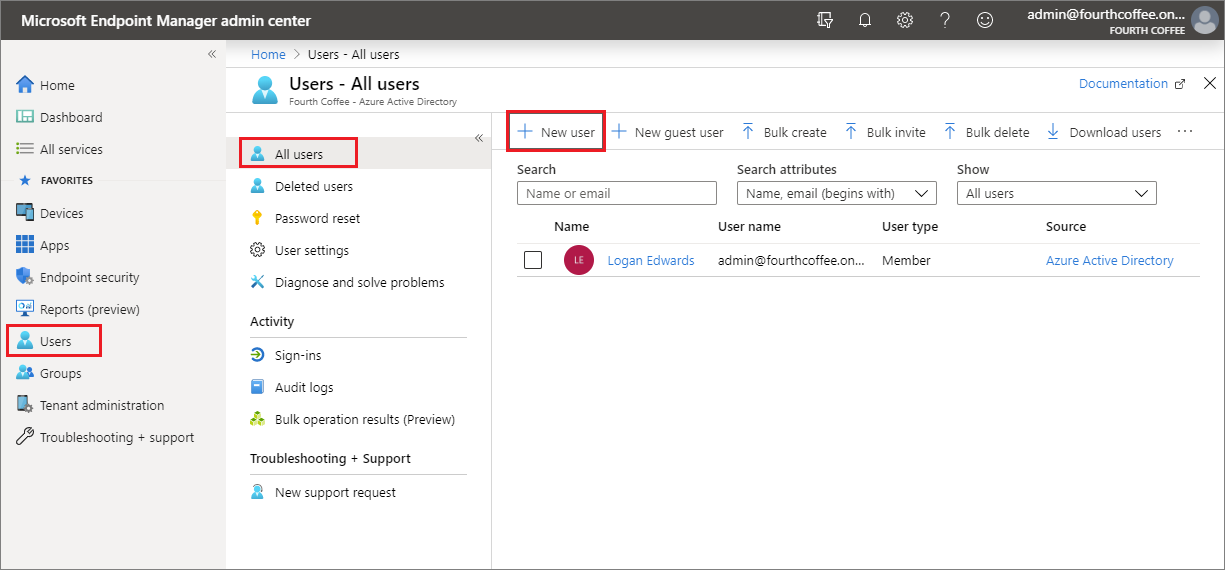
In the Microsoft Intune admin center, select Users > All users > New user:
In the Name box, enter a name, such as Dewey Kellum:
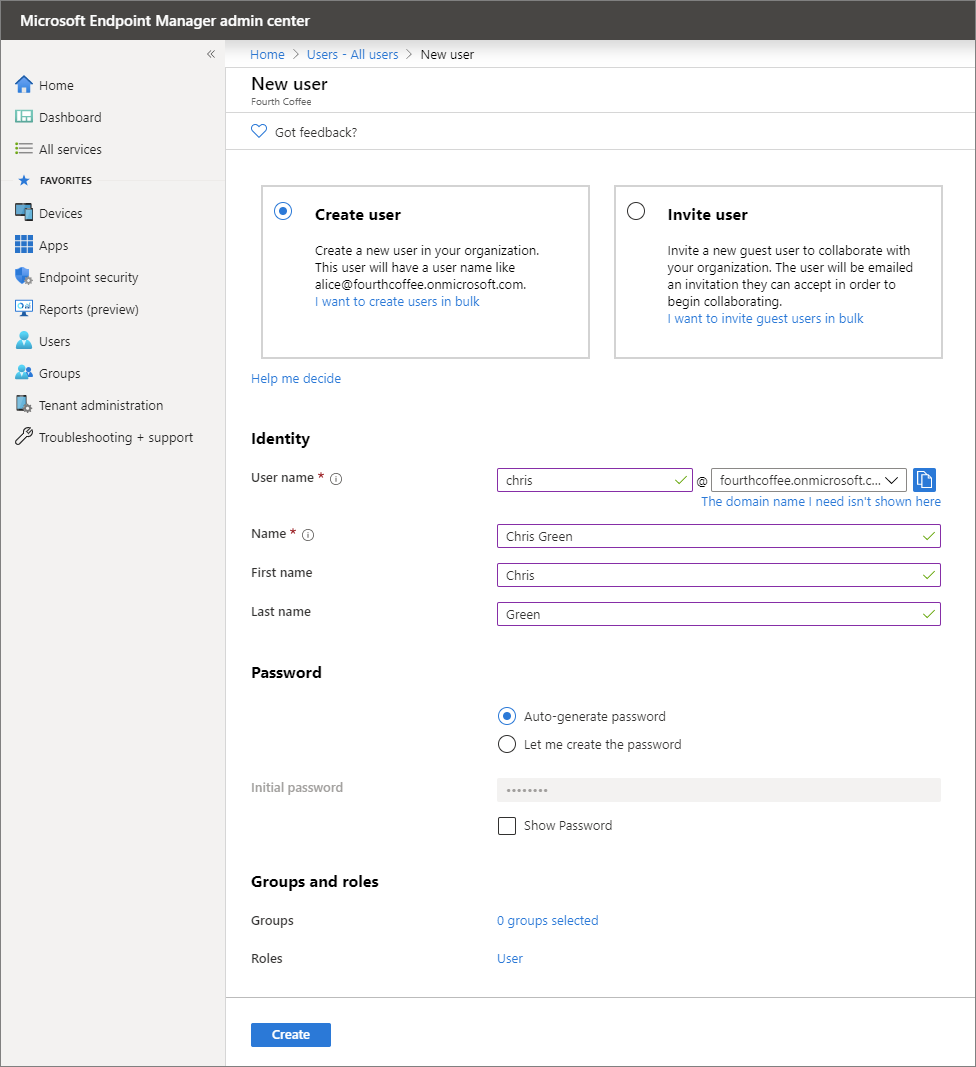
In the User name box, enter a user identifier, such as
Dewey@contoso.onmicrosoft.com.Note
If you didn't configure your customer domain name, use the verified domain name you used to create the Intune subscription (or free trial).
Select Show password and remember the automatically generated password so that you can sign in to a test device.
Select Create.
Assign a license to a user
After you create a user, assign an Intune license to the user in the Microsoft 365 admin center. When you assign a license, the user can enroll their device into Intune.
To assign an Intune license to a user:
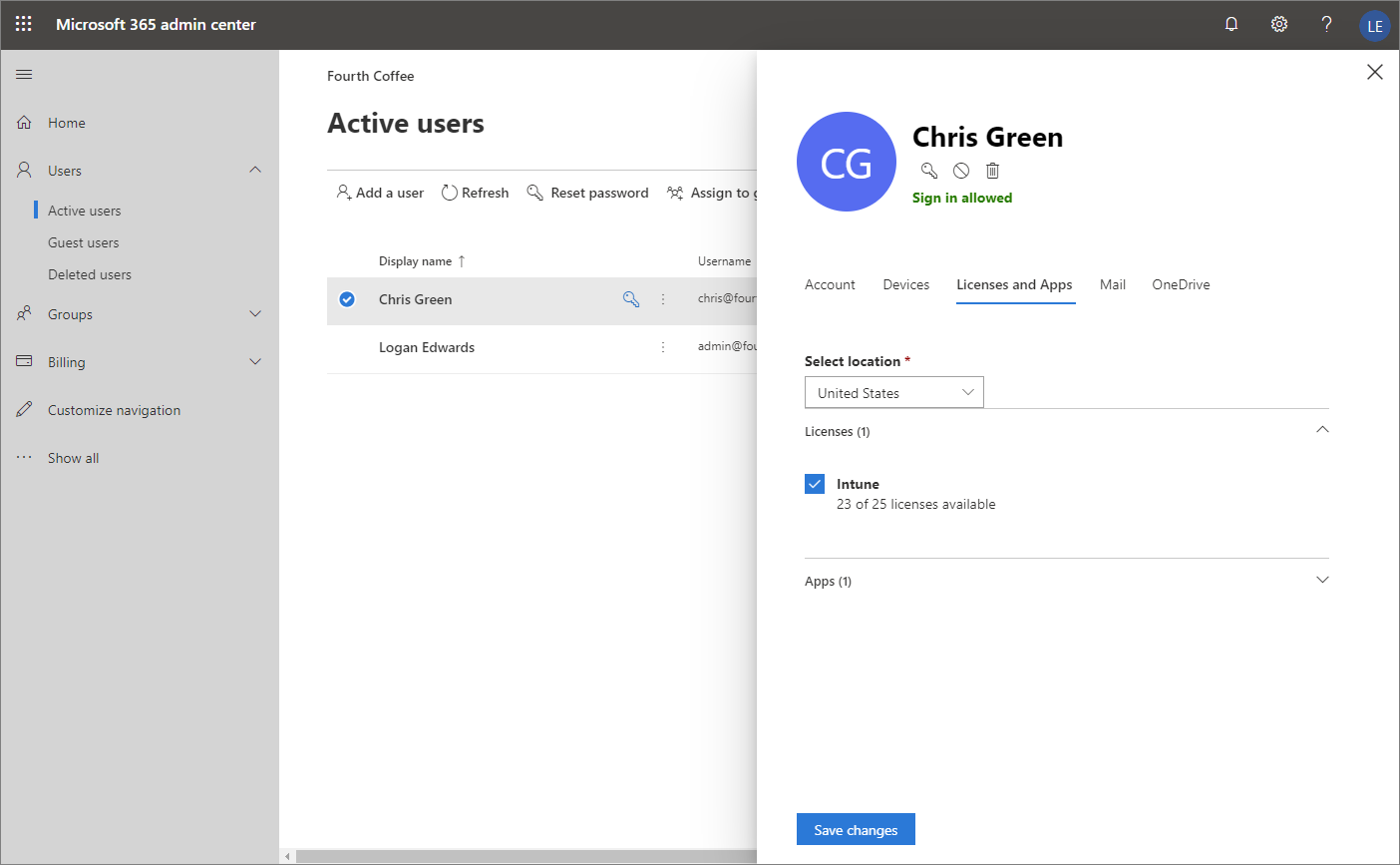
In the Microsoft 365 admin center, select Users > Active Users, and then select the user you created.
Select the Licenses and Apps tab.
In Select location, select a location for the user. It might be already set.
In Licenses, select the Intune check box. You can select any other license that includes Intune. The product name you see is also the service plan in Azure management.
Note
This setting uses one of your licenses for the user. If you're using a trial environment, you reassign this license to a real user in a live environment.
Select Save changes.
The new active Intune user shows that they're using an Intune license.
For more information, see Add users individually or in bulk.
Assign licenses to many users or groups
The following steps allow you to assign Intune licenses to multiple users all at once:
In the Microsoft 365 admin center, select Billing > Licenses. You see all licensable products that are available for your organization.
Select the license you want to assign.
Select Users or Groups, and then select Assign licenses.
Select all the users or all the groups you want to assign the license to > Assign licenses. A notification shows the status and outcome of the process. If the assignment to the group can't be completed (for example, because of preexisting licenses in the group), you can select the notification to view details.
The user accounts now have the permissions needed to use the service and enroll devices into management.
Tip
You can also assign Intune licenses to users by using School Data Sync (SDS). For more information, see Overview of School Data Sync.
Clean up resources
You can continue using this user in other steps of this series. When finished with this series, you can delete the user.
To delete the user:
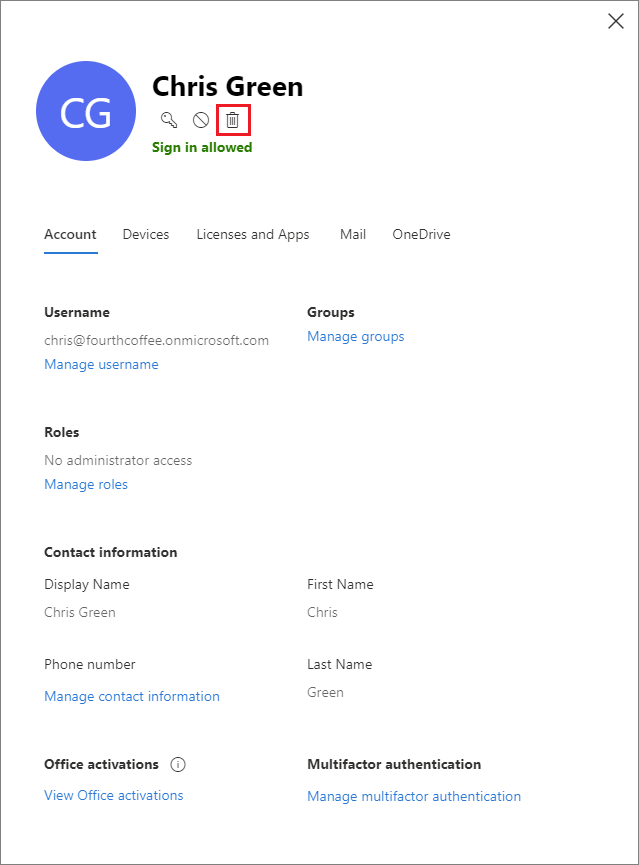
In the Microsoft 365 admin center, select Users > Active users.
Select the user you want to delete > Delete user > Close.
Next steps
In this article, you created a user and assigned an Intune license to that user. For more information on adding users to Intune, see Add users and grant administrative permission to Intune.
To continue evaluating Microsoft Intune, go to the next step: