Note
Access to this page requires authorization. You can try signing in or changing directories.
Access to this page requires authorization. You can try changing directories.
Tip
Some of the URLs in this article will take you to another document set. If you would like to maintain your place in this document set's table of contents, right click the URLs to open them in a new window.
After you create your education tenant and added domains, you're ready to configure the admin settings.
Navigate to portal.office.com and sign in with your admin credentials.
Select the app launcher on the top left of the screen.

In the menu, select Admin and then select Show all. All your Admin Centers are now in view on the bottom left.


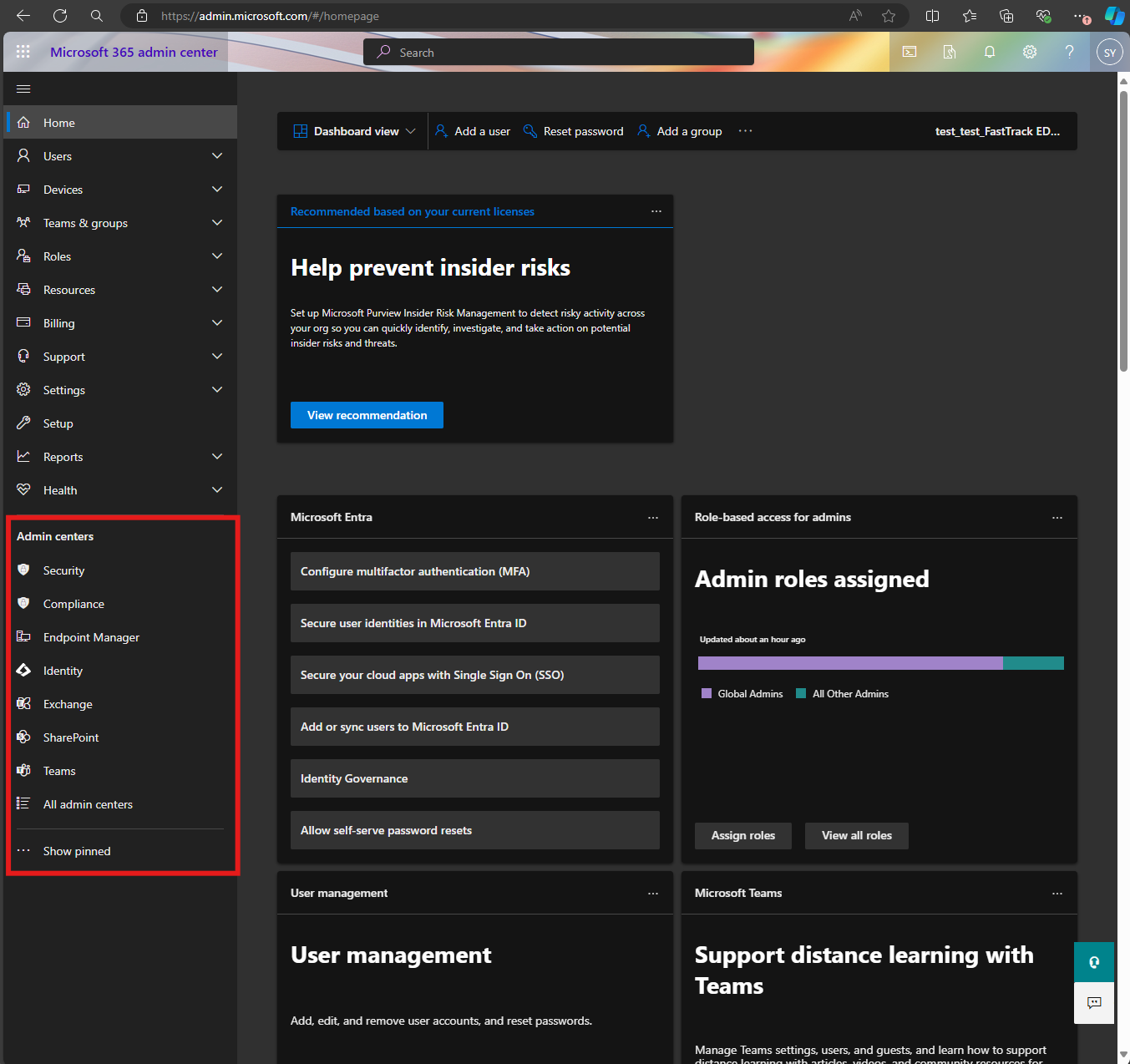
You can now configure your settings in each Admin Center.
Security Center
Education organizations are the #1 cyber-security target in all industries. Security for faculty, teachers, and students should be a primary goal for every organization, emphasizing data, devices, access, and Copilot AI settings.
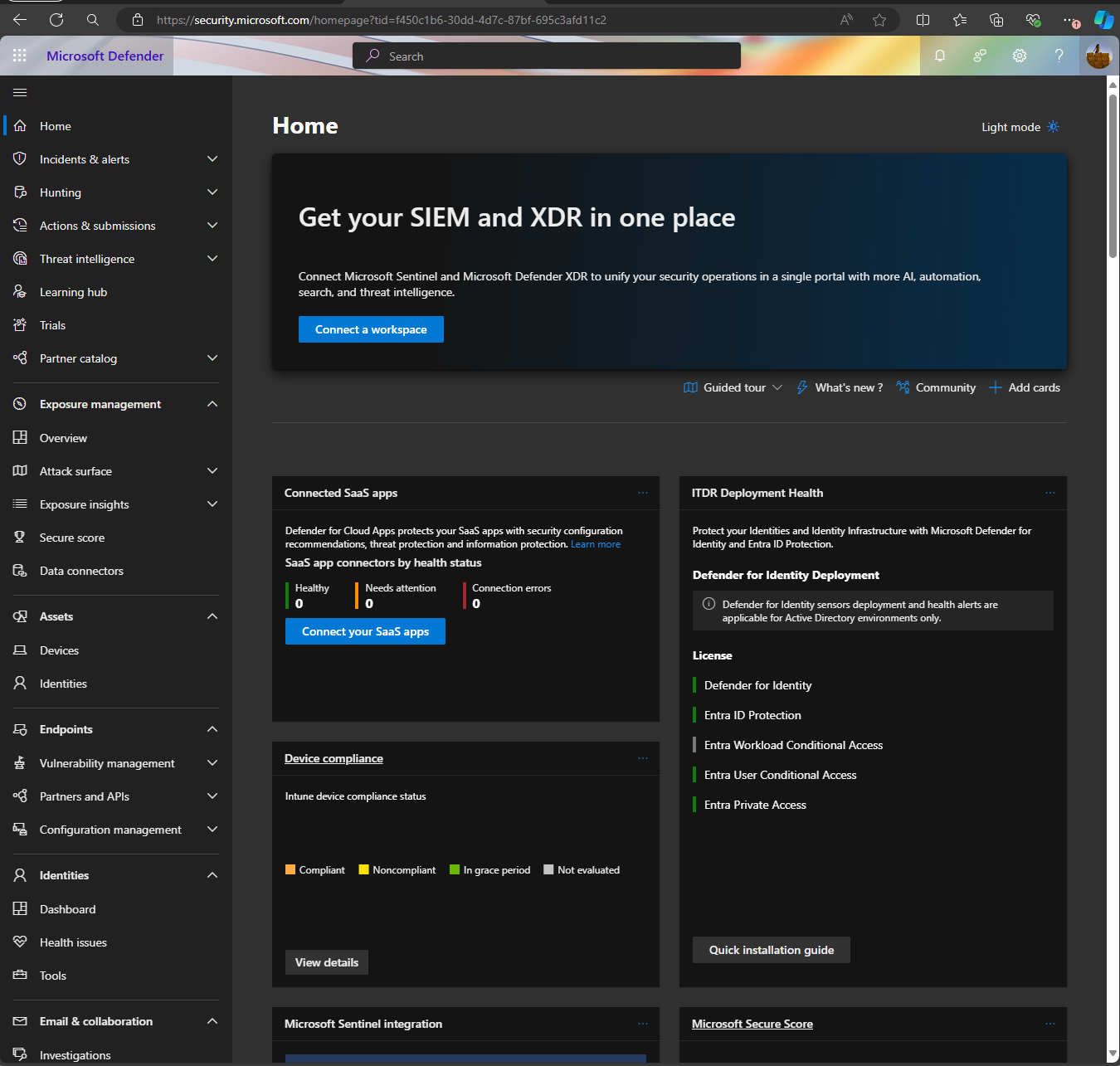
Microsoft Purview portal
In the Microsoft Purview portal, you can adjust privacy and compliance with considerations for Family Education Rights and Privacy Act (FERPA) (US) and General Data Protection Regulation (GDPR) (EU). You can also use auditing and reporting capabilities to evaluate compliance status.

Microsoft Entra ID
Education organizations can use Microsoft Entra ID to grant/deny access to users and managing administrative units and security groups for segmentation that can be included in features like information barriers. Use the Microsoft Entra admin center to manage identities, permissions, and network access.

Exchange
In the Exchange admin center, you can manage advanced email settings, such as quarantine, encryption, and mail flow rules.
You can use Exchange addresses to allow segregation of teachers and students based on your organizations strategy in conjunction with information barriers.

SharePoint
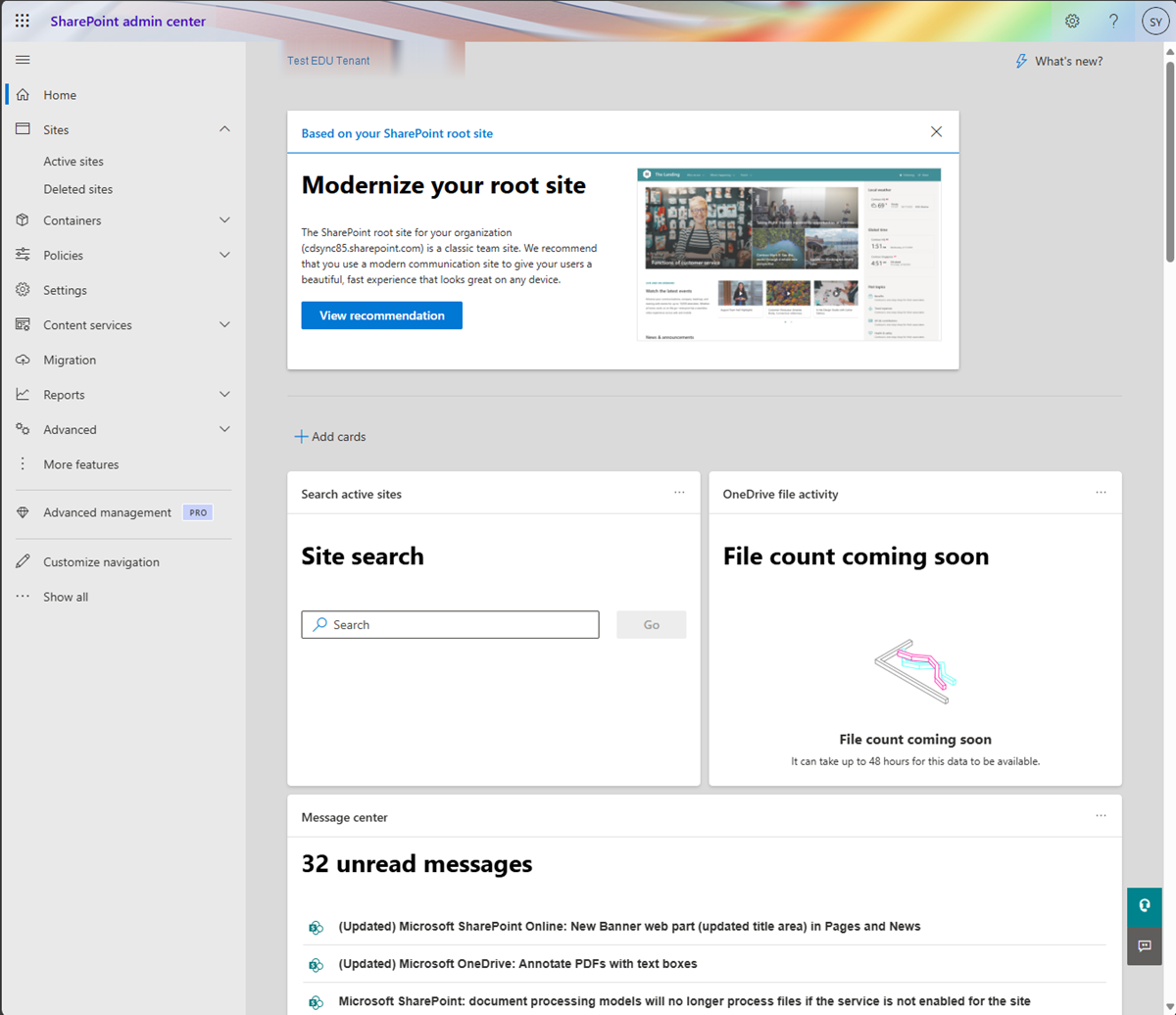
SharePoint works as the file storage solution in conjunction with Microsoft Teams Classroom and Microsoft Education Assignments. Additionally, OneDrive allows users in education organizations a location for personal and shared files.
Microsoft Teams
Microsoft Teams is a platform for classroom engagement and uses tenant services to provide secure access and management of education classes.

Other admin centers
You can select All admin centers to configure other admin centers as well.

Next steps
Next, you're ready to secure and configure your network.